How to Organize Files on Android: Folders, Names, Backups
A practical system for sorting, naming, finding, and backing up files on your Android phone, plus how to move or delete files without losing anything.
On this page
Most Android phones slowly turn into a pile of screenshots, PDFs, voice notes, and downloads that nobody remembers saving. The phone still works, but finding a specific file takes longer each month, and backups become guesswork.
This guide walks you through a simple system you can set up in an afternoon and maintain in a few minutes a week. It works with whatever file manager your phone already has, so you don't need to install anything to get started.
Start with a quick look at what you have
Before creating new folders, spend ten minutes seeing where your files actually live. Open your phone's built-in file manager (often called Files or My Files) and look at internal storage. You'll usually find these standard folders:
- DCIM – photos and videos from the camera
- Pictures – screenshots and images saved by other apps
- Download – anything saved from a browser or many messaging apps
- Documents – PDFs, text files, and office documents (often underused)
- Music, Movies, Recordings – media files, depending on your phone
Many file managers also have a storage or "clean up" view that shows which categories take the most space. Note the two or three biggest problem areas. For most people, that's Download and the camera folder.
A word of caution: leave folders created by apps (for example, a messaging app's media folder) where they are. Apps expect their files in specific places, and moving them can break the app or hide files from it.
Sort files by purpose, not by type
Android already groups files by type: images, audio, documents. That's useful for browsing, but it doesn't help when you need "the lease agreement" or "last year's tax receipts." A purpose-based structure answers the question why do I have this file?
A good starting set of top-level categories:
- Personal – ID scans, medical records, certificates
- Finance – receipts, invoices, bank statements, tax documents
- Work or School – project files, notes, assignments
- Home – manuals, warranties, rental or utility documents
- Media – photos and videos you want to keep long term, sorted beyond the camera roll
- Inbox – a temporary landing spot for things you haven't sorted yet
Keep the list short. Five to seven top-level folders is plenty. If you can't decide where a file belongs within a few seconds, your categories are too fine-grained.
Where to put your structure
The Documents folder is a sensible home for your purpose-based folders, because it's a standard location that backup tools and other apps recognize. Leave camera photos in DCIM; you can organize keepers separately (more on that below).
Name files so you can find them later
Good names make search work. A file called IMG_20240312_0931.jpg or document(3).pdf tells you nothing. A consistent pattern solves this.
A reliable naming formula:
YYYY-MM-DD_topic_detail.ext
For example:
2024-03-12_receipt_laptop-repair.pdf2024-01-05_lease_apartment-renewal.pdf2023-11-20_passport_scan.jpg
Why this works:
- Dates first in year-month-day order (the ISO 8601 format) means files sort in chronological order automatically.
- Topic next groups similar files when you search for words like "receipt" or "lease."
- Short and specific – avoid long sentences, and skip words like "final" or "new," which stop being true quickly.
A few practical rules:
- Use hyphens or underscores instead of spaces. Some apps and computers handle spaces awkwardly.
- Avoid special characters such as
/ \ : * ? " < > |. They can cause errors when you copy files to a computer or cloud service. - If you have versions, add
v1,v2at the end rather than "final" and "final-final."
You don't need to rename every old file. Apply the pattern to new files and to anything important you touch during cleanup.
Build a folder structure that stays shallow
Deep folder trees are hard to navigate on a small screen. Every extra level is one more tap and one more place a file can hide.
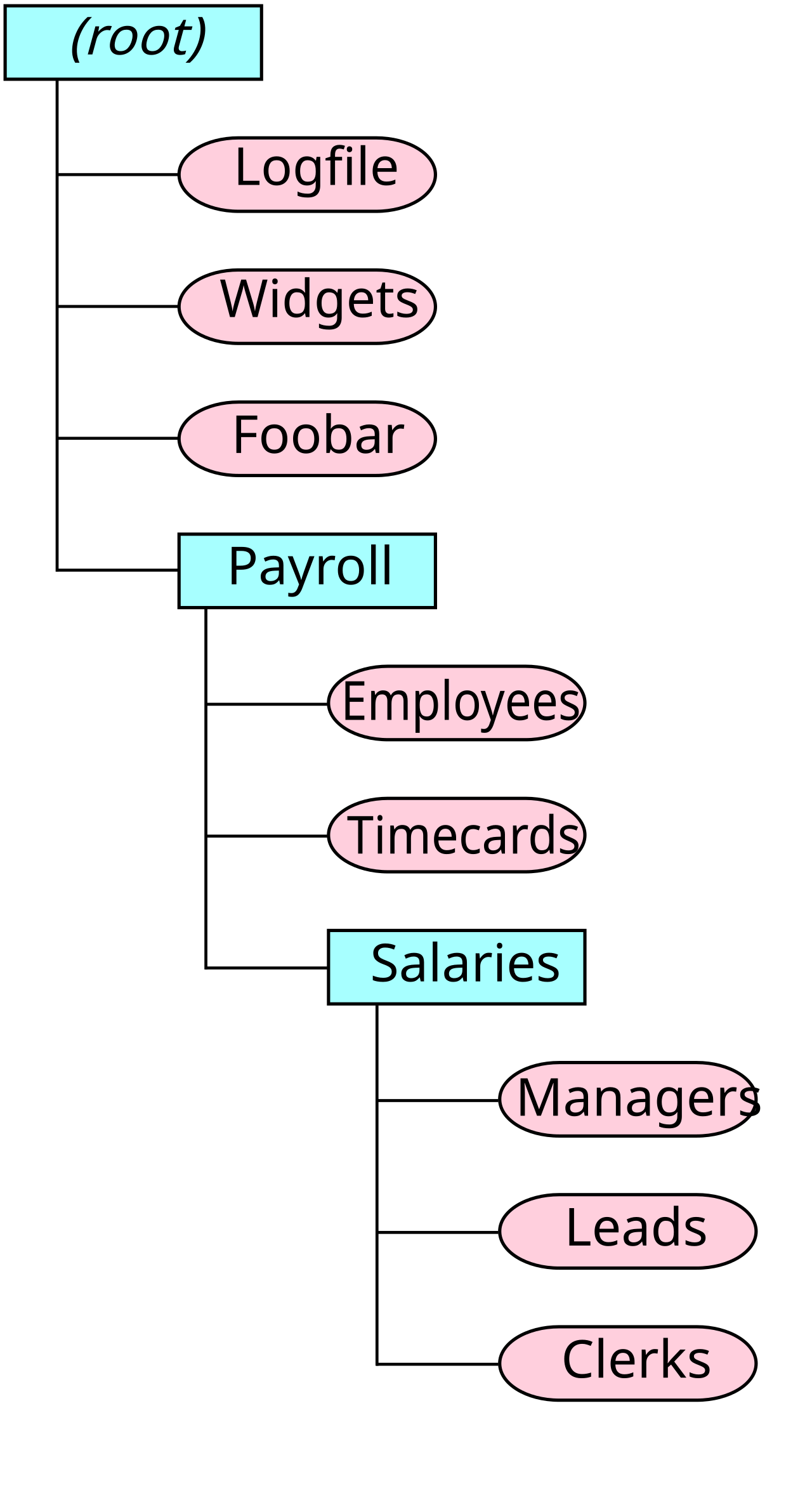 A folder hierarchy: folders (rectangles) contain files (ovals) and further folders. Image: TotoBaggins, CC BY-SA 3.0, via Wikimedia Commons.

Aim for no more than three levels:
Documents/
  Finance/
    2024/
    2023/
  Home/
    Manuals/
    Warranties/
  Personal/
  Work/
  Inbox/
Year folders work well for anything that accumulates over time, such as receipts or statements. For everything else, a single level inside each category is usually enough.
If your file manager supports favorites or bookmarks, pin the folders you open most often (Inbox, Finance, Work) so you can jump to them in one tap.
Tame the Download folder
The Download folder is where clutter grows fastest. Browsers, email, and chat apps all drop files there, and nothing ever leaves.
A simple routine:
- Treat Download as temporary. Anything in it is unsorted by definition.
- Once a week, go through it. Sort by date so the newest files are at the top.
- For each file, make one decision: move it to a category folder, or delete it.
- Delete installers and one-time files. APK files, boarding passes for past trips, and duplicate PDFs rarely need to stay.
If your browser lets you choose the download location, you can point it to your Inbox folder instead. That keeps all unsorted files in one place you control. Either way, the habit matters more than the location.
Organize photos without breaking your gallery
Photos are usually the largest share of storage. Moving camera files around can confuse gallery and backup apps, so a gentler approach works better:
- Delete first. Remove blurry shots, duplicates, and screenshots you no longer need.
- Use albums in your gallery app for grouping, instead of physically moving files out of DCIM.
- Copy keepers to Media only when you want a curated set, such as scanned documents or family photos you plan to archive.
Photo metadata can help here. Most photos contain EXIF data such as the date taken and camera details, which many apps use to sort images. If dates are wrong (common with images received through messaging apps or scanned prints), a metadata editor like Photo EXIF Editor lets you view and batch-edit EXIF data so photos sort correctly. It can also change or remove the GPS location, which is worth doing before you share or archive photos you don't want tied to a place. Our photo privacy checklist covers what else to check.
If you also handle videos or audio, or need fuller metadata control, EXIF Pro: ExifTool for Android can view, edit, and remove EXIF, XMP, IPTC, GPS, and other metadata across many file types.
Dealing with HEIC and other formats
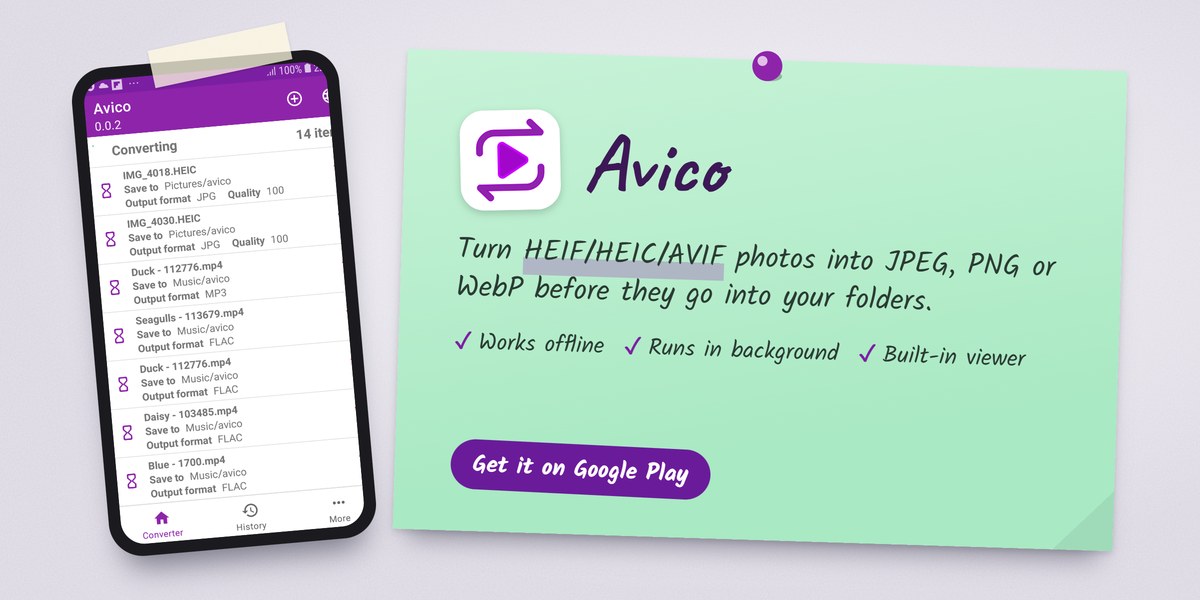
Some cameras and phones save images as HEIF/HEIC, and some websites use AVIF. These formats save space, but not every app, computer, or upload form accepts them. Rather than keeping two copies scattered around, convert only what you need. Avico converts HEIF/HEIC/AVIF images to JPEG, PNG, or WebP, and also converts audio and video files. It works offline, keeps converting in the background, and includes a built-in media viewer, so you can check results before moving them into your folders. See How to convert HEIC photos to JPG on Android for a step-by-step walkthrough.
Find files quickly
Even with good organization, search is often the fastest route. A few tips:
- Search by the topic word in your naming pattern, such as "receipt" or "warranty." This is where consistent names pay off.
- Use filters in your file manager to narrow by type (documents, images, audio) or by recent date.
- Check "Recent" first. If you saved something in the last few days, it's usually there.
- Look for app-specific folders if a file came from a messaging app. Those often save to their own media folders rather than to Download.
If a file doesn't show up in search, it may have been saved inside an app's private storage, which file managers usually can't see on recent Android versions. In that case, open the original app and use its export or share option to save a copy into your folders.
Back up what matters
Organization makes backups easier, because your important files are now in predictable places. Focus on the folders you can't recreate: Personal, Finance, Work, and your photos.
A practical approach:
- Cloud backup for photos. Most gallery or photo apps offer automatic backup. Turn it on and confirm it's actually running.
- Cloud sync for your Documents folders. Use the cloud storage service you already trust and sync the category folders you care about.
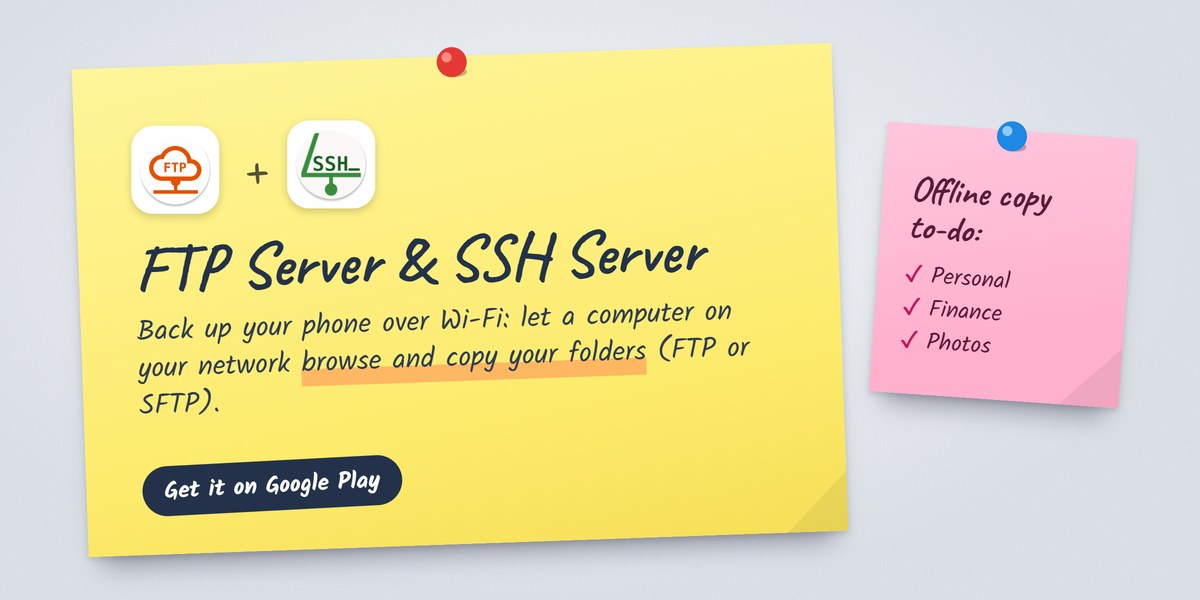
- An offline copy. Every few months, copy important folders to a computer, an external drive, or a memory card. This protects you if a cloud account is locked or a sync goes wrong. A USB cable works, and so does Wi-Fi: FTP Server or SSH Server (for SFTP) lets a computer on your network browse and copy your phone's folders. See How to transfer files between Android and PC using FTP.
- Test a restore. Open a few backed-up files from another device to make sure they're complete and readable.
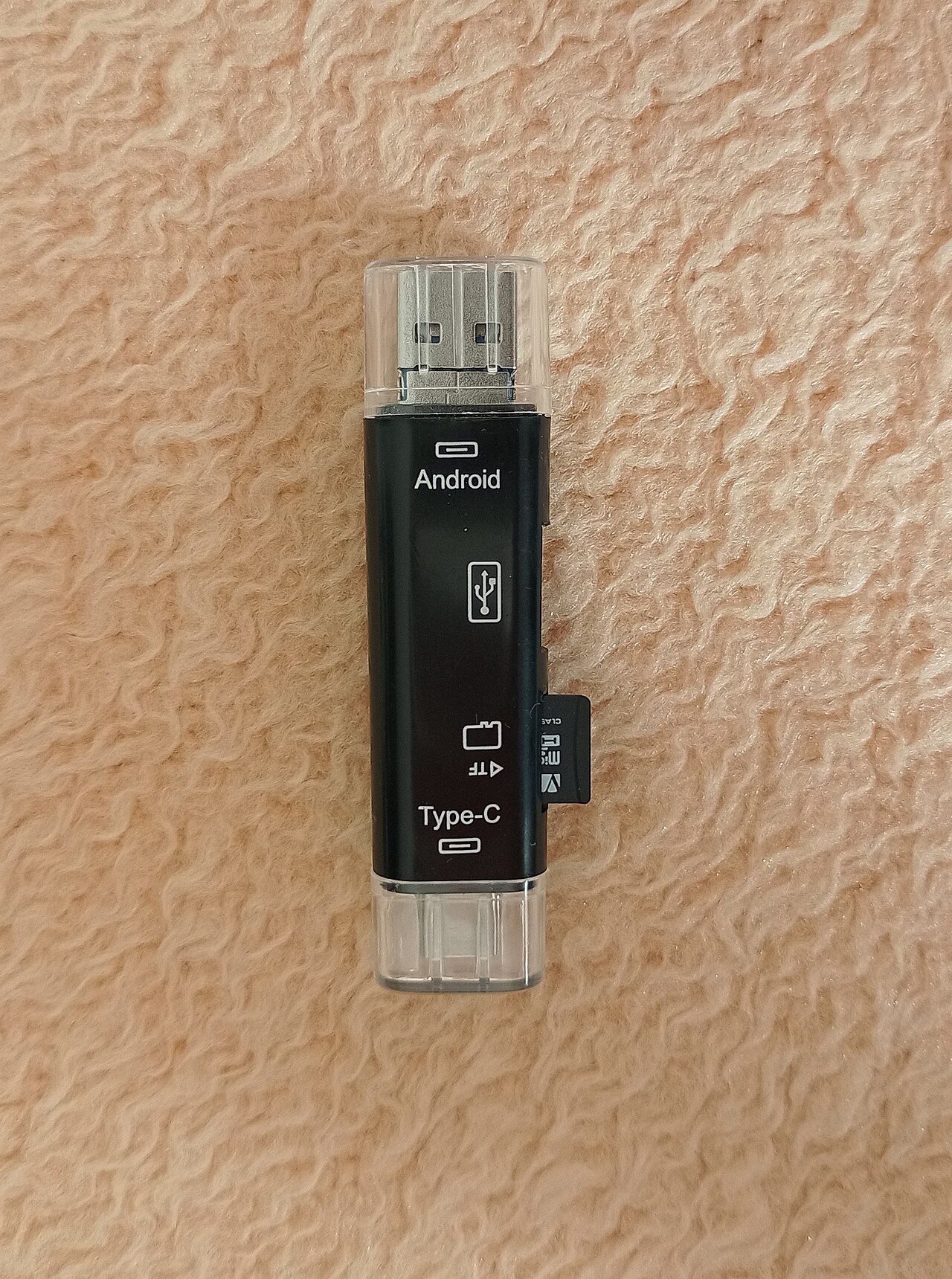 A USB OTG card reader lets many Android phones copy files straight to a memory card or USB drive. Image: Momčilo Stokanovic, CC BY-SA 4.0, via Wikimedia Commons.

A common rule of thumb is the 3-2-1 rule: three copies of your data, on two different kinds of storage, with one kept somewhere else. At the very least, keep two copies in different places, with one of them not on your phone.
Be careful when moving or deleting files
Most file losses happen during cleanup, not during everyday use. Keep these in mind:
- Copy, then delete, for important files. Moving across storage locations (for example, to an SD card or USB drive) can fail partway. Copying first and verifying the result is safer.
- Don't move app folders. Files that belong to apps should stay where the app put them.
- Check before emptying trash. Many file managers and gallery apps have a trash or recycle bin. Review it before emptying, since that's often your last chance to recover a file.
- Watch out for sync. Deleting a file on your phone may delete it from your cloud backup too, depending on how sync is set up. Know whether your service syncs deletions.
- Avoid bulk-deleting by type. Selecting "all images" or "all large files" in a cleanup tool can include things you want. Review the selection first.
- Keep the phone charged during large transfers so a shutdown doesn't interrupt the process.
A five-minute weekly routine
Once your system is set up, keeping it tidy takes very little effort:
- Empty Download or Inbox into category folders, or delete.
- Rename any important new files with the date-topic pattern.
- Delete screenshots and duplicate photos you don't need.
- Glance at your backup app to confirm it ran recently.
That's it. A shallow structure, consistent names, and a weekly sweep will keep your Android phone organized without turning file management into a hobby.
Related app
SSH Server
Turn Android into an SSH & SFTP Server with a Full Terminal
Related posts

Image Resolution vs Image Quality: What's the Difference?
More pixels don't guarantee a better photo. Learn how pixel dimensions, resolution and compression differ, and how to pick the right format and quality.
How to Convert HEIC Photos to JPG on Android
Learn what HEIC and JPG are, how to convert HEIC photos to JPG on Android with a converter app or built-in tools, how to check the results, and what to do when conversion fails.
What Is EXIF Data and What Can It Reveal About Your Photos?
Learn what EXIF metadata is, what it records about your photos, why some images lack it, and how to check and clean it before sharing.