What Is EXIF Data and What Can It Reveal About Your Photos?
Learn what EXIF metadata is, what it records about your photos, why some images lack it, and how to check and clean it before sharing.
On this page
Every time you take a photo with your phone, the camera saves more than just the image. Tucked inside the file is a block of hidden information describing how, when, and often where the picture was taken. That information is called EXIF data, and most people never see it.
This guide explains what EXIF is, what it usually contains, why some photos have much more of it than others, and what to think about before you share a photo with anyone.
What is EXIF?
EXIF stands for Exchangeable Image File Format. It is a standard way of storing metadata, which simply means "data about data," inside image files. Cameras and phones write EXIF information into photos at the moment they are captured. It is most common in JPEG files, though other formats such as HEIC, TIFF, and many RAW formats carry similar information.
EXIF is not the only type of metadata a photo can carry. You may also come across:
- XMP: a flexible format often used by editing software to store edits, ratings, and descriptions.
- IPTC: a format widely used in journalism and stock photography for captions, keywords, credits, and copyright notices.
In everyday conversation, people often say "EXIF" to mean all of this hidden information together. Technically they are separate, but they live side by side in the same file and raise the same questions about what you are sharing.
What information does EXIF usually contain?
The exact fields depend on the device and the app that created the photo, but most phone pictures include several familiar categories.
Camera make and model
EXIF usually records the manufacturer and model of the device that took the photo. On a phone, that means the brand and model name. Some files also include a lens description, and certain cameras store a serial number for the body or lens.
This is useful for photographers comparing gear, but it also reveals which device you own.
Date and time
Most photos store the date and time the picture was taken, and sometimes separate timestamps for when the file was digitized or last modified. Newer files may include a time zone offset as well.
Gallery apps rely on this data to sort your photos into a timeline. If the camera clock was wrong, or a file was edited by certain tools, these timestamps can be inaccurate.
Camera settings
This is the part photographers love. EXIF can describe exactly how the image was exposed:
- Aperture (f-number), which affects depth of field
- Shutter speed (exposure time)
- ISO, the sensor's sensitivity to light
- Focal length, sometimes with a 35mm-equivalent value
- Flash status, whether it fired or not
- White balance, metering mode, and exposure compensation
- Orientation, which tells viewers whether to rotate the image
- Image dimensions and sometimes the software used to process it
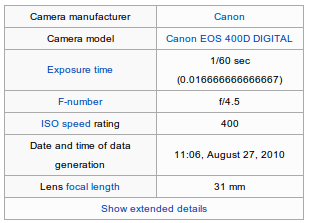 Typical camera fields stored in a photo's EXIF data. Image: ErrantX, CC BY-SA 4.0, via Wikimedia Commons.

If you have ever wondered how someone got a particular shot, these values tell much of the story.
GPS location
If location tagging is turned on in your camera app, the photo can include GPS coordinates: latitude, longitude, and sometimes altitude, direction, and a GPS timestamp. These coordinates are often precise enough to point to a specific building.
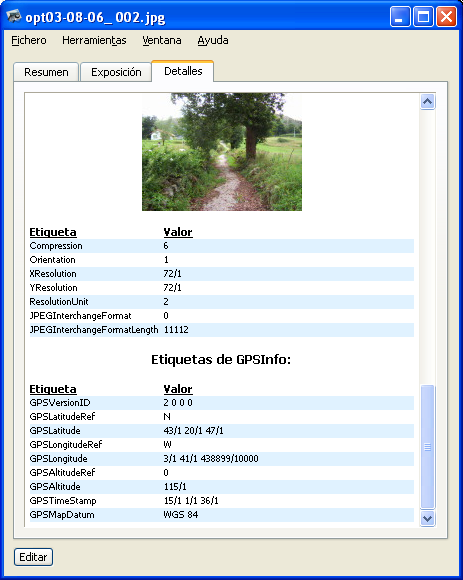 GPS tags (latitude, longitude, altitude, and time) shown in a desktop EXIF viewer. Image: Emilio Gómez Fernández, CC BY-SA 3.0, via Wikimedia Commons.

This is the most sensitive piece of EXIF data. A photo taken at home with location tagging enabled can effectively contain your home address.
Other details
Depending on the device, you may also find a small embedded thumbnail preview, an author or copyright field, the name of the editing software, and maker-specific notes that only certain tools can decode. The embedded thumbnail is worth remembering: in some cases it can show the original version of an image even after the main picture was cropped.
Why don't all photos have complete metadata?
If you inspect a few images, you will quickly notice that some are packed with details while others have almost nothing. There are several common reasons.
Location tagging was turned off
GPS coordinates are only saved if the camera app has location permission and its location tag setting is enabled. Many people switch this off, and many camera apps ask about it the first time you open them. No location setting, no GPS data.
Screenshots and generated images
Screenshots are not captured by a camera, so they generally lack camera settings and location. The same goes for images exported from design tools, many downloaded graphics, and images created by apps.
Social networks and messaging apps
Many social platforms and messaging services strip most metadata when you upload or send a photo, partly to protect privacy and partly to reduce file size. However, behavior varies between services and between ways of sending (for example, sending as a regular photo versus as a file or document), and it can change over time. Never assume a service will clean your photos for you.
Editing and conversion
Some editing apps preserve EXIF, some rewrite parts of it, and some discard it entirely when saving. Converting between formats, compressing images, or exporting from certain apps can also drop metadata.
Android permissions
Since Android 10, apps need a separate media location permission to read GPS data from your photos. Without it, Android hides the coordinates from that app, so the photo can look as if it has no location even when the coordinates are in the file. If a viewer app shows no GPS data, it does not always mean the data is absent. Our guide on managing app permissions on Android explains how to review these permissions.
Different devices, different fields
No device is required to fill in every field. Budget phones, older cameras, and scanners may write only a handful of basic values, while dedicated cameras can write dozens of maker-specific fields.
Privacy considerations before sharing photos
Metadata is not inherently bad. It helps you organize your library, remember where trips took place, and learn from your own photography. The problem is sharing it unintentionally. Here is what to keep in mind.
What a stranger could learn
From one photo with full metadata, someone could potentially learn:
- Where you live, work, or spend time, from GPS coordinates
- When you are usually at a given place, from timestamps
- What device you use
- Patterns over time, if you post many photos from the same places
Combined, these details can reveal far more than the picture itself.
Situations where you should check first
Take an extra moment before sharing photos in these cases:
- Selling items online: product photos taken at home can reveal your address.
- Photos of your children: especially at home, at school, or at regular activities.
- Sending files directly: email attachments, cloud links, and files sent "as documents" in messaging apps often keep all metadata intact.
- Posting on forums or personal websites: smaller sites may not strip metadata at all.
- Sharing original files with clients or collaborators: you may want to keep copyright information but remove location.
Simple habits that help
- Decide on location tagging. If you rarely need location in your photos, turn off location tagging in your camera app settings. You can always turn it back on for trips.
- Check before you share. Open the photo's details in your gallery app or a dedicated EXIF viewer to see what it contains.
- Remove what you don't need. Strip GPS data, or all metadata, from the copy you share. Keep the original with its metadata in your private library if you want it.
- Watch out for thumbnails. If you cropped out something sensitive, make sure the embedded thumbnail doesn't still show it. Removing metadata usually takes care of this.
- Don't rely on platforms. Even if a service strips metadata today, clean sensitive photos yourself.
For a step-by-step routine that also covers what's visible in the picture, see our photo privacy checklist.
Viewing and removing EXIF data on Android
Your phone's built-in gallery usually shows a few basic details, such as the date, resolution, and sometimes location, but rarely everything. For a complete view, and for editing or removal, a dedicated app is the easier option. We make two apps for this, depending on how deep you want to go.
Photo EXIF Editor
Photo EXIF Editor is built for everyday photo metadata tasks. It reads and writes EXIF in JPEG and PNG photos, lets you change or add GPS location on a map, and can edit or remove metadata on several photos at once. That makes it a practical choice when you want to:
- Quickly check whether a photo contains location data
- Remove GPS coordinates from a batch of photos before posting them
- Fix a wrong date or time caused by an incorrect camera clock
- Edit or clear camera information
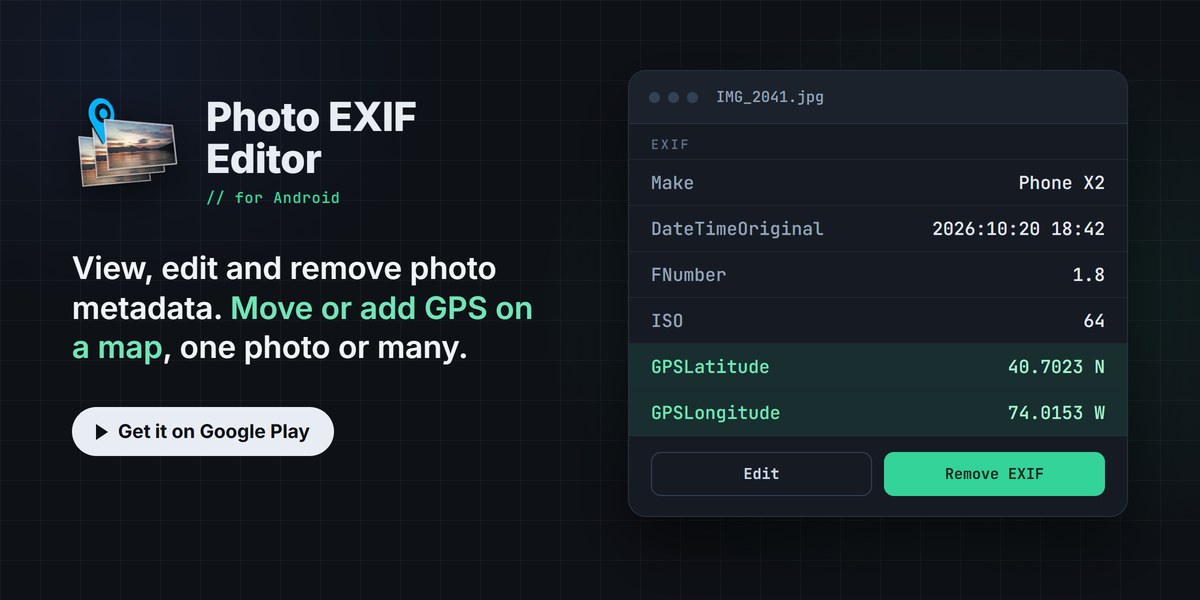
A typical workflow looks like this:
- Open Photo EXIF Editor and select one or more photos.
- Review the metadata, paying particular attention to the GPS section.
- Edit the fields you want to correct, or use Remove EXIF and choose which tags to remove.
- Save, then share the cleaned version.
If your photos are HEIC or AVIF, the app can convert them to JPEG or PNG while keeping their EXIF data, so you can then edit or clean them.
EXIF Pro: ExifTool for Android
EXIF Pro is aimed at people who need more than standard photo EXIF. Built on Phil Harvey's ExifTool, it can view, edit, and remove EXIF, XMP, IPTC, GPS, and many other kinds of metadata, and it works not only with photos but also with RAW files, videos, audio, and other file types. Consider it if you:
- Want to inspect XMP or IPTC fields, such as captions, keywords, or copyright data
- Need to clean metadata from videos or audio files, not just images
- Prefer a more detailed, technical view of everything a file contains
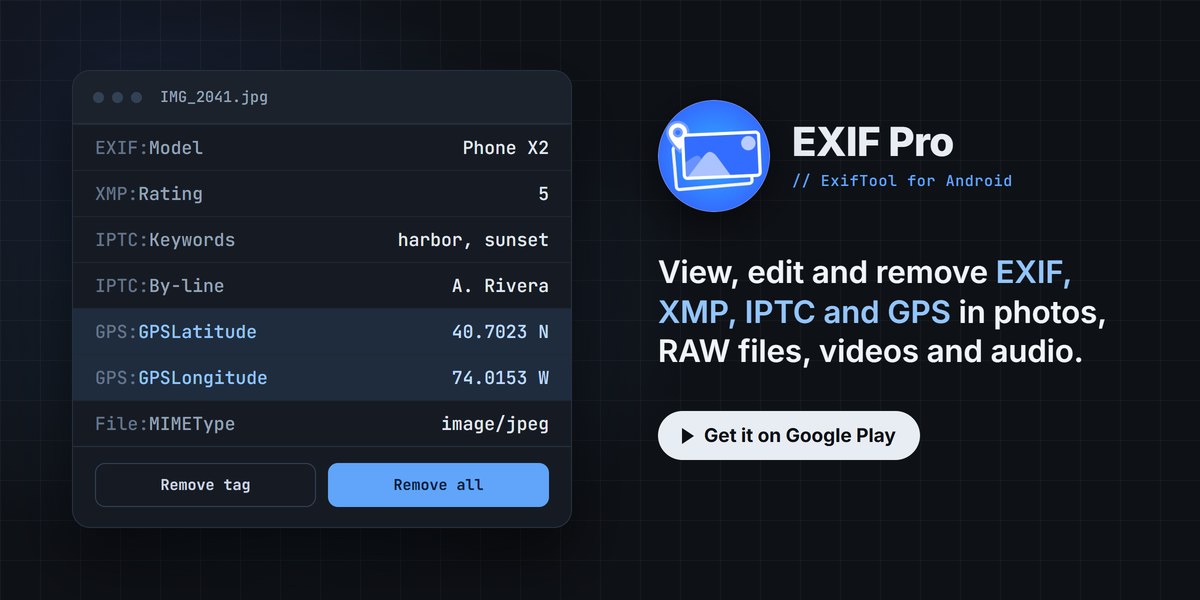
Videos deserve a special mention: they can carry location and device information too, and they are easy to forget when you think about privacy.
Quick recap
- EXIF is hidden metadata stored inside photos, alongside related formats such as XMP and IPTC.
- It commonly includes the camera make and model, date and time, exposure settings, and often GPS location.
- Not every photo has full metadata, because of camera settings, screenshots, editing, platform stripping, or app permissions.
- GPS data is the biggest privacy risk, especially in photos taken at home.
- Check and clean photos before sharing them, rather than relying on websites or messaging apps to do it for you.
Wondering how JPEG, PNG, HEIC, and the other formats differ? Our guide to common image file extensions explains each one.
A few seconds spent checking a photo's metadata can stop you from sharing much more than you intended. Keep the details you value in your own library, and send the world only the picture.
Related app
Photo EXIF Editor
View, edit and remove photo EXIF data and GPS location