How to Convert HEIC Photos to JPG on Android
Learn what HEIC and JPG are, how to convert HEIC photos to JPG on Android with a converter app or built-in tools, how to check the results, and what to do when conversion fails.
On this page
You copy a batch of photos from an iPhone, a friend sends you a few pictures, or you download images from cloud storage, and suddenly your Android phone shows files ending in .heic. Some apps open them fine. Others show a blank thumbnail, refuse to upload them, or crash. Converting those photos to JPG is usually the simplest fix.
This guide explains what HEIC and JPG are, how to prepare your files, how to convert them on Android, how to check the results, and what to do when something goes wrong.
What are HEIC and JPG?
HEIC
HEIC is a file format based on HEIF (High Efficiency Image File Format). It stores images compressed with HEVC (H.265), the same compression used for a lot of modern video. Apple made it the default camera format on iPhones with iOS 11 in 2017, and some Android phones can also shoot in HEIF to save space.
The main advantages of HEIC:
- Smaller files. A HEIC photo is often noticeably smaller than a JPG of similar visual quality.
- More features. The format can hold extra data such as depth maps, multiple images in one file, and higher bit depth for richer color.
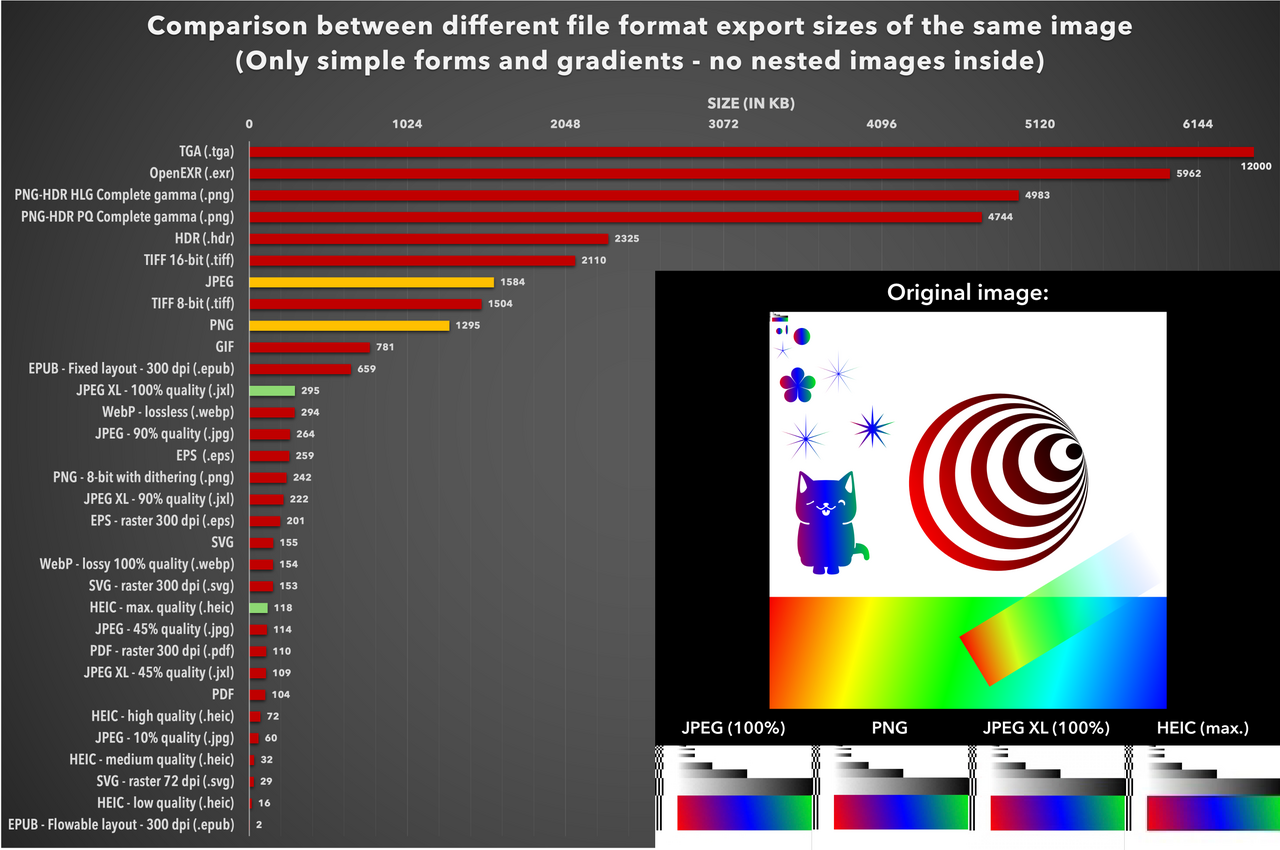 One test image exported in many formats: HEIC at maximum quality came out at less than half the size of a 90% quality JPEG. Image: LucaLindholm, CC BY 4.0, via Wikimedia Commons.
The main drawback is compatibility. Many websites, older apps, printers, and some desktop software still don't handle HEIC reliably.
JPG
JPG (also written JPEG) is the format almost everything understands. It has been the standard for digital photos for decades, and practically every gallery app, browser, social network, and photo printer supports it.
JPG files are usually larger than HEIC at the same visual quality, and the format supports fewer advanced features. But when you need a photo to simply work everywhere, JPG is the safe choice.
Why convert?
You'll want JPG when you need to:
- Upload photos to a website or form that rejects HEIC
- Share pictures with people on older devices
- Edit images in an app that doesn't open HEIC
- Print photos at a kiosk or online print service
- Archive photos in a format that will stay readable for a long time
Before you start: prepare your files
A little preparation prevents most conversion problems.
1. Make sure the files are fully on your phone
If your HEIC photos come from cloud storage, a file shown in your file manager may only be a placeholder until it is downloaded. Open your cloud app, make sure the photos are downloaded to local storage, or save them to a folder such as Pictures or Download.
If you transfer photos from an iPhone by cable or cloud, check whether they actually arrived as HEIC. Depending on the transfer method and the iPhone's settings, some photos may already have been converted to JPG along the way.
2. Check the file extension
Open your file manager and look at the file names. HEIC photos usually end in .heic or .heif. If you don't see extensions, look in the file manager's settings for an option to show them, or check the file's details screen. For a quick reference to other extensions you may run into, see Common image file extensions and what they mean.
3. Keep the originals
Conversion to JPG is lossy, and some HEIC features (like depth data or extended color) won't survive the trip. Before converting, keep a copy of the original HEIC files, either in a separate folder or in cloud storage. If the result isn't what you expected, you can try again with different settings.
4. Free up storage space
JPG files are often larger than their HEIC sources. If you're converting hundreds of photos, make sure you have enough free space. A rough rule: plan for the converted set to take more space than the originals.
5. Put the files in one folder
Gather everything you want to convert into a single folder. This makes batch selection easier and helps you find the results afterward.
How to convert HEIC to JPG on Android
There are a few ways to get the job done. Which one fits depends on how many photos you have and how much control you want.
Option 1: Use a converter app such as Avico
A dedicated converter app gives you the most control over quality and output location. Avico, from Banana Studio, converts HEIF/HEIC and AVIF images to JPEG, PNG or WebP (and back the other way). It works offline, so your photos never leave the phone, and it includes its own decoders, so it can read HEIC even on phones whose Android version can't. It runs on Android 5.0 and later.
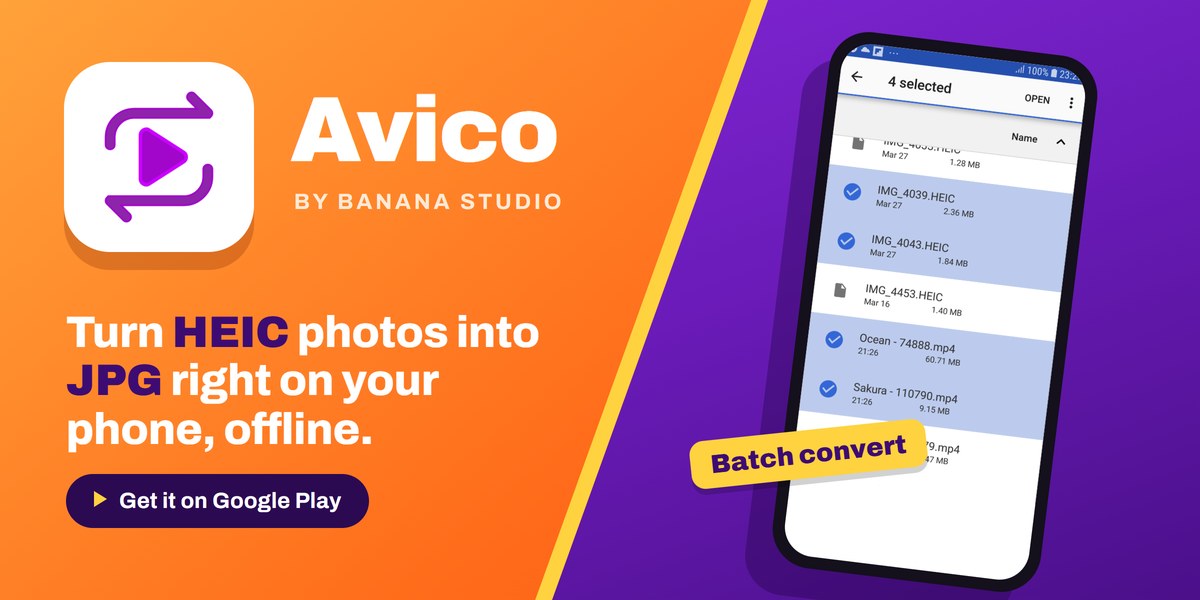
The workflow looks like this (exact labels can differ slightly between app versions):
- Open the app and allow access to your photos or files when asked.
- Choose the image converter for HEIC/HEIF/AVIF to JPEG/PNG.
- Add your HEIC files. You can add a single file, several files at once, or a whole folder for batch conversion. You can also share photos to Avico from your gallery or file manager.
- Choose JPEG as the output format.
- Set the quality. Avico lets you pick a quality value from 0 to 100. Around 85–92 is a good balance between image quality and file size; use a higher value if you plan to edit or print the photos.
- Pick where to save. Choose a location you'll remember, ideally a separate folder from the originals.
- Start the conversion. Avico keeps converting if you switch to another app, and its history list shows which files have been converted.
Avico carries the HEIC photo's metadata (EXIF data such as the date taken, camera model and location) over to the converted file. That's what you want for a personal archive, but if you plan to share the photos publicly, consider removing location data afterward with a metadata editor such as Photo EXIF Editor. The photo privacy checklist covers what to look for.
Option 2: Use your phone's built-in tools
Some Android phones can handle HEIC without an extra app:
- Gallery apps. Some manufacturers' gallery apps can open HEIC photos and offer an edit or "Save as copy" option that writes a JPG. Open the photo, make a small edit or save a copy, and check the format of the new file.
- Convert when sharing. Some phones that shoot in HEIF have a gallery setting that converts photos to JPG automatically when you share them. Look in your camera or gallery settings for an option related to HEIF conversion.
These methods are convenient for a few photos, but they rarely give you control over quality or batch processing.
Option 3: Convert at the source
If the photos come from an iPhone you have access to, you can avoid the issue going forward. On the iPhone, go to Settings > Camera > Formats and choose Most Compatible, which saves new photos as JPEG (Apple's guide explains the options). This won't change existing photos, but it stops new HEIC files from piling up.
How to check your converted photos
Don't delete anything until you've checked the results. A quick review takes a few minutes and can save you from losing photos.
Open and compare
Open a few converted JPGs in your gallery app. Then open the matching HEIC originals (if your phone can display them) and compare them side by side. Look for:
- Orientation. Is the photo rotated correctly? Some converters ignore the rotation flag, leaving photos sideways.
- Color. HEIC photos may use a wide color range. After conversion, colors can look slightly duller or shifted, especially reds and greens. Small differences are normal; big shifts are not.
- Detail. Zoom in on fine textures such as hair, leaves, or text. Blockiness or smeared edges suggest the quality setting was too low.
- Banding. Smooth areas like skies can show visible steps in color if compression is too strong.
Check file size
Open the file details in your file manager and compare sizes:
- A JPG that is somewhat larger than the HEIC original is normal.
- A JPG that is much smaller than the original may mean the quality was set too low, or the image was resized.
- A JPG that is very large probably means the quality is at or near the maximum. That's fine for archiving, but you may want a lower setting for sharing.
Also check the resolution (the width and height in pixels). It should match the original unless you deliberately resized. If you're unsure how pixel count and quality relate, see Image resolution vs image quality.
Check metadata
If you care about the date taken, camera details, or location, open a converted photo in a metadata viewer such as Photo EXIF Editor or EXIF Pro and confirm the information came across. A common issue with some converters is that photos lose their original date and show the conversion date instead, which can scramble the order in your gallery. To learn what these fields mean, read What is EXIF data?
Check the count
For batch conversions, compare the number of files in the source and output folders. If some are missing, those files likely failed silently. See the troubleshooting section below.
Troubleshooting: when files won't open or conversion fails
The HEIC file won't open at all
- Incomplete download. Cloud placeholders and interrupted transfers produce files that look normal but are empty or damaged. Check the file size; a file of a few kilobytes is almost certainly incomplete. Download it again.
- Missing decoder support. Android only added built-in HEIF decoding in Android 9, and even then it is optional for device makers. On phones without it, use an app that includes its own decoder (Avico does), or convert the photos on another device.
- Wrong extension. Sometimes a file is named
.heicbut is actually something else, or the reverse. If a "HEIC" file won't open anywhere, check its details in a file manager or try opening it as a regular image.
For a fuller walkthrough, see Why won't my phone open a HEIC or AVIF image?
Conversion fails or stops partway
- Permissions. Make sure the app has access to both the source folder and the output folder. On newer Android versions, re-select the folder if access was granted only temporarily.
- Not enough storage. Free up space and try again. Converters may need temporary space in addition to the final files.
- Very large or unusual files. High-resolution photos, burst sequences, or HEIC files holding multiple images can require a lot of memory. Try converting them one at a time.
- Battery optimization. Android may pause or stop apps working in the background. If a long batch stops, keep the app open or exclude it from battery optimization temporarily.
The output looks wrong
- Sideways photos: Rotate them in your gallery app, or try another converter that respects orientation.
- Washed-out colors: This often comes from wide-color or HDR originals. A slight difference may be unavoidable with JPG.
- Only one frame from a Live Photo: That's expected. JPG holds a single still image; the motion part is a separate video file.
Still stuck?
Try converting a single file you know is healthy. If that works, the problem lies with specific files rather than the app. If you're using Avico and the issue continues, contact Banana Studio support with your Android version, device model, and a description of the error.
Quick summary
- Make sure your HEIC files are fully downloaded and stored locally.
- Back up the originals and free up storage space.
- Convert with a dedicated app or your phone's built-in tools, using a quality setting around 85–92.
- Check orientation, color, detail, file size, metadata, and file count.
- Fix failures by checking permissions, storage, and individual problem files.
Once your photos are in JPG, they'll open, upload, and print almost anywhere.
Related app
Photo EXIF Editor
View, edit and remove photo EXIF data and GPS location