Photo EXIF Editor 2.6.0: The Steady Release, and the Complete Guide to the App
Photo EXIF Editor 2.6.0 is a stability release with more than twenty fixes: saving very large photos and huge batches, the Photo map, Copy EXIF, the location editor, the saved GPS list, the file browser and starting the app in a work profile. This article explains every fix in plain words and then walks you through the whole app, from your first edit to batch date shifts, geotagging, IPTC, templates, Copy EXIF and the HEIC/AVIF converter.
On this page
Photo EXIF Editor 2.6.0 is now rolling out on Google Play. Unlike our last few updates, this one doesn't add a big new button. Instead, it makes the app you already use steadier. Over the past weeks we went through every crash report we received, traced each one back to its cause and fixed it. The result is more than twenty fixes, from saving photos of several hundred megabytes to starting the app inside a work profile.
A release like this is easy to overlook, because when it works, nothing happens. The photo saves. The map opens. The dialog closes. So in the first part of this article we want to show you what used to go wrong, in plain words and without technical jargon, so you know which situations are now safe.
Because a stability release is also a good moment to look at the whole app again, the second part is something we've wanted to write for a long time: a complete guide to Photo EXIF Editor. It covers every screen, from opening your first photo to shifting the dates of a whole trip, placing photos on a map, writing IPTC captions and keywords, saving templates, copying EXIF between files and converting HEIC and AVIF photos to JPEG. If you've only ever used one or two features, we hope you'll find a few new favourites.
Feel free to jump straight to the part you need:
- Part 1: What's fixed in 2.6.0
- Part 2: The complete guide to Photo EXIF Editor
- Part 3: Everyday recipes, troubleshooting and questions
Part 1: What's fixed in 2.6.0
Every time the app closes unexpectedly, Android can send us an anonymous crash report through Firebase Crashlytics. The report contains no photos, file names or personal information. It shows the part of the app where the problem happened, the Android version and the phone model. These reports are how we find problems we can't reproduce on our own phones, and they're the reason this release exists.
We grouped the fixes by the part of the app you were using when the problem happened. For each one, we describe what you might have seen, when it happened, and what the app does now.
Saving your changes
Saving is the most important thing Photo EXIF Editor does, so it's where we started.
Saving very large photos
What you might have seen: you edited a very large JPEG, tapped Save, and the app closed. The photo kept its old data.
When it happened: with files of a few hundred megabytes. These are rarer than you might think, but they exist: long motion photos from some phones store a short video inside the JPEG file, and huge panoramas or high-resolution scans can be enormous too.
What changed: to write new EXIF data into a JPEG, the app has to copy the picture part of the file into a new file. Until now, it read that whole picture part into memory first. On a big enough file, memory ran out before the copy was done. In 2.6.0 the picture data is copied straight from the original file, in small pieces, so the size of the photo no longer matters. We tested it with a 300 MB JPEG: the new date was saved, and the 300 MB after the picture was copied byte for byte, so the embedded video in a motion photo stays intact.
The same change applies when you save IPTC fields (captions, keywords, creator and so on), which use the same kind of copy.
And just in case a phone is extremely short on memory for some other reason, the app now reports that photo as failed to save instead of closing. The original stays untouched, as it always does when saving fails.
Giving write permission to more than 2,000 photos
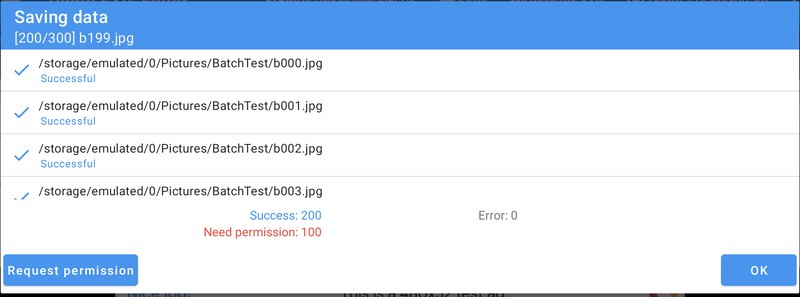
What you might have seen: you saved a change to a very large selection of photos that belong to other apps, tapped Request permission in the saving window, and the app closed.
When it happened: on Android 11 and later, when more than 2,000 photos needed your permission at the same time. Android asks you before an app can change photos that another app created (for example, your camera app), and it only accepts up to 2,000 photos per request. We sent all of them in one request, and Android refused.
What changed: the app now asks for the first 2,000. When you tap Allow, those are saved. The others stay marked Need permission, and the Request permission button comes back for the next group. Before this fix, there was also a hidden problem: allowing one request reset every waiting photo, even the ones Android hadn't given permission for, and those then failed. Now only the photos you actually allowed are saved again.
Tapping "Request permission" at the wrong moment
What you might have seen: the app closed right after you tapped OK or Request permission in the saving window.
When it happened: when the saving window was closing at the same moment as the tap reached the button, for example when you pressed both buttons almost together. The button tried to read the list of photos that need permission, but the closing window had already cleared that list.
What changed: the button now checks that the window is still there and that it still has photos to ask about. If not, it simply does nothing.
The list of photos jumping while saving
What you might have seen: while a big batch was saving, the app closed, often when you scrolled the list of photos in the saving window.
When it happened: the list in the saving window updates several times per second as each photo moves from pending to saving to successful. Each update played a small animation, and with hundreds of photos the animations piled up and the list got confused about which row was where.
What changed: the saving list no longer animates its rows. It updates instantly, which is also easier to read when photos are flying by. We saved batches of 300 photos while scrolling the list up and down, with no problem.
Leaving the editor while saving
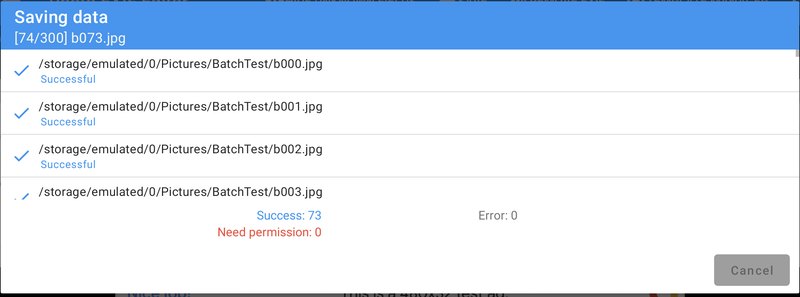
What you might have seen: you started saving a large batch, then turned your phone or switched to another app, and the app closed. Sometimes a few photos weren't saved.
When it happened: saving keeps running in the background when the saving window goes away, which is what you want: you can rotate your phone or check a message, and the photos keep saving. But when the window closed, it also tried to clean up the temporary files used during saving, at the same time as the saving work was still creating and using them. Two parts of the app were changing the same list at once.
What changed: if saving is still running, the cleanup now waits until it has finished. We tested it by saving 300 photos and switching the phone between light and dark mode four seconds in, which rebuilds the whole screen. All 300 photos got their new date, and no temporary files were left behind.
Shifting the date of a photo that has no date
What you might have seen: in the captured time window, you chose Shift by, tapped ✓, and the app closed.
When it happened: when the photo had no captured date to begin with (scans and screenshots often don't), or when you saved a zero shift for several photos. There was simply no date to show afterwards.
What changed: the captured time now shows Unknown, the same as before you opened the window. A photo without a date can't be shifted, because there's nothing to shift. To give it a date, use Set date instead.
The Photo map
The Photo map shows your albums and places each photo with a location on a map. It had the largest group of fixes.
The Photo map using more and more memory
What you might have seen: after using the Photo map for a while, the app became slow, and eventually closed.
When it happened: every time you came back to the Photo map from another app or from the home screen, while an album was open. When you leave the Photo map, the app pauses the work of creating thumbnails, and when you come back, it restarts it. In album view, a mistake made the app look for the photos in the wrong list. That failed, and each failure left the old thumbnail job and its replacement behind. So the list of thumbnail jobs doubled every time you came back. After ten or fifteen visits, it filled the memory.
What changed: each paused job is now replaced by exactly one new job, and the photos come from the right list. We reproduced the problem first: on the old version, the app's memory went from 43 to 158 megabytes in eighteen visits and the app slowed down. With the fix, it stayed at about 34 megabytes through the same test, and the thumbnails still appear.
We believe this was also behind a group of crashes that said only "out of memory" while drawing the screen, with no clear cause. Those should now be gone too.
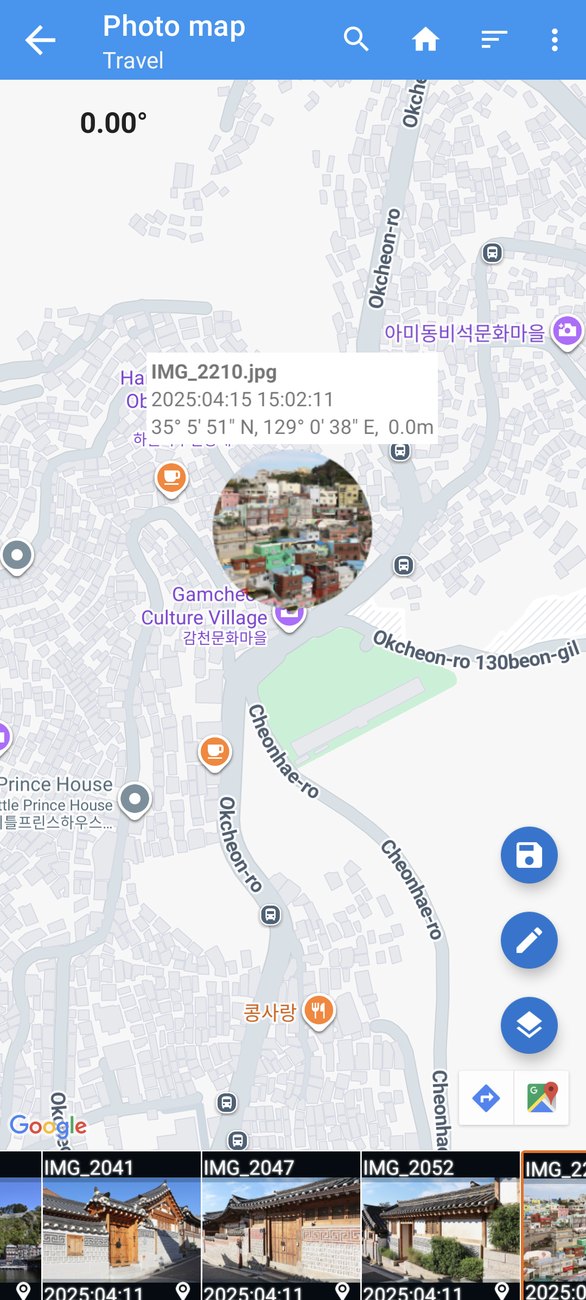
Opening an album while scrolling
What you might have seen: the app closed when you opened an album in the Photo map, or went back to the album list, while the strip of photos at the bottom was still moving.
When it happened: opening an album changed the number of items in the strip from "number of albums" to "number of photos" in the background, while the strip still showed the albums. For a split second, the strip asked for item number 543 in a list that, as far as it knew, had only twelve.
What changed: the album and its photos are now loaded first and then swapped into the strip in one step, so the strip never sees a half-changed list. We opened and closed a 300-photo album ten times while flinging the strip, with no problem.
The photo window on the map
What you might have seen: the app closed when you tapped a photo on the map.
When it happened: when the photo list was reloading at the exact moment the map drew the small window with the photo's name, date and position. The selected photo had just been cleared.
What changed: if there's no selected photo at that moment, the map shows its normal window instead of crashing.
When your storage isn't available
What you might have seen: the Photo map closed right after opening.
When it happened: when Android briefly couldn't reach your phone's storage, for example right after the phone started, or on some phones while connected to a computer. Android then answered "volume not found" when the app asked for the list of photos.
What changed: the Photo map now shows an empty album list in that case. Open it again a moment later and your albums are back.
Coming back after editing a photo
What you might have seen: you edited a photo from the Photo map, saved, and the app closed when it returned to the map.
When it happened: after saving, the Photo map reads the edited photo again to show its new data. If that file could no longer be read as a photo, the app didn't handle it.
What changed: the Photo map now reloads the whole album instead, which skips any file it can't read.
The location editor and saved locations
Closing the search box too early
What you might have seen: in the Edit location window, you opened the search box, closed it straight away, and the app closed.
When it happened: before the map had finished loading. Closing the search box checks whether you changed the location, and that check asked the map for its direction before the map existed.
What changed: the check now waits for the map. You can open and close the search box as quickly as you like.
Deleting a saved location twice
What you might have seen: in the list of saved locations, you tapped the delete button twice quickly, and the app closed.
When it happened: after the first tap removed the location, the second tap reached a row that, for a moment, no longer belonged to any location.
What changed: taps on a row that's being removed are ignored.
Copy EXIF
Closing or rotating Copy EXIF while it's loading
What you might have seen: the app closed after you closed the Copy EXIF window, turned your phone, or left the app while Copy EXIF was reading files.
When it happened: Copy EXIF reads the tags of the source photo and the list of destination files in the background. When the window was gone before the reading finished, the code that ran afterwards still tried to update the window.
What changed: the background work now stops together with the window. We reopened Copy EXIF and rotated the screen straight away five times in a row: no crash, no "Loading" box left behind, and the window comes back with its tags.
Phones without a file picker
What you might have seen: tapping Pick file, Pick files or Pick folder in Copy EXIF closed the app.
When it happened: on a few phones where Android's file picker (or its folder picker) is missing or disabled.
What changed: the app now tells you that no app can handle this request, instead of closing.
The file browser
Folders with large embedded previews
What you might have seen: the app closed while you scrolled a folder in the file browser.
When it happened: most cameras store a small preview inside each photo, and the file browser uses it as the thumbnail. Some cameras store a fairly large one, and on a phone that was already low on memory, decoding it could run out of memory.
What changed: if a thumbnail can't be made, that row simply shows no thumbnail, and the rest of the list carries on.
Starting the app
Work profiles and second users
What you might have seen: the app wouldn't open at all. It closed immediately every time.
When it happened: on some phones, when Photo EXIF Editor was installed in a work profile or for a second user on the phone. While starting, the app connects to Google Play billing (to know whether you have the Pro upgrade), and on those phones Google's billing library refused with a security error that nothing caught.
What changed: if the billing connection fails, the app now starts normally and simply treats billing as unavailable, the same as on a phone without Google Play.
The home screen on some phones
What you might have seen: the app closed as soon as the home screen appeared.
When it happened: on a small number of phones whose Android system was stricter than usual when checking the app's code. The code that hides the Upgrade icon in portrait was built in a way those phones rejected.
What changed: we rewrote it in a simpler way that every phone accepts. In portrait, Upgrade still appears without its icon, and in landscape with it.
Granting permissions from Settings
What you might have seen: you'd denied a permission and chosen "Don't ask again". The app showed a message offering to open Settings, you tapped OK, and the app closed.
When it happened: when the permission setup window had already closed behind that message.
What changed: the OK button now opens Settings on its own, whether or not the setup window is still there.
Opening the editor on Android 7
What you might have seen: on Android 7, the editor sometimes closed while it was opening.
When it happened: when the editor read the list of photos you'd chosen in the background at the same moment Android read the same list for its own use. On Android 7, those two reads could collide.
What changed: the editor reads the list first, before any background work starts.
Coming from version 2.5.7 or earlier?
Version 2.6.0 also includes everything from 2.5.9, our previous stability update. If you're updating from 2.5.7 or earlier, you also get these fixes:
- Returning from the editor on Android 13 no longer closes the file browser or the Photo map.
- Opening the Photo map no longer closes the app when Android asks for the location permission at the same time.
- Editing a very large selection (thousands of photos at once) no longer fails when the editor opens or when it returns its results.
- Saving that continues in the background no longer closes the app when it finishes after you've left the screen.
- Leaving the Photo map no longer freezes the app for a few seconds when many thumbnails are still loading.
- Scrolling the file browser while a folder is still loading no longer closes the app.
What we couldn't fix, and why
A few crash reports come from places the app can't control. We want to be honest about those too:
- Google Maps on some phones: a handful of reports come from inside the Google Maps component itself, when the phone's graphics driver fails to draw the map. Updating Google Play services and your phone's system software usually helps.
- Android itself: some reports happen entirely inside Android, for example when the system service that delivers messages between apps restarts, or when a phone's system files are damaged. There's no app code involved.
- Damaged installs: a few reports come from installs that are missing parts of the app, often after an interrupted update or from copies of the app downloaded outside Google Play. Reinstalling from Google Play fixes these.
If the app ever closes on you, the best thing you can do is simply update to the latest version. If it still happens, tell us what you were doing from Feedback in the app's menu, and we'll look into it.
Part 2: The complete guide to Photo EXIF Editor
Photo EXIF Editor lets you see and change the information stored inside your photos: when and where they were taken, which camera took them, the camera settings, and descriptions, keywords and copyright notices. This information is called metadata. Most of it is stored in a format called EXIF, and some in a format called IPTC, which was designed for news photographers and photo libraries.
Why would you want to change it? A few common reasons:
- The date is wrong because the camera's clock was wrong, or it forgot daylight saving time, or you travelled to another time zone.
- The location is missing because your camera has no GPS, or it's wrong, or you want to remove it before sharing a photo online.
- You want to add a title, description, keywords, your name or a copyright notice, so that the photo carries that information wherever it goes.
- You want to remove information you'd rather not share, like the camera's serial number or the exact place where you live.
In this guide, we use a set of travel photos as examples: a few photos from Seoul and Busan, an evening in Tokyo, a summer in France and Belgium, a sunset in Venezuela, a view of Chicago, and an old scanned photo with no date at all.
Getting started
Free and Pro
Photo EXIF Editor comes in two versions on Google Play:
- Photo EXIF Editor is free and shows ads.
- Photo EXIF Editor Pro is the same app without ads.
You can also remove ads from the free version with the Upgrade button on its home screen. Everything in this guide works the same way in both.
What the app needs from you
The first time you open the app, it asks for a few permissions. Here's what each one is for, so you can decide with confidence:
- Photos and media (storage): to show your photos and save your changes into them. Without it, the app can't do its job.
- Access media location: since Android 10, Android hides the GPS position stored in photos from apps unless they ask for this. The app needs it to show and edit locations.
- Manage media (Android 12 and later, optional): lets the app change photos created by other apps without asking you every time. If you don't grant it, Android shows a confirmation when you save, which works perfectly well too.
- Location (optional): only used to show your current position on the map, to make geotagging easier. You can deny it, and the map works fine without it. We denied it while taking the screenshots for this article.
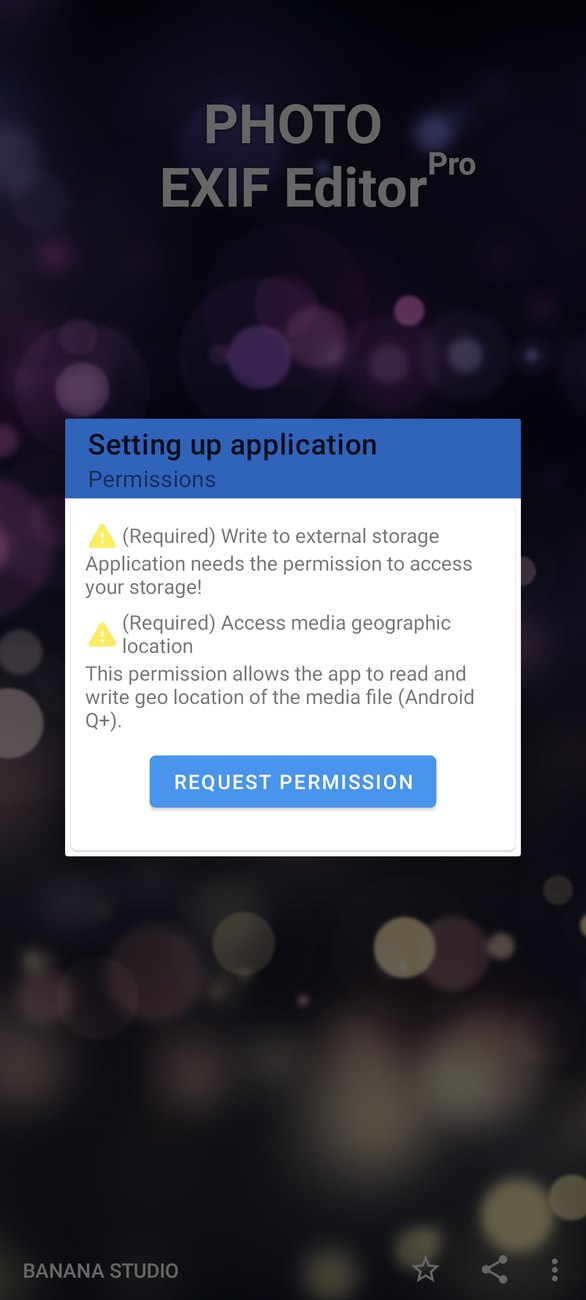
On Android 14 and later, Android may offer Select photos instead of full access. Photo EXIF Editor works with this limited access: you'll see and edit only the photos you picked. You can change your choice or allow full access later in Android's settings.
The home screen
The home screen has four entries:
- Photos opens Android's photo picker, the quickest way to choose one or more photos from your gallery.
- File Browser shows your folders and files, with thumbnails, dates and locations. It's the best way to work on a whole folder.
- Photo map shows your albums and places your photos on a map.
- Misc tools contains the HEIC/HEIF/AVIF to JPEG converter and Copy EXIF.
At the bottom you'll find Upgrade (in the free version), a link to rate the app, and a menu with Feedback, More apps and the Privacy policy.
Before you start: a few good habits
Editing metadata is safe, and the app never changes the picture itself. Still, a few habits make it even more relaxed, especially when you edit hundreds of photos at once:
- Try it on one photo first. Before shifting the dates of a whole trip, shift one photo, save, and check it in your gallery app. If it looks right, do the rest.
- Keep a backup of irreplaceable photos. If your photos are backed up to a cloud service or a computer, you're already covered. If not, copy the folder before a big batch edit. There's no undo after you save.
- Work folder by folder. A folder from one trip or one event usually needs the same change, which makes batch editing simple.
- Let the app finish. Saving a large batch takes a moment per photo. You can switch apps or turn your screen off: saving keeps going. Just don't uninstall the app or delete the photos while it's saving.
- Check the result in the app that matters to you. Different apps read different dates and fields. If a website or your computer is where the photos end up, check them there.
Finding your photos
The file browser
The file browser works like a file manager focused on photos. Each photo shows its thumbnail, file name, captured date, size and location, so you can spot photos with a wrong date or no location at a glance.
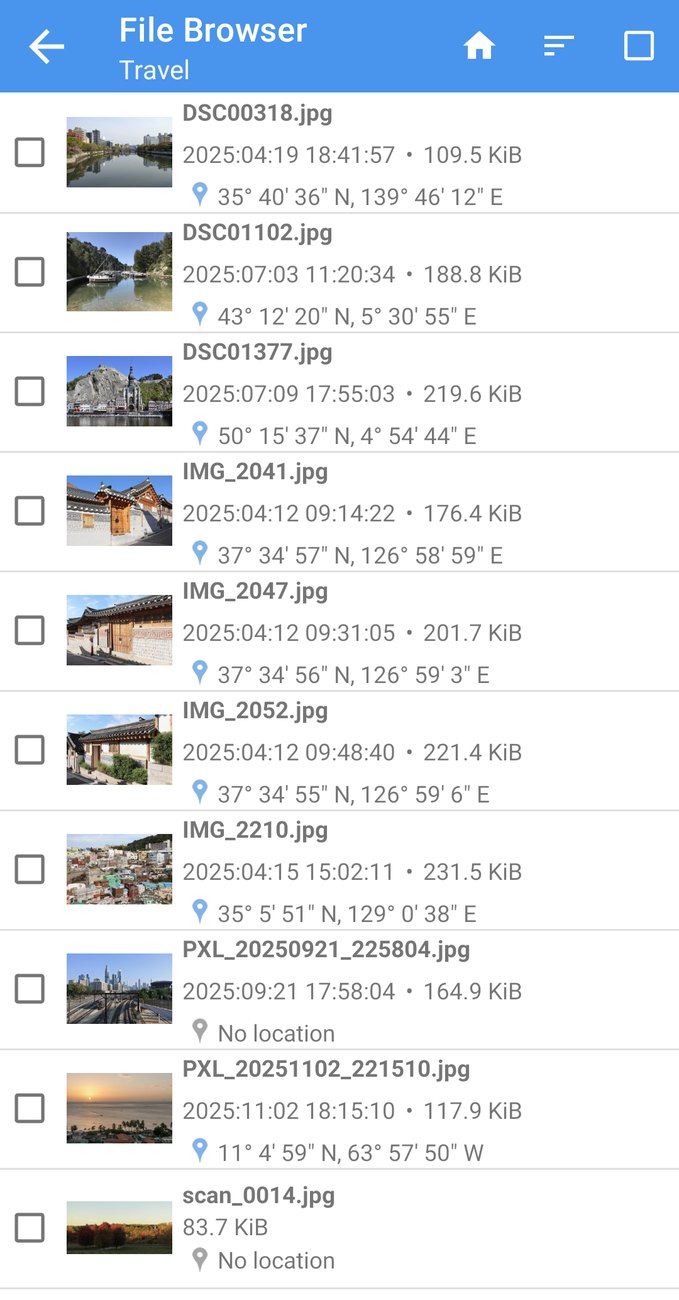
At the top you'll find:
- Home, to go back to the top of your storage;
- Sort, to sort by name, size or time, in either order;
- Select all, to select every photo in the folder.
Tap a photo to open it in the editor. Tap the check boxes to select several photos, then tap Edit (the pencil) to edit them all together.
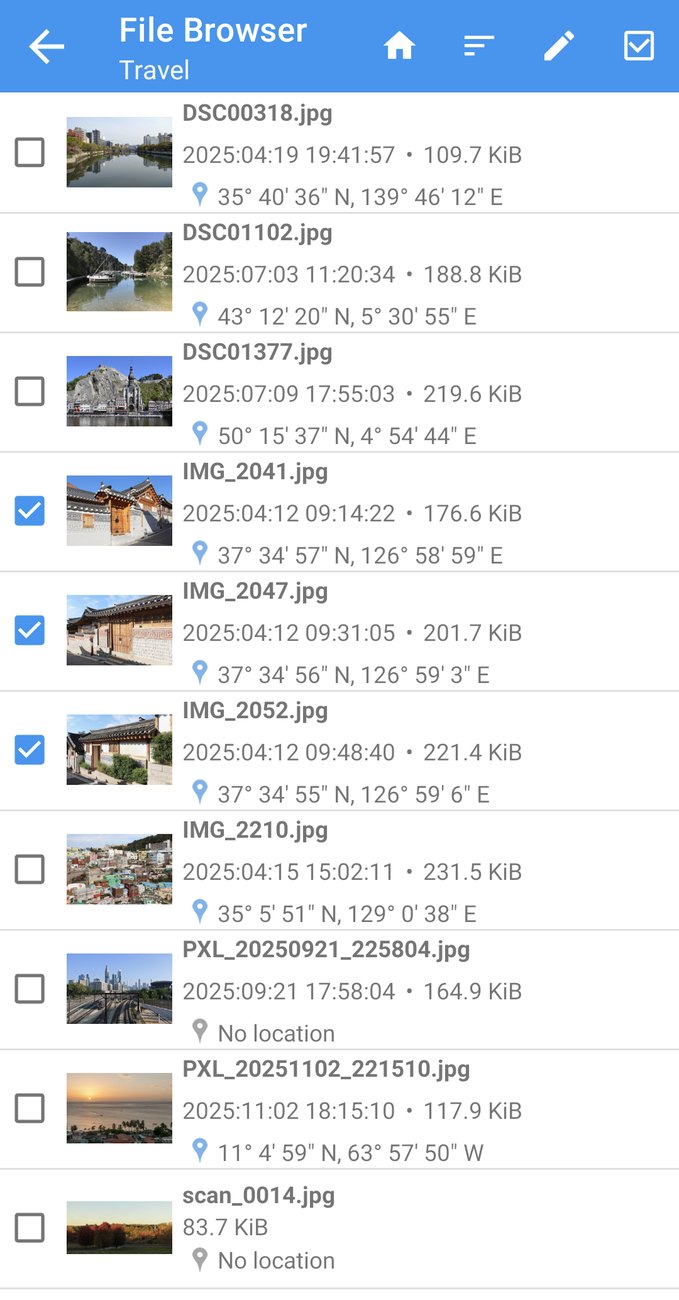
The file browser and the editor work with JPEG and PNG photos. Other files and folders are listed too, so you can find your way around.
The photo picker
Photos on the home screen opens Android's own picker. It shows your gallery the way you're used to, including albums and recent photos. Pick one photo to open it in the editor, or several to edit them together.
The editor
The editor is the heart of the app. At the top, you see the photo with its date, size and dimensions. Below, the information inside the photo is grouped into sections.
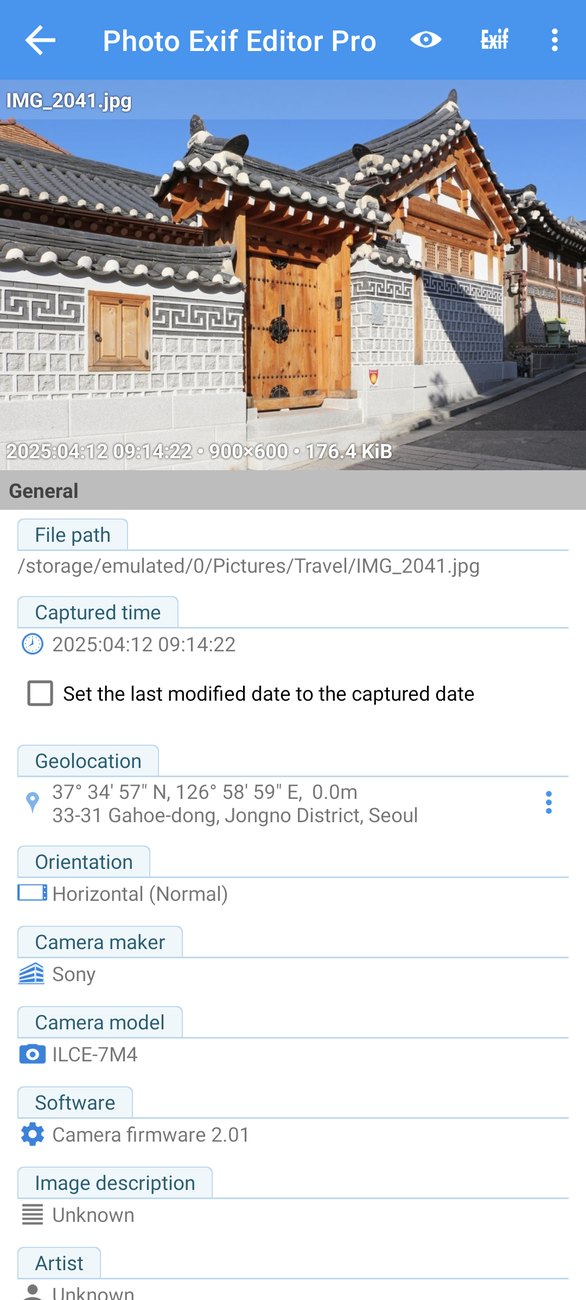
General
The General section has the fields most people care about:
- File path: where the photo is stored.
- Captured time: when the photo was taken. Tap it to change it (see Dates and times below).
- Set the last modified date to the captured date: when checked, the file's own date (the one file managers and some gallery apps show) is changed to match the captured time when you save.
- Geolocation: where the photo was taken, as coordinates and, when available, a street address. Tap it to edit the location on a map. The ⋮ button next to it opens Copy and Paste for locations.
- Orientation: whether the photo should be shown normally, rotated or mirrored.
- Camera maker and Camera model.
- Software: the camera firmware or the app that last edited the photo.
- Image description, Artist and Copyright.
Advanced and Professional
The Advanced section lists the camera settings: aperture (f-stop), exposure time, exposure compensation, flash, focal length, ISO speed, white balance, and the comment fields used by Windows (XP Title, XP Comment, XP Author, XP Keywords, XP Subject). The Professional section has the more technical fields, like resolution and brightness.
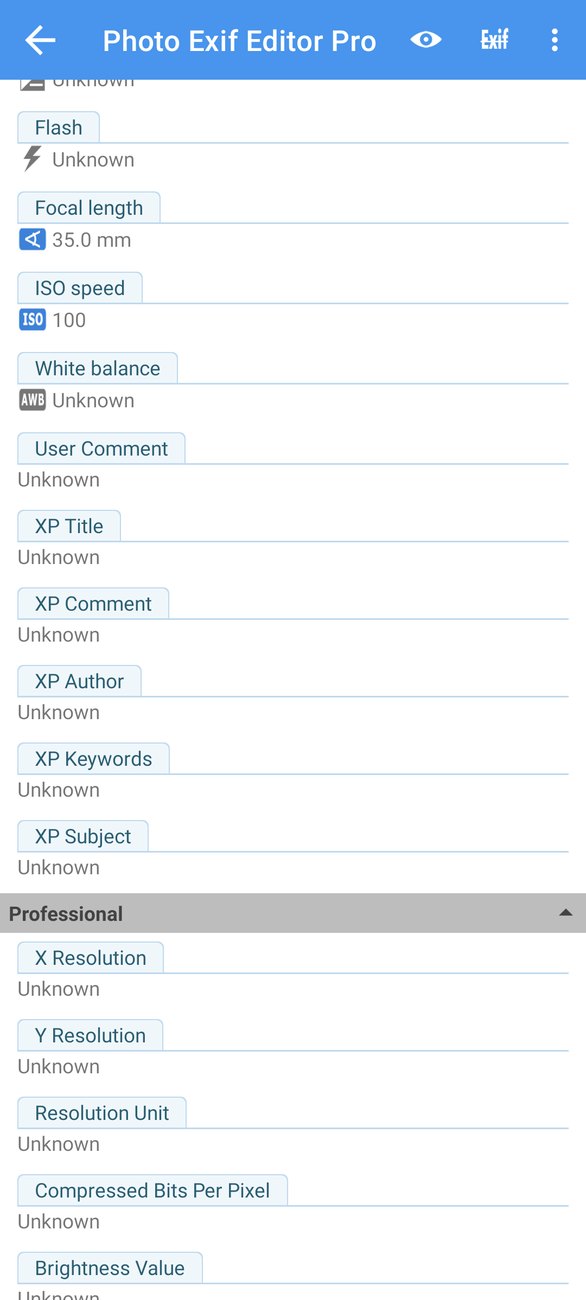
Most photos only use a few of these fields. Tap the eye button at the top to hide unknown fields and keep only the ones that have a value. Tap it again to show them all.
Editing a field
Tap any text field, type the new value and tap OK. Fields with a fixed list of values, like Orientation or Flash, open a list to choose from. Numbers, like the ISO speed or the focal length, open a number field.
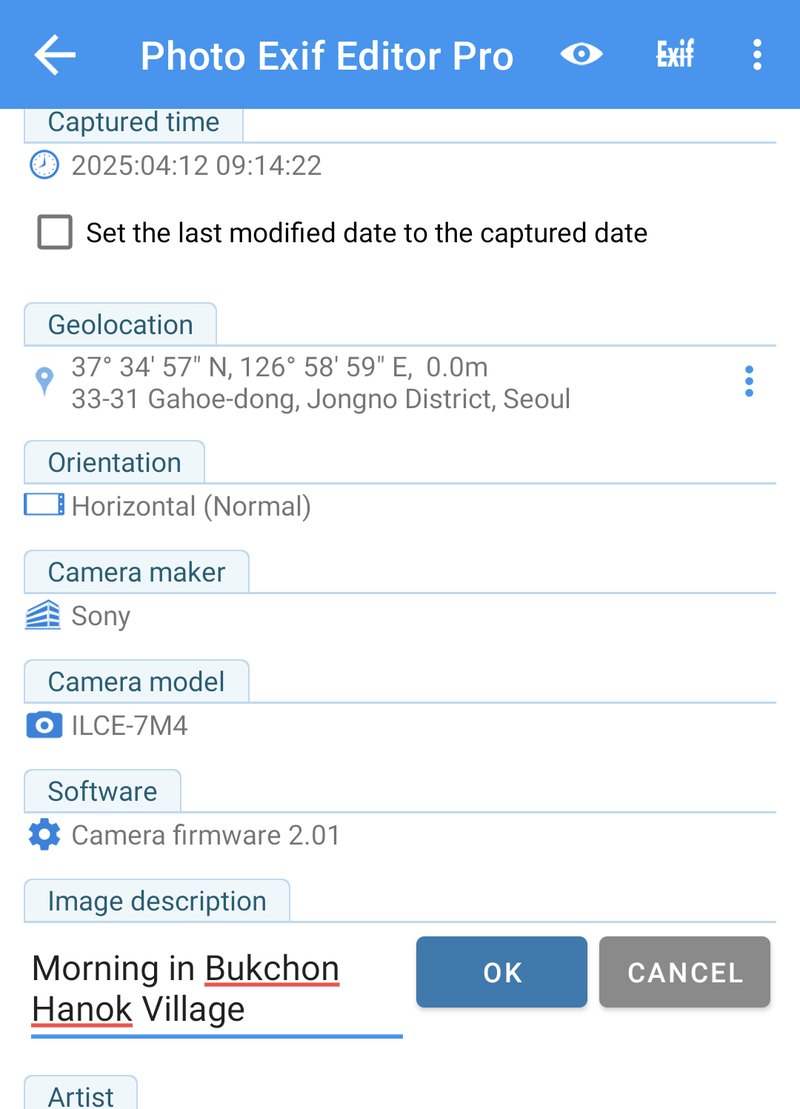
Nothing is written to the photo until you tap Save (the disk icon). If you go back without saving, the app asks whether you want to leave without saving, so you never lose an edit by accident.
When you save, the app shows EXIF data saved and takes you back to where you were. The other information in the photo, like the camera settings and the location, stays exactly as it was. Only the fields you changed are different.
The editor menu
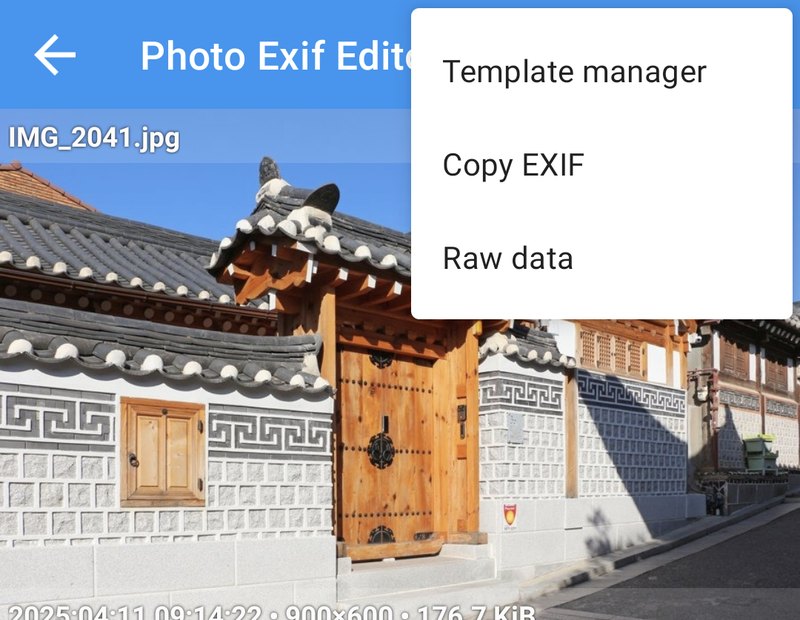
The ⋮ menu in the editor has three more tools:
- Template manager: save the current values as a template, or apply a saved template.
- Copy EXIF: copy the information from this photo to other photos.
- Raw data: see every tag stored in the photo, with its exact name and value.
Dates and times
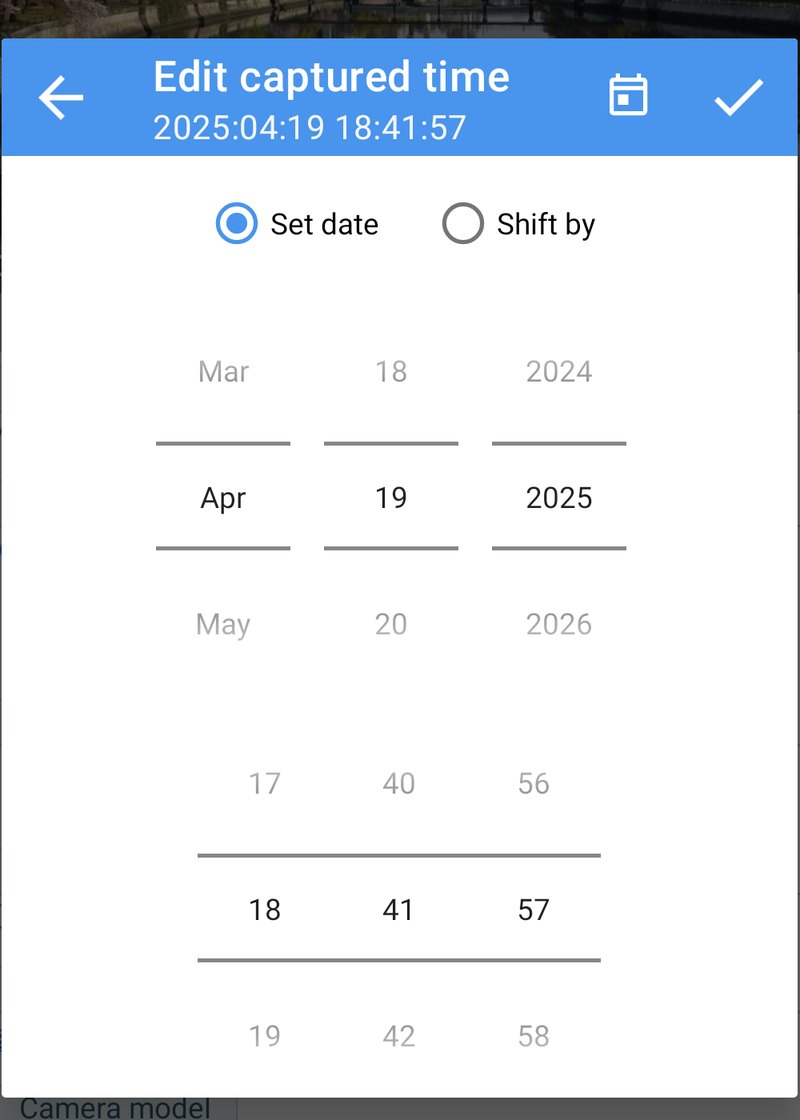
The captured time is probably the most edited field of all. Tap Captured time to open the Edit captured time window. It has two modes.
Set date
Set date gives the photo a new date and time. Scroll the month, day and year, then the hours, minutes and seconds. The title of the window shows the result as you scroll. Tap ✓ to confirm, then Save.
Use Set date when the photo has no date at all (like our old scan), or when you know exactly when it was taken.
Shift by
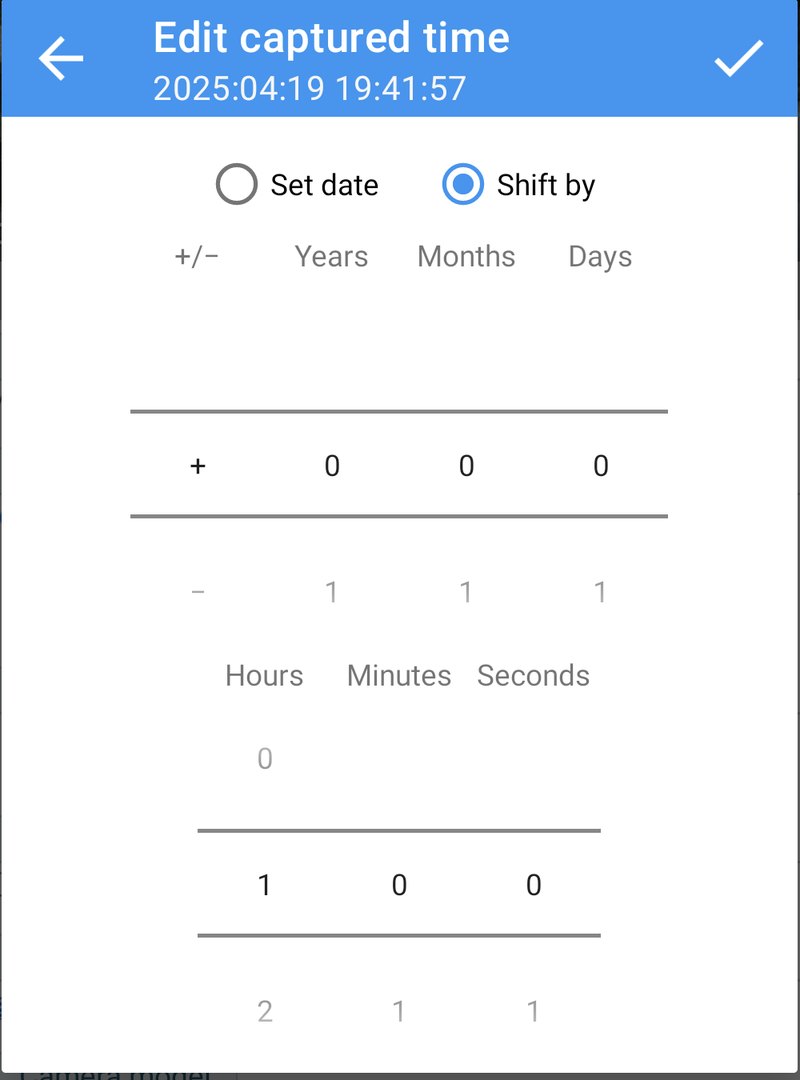
Shift by moves the date forward or backward by an amount. Choose + or −, then the years, months, days, hours, minutes and seconds. The title shows the new date before you confirm.
Our photo of the Kyobashi river in Tokyo was taken at 18:41, but the camera hadn't been moved to summer time, so it was really 19:41. A +1 hour shift fixes it:
Shifts follow the calendar the way you'd expect:
- Months and years follow the calendar, so +1 month moves 15 March to 15 April.
- Hours, minutes and seconds are exact, so +1 hour is always one hour, even across a daylight saving change.
- Shifts across midnight, the end of a month or the end of a year are handled for you.
When you save, the app updates all three date fields that cameras write (the date the photo was taken, digitized and modified), so every app that reads the date sees the same one.
Rename file
If the file name contains the date in the usual camera format, like PXL_20250921_225804.jpg or IMG_20150302_100000.jpg, a Rename file option appears below the captured time. When checked, the file is renamed to match the new date when you save, so file names and dates stay in sync.
The last modified date
The captured time lives inside the photo. Separately, every file also has a last modified date kept by the phone's storage, which is what file managers show and what some gallery apps use to sort. Check Set the last modified date to the captured date to make both agree.
Time zones
When you change a date, Photo EXIF Editor also saves the time zone offset with it. This helps gallery apps show the photo on the right day, even when you look at it from another time zone.
The dates inside a photo, explained
If you've ever wondered why two apps show different dates for the same photo, it's because a photo can carry several dates, and each app picks the one it trusts most:
- Date and time original is the moment the shutter was pressed. This is what "captured time" means, and it's the date most gallery apps use.
- Date and time digitized is when the picture was turned into digital data. For a digital camera it's the same moment as the original. For a scan of a film print, it's the day you scanned it, which is why old scans often appear under the wrong year.
- Date and time (sometimes called modified) is when the file was last changed by a camera or an editing app.
- The time zone offsets for each of these say how far from UTC the clock was, like
+09:00in Tokyo or-05:00in Chicago in summer. - Outside the photo, the file system keeps the last modified date of the file itself, which changes every time the file is copied or saved, unless you tell Photo EXIF Editor to set it to the captured time.
When you edit the captured time, Photo EXIF Editor writes the same new date into the three dates inside the photo, with its time zone offset, so every app agrees. That's usually what you want. If a photo looks right in one app and wrong in another, opening Raw data and comparing the dates usually explains why.
Batch editing
Batch editing is where Photo EXIF Editor saves you the most time. Select several photos in the file browser or the picker, then tap Edit. The editor opens with all of them.
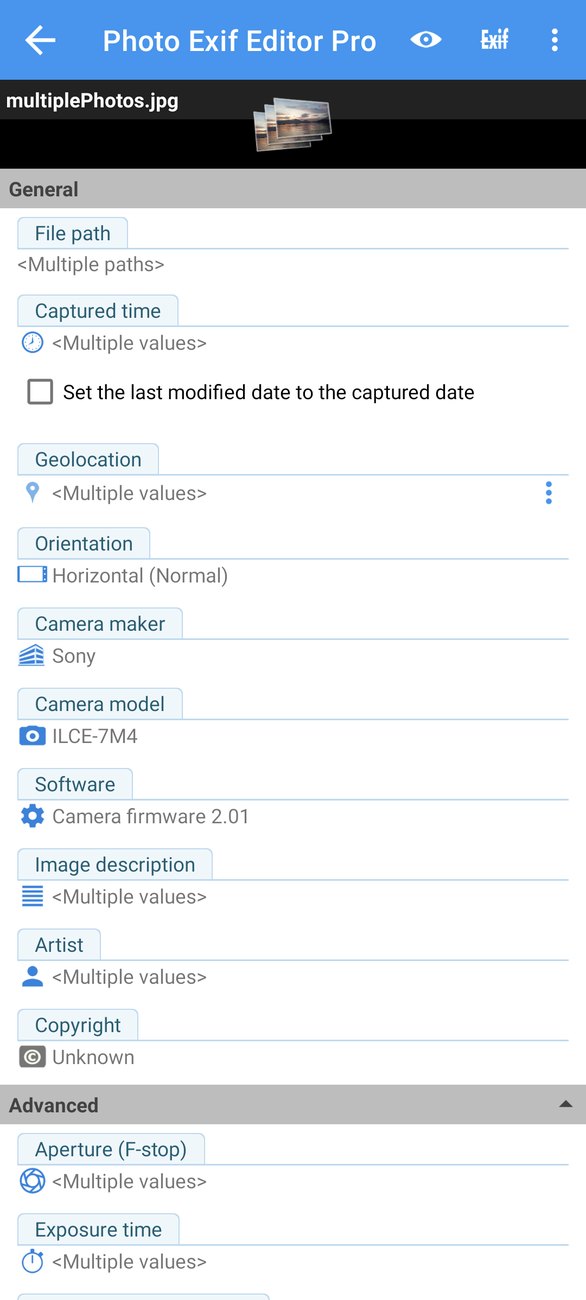
Fields that are the same in every photo show their value. Fields that differ show Multiple values. When you change a field, the new value is written to every selected photo. Fields you don't touch keep each photo's own value.
Shifting the dates of a whole trip
This is the best use of batch editing. Imagine your camera's clock was one day ahead for a whole trip. Select all the photos from that trip, tap Captured time, choose Shift by, and enter −1 day.
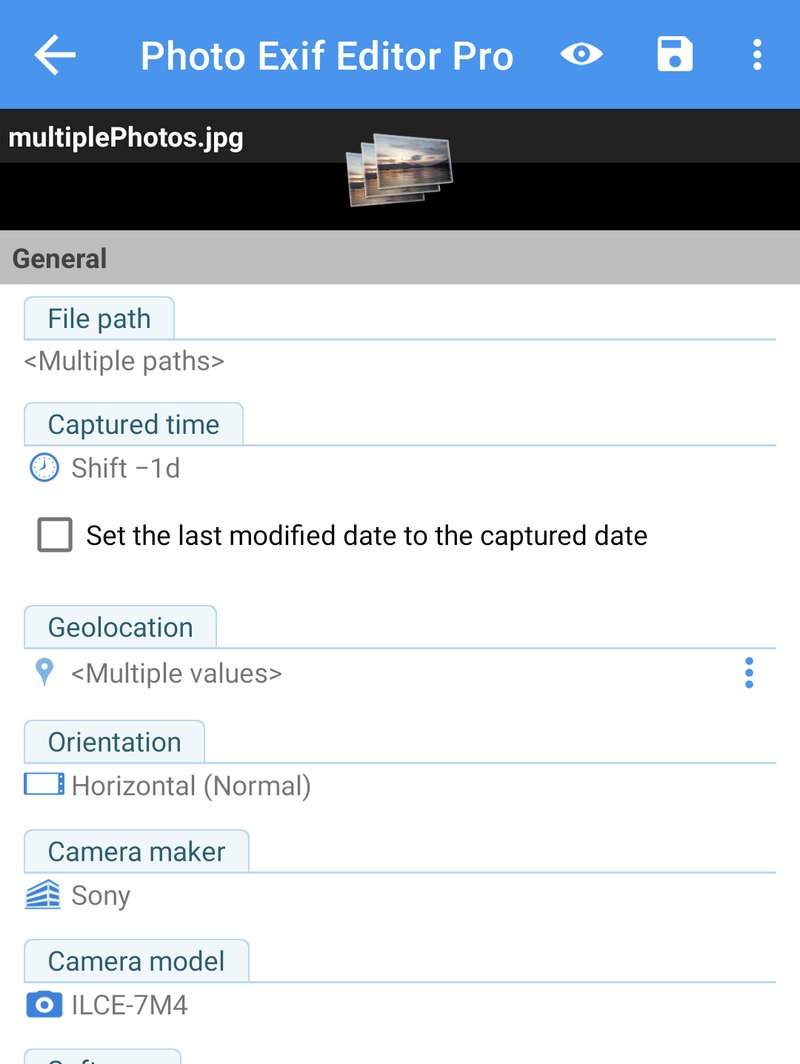
Each photo keeps its own time and is moved by the same amount: a photo taken at 09:14 on the 12th moves to 09:14 on the 11th, and one taken at 09:48 moves to 09:48 on the 11th. The order of your photos and the gaps between them stay exactly as they were. Until you save, the captured time shows the shift you chose, for example Shift −1d.
Photos without a captured date are left unchanged when you shift, because there's no date to shift.
Large batches
You can edit hundreds or even thousands of photos at once. The saving window shows each photo's progress, with a running count of photos saved, photos that need your permission, and photos that failed.
If some photos belong to other apps (for example, photos taken with your camera app) and you haven't granted Manage media, Android asks you to allow the changes. In the saving window, those photos show Need permission, and the Request permission button opens Android's confirmation for up to 2,000 photos at a time. Tap it again for the next group.
Locations and geotagging
A photo's location is stored as GPS coordinates. Photo EXIF Editor shows them in degrees, minutes and seconds, and turns them into a street address when it can.
The location editor
Tap Geolocation in the editor to open Edit location. The map shows the photo's current position with a red pin.
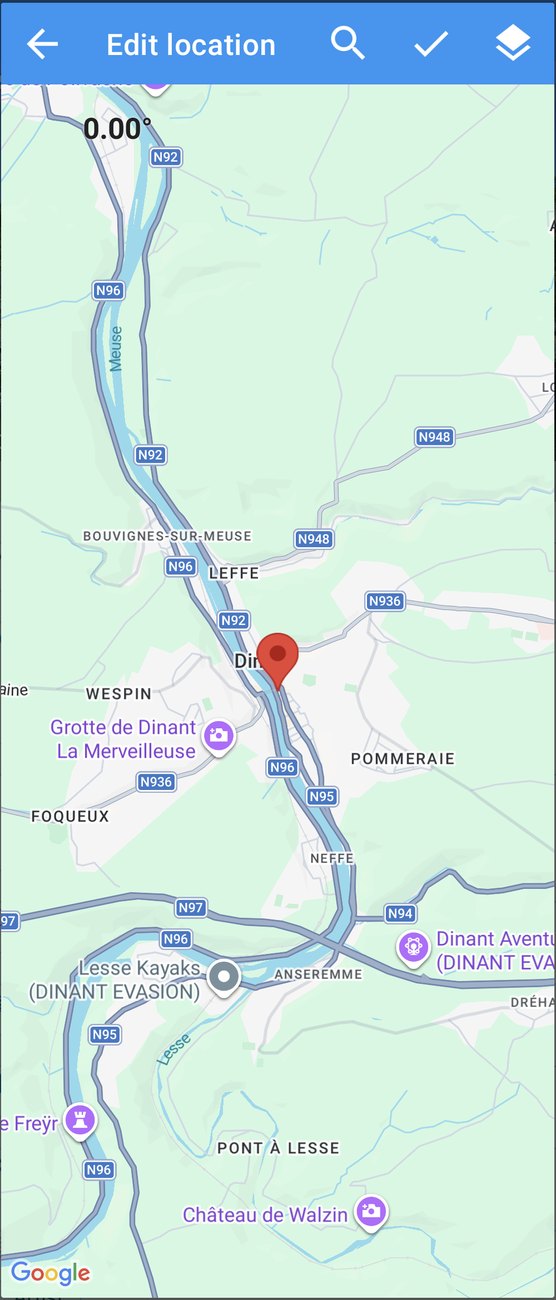
You can change the position in three ways:
- Long press anywhere on the map to move the pin there.
- Drag the pin.
- Search with the magnifying glass: type a place name, an address, or coordinates like
-27.14,-109.43, and choose a result.
The layers button switches between the normal map, satellite, terrain and hybrid (satellite with street names) views, which helps when you're placing a photo on a hiking trail or a beach. The number at the top left shows the direction the camera was facing. Rotate the map with two fingers to change it.
When you're happy, tap ✓, then Save in the editor.
Copying and pasting a location
Often you want several photos to share a location: all the photos from one restaurant, or a photo from a camera without GPS that you took next to a phone that has GPS. That's what Copy and Paste are for.
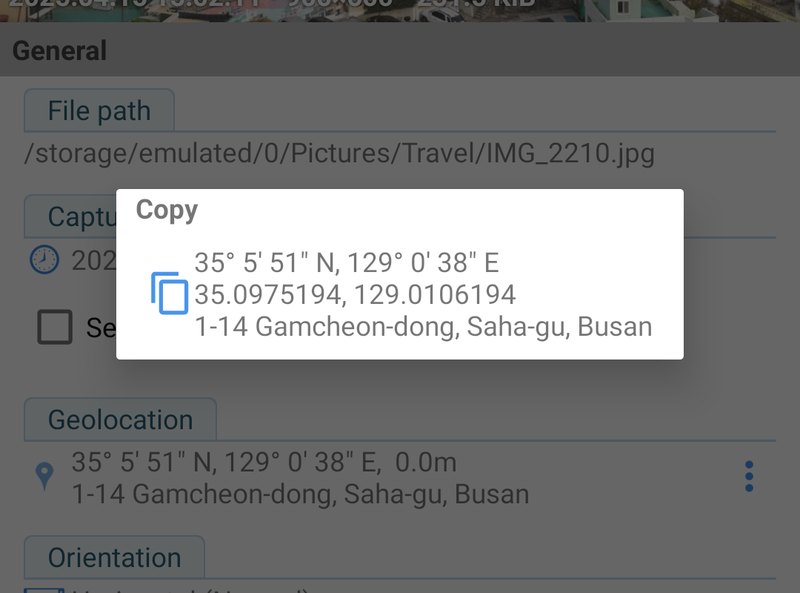
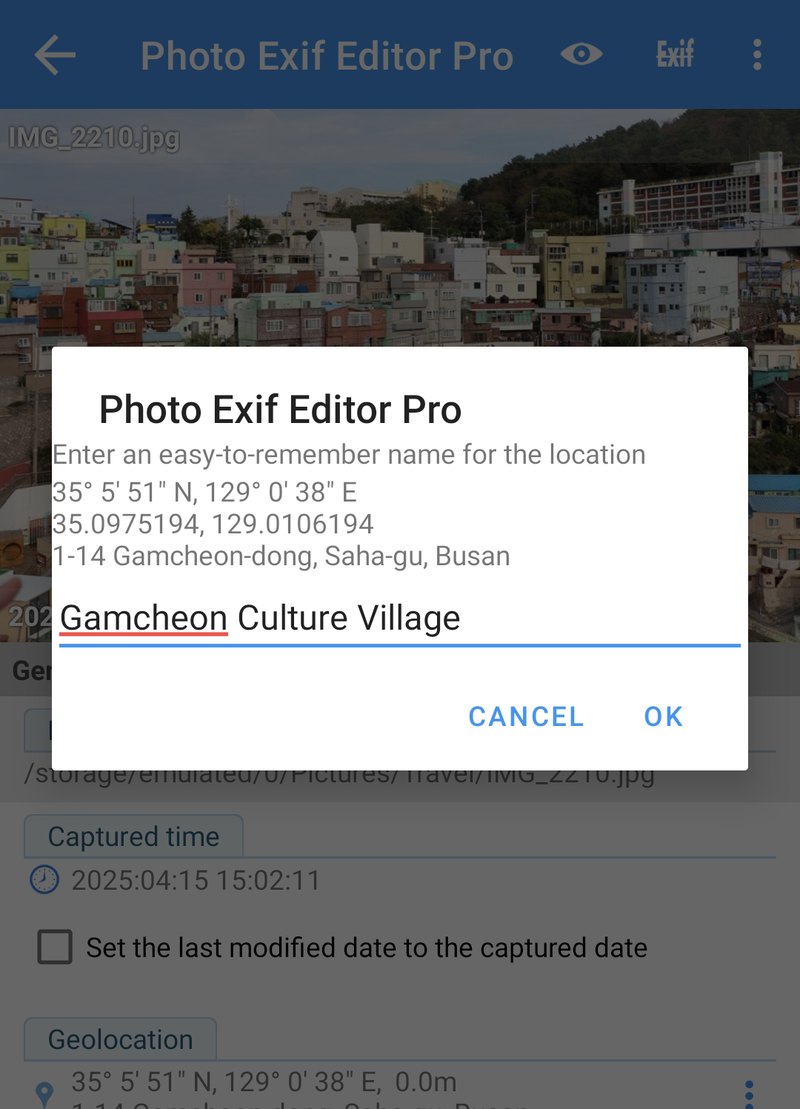
In a photo that has the right location, tap the ⋮ next to Geolocation and tap the location under Copy. Give it a name you'll recognise later, like Gamcheon Culture Village.
Then, in any other photo, tap the same ⋮: your saved locations appear under Paste. Tap one to give the photo that location. The pencil renames a saved location, and the bin deletes it.
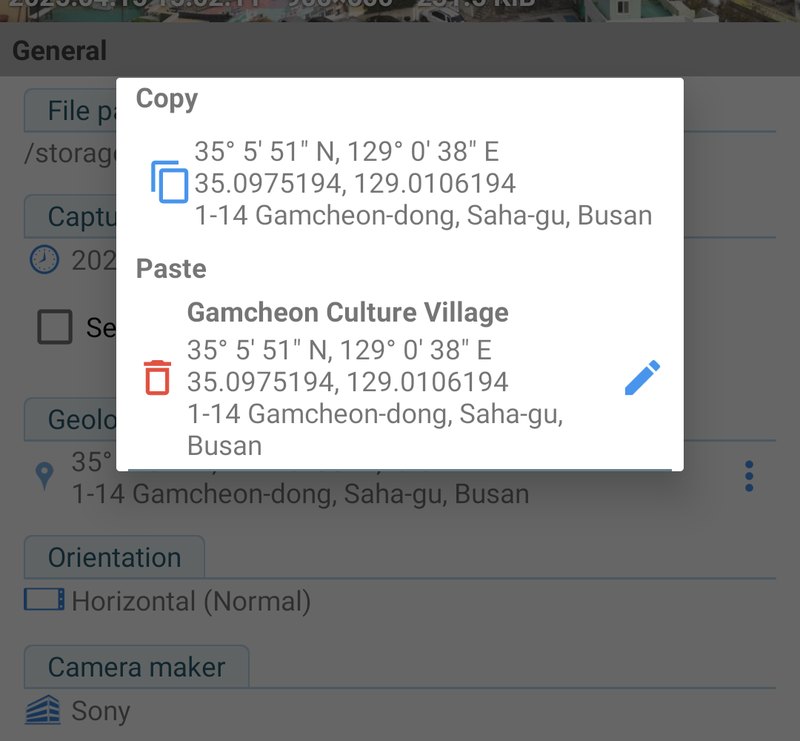
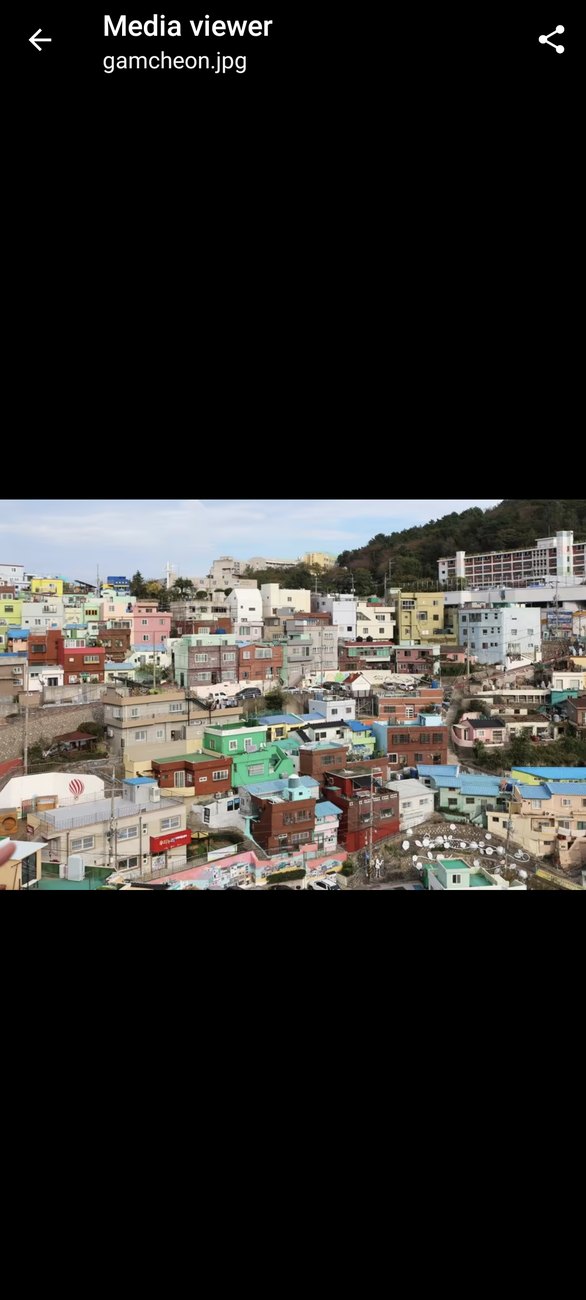
We used this to give our old scanned photo, which had no location, the position of Gamcheon Culture Village, where it was taken.
The saved locations are kept while the app is open. They're a quick clipboard for a session of geotagging, not a permanent address book.
Removing a location
To remove the location from a photo, for example before posting it online, use Remove EXIF (described below) and select Geolocation.
IPTC: titles, keywords and copyright
IPTC is a second set of fields, designed for news agencies and photo libraries. Many photo apps and websites read it, including desktop photo managers and stock photo sites. Photo EXIF Editor shows IPTC in its own section near the bottom of the editor, for JPEG photos.
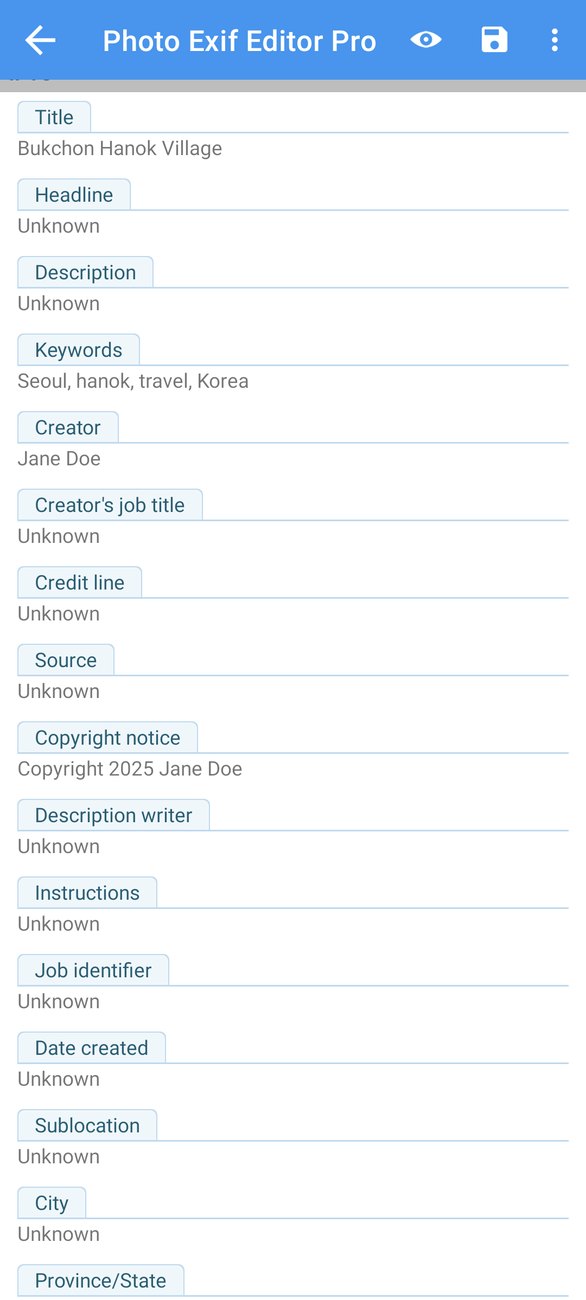
The most useful IPTC fields are:
- Title and Headline: a short name for the photo.
- Description: a longer caption.
- Keywords: words that describe the photo. Type them separated by commas, like
Seoul, hanok, travel, Korea, and the app stores each keyword separately, the way other apps expect. - Creator, Creator's job title, Credit line, Source and Copyright notice: who took the photo and who owns it.
- Instructions, Job identifier, and the location fields City, Sublocation, Province/State and Country.
Edit them the same way as any other field, then tap Save. The app writes IPTC in UTF-8, so names and captions in any language, with accents or in other scripts, are stored correctly. To clear a field, delete its text: an empty value removes it from the photo. Date created is shown for reference but can't be edited here. Use Captured time to change the date.
What the camera fields mean
The Advanced section is full of photography terms. You don't need them to fix a date or a location, but if you're curious, or you want to fill them in for a photo from a camera that didn't record them, here's what they mean in plain words:
- Aperture (f-stop): how wide the lens opening was, written as a number like f/1.7 or f/8. A small number means a wide opening: more light, and a blurrier background. A big number means a narrow opening and more of the scene in focus.
- Exposure time: how long the shutter stayed open, like 1/250 of a second. Short times freeze movement. Long times blur it, which is how you get silky waterfalls and light trails.
- ISO speed: how sensitive the sensor was set to be. Low numbers like 100 give clean pictures in good light. High numbers like 1600 or 3200 let you shoot in the dark, with more grain.
- Exposure compensation: whether you asked the camera to make the photo brighter (+) or darker (−) than it thought it should be.
- Focal length: how zoomed in the lens was, in millimetres. Around 24 mm is wide, 50 mm is close to what your eye sees, and 200 mm is a strong zoom. Phones often record the real focal length of their tiny lenses, like 7 mm, which is why some apps also show a "35 mm equivalent".
- Flash: whether the flash fired, and in which mode.
- White balance: whether the camera adjusted the colours automatically or you chose a setting like daylight or cloudy.
- Metering mode and exposure program: how the camera measured the light, and whether it chose the settings itself (automatic), or you chose some of them (aperture or shutter priority) or all of them (manual).
- Orientation: how the photo should be turned when shown. Cameras often save the picture the way the sensor saw it, and add an orientation so that apps rotate it for you. If a photo appears sideways in some apps, changing Orientation usually fixes it without touching the picture.
- Resolution: the dots per inch to use when printing. It doesn't change the photo's size in pixels.
The XP fields (XP Title, XP Comment, XP Author, XP Keywords and XP Subject) are the ones Windows shows in a file's properties. Fill them in if you organise your photos on a Windows computer.
Raw data
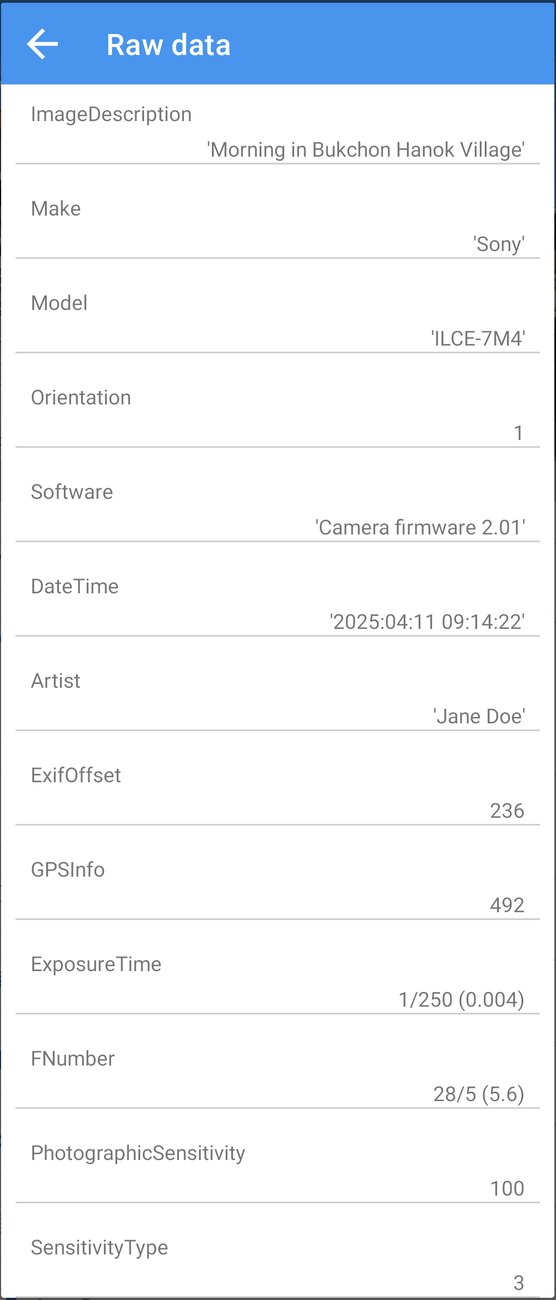
Raw data in the editor menu lists every tag stored in the photo, with its official name and its exact stored value. It's useful when you want to check precisely what a photo contains, or when another app reports a value you can't find in the editor.
Removing information
Before sharing a photo publicly, you may want to remove some of its information. Tap Remove EXIF (the crossed-out Exif icon) in the editor. The window lists the photo's fields with check boxes.
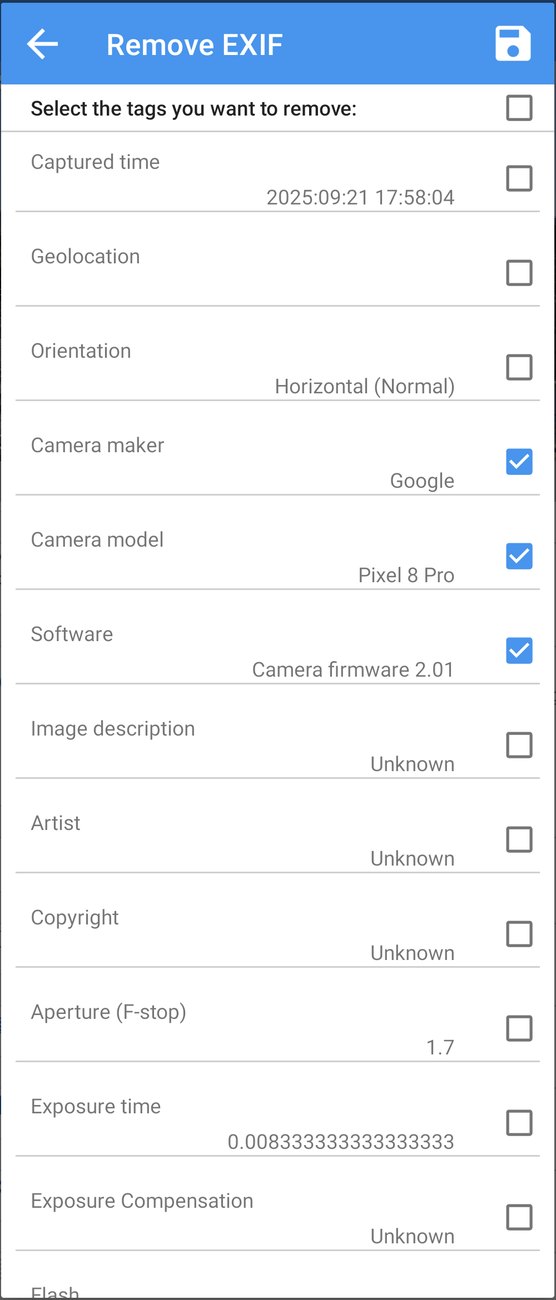
Check the fields you want to remove, or use the check box at the top to select them all, then tap Save. Only the checked fields are removed. Everything else stays.
A few common choices:
- Geolocation, before posting a photo taken at home.
- Camera maker, Camera model and Software, if you don't want people to know what you shoot with.
- Everything, for a completely clean photo.
Templates
If you often write the same information (your name, a copyright notice, or the details of a camera that doesn't record them), save it as a template and apply it in one tap.
Saving a template
Open a photo that has the values you want, open the ⋮ menu and choose Template manager. Tap the save icon next to Save the current data as a template.
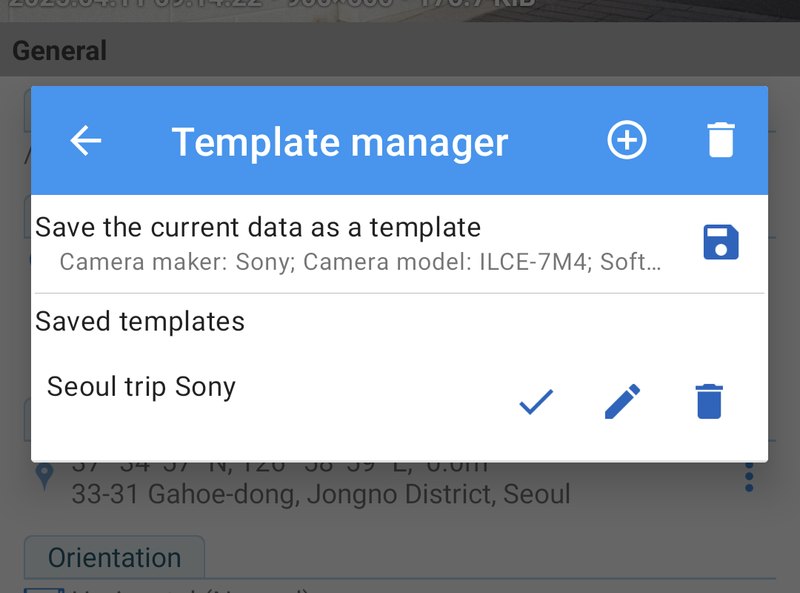
Give the template a name and, if you like, a description. The list below shows the fields it will contain. Remove any field you don't want with its bin icon, or add one with Add tag. Tap ✓ to save it.
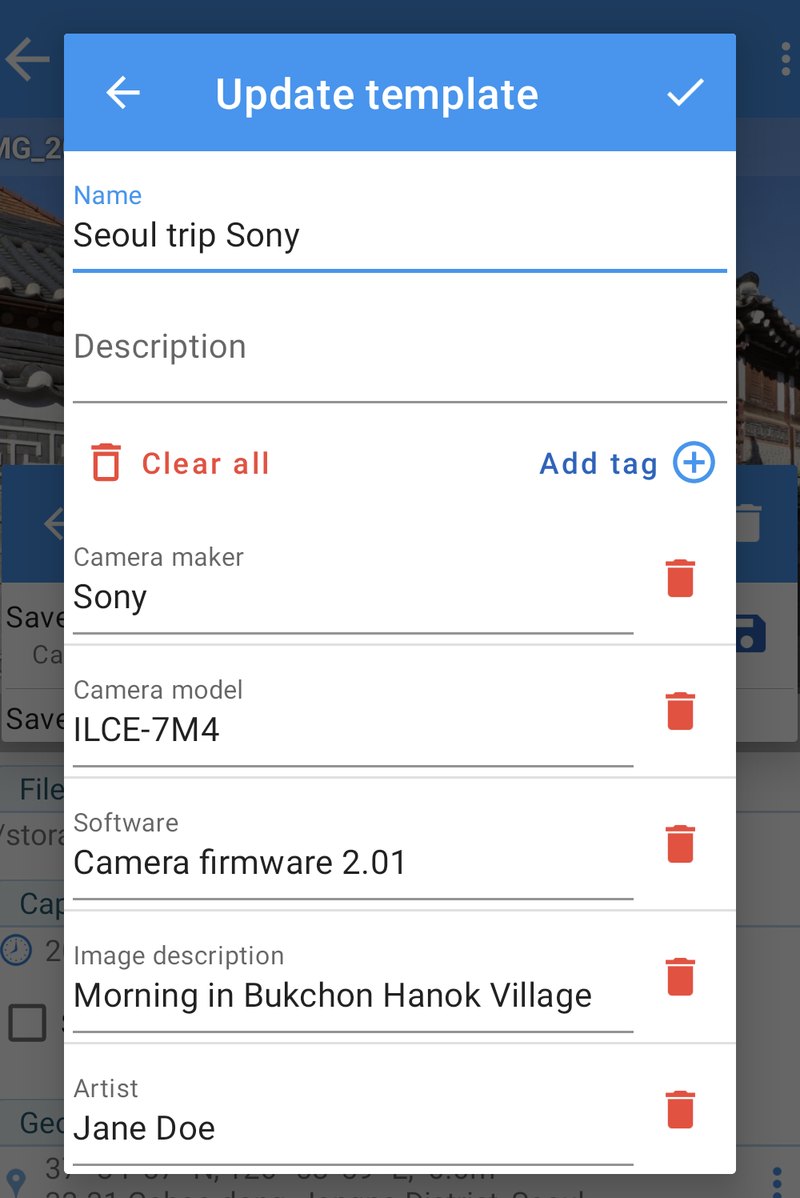
You can also create a template from scratch with the + button.
Applying a template
Open any photo (or a batch of photos), open Template manager and tap the ✓ next to a saved template. The Apply template window shows the fields it contains, so you can uncheck any you don't want this time. Confirm, and the values are filled in. Tap Save to write them.
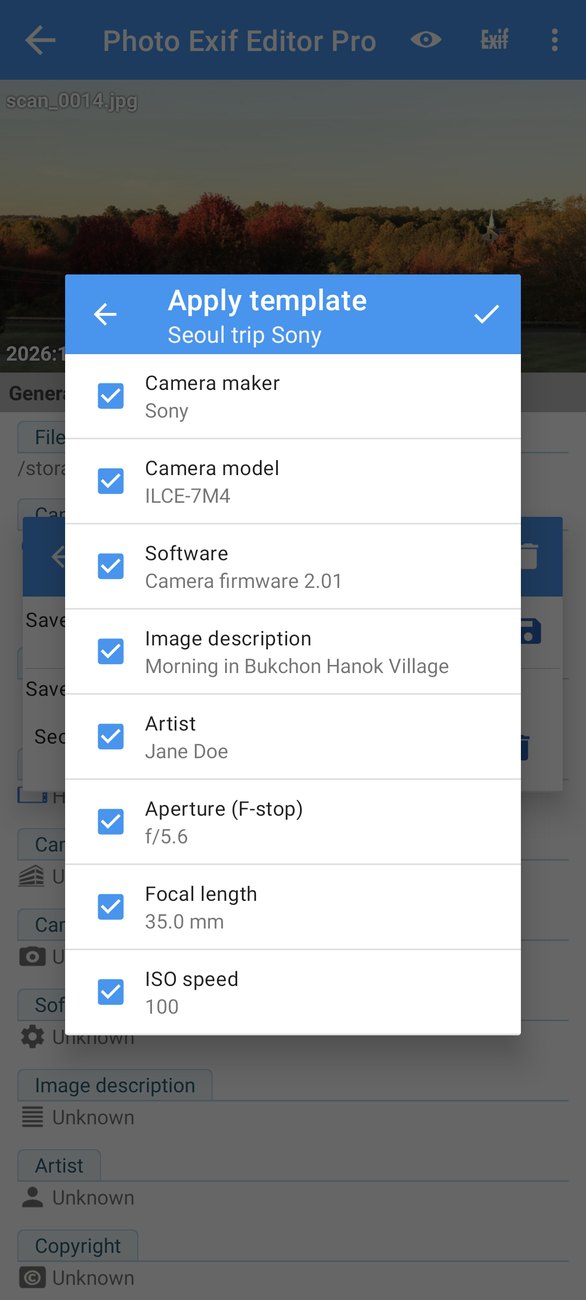
The pencil next to a template edits it, and the bin deletes it.
Copy EXIF
Copy EXIF copies information from one photo (the source) to other photos (the destinations). It's ideal when you have photos from the same shoot where some have the right data and others don't, for example after editing them in an app that removed the EXIF.
Open it from the editor menu (with the current photo as the source) or from Misc tools on the home screen.
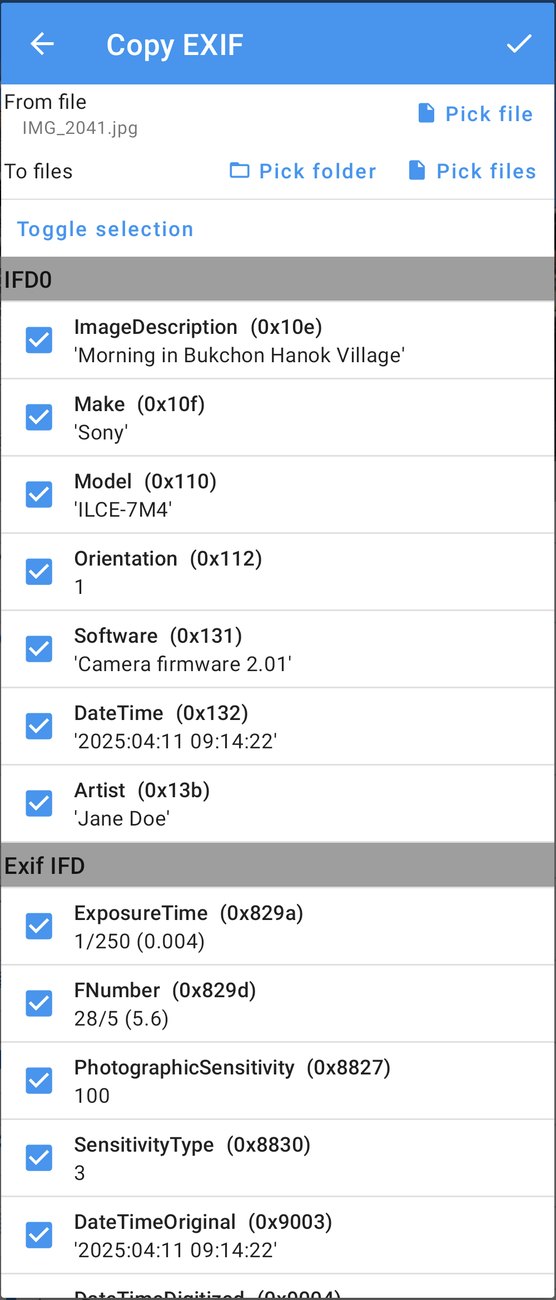
- From file: the source photo. Tap Pick file to choose another one.
- To files: the destination photos. Tap Pick files to choose individual photos, or Pick folder to use every photo in a folder.
- Choose the tags to copy. All the tags that are safe to copy are selected. Use Toggle selection to select all or none.
- Tap ✓ to copy.
Some tags are flagged with a warning, for example when they contain binary data or values specific to the source camera. Tap the warning icon to see why. By default, Copy EXIF only copies the tags it can read and write safely, and keeps everything else in the destination photos. The option Replace the whole data instead replaces all the EXIF in the destination photos with the source's complete EXIF block. Use it only when the destinations really should become exact copies.
Copy EXIF also copies IPTC fields when the source has them.
The Photo map
The Photo map is a different way to look at your photos: on a map. Open it from the home screen.
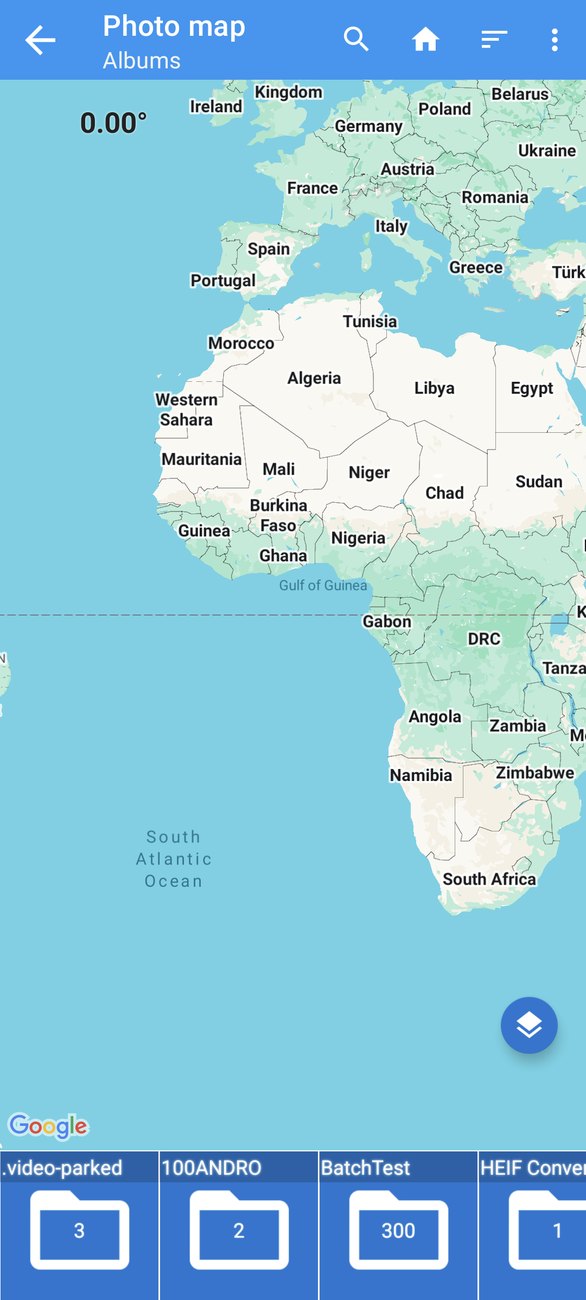
At first, the strip at the bottom shows your albums, with the number of photos in each. Tap an album to open it. The strip then shows its photos, and the map zooms to the selected photo, shown as a round thumbnail at its position. Tap the thumbnail for a small window with the photo's name, date and coordinates.
Photos that have a location show a small pin icon in the strip. Photos without one show a hint: Long press on the map to set location.
Setting or moving a location
Select a photo in the strip, then long press on the map where it was taken, or drag its marker. The search button at the top finds places by name or coordinates. Once the photo is where it belongs, tap the round save button.
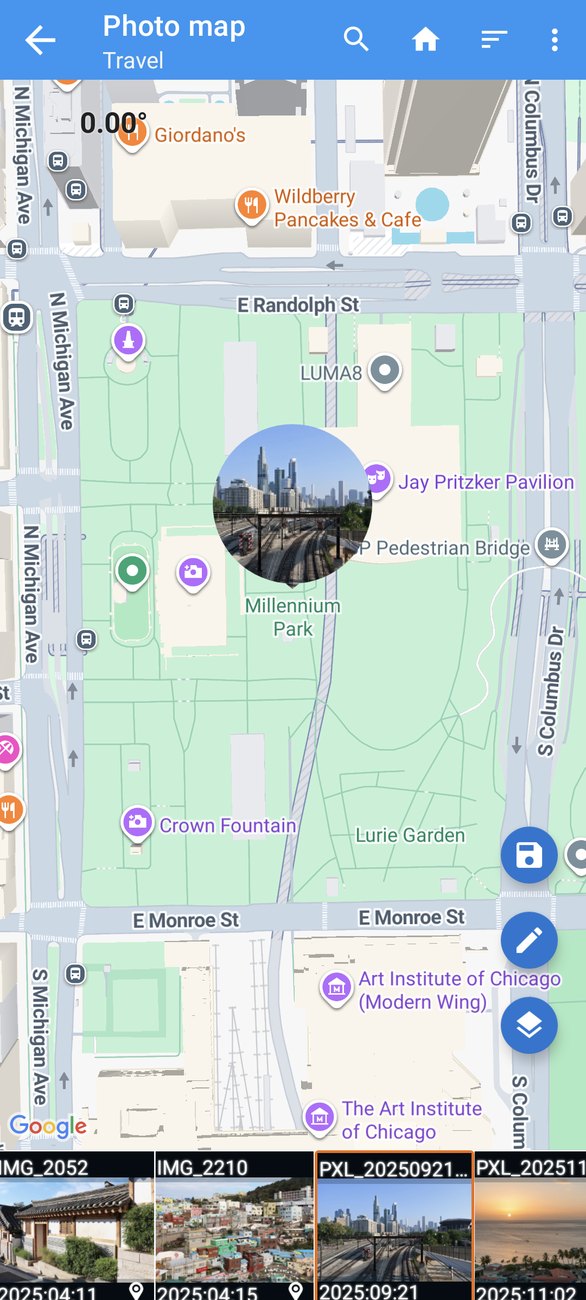
The other round buttons:
- pencil: open the selected photo in the editor;
- layers: switch between map, satellite, terrain and hybrid views.
The ⋮ menu has Copy EXIF for the selected photo, and Settings, where you can change the size of the thumbnails in the strip. Sort changes the order of albums and photos.
The Photo map is especially good for spotting photos with a wrong location: a photo from Busan that appears in the middle of the ocean stands out immediately.
The HEIC, HEIF and AVIF converter
Many recent phones save photos as HEIC (also called HEIF), and AVIF is becoming common online. These formats are compact, but many websites, older computers and apps can't open them. The converter turns them into JPEG or PNG.
Open it from Misc tools on the home screen, or share HEIC or AVIF photos to Convert to JPEG/PNG from your gallery app.
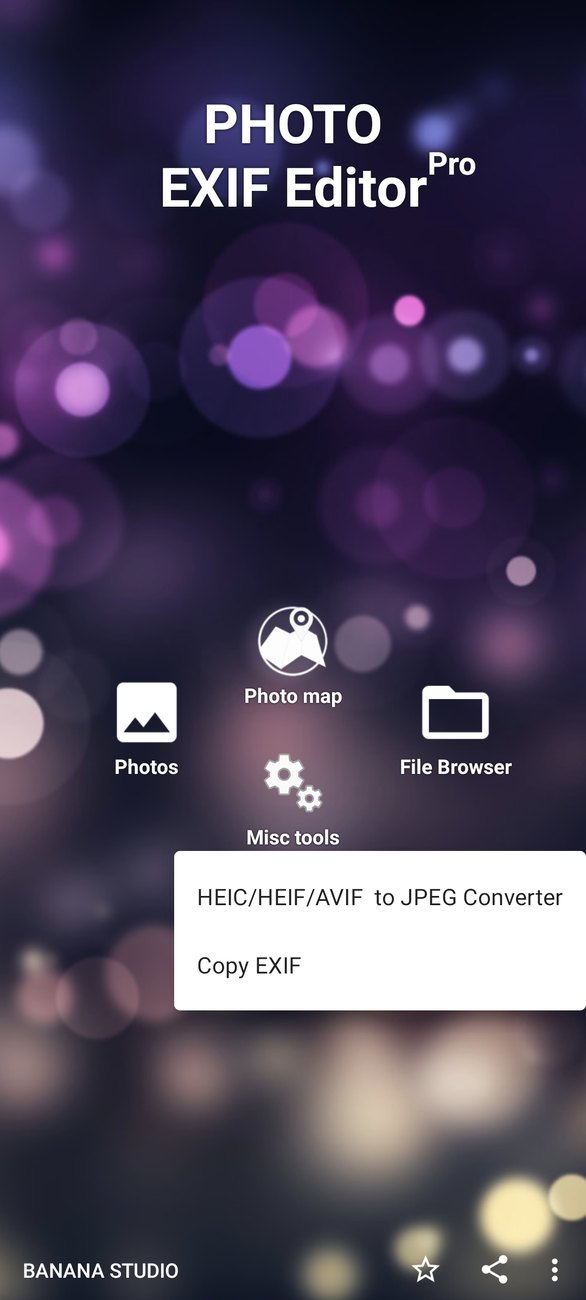
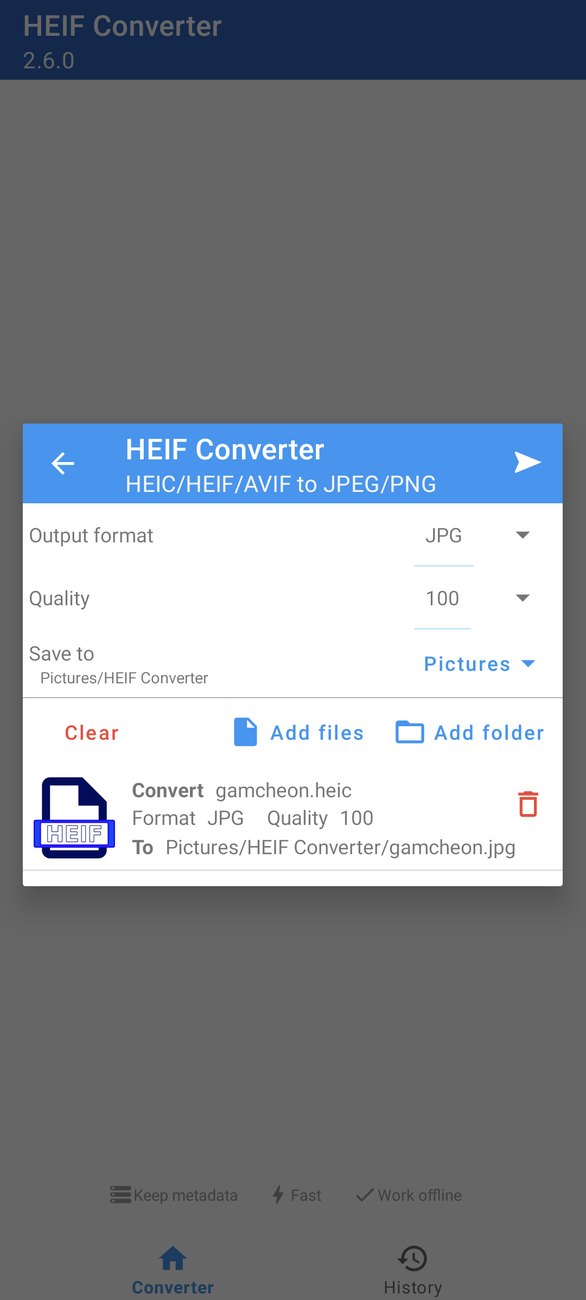
Tap + (or Add files / Add folder) to choose the photos, then set:
- Output format: JPG or PNG;
- Quality: for JPG, from 1 to 100;
- Save to: the folder for the converted photos, Pictures/HEIF Converter by default.
Tap Convert. The converter keeps the metadata (date, location and camera information) in the converted photos, works offline, and is fast.
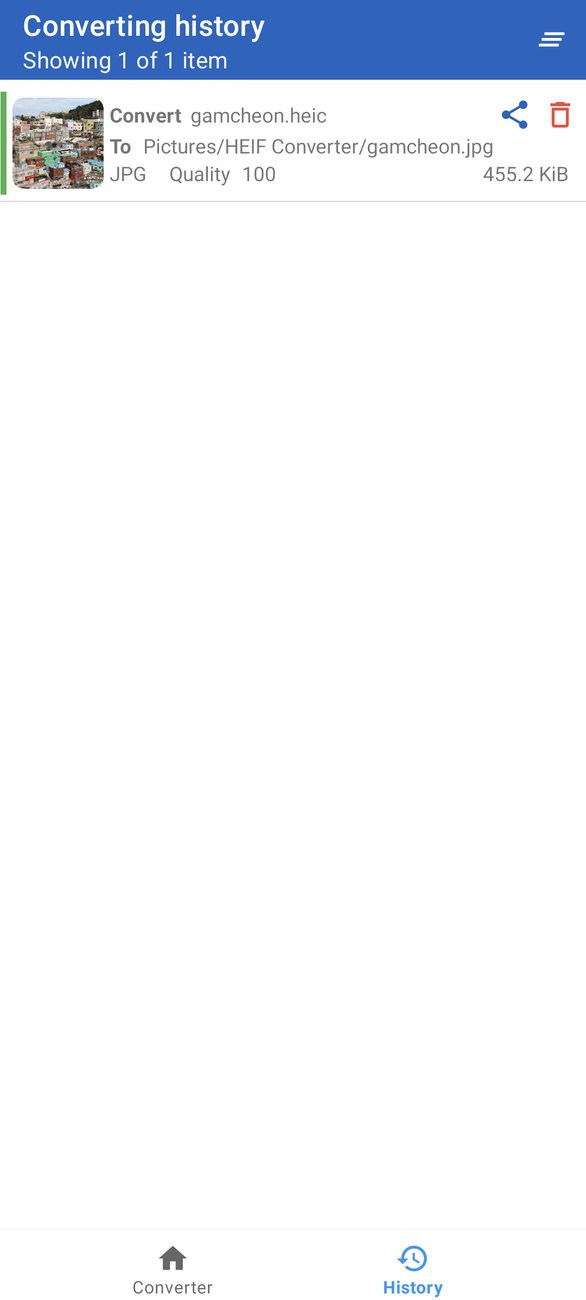
The History tab lists everything you've converted, with the format, quality and size. Tap an item to view the converted photo, or share it from the viewer.
Part 3: Everyday recipes, troubleshooting and questions
Recipes
Fix a trip where the camera was on home time
You flew from Paris to Tokyo, seven hours ahead in summer, and forgot to change your camera's clock. Every photo is seven hours early.
- In the file browser, open the folder with the trip's photos.
- Select the photos from the camera (not the ones from your phone, which set its clock automatically).
- Tap Edit, then Captured time, then Shift by.
- Choose +, 7 hours, and tap ✓.
- Check Set the last modified date to the captured date if your gallery app sorts by file date.
- Tap Save.
Now the camera's photos and the phone's photos line up in your gallery, in the right order.
Fix a camera that forgot daylight saving time
Same idea, with +1 hour in spring or −1 hour in autumn. Select only the photos taken after the change.
Geotag photos from a camera without GPS
You took photos with a camera that has no GPS, and a few photos with your phone at the same places.
- Open a phone photo from the first place, tap ⋮ next to Geolocation, and copy the location with a clear name.
- Repeat for each place.
- Open the camera photos from each place (one by one, or as a batch) and paste the matching location.
- Save.
For a single place, you can also select all its photos, tap Geolocation and set the location once on the map.
Date and place an old scanned photo
Scans usually have no date and no location.
- Open the scan and tap Captured time, then Set date. If you only know the year, set the 1st of January of that year, or any date you'll recognise.
- Tap Geolocation and search for the place, or paste a saved location.
- Add a Description or an IPTC Title with the story behind the photo: who's in it, what the occasion was.
- Save.
Your scan now appears in the right year in your gallery, and on the map.
Prepare photos to share publicly
- Open the photo and tap Remove EXIF.
- Check Geolocation, and the camera fields if you like.
- Save.
If you share many photos, select them all and remove the location from the batch in one go.
Add your name and copyright to all your photos
- Open one photo and fill in Artist, Copyright, and the IPTC Creator and Copyright notice.
- Open Template manager and save these fields as a template named, for example, My copyright.
- Whenever you have new photos, select them, open the editor, apply My copyright, and save.
Merge photos from two cameras into one timeline
You and a friend both photographed a wedding, and you want one album in the right order. The trouble is that your two cameras' clocks were never set to the same time.
- Find a moment both cameras captured, like the cutting of the cake or a group photo.
- Open that photo from each camera and note both captured times. Say your camera shows 15:02:10 and your friend's shows 14:49:40.
- The difference is 12 minutes and 30 seconds. Your friend's camera is behind.
- Select all your friend's photos, tap Edit, then Captured time, Shift by, and enter +12 minutes 30 seconds.
- Save, then put both sets in the same folder.
Now, when you sort by date, the two cameras interleave perfectly, and the ceremony tells its story in the right order.
Fix a photo with the wrong location
Sometimes a phone records a location that's slightly off (the GPS hadn't settled yet), or far off (the photo got the location of the previous photo).
- Open the photo and tap Geolocation.
- Search for the right place, or long press on the map where the photo was really taken.
- Tap ✓, then Save.
If many photos from the same place are wrong, fix one first, copy its location, and paste it into the others. You can also spot and fix them visually in the Photo map: open the album, look for photos that are clearly out of place, select each one and long press where it belongs.
Fix a photo that's shown sideways
Some photos appear correctly in your gallery but sideways on a computer or a website, or the other way round. This usually means the Orientation field doesn't match how the picture was saved.
- Open the photo and tap Orientation.
- Try Rotate 90 CW or Rotate 270 CW (or Horizontal (Normal) if the picture itself is already upright).
- Save and check the photo in the app where it looked wrong.
Changing the orientation doesn't touch the picture: it only tells other apps how to turn it, so you can try again if the first choice isn't right.
Keep a family archive in order
If you're digitising old family photos, a little metadata goes a long way for the next generation:
- Scan the photos and copy them to a folder on your phone.
- Give each one a date with Set date, even if you only know the year or the decade.
- Add the place with the location editor or by pasting a saved location.
- In the IPTC section, write who is in the photo in the Description, and add their names as Keywords, so you can search for them later.
- Put your name in Creator and a note like Family archive, scanned 2026 in Credit line.
Because all of this is stored inside each photo, it stays with the photos when you copy them to a computer, share them with your family, or upload them to a cloud service.
Tag photos for a photo library or stock site
- Select the photos of one subject.
- In the IPTC section, fill in Title, Description and Keywords (separated by commas), plus Creator and Copyright notice.
- Save, then upload. Most photo libraries and stock sites read these fields and fill in your listing automatically.
Troubleshooting
"Need permission" when saving
On Android 11 and later, photos created by another app, like your camera app, can only be changed after you allow it. Tap Request permission in the saving window and then Allow. To skip this step in future, grant Manage media (Android 12 and later) from the app's permission setup or from Android's settings.
My gallery still shows the old date
Most gallery apps update when they notice a file changed, but some wait a while or keep their own copy. Try:
- checking Set the last modified date to the captured date before saving, since some galleries sort by file date;
- closing and reopening the gallery app;
- in some galleries, refreshing the library from their settings.
A photo shows "No location" but I'm sure it has one
On Android 10 and later, the app needs the Access media location permission to read GPS positions. Without it, Android hides the location from the app. Grant it from the permission setup or Android's settings.
The map is blank
The map needs an internet connection and up-to-date Google Play services. If it stays blank, check your connection, update Google Play services from the Play Store, and open the map again.
I can't edit a HEIC or AVIF photo
The editor works with JPEG and PNG. Convert HEIC and AVIF photos with the converter in Misc tools first. The converted photo keeps the original's date, location and camera information, and you can edit it like any JPEG.
IPTC fields aren't shown
IPTC is only supported for JPEG photos. PNG photos don't have an IPTC section.
The app closed while I was using it
First, make sure you have the latest version from Google Play: many crashes from older versions are fixed in 2.6.0. If it still happens, please send us a message from Feedback in the app menu, telling us what you were doing. Crash reports reach us automatically, but your description helps us understand the situation.
Questions
Does editing a photo reduce its quality? No. Changing metadata doesn't touch the picture itself. The app copies the image data exactly as it is and only rewrites the information around it.
Is my original photo safe if saving fails? Yes. The app writes your changes to a temporary copy, checks it, and only then replaces the original. If anything goes wrong along the way, the original is kept as it was.
Does the app upload my photos? No. Your photos never leave your phone. The app only uses the internet for the map, for turning coordinates into street addresses, and for ads in the free version.
Can I edit photos on an SD card? Yes. The file browser shows your SD card along with your phone's storage. On some phones, Android asks you once to choose the SD card's root folder to give the app access to it.
Can I undo a save? Not from the app. If you're unsure, try your change on one photo first, or keep a copy of the originals before editing a large batch.
What's the difference between EXIF and IPTC? EXIF is written by cameras and phones: dates, camera settings, location. IPTC is written by people: captions, keywords, creator and copyright. Both are stored inside the photo, and Photo EXIF Editor lets you edit both.
Why does Photo EXIF Editor ask for my location? Only to show where you are on the map when you're geotagging, which makes it easier to place photos taken nearby. It's optional, and the map works without it.
Will social networks keep the information I add? It depends on the service. Most social networks remove almost all metadata from photos when you upload them, including the location, so your followers can't read it. Photo libraries, stock sites and cloud storage services usually keep it. If you rely on a service keeping your copyright notice or keywords, check its help pages.
Does removing the location from a photo make it impossible to find where it was taken? It removes the GPS position stored in the photo, which is what apps and websites read automatically. Of course, what's visible in the picture itself, like a landmark or a street sign, can still give the place away.
Can I edit photos that are in Google Photos? Photo EXIF Editor edits the photo files on your phone. If a photo is only in the cloud, download it to your phone first. If it's both on your phone and backed up, edit the copy on your phone. Depending on your Google Photos settings, the changed photo may be backed up again as a new photo.
Why does saving a large batch take a while? For each photo, the app reads it, writes a new copy with your changes, checks that the copy is complete, and replaces the original safely. That takes a moment per photo, especially for large files, but it's what guarantees your originals are never left half-written. You can keep using your phone while it saves.
Does the app work without an internet connection? Yes, for everything except the map tiles, address lookups and the place search. Editing, saving, batch editing, IPTC, templates, Copy EXIF and the converter all work offline.
What should I include when I report a problem? The more we know, the faster we can help. Tell us your phone model and Android version (in Android's Settings, under About phone), the version of Photo EXIF Editor (on Google Play, or in Android's app settings), what you were doing step by step, and what you expected to happen. If the problem happens with one particular photo, say where it came from: which camera or app took it, and whether it was edited before. We can't see your photos, so a good description is the next best thing.
Is there a version for iPhone or for computers? Photo EXIF Editor is an Android app. The photos you edit keep their information in standard EXIF and IPTC formats, so any photo app on any computer or phone can read the changes you made.
I found a field I can't edit. Why? Some fields describe the picture data itself, like its width and height in pixels, and changing them would make the photo unreadable, so they're read-only. Others are written by specific camera makers in their own formats, which the app can show in Raw data but not edit safely.
Get the update
Photo EXIF Editor 2.6.0 is rolling out on Google Play now. If you don't see it yet, it should arrive within a few days.
Thank you to everyone whose phone sent us a crash report. You helped make this release, even if you never knew it. And if you have feedback, ideas, or a crash we haven't fixed yet, tell us from the app. We read every message.
Videos
Related posts
Photo EXIF Editor 2.5.7: Shift the Date and Time of Your Photos
Photo EXIF Editor 2.5.7 lets you shift the captured date and time of one photo or a whole batch by years, months, days, hours, minutes or seconds. Fix a camera clock that was wrong, forgot daylight saving time or stayed on your home time zone, and keep every photo in the right order. The app also works with "Select photos" access on Android 14 and later.
Photo EXIF Editor 2.5.5: Edit IPTC Captions, Keywords and Credits on Android
Photo EXIF Editor 2.5.5 adds IPTC editing for JPEG photos: titles, descriptions, keywords, creator, copyright and location, on one photo or a whole batch. Dates you set on scanned and old photos now show up correctly in your gallery, saving never leaves a broken photo behind, and the HEIC converter works again on Android 16.

EXIF Pro 0.4.11: Run Your Own ExifTool Commands on Android
EXIF Pro 0.4.11 adds a Custom command tab to run any ExifTool command on your photos and videos, live tag search, ExifTool 13.59 and support for Android 16.