Headlyx Is Now on Google Play: Turn a Tablet or Spare Phone Into Your Car Screen
Headlyx shows Android Auto from your phone on an Android tablet or a second phone in your car — with touch, sound and your voice assistant. Here is how to set it up.
On this page
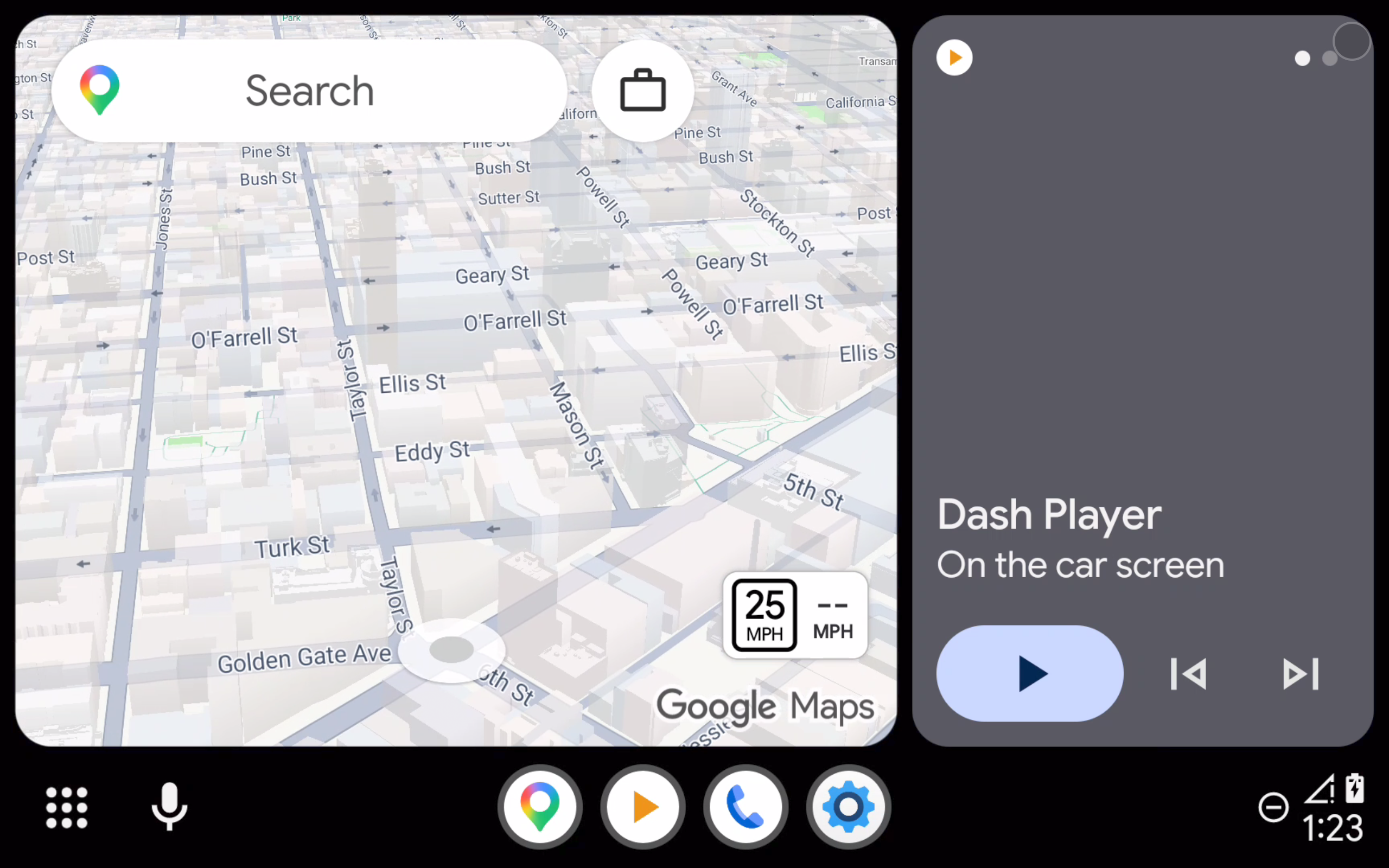
Many cars have no Android Auto™ screen, or one that is small and dated. Headlyx fixes that with a device you probably already own: an Android tablet or a spare phone. Mount it on the dashboard, connect your phone, and Android Auto appears full screen — maps, music, calls and messages, with touch, sound and your voice assistant.
Headlyx is now available on Google Play, for Android phones and tablets.
Four ways to connect
- Wi-Fi — Headlyx lists the devices on your network: the tablet's hotspot, your phone's hotspot, or a Wi-Fi both are on. Tap your phone and you are connected.
- USB cable — plug your phone into the tablet with a USB-C cable or an OTG adapter (the tablet must support USB host).
- This device — show Android Auto full screen on the phone itself, for example on a dashboard mount.
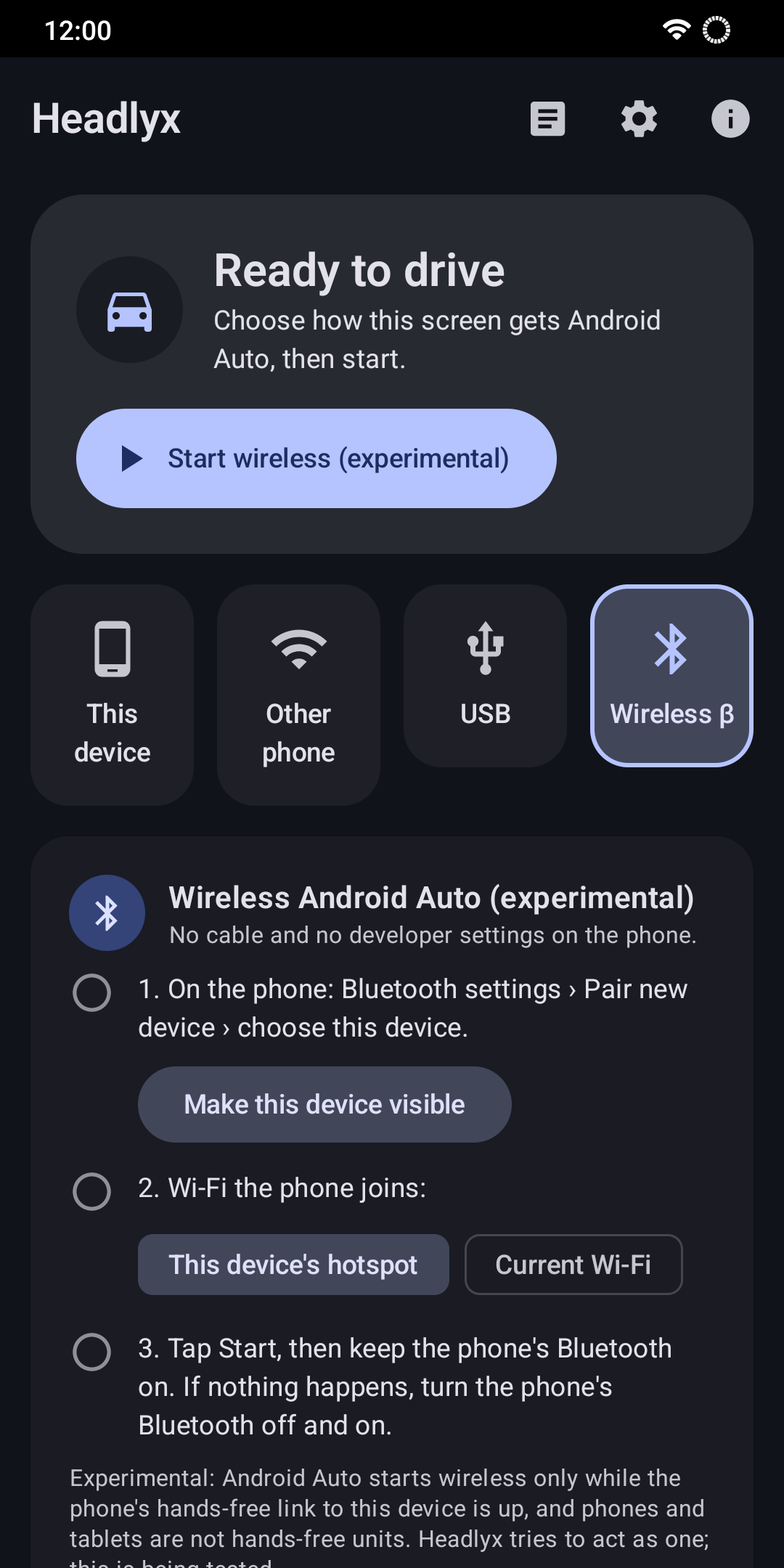
- Wireless (experimental) — Bluetooth and Wi-Fi, like a wireless car stereo.
Before you start: turn on Android Auto's head unit server
For the Wi-Fi and This device modes, Android Auto on your phone needs its developer "head unit server" turned on. You do this once:
- Open Android Auto's settings on your phone (Settings → Connected devices → Connection preferences → Android Auto, or from This device → Android Auto settings in Headlyx).
- Scroll to the bottom and tap Version ten times, then confirm to enable developer mode.
- Open the ⋮ menu at the top right and choose Start head unit server.
The server runs until the phone restarts or Android Auto is closed. After a restart, start it again — Headlyx shows a button when it cannot reach it.
A note on Wi-Fi security: the head unit server has no password, so while it runs anyone on the same network could reach it. Prefer your phone's own hotspot, and stop the server from the same ⋮ menu when you are done.
The first connection
The first time Android Auto sees Headlyx, it asks for consent on the phone ("Welcome to Android Auto"). Tap Continue. Headlyx then asks for a few permissions, each only when it is needed:
- Microphone — for Android Auto's voice assistant and hands-free calls.
- Location (optional) — only to tell Android Auto whether the car is moving, so it limits what it shows while you drive.
- Notifications — to show the connection status with a Stop button.
Connect over Wi-Fi
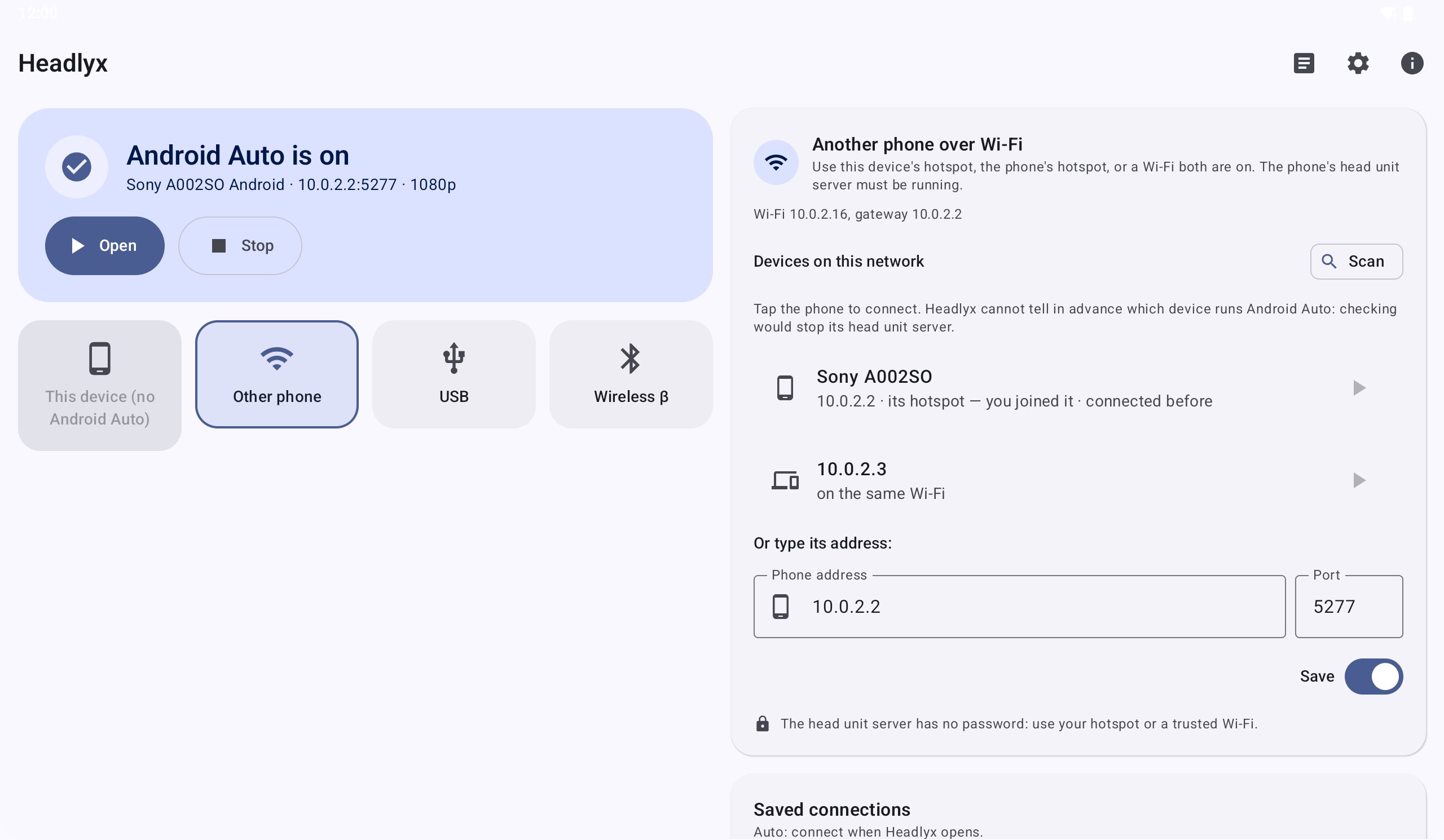
- Turn on your phone's hotspot and connect the tablet to it (or put both on the same trusted Wi-Fi).
- Start the head unit server on the phone (see above).
- On the tablet, open Headlyx and tap Find on hotspot — or type the phone's IP address — then Connect.
- Keep Save as a profile on to reconnect with one tap next time, and turn Auto on to connect automatically whenever Headlyx opens.
If the connection ever drops, Headlyx reconnects by itself.
Connect over USB
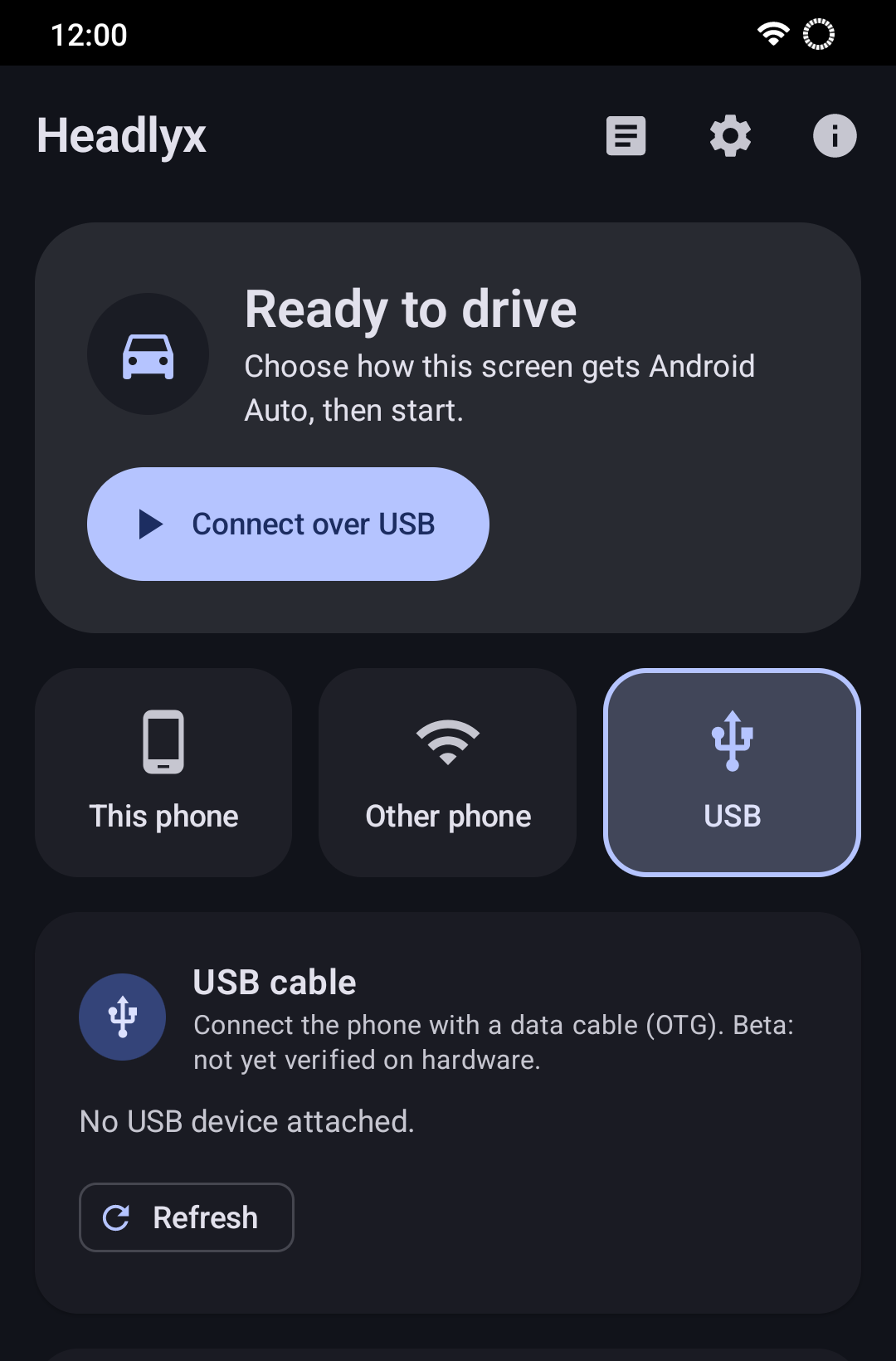
Plug your phone into the tablet with a USB-C to USB-C cable, or a USB-C phone into an OTG adapter. The tablet must support USB host (OTG) and you need a data cable, not a charge-only one. USB mode does not need the head unit server.
Show it on the phone itself
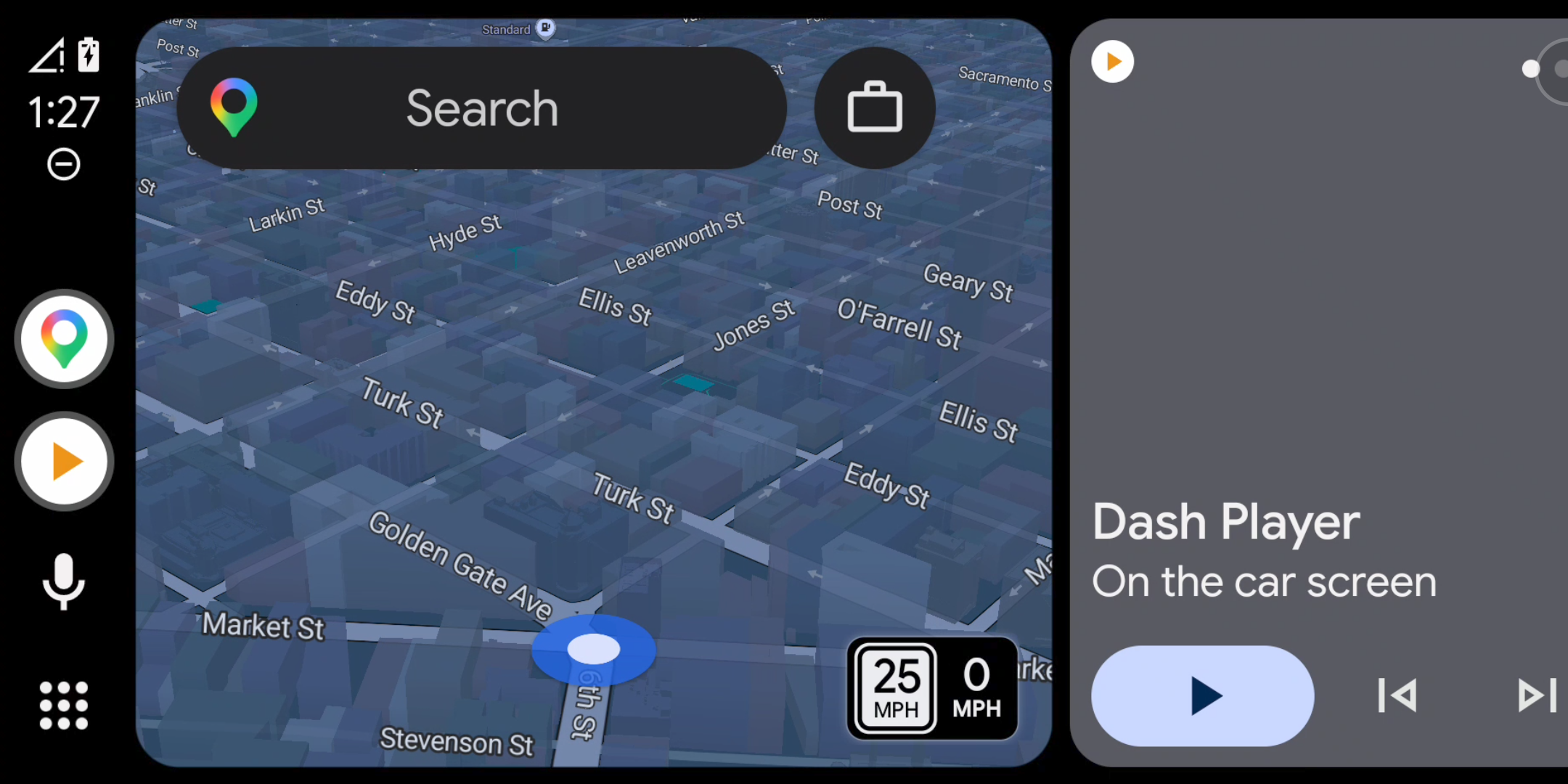
No second device? This device mode runs Android Auto full screen on the same phone — handy on a dashboard mount. Start the head unit server, open Headlyx, and tap Start.
Wireless (experimental)
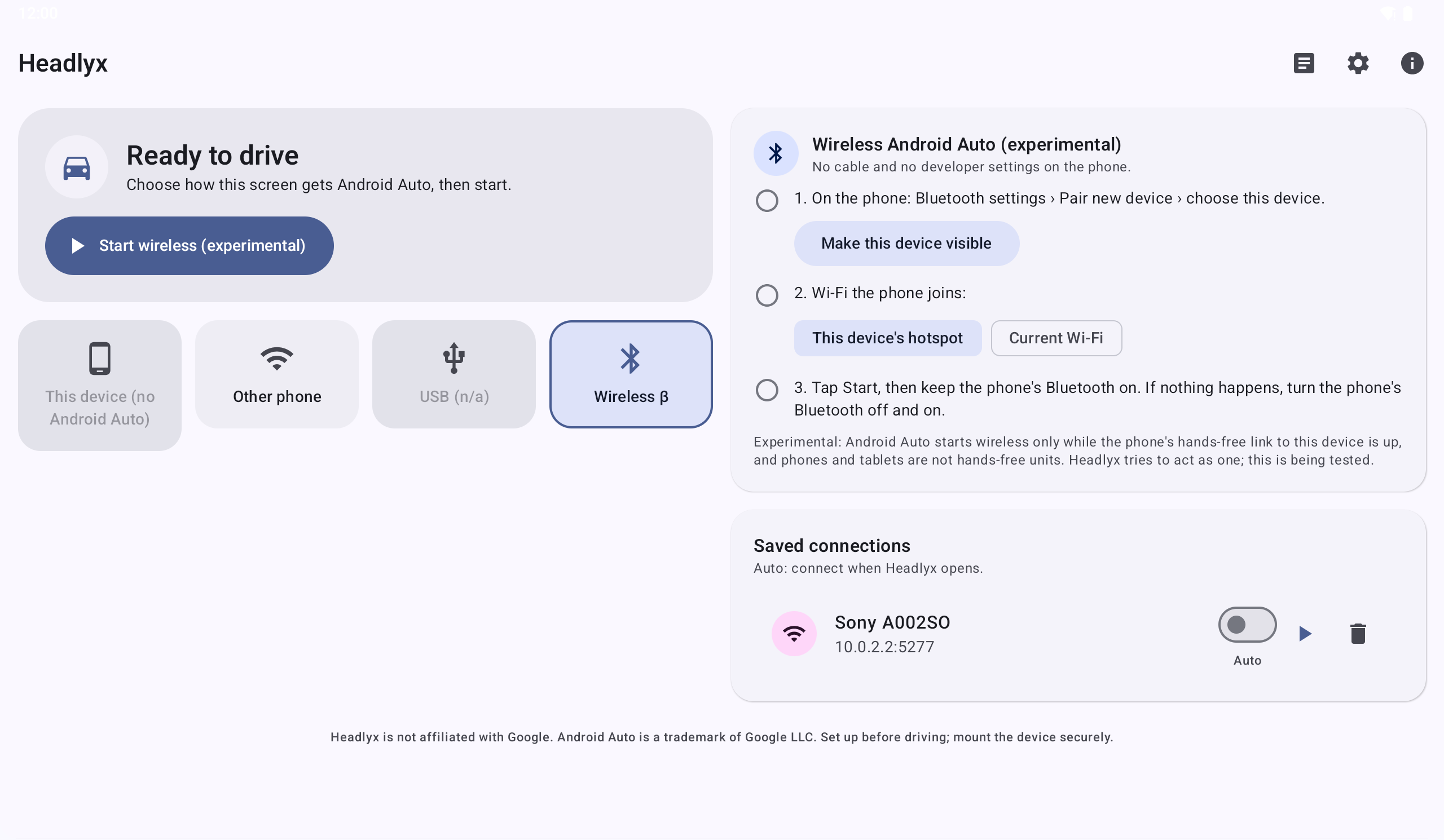
Headlyx can also connect over Bluetooth and Wi-Fi, like a wireless car stereo. This mode is still being tested on more devices, so treat it as a preview.
Make it fit your car
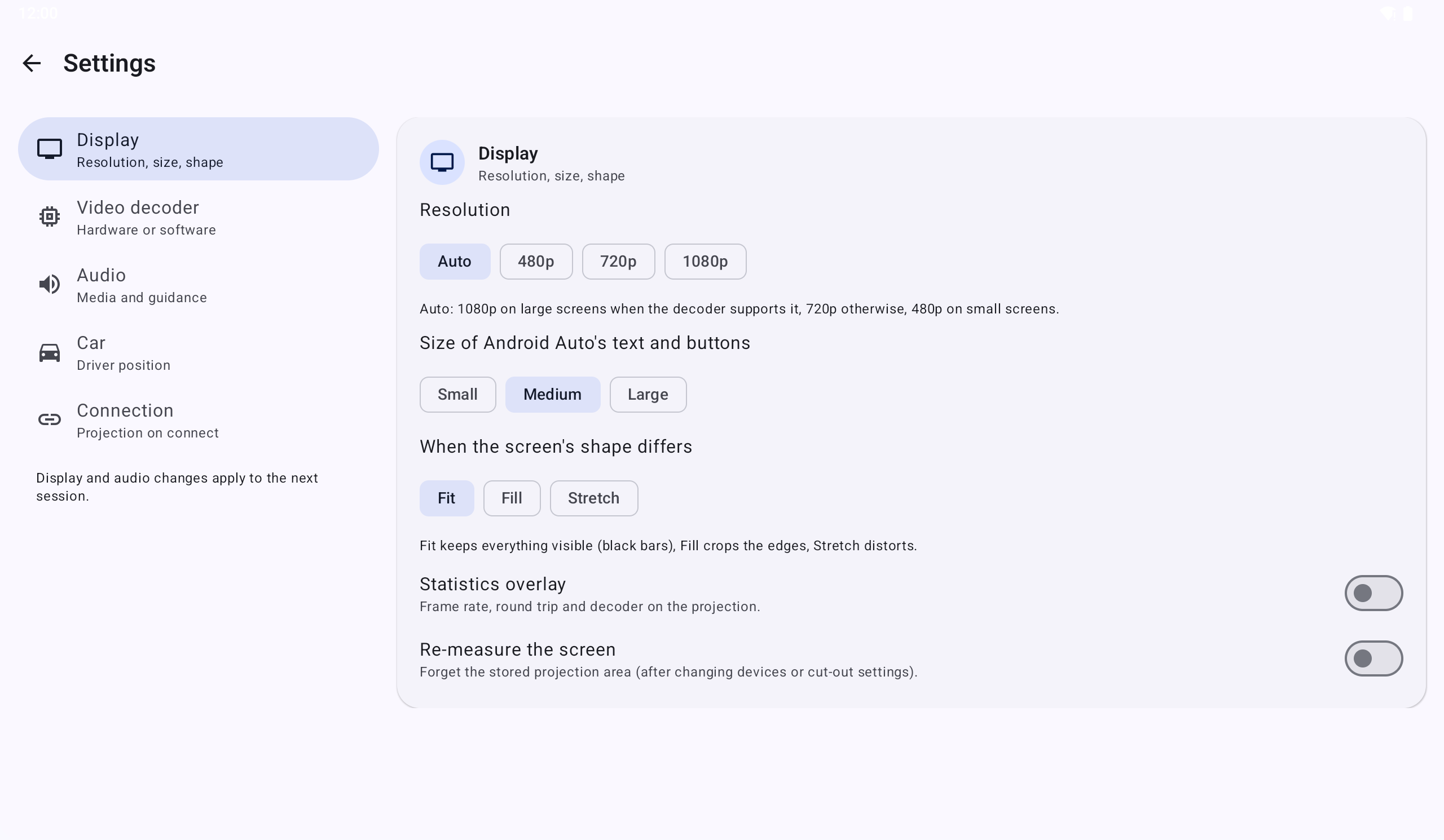
- Resolution from 480p to 1080p (Auto picks a safe default for your screen).
- Text and button size: Small, Medium or Large.
- When the screen's shape differs: Fit (black bars), Fill (crop) or Stretch.
- Media and guidance audio through Headlyx, or leave it to the phone (and your car's Bluetooth).
- Left-hand drive places Android Auto's controls on the driver's side.
- Open the projection when connected shows Android Auto full screen as soon as it connects.
Display and audio settings apply from the next connection.
Everyday use
- Leave the projection: press Back, or use the round corner button → Back to Headlyx. Android Auto keeps running.
- Stop: the corner button → Stop Android Auto, the Stop button on the home screen, or Stop in the notification.
- Reconnect: with a saved profile and Auto on, Headlyx connects as soon as it opens.
If something does not work
- "Nothing listens on …:5277" — the head unit server is not running. Start it again (it stops after a phone restart).
- Stuck at "Connecting…" / "Handshake timeout" — force-stop Android Auto on the phone (Settings → Apps → Android Auto → Force stop), then start the head unit server again.
- Black bars, wrong touch position — Settings → Re-measure the screen, then reconnect.
- Picture broken or frozen — Settings → Video decoder → Software.
- No sound on the tablet — turn on "Media and guidance audio through Headlyx".
Logs (home screen → Logs) show what happened, and Export shares a plain text report — no screen content and no messages.
Private by design
- No account and no sign-in.
- No ads, no analytics, no tracking.
- Video, sound, microphone and location are exchanged only with the phone you connect, over an encrypted link. Nothing is sent to us. Read the privacy policy.
Good to know
- Which apps appear is decided by Android Auto on your phone, not by Headlyx.
- You need a phone with Android Auto, and a tablet or phone with Android 6.0 or later as the screen.
- Headlyx is in 13 languages.
Get Headlyx
Set Headlyx up before you drive, mount the screen securely, and follow local laws on using devices while driving. This is our first release — tell us how it works in your car with a review on Google Play.
Headlyx is an independent app, not affiliated with, endorsed or sponsored by Google. Android and Android Auto are trademarks of Google LLC.
Related app
Headlyx: Car Screen Receiver
Use a tablet or spare phone as the car screen for Android Auto™ from your phone.