How to Choose the Right Wallpaper Resolution for Your Android Phone
Learn how resolution and aspect ratio affect your wallpaper, why images get cropped or blurry, and what to check before setting one.
On this page
A great photo can look disappointing as a wallpaper. It might be cropped in the wrong place, look soft, or have its subject hidden behind the clock. Most of the time, the problem isn't the photo itself but a mismatch between the image and your screen.
This guide explains resolution and aspect ratio in plain terms, why wallpapers get cropped or blurry, and how to pick and check an image before you set it.
What are resolution and aspect ratio?
Resolution
Resolution is the number of pixels in an image or on a screen, written as width × height. A phone screen described as 1080 × 2400 has 1,080 pixels across and 2,400 pixels down when held upright.
More pixels mean more detail, as long as the image actually contains that detail. An image smaller than your screen has to be stretched to fill it, and stretching is what makes wallpapers look soft.
Aspect ratio
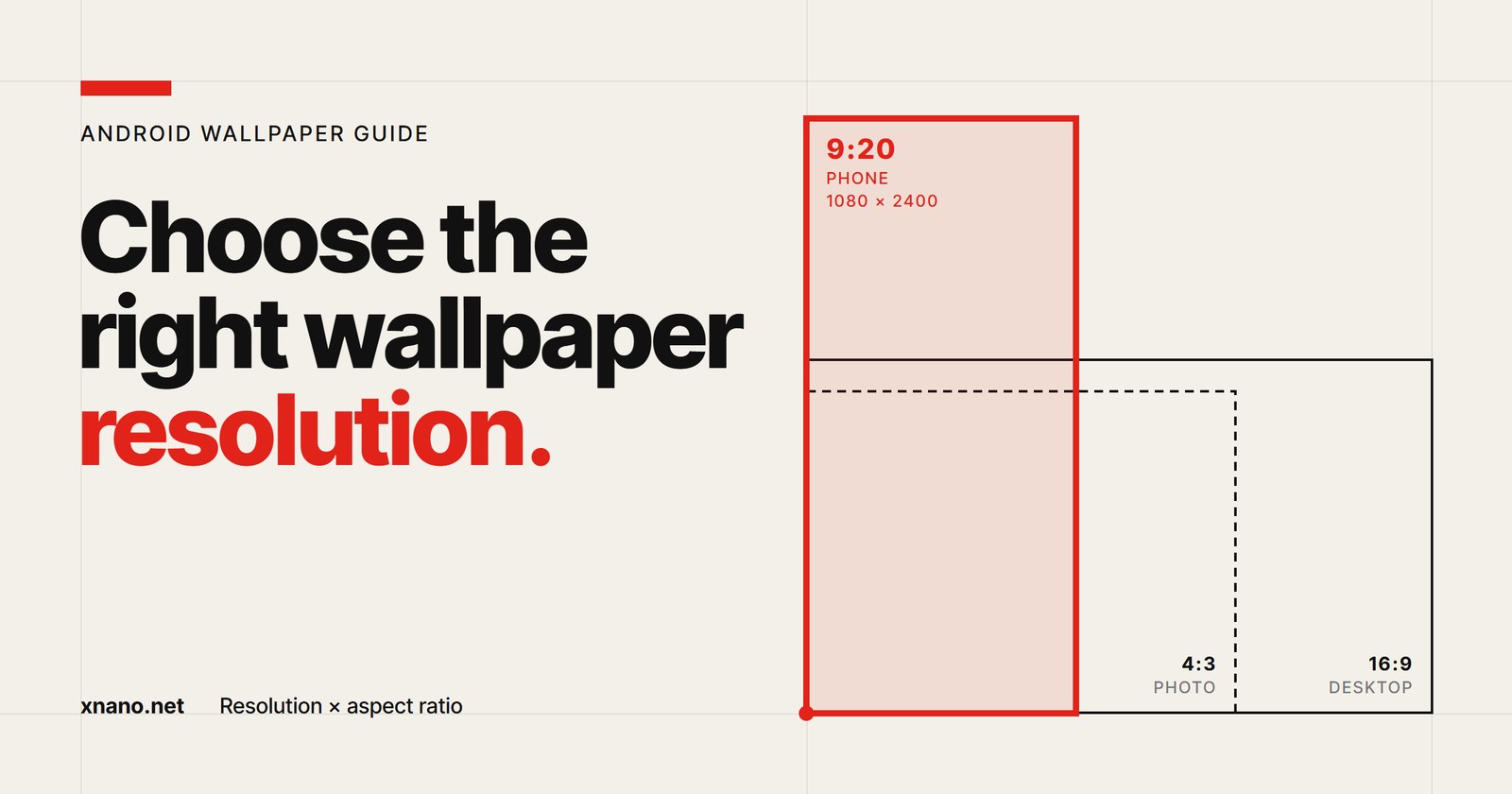
Aspect ratio is the shape of the image: the relationship between width and height, regardless of size. A 1080 × 2400 screen has a ratio of 9:20 in portrait (usually quoted as 20:9). A typical photo from a camera is 4:3 or 3:2, and a desktop wallpaper is often 16:9.
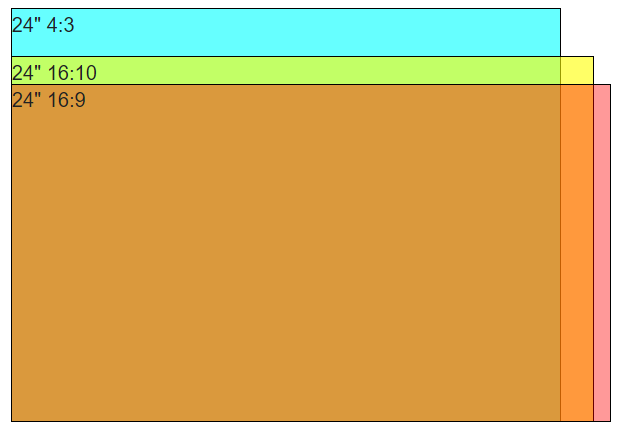 Three common display shapes at the same diagonal size. A phone held upright is taller and narrower than any of them. Image: Indrek, Wikimedia Commons, public domain.

Two images can have the same resolution but different shapes, and two images can share a shape but differ greatly in size. You need to think about both.
Why wallpapers get cropped or blurry
Cropping: the shape doesn't match
Phone screens are tall and narrow. Most photos are wide. When you set a wide image as your wallpaper, Android has to fill a tall frame, so it scales the image up until the height fits and cuts off the sides. A landscape photo can lose most of its width this way.
Some launchers also use an area slightly wider than the screen so the wallpaper can scroll or shift as you swipe between home screen pages. That means even an image that matches your screen exactly may be cropped a little at the edges.
Blurriness: not enough pixels
If an image has fewer pixels than the area it needs to cover, it gets enlarged. Enlarging can't add real detail, so edges turn soft and fine textures smear. This often happens when:
- You use a thumbnail or preview instead of the full-size image.
- A messaging app compressed the photo before sending it to you.
- A wide image is heavily zoomed to fill the tall screen, so only a small part of it ends up covering the whole display.
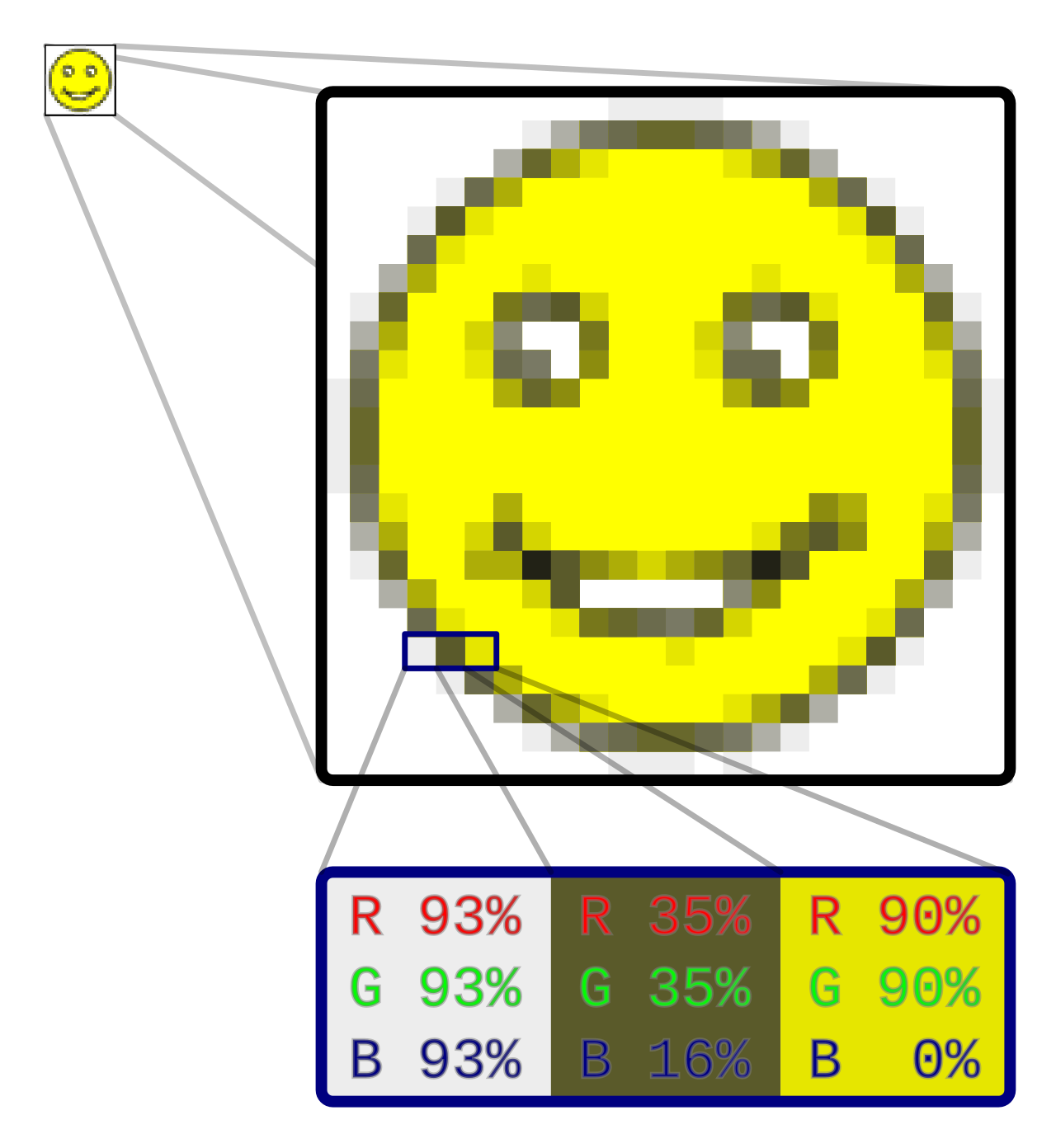 Enlarge a small image far enough and its individual pixels become visible. Image: Gringer, Wikimedia Commons, CC0.

For a closer look at the causes and fixes, see Why does my Android wallpaper look blurry?
How to choose an image that fits your screen
1. Find your screen resolution
Check the manufacturer's specification page for your model, or look in your phone's display settings, where some devices list the resolution. Write down the width and height in portrait orientation.
2. Prefer portrait images, or wide ones with room to crop
The easiest wallpapers are tall images close to your screen's shape. If you love a landscape photo, make sure the important part sits near the center, because the sides are likely to be cut.
3. Aim for at least your screen's resolution
As a rule of thumb, choose an image that is at least as large as your screen in both directions, and ideally a bit larger to allow for launcher scrolling and repositioning. Larger is fine: Android scales it down, and scaling down doesn't make an image blurry.
4. Think about what sits on top
Your lock screen shows a clock and notifications near the top; your home screen has icons, widgets, and a dock. Images with calm areas, such as sky, water, or soft gradients, keep icons readable. Busy, high-contrast images can make text hard to see.
5. Use the original file
Download the full-size version from the source rather than saving a preview. For your own photos, use the file from your camera or gallery, not a copy that passed through a chat app.
Checks before setting an image as wallpaper
Run through this quick list before you commit:
- Size: Open the image details in your gallery app and confirm the pixel dimensions meet or exceed your screen.
- Shape: Is it portrait, or is the subject centered enough to survive cropping?
- Preview: Use the wallpaper preview and look at both the home and lock screens. Move or pinch the image if your phone allows it.
- Readability: Check that the clock, icons, and widget text stand out clearly.
- Light and dark mode: If your phone switches themes, check the wallpaper in both.
- Zoom in: Pinch to zoom on the original. If it already looks soft on your screen, it will look soft as a wallpaper.
Let an app handle the variety
If you'd like a fresh look without picking images by hand every day, Daily Wallpapers can help. It automatically changes your home screen, lock screen, or both with images from Bing, Picsum Photos, or your own photos. Since version 0.3.21, it cuts each picture to the exact size and shape of your screen before setting it, so wallpapers stay sharp and centered.
When you use your own images, the tips above still apply: choose large, portrait-friendly files with the subject near the center.
Keep personalizing
A well-chosen wallpaper is the foundation of a clean, comfortable home screen. For ideas on icons, widgets, and layout, see How to make your Android home screen more personal.
Related app
Daily Wallpapers
A Fresh Wallpaper for Every Day