CamRelay User Guide
CamRelay User Guide
CamRelay turns your Android device into a standalone RTSP camera. It captures video and audio from the built-in camera and microphone, encodes them on the device, and serves the result over your local network — so any RTSP client, NVR, or media player can view the live feed.
This guide covers everything from the first launch to advanced configuration.
Tip: CamRelay also runs a built-in web interface. Open
http://<device-ip>:8888in any browser on the same network to control streaming and change settings without touching the phone.
Getting Started
Introduction
CamRelay is a self-contained RTSP server for Android. There is no cloud account and no external service involved: the video never leaves your network unless you choose to forward it.
What you can do with CamRelay:
- Live RTSP streaming — a standard
rtsp://URL that works with VLC, Frigate, go2rtc, Home Assistant, Blue Iris, and most NVR software. - Two-way talk — listen to the device microphone and send audio back to the device through the RTSP backchannel.
- Local recording — record the stream to the device's storage and manage the files from the web interface.
- Video overlay — burn a timestamp, camera name, IP address, resolution, battery, performance, GPS, and speed information into the video.
- Web interface — control streaming, change settings, and browse recordings from a browser.
- ONVIF — the device advertises itself as an ONVIF Profile S camera so NVR software can discover it automatically.
Initial Setup
-
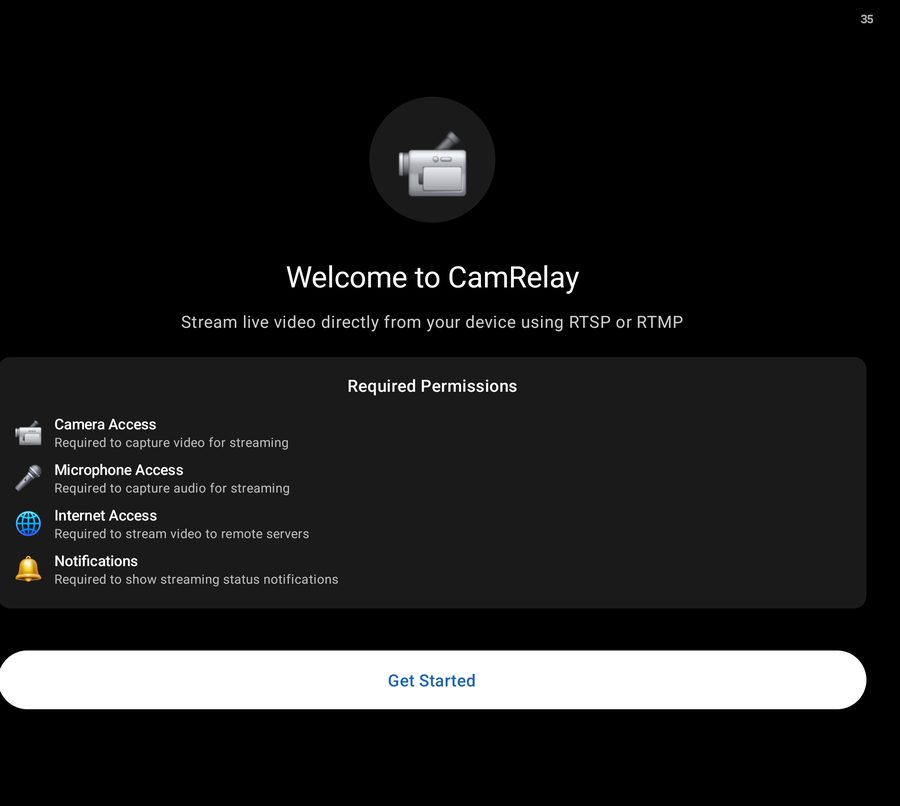
Install CamRelay and open it. The welcome screen appears.
-
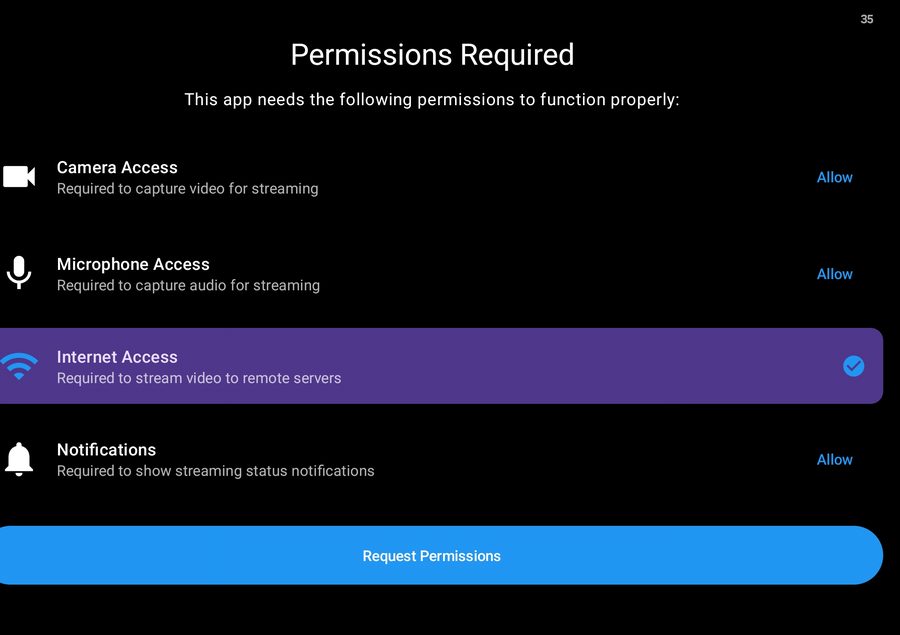
Tap Get Started. CamRelay asks for the permissions it needs.
-
Grant each permission:
Permission Why it is needed Camera Captures the video that is streamed. Microphone Captures audio and enables two-way talk. Notifications Shows the foreground service notification while streaming. Storage Saves recordings to the device. -
On Android 10 and later, CamRelay also asks for the Display over other apps permission. This is only required for Auto-start on Device Boot; you can tap Skip for Now and grant it later.
-
Connect the device to the same Wi-Fi network as the client that will view the stream, then tap Start Stream on the main screen.
-
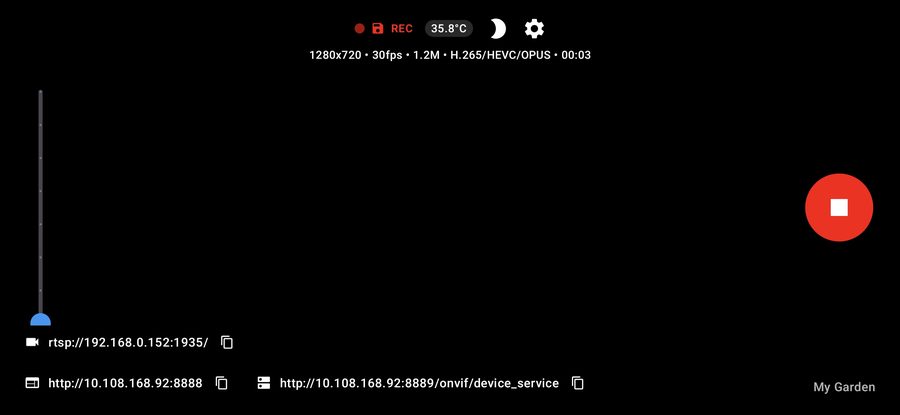
Note the URLs shown on the main screen:
- RTSP —
rtsp://<device-ip>:1935/ - Web interface —
http://<device-ip>:8888 - ONVIF —
http://<device-ip>:8889/onvif/device_service
Tap any URL to copy it to the clipboard.
- RTSP —
Note: The device IP address is the address on your local network. If the device reconnects to Wi-Fi and gets a new address, the URLs change. Assign a static IP (or a DHCP reservation) on your router for a stable address.
Streaming
RTSP Streaming
CamRelay runs an RTSP server directly on the device. The stream URL is:
rtsp://<device-ip>:1935/
The port is configurable in Settings → Server Ports → RTSP Streaming Port (default 1935).
The stream is available as soon as the app is running — you do not need to press Start Stream for an RTSP client to connect. Pressing Start Stream starts the encoder and the foreground service, which is what keeps the stream alive when the app is in the background.
Connecting from an RTSP client
- Make sure the client is on the same network as the device.
- Open the RTSP URL above in the client.
- If the client asks for a transport, TCP is the most reliable choice on Wi-Fi.
What affects connectivity
- Network isolation — guest Wi-Fi networks and some routers block device-to-device traffic. Use the same SSID and disable client isolation.
- VPN — an active VPN on the device or the client can route traffic away from the local network.
- Firewall — the RTSP port must be reachable from the client.
- Multiple network interfaces — if the device has both Wi-Fi and mobile data, CamRelay binds to the reachable local address. Check the URL shown on the main screen rather than assuming the address.
Note: The welcome screen mentions RTMP, but the current release streams over RTSP only. RTMP output is not available yet.
Start and Stop Streaming
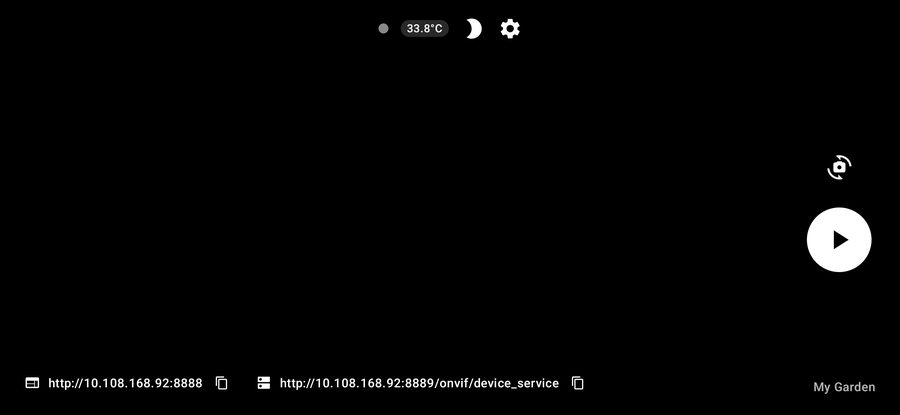
- Start Stream — starts the encoder, the RTSP server, and the foreground service. The status indicator changes to Connecting… and then Streaming.
- Stop Stream — stops the encoder and the foreground service. RTSP clients are disconnected.
- Switch Camera — cycles to the next available camera.
- Microphone toggle — mutes or unmutes the audio track without stopping the stream.
- Dim Screen — dims the display while streaming to save power. Double-tap the screen to wake it.
- Immersive Mode — hides the system bars. Tap the screen to show the controls again.
While streaming, the main screen shows the RTSP, web, and ONVIF URLs, the current temperature, and a REC badge when recording is active.
Tip: Opening the Settings screen stops the current stream. To change settings without interrupting the stream, use the Web Interface instead.
Background Streaming
CamRelay runs streaming inside a foreground service, so the stream continues when you switch to another app or turn the screen off. A persistent notification shows the current state and provides a Stop action.
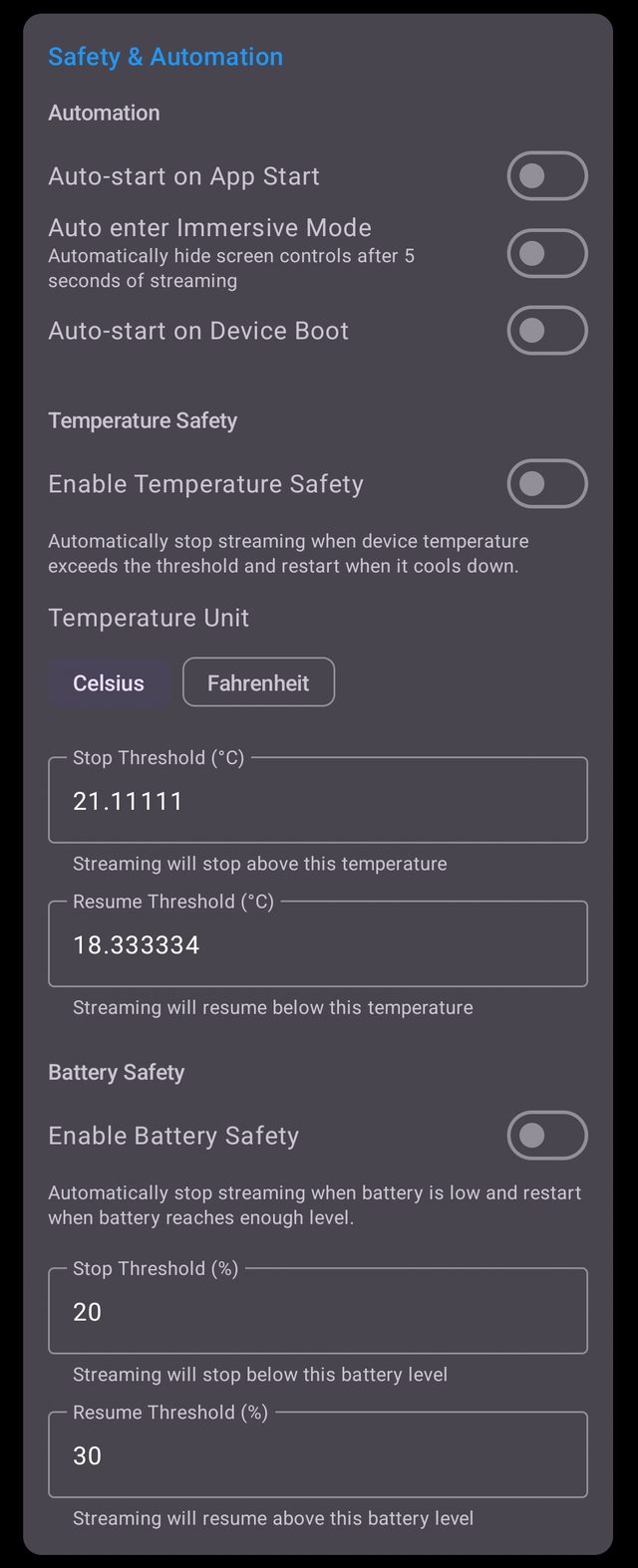
Automation options (Settings → Safety & Automation):
| Option | Effect |
|---|---|
| Auto-start on App Start | Starts streaming as soon as CamRelay is opened. |
| Auto enter Immersive Mode | Hides the system bars automatically when streaming starts. |
| Auto-start on Device Boot | Starts streaming after the device reboots. Requires the Display over other apps permission on Android 10+. |
Keeping the stream alive
- Disable battery optimization for CamRelay in Android settings, otherwise the system may stop the service.
- Keep the device plugged in for long sessions.
- Temperature Safety stops streaming when the device gets too hot and resumes it after it cools down. Battery Safety does the same for a low battery level. Both have configurable stop/resume thresholds and a hysteresis warning.
Camera
Camera Selection
CamRelay lists every camera the device exposes, including logical cameras and the physical lenses behind them.
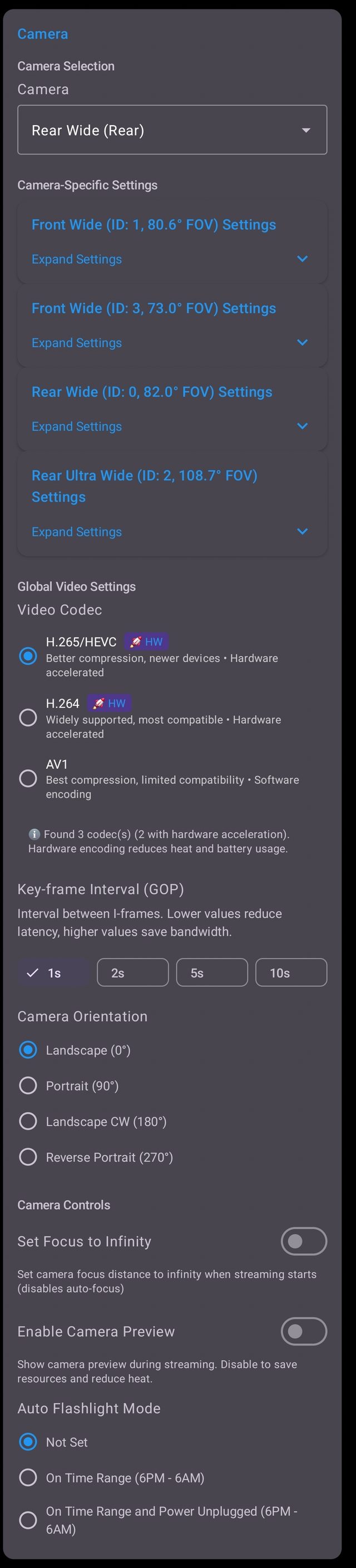
- Camera Selection — choose the camera to stream. Each entry shows the lens name, the camera ID, and the field of view.
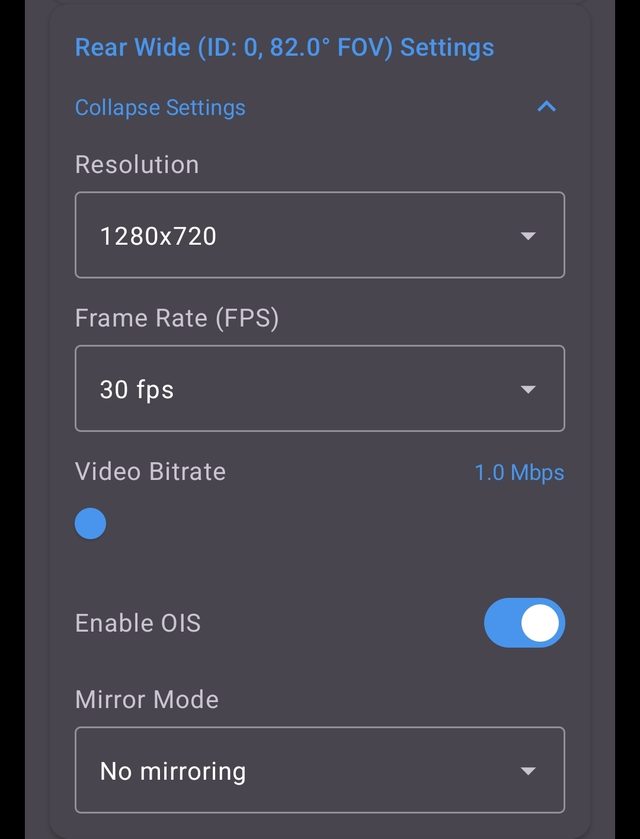
- Camera-Specific Settings — resolution, frame rate, bitrate, OIS, and mirror mode are stored per camera, so switching cameras restores that camera's own configuration.
- Global Video Settings — codec, key-frame interval, orientation, EIS, and HDR apply to all cameras.
Note: Some devices expose a logical camera that combines several physical lenses. Selecting the logical camera lets the system switch lenses automatically; selecting a physical lens locks the stream to that lens.
Resolution, Frame Rate and Bitrate
These three settings determine the quality and the bandwidth of the stream.
| Setting | Description |
|---|---|
| Resolution | The output size. Only resolutions reported by the selected camera are offered. |
| Frame Rate (FPS) | Frames per second. Higher values give smoother motion; 15–30 FPS is usually enough for surveillance. |
| Video Bitrate | The target bitrate. Higher values give better quality and use more bandwidth. |
Choosing values
- Start from the camera's native resolution and reduce it if the device gets hot or the network struggles.
- A rough guide: 1080p at 30 FPS is comfortable around 2–4 Mbps; 720p at 30 FPS around 1–2 Mbps.
- Lower the frame rate before lowering the resolution if you need to save bandwidth — detail is usually more valuable than smoothness for a fixed camera.
Video Codec
| Codec | Notes |
|---|---|
| H.265 / HEVC | Better compression, supported by newer devices. Hardware accelerated. |
| H.264 | Widely supported and the most compatible choice. Hardware accelerated. |
| AV1 | Best compression but limited compatibility. Software encoding. |
CamRelay shows which codecs the device supports and how many of them are hardware accelerated:
ℹ️ Found 3 codec(s) (2 with hardware acceleration). Hardware encoding reduces heat and battery usage.
Recommendations
- Use H.264 if you are unsure — every client supports it.
- Use H.265 when your client supports it and you want to save bandwidth.
- Avoid AV1 unless you specifically need it: software encoding is CPU intensive and will heat the device.
Key Frame Interval
The key-frame interval (GOP) controls how often a full reference frame is sent.
| Value | Effect |
|---|---|
| 1 s | Lowest latency, highest bandwidth. |
| 2 s | Balanced. |
| 5 s | Lower bandwidth, higher latency. |
| 10 s | Lowest bandwidth, highest latency. |
Lower values reduce latency and improve recovery after packet loss; higher values save bandwidth. For live viewing, 1 s or 2 s is recommended.
Camera Orientation
Rotate the streamed image to match how the device is mounted:
- Landscape 0°
- Portrait 90°
- Landscape CW 180°
- Reverse Portrait 270°
Use this when the device is mounted sideways or upside down and you cannot physically rotate it.
Electronic Image Stabilization (EIS)
EIS reduces shake by cropping and shifting the image. It is useful for a handheld or vehicle-mounted device, but it slightly reduces the field of view and adds a small amount of latency. Leave it off for a fixed camera.
HDR
HDR increases the dynamic range so both bright and dark areas stay visible. It helps in high-contrast scenes such as a window looking outside, but it can reduce the maximum frame rate and is not supported by every camera.
Audio
Audio Streaming

| Setting | Description |
|---|---|
| Enable Audio | Includes an audio track in the stream. |
| Audio Bitrate | The AAC bitrate. 128 kbps is a good default; 64 kbps is enough for speech. |
| Enable Hardware Noise Suppressor | Uses the device's noise suppressor to reduce background noise. |
Audio is encoded as AAC and synchronized with the video track.
Two-Way Talk
Two-way talk lets you send audio from the client back to the device speaker over the RTSP backchannel.
Audio Mode
| Mode | Description |
|---|---|
| Voice Communication | Recommended. Uses acoustic echo cancellation and fully supports two-way talk. |
| Media Playback | Standard media playback. Two-way talk works best in voice communication mode; in media playback mode audio may be lost and echo may occur. |
Playback Volume controls the volume of the audio received from the client.
Note: Two-way talk requires a client that supports the RTSP audio backchannel — for example Frigate, go2rtc, or a WebRTC-based viewer.
Two-Way Talk Audio Codec
| Codec | Notes |
|---|---|
| OPUS | Best quality and latency (native WebRTC). |
| G.711 ULAW | Most stable for two-way talk. Recommended. |
| G.711 ALAW | Use only if the client requires A-law (Europe). |
| AAC | Playback only — requires transcoding for two-way talk. |
If two-way talk does not work, try G.711 ULAW first.
Recording
Video Recording

| Setting | Description |
|---|---|
| Enable Recording | Records the stream to the device's storage. |
| Recording Segment Duration | Length of each file, in minutes. |
| Max Storage (MB) | Maximum space used by recordings. The oldest files are removed when the limit is reached. |
The Recording Information card shows where files are stored, how much space is used, the estimated size of one segment, and the total bitrate:
Location: Movies/CamRelay (Internal Shared Storage) · Storage Used: 0.00 GB / 9.8 GB · Estimated File Size: 16.5 MB/segment · Total Bitrate: 1152 kbps (Video 1024 k, Audio 128 k)
Recordings are listed in the web interface's File Manager, where you can play, download, or delete them.
Recording Formats (MP4 / MKV)
| Format | Notes |
|---|---|
| MP4 | Widely compatible, but a sudden power outage may corrupt the recording. Best for compatibility. |
| MKV | More resilient to sudden power loss, but less widely supported. Best for recording reliability. |
Choose MKV for unattended or long-running recordings, and MP4 when you need to play the files on a wide range of devices without conversion.
Overlay
Overlays are burned into the video, so they appear in the RTSP stream and in recordings.

Date and Time
Draws the current date and time in the corner of the video. Useful as evidence of when a recording was made.
Camera Display Name
A free-text label shown in the watermark. Leave it empty to use the device name.
This name will appear in the watermark.
IP Address and Resolution
Shows the device's IP address and the current streaming resolution. Handy when you need to know which address to connect to without opening the app.
Battery and Performance Information
- Battery Information — the current battery level.
- Performance KPI — frame rate and bitrate, so you can confirm the stream is healthy at a glance.
GPS and Speed
| Setting | Description |
|---|---|
| GPS Coordinates Overlay | Draws the current latitude and longitude. |
| Speedometer Overlay | Draws the current speed. |
| GPS Update Interval (ms) | How often the location is refreshed. |
| Location Provider | Which location source to use. |
| Speed Unit | The unit used by the speedometer. |
GPS overlays are useful for dashcam and vehicle-mounted use. Location accuracy depends on the device's GPS reception; the settings screen shows the current accuracy.
Appearance → Overlay Text Size controls the size of all overlay text.
Web Interface
Overview
CamRelay serves a web interface on port 8888:
http://<device-ip>:8888
Open it in any browser on the same network. The web interface has four tabs:
| Tab | Purpose |
|---|---|
| 🏠 Main | Live preview, streaming control, quick controls, and system status. |
| ⚙️ Settings | The full settings list, with reload and save. |
| 📁 File Manager | Browse, play, download, and delete recordings. |
| 📖 Guide | Opens this guide. |
The web interface is the recommended way to change settings while streaming, because saving settings restarts the stream automatically instead of requiring you to stop it manually.
Main

Streaming Control shows the current status and provides Start Stream and Stop Stream.
Quick Controls are available while streaming:
- Flashlight / Torch — toggles the device torch.
- Exposure Control — adjusts the exposure compensation.
- Digital Zoom — zooms the image digitally.
Quick controls are available when streaming is active and supported by the camera.
System Status shows app visibility, activity status, battery level, temperature, charging state, and battery health. The 📱 Restart action restarts the app.


Live Preview tries the best available method automatically:
- WebRTC (WHEP) — lowest latency.
- MJPEG — fallback.
- Snapshot polling — last resort, about 1 FPS.
- External player — opens the RTSP URL in a native player.
You can force a method with Switch to MJPEG or Switch to Snapshot, or use Open in External Player to hand the stream to an RTSP player on your computer.
Settings


The Settings tab mirrors the app's settings screen. Two buttons control the changes:
- 🔄 Reload Settings — discards unsaved changes and reloads the current values from the device.
- 💾 Save Settings — applies the changes. Streaming restarts automatically with the new settings.
Settings saved successfully! Streaming will restart with new settings.
Reset to Defaults restores the factory configuration.
File Manager
The File Manager lists recordings with their file name, size, duration, and modification date.
| Action | Description |
|---|---|
| Play | Plays the recording in the browser. |
| Download | Downloads the file to your computer. |
| Delete | Deletes the file. |
| Refresh | Reloads the list. |
| Delete Selected | Deletes all selected files. |
No recordings found. Video recordings will appear here when saved.
A file that is currently being recorded cannot be deleted; CamRelay reports how many files were deleted and skips the ones still in use.
Integrations
CamRelay exposes a standard RTSP stream, so it works with any RTSP-capable client. The examples below use the default URL:
rtsp://<device-ip>:1935/
VLC
- Open VLC.
- Choose Media → Open Network Stream.
- Enter
rtsp://<device-ip>:1935/and click Play.
If playback stutters, open Tools → Preferences → Input / Codecs and set Network caching to 1000 ms or higher.
Frigate
Frigate can use CamRelay as a camera source. Add the stream to your Frigate configuration:
cameras:
  camrelay:
    ffmpeg:
      inputs:
        - path: rtsp://<device-ip>:1935/
          roles:
            - detect
            - record
For two-way talk, configure the audio backchannel in Frigate's go2rtc section and select G.711 ULAW as the two-way talk codec in CamRelay.
Note: CamRelay is not a Frigate-specific app. It provides a standard RTSP source that Frigate — or any other NVR — can consume.
go2rtc
Add CamRelay as a stream in go2rtc.yaml:
streams:
  camrelay: rtsp://<device-ip>:1935/
go2rtc can then re-publish the stream as WebRTC, MSE, or HLS, and can relay the audio backchannel for two-way talk.
Troubleshooting
RTSP Connection Problems
- Confirm the client and the device are on the same network and that client isolation is disabled.
- Check the URL on the main screen — the IP address changes when the device reconnects to Wi-Fi.
- Try TCP transport instead of UDP.
- Disable any VPN on the device or the client.
- Verify the RTSP port in Settings → Server Ports matches the port in the URL.
No Video
- Make sure a camera is selected; the main screen shows No camera selected otherwise.
- Check that the selected resolution and frame rate are supported by the camera.
- If the device is overheating, lower the resolution or switch to a hardware-accelerated codec.
- Try H.264 if the client cannot decode H.265 or AV1.
No Audio
- Enable Settings → Audio → Enable Audio.
- Check the microphone permission.
- Confirm the client supports AAC audio.
- For two-way talk, switch the codec to G.711 ULAW and the audio mode to Voice Communication.
Background Streaming Problems
- Disable battery optimization for CamRelay.
- Grant the Display over other apps permission if you use auto-start on boot.
- Check the foreground service notification — if it is missing, the service was stopped by the system.
- Review the Temperature Safety and Battery Safety thresholds; streaming stops when a threshold is reached.
Camera Problems
- If the preview is black, close other apps that may be using the camera.
- Switch to a different camera and back to reset the camera session.
- Some devices do not allow two apps to use the camera at the same time.
Permission Problems
- Open Android Settings → Apps → CamRelay → Permissions and grant camera, microphone, and storage access.
- If a permission was permanently denied, Android stops showing the request dialog; grant it manually in system settings.
- The Display over other apps permission is only needed for auto-start on boot.
Related app
CamRelay - RTSP Live IP Camera
Turn your Android phone into a powerful RTSP network camera.