Using Every CamRelay Feature in Frigate NVR
Turn a spare Android phone into a Frigate NVR camera: CamRelay streams RTSP with audio, and Frigate's built-in go2rtc picks it up for recording, live view with sound and two-way talk. Step by step, with a complete config.yml.
On this page
Using Every CamRelay Feature in Frigate NVR
CamRelay brings an Android phone into Frigate through a single RTSP URL. go2rtc, which is built into Frigate, takes that stream and shares it with the recorder, the live view and the two-way talk channel.
CamRelay is an app by Banana Studio that turns a phone into an IP camera on your local network. It streams H.264 or H.265 video with Opus, G.711 or AAC audio. It has a web interface, supports ONVIF and receives audio back from viewers over the RTSP backchannel.
Data flow: phone running CamRelay → go2rtc (inside Frigate) → recording, live view with sound, two-way talk.
The configuration below follows Frigate 0.16. Some keys may change in later versions, so check the official Frigate documentation.
CamRelay features in Frigate
The first four features reach Frigate through go2rtc. The rest are set in the app and keep the stream running 24/7.
| CamRelay feature | Use in Frigate | Where to set it |
|---|---|---|
| H.264/H.265 RTSP stream, resolution and FPS from the phone's camera | Recording, detection, live view | go2rtc, step 2.1 |
| G.711 (PCMU/PCMA), Opus or AAC audio | Sound in live view and recordings | Codec in the app, step 2.2 |
| Two-way talk (RTSP backchannel) | Microphone button in live view | WebRTC + HTTPS, step 2.3 |
| Date and time, camera name, IP, battery and temperature, GPS coordinates and speed overlays | Burned into the image Frigate records | In the app, step 1 |
| Auto-start on boot, dim screen, pause when too hot or battery low | Keeps the stream from dropping | In the app, step 1 |
| MP4 recording on the phone, file management in the browser | Backup recordings outside Frigate | In the app, step 1 |
| Web interface | Check picture and sound, change settings without stopping the stream | Step 1 |
Before you start
You need:
- A Frigate server that is installed and running (see the Frigate installation guide), on the same local network as the phone.
- An Android phone with CamRelay installed, plugged in permanently and given a fixed IP address on your router.
- On Android 17: allow CamRelay local network access (Android lists it as Nearby devices). Without it, Frigate cannot connect to the phone. See the CamRelay 1.0.5 article.
The Frigate container must expose these ports to use every CamRelay feature:
| Port | Used for |
|---|---|
| 8971 | Frigate's HTTPS web interface, required for two-way talk |
| 8554 | go2rtc's RTSP restream |
| 8555 TCP and UDP | WebRTC: live view with sound and two-way talk |
Step 1: Set up CamRelay
CamRelay follows the phone's language; the setting names below are the English ones. Note: opening Settings stops the stream. Once CamRelay is running, you can change settings from the web interface without stopping it.
1.1 RTSP port
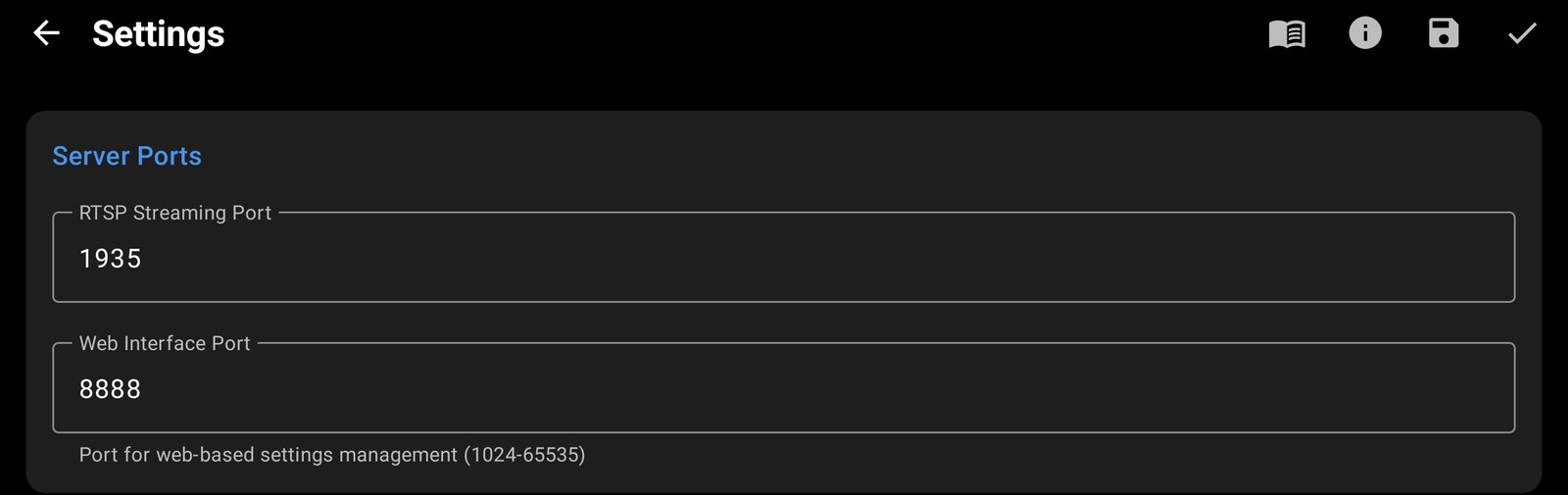
The Server Ports section shows the RTSP Streaming Port (default 1935) and the Web Interface Port (default 8888). The defaults are fine.
1.2 Video
- Under Camera Selection, pick the camera to use (the rear camera usually gives a better picture).
- Open that camera's own settings and choose Resolution, Frame Rate (FPS) and Video Bitrate. The available resolutions and frame rates depend on the phone's camera.
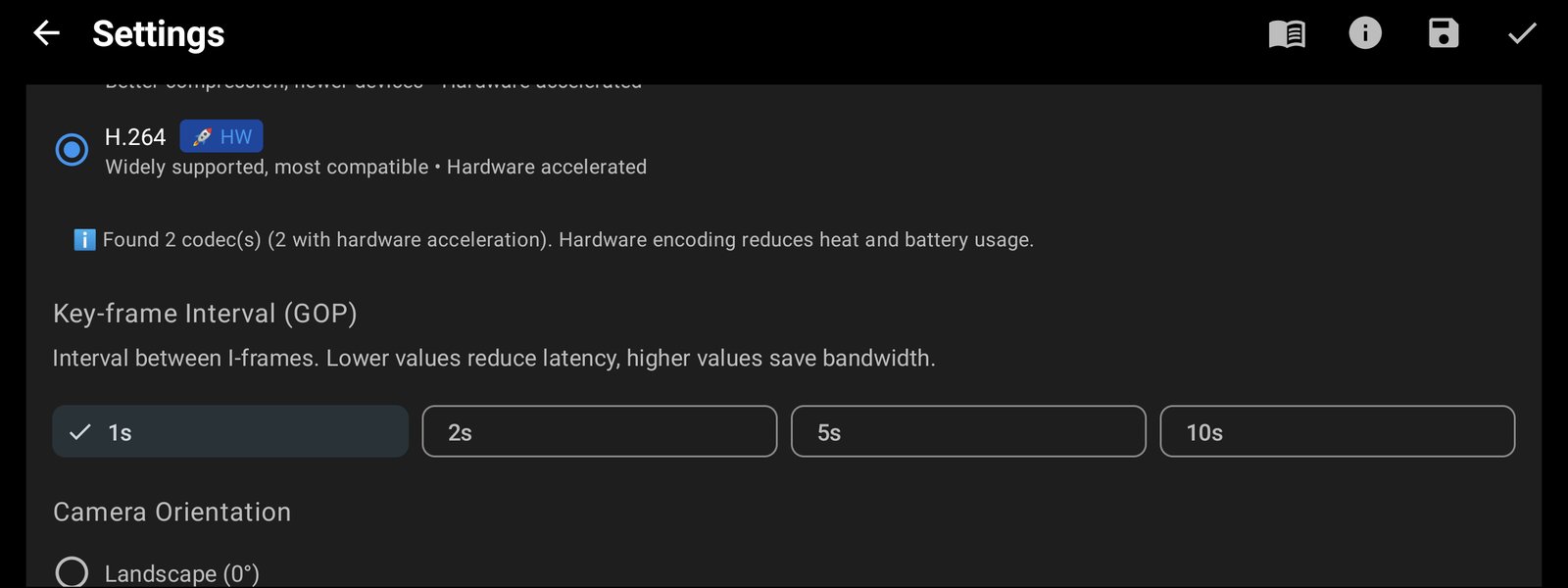
- Under Global Video Settings → Video Codec, choose H.264 so browsers can play the live view.
- Leave Key-frame Interval (GOP) at 1s (the default) so live view opens quickly.
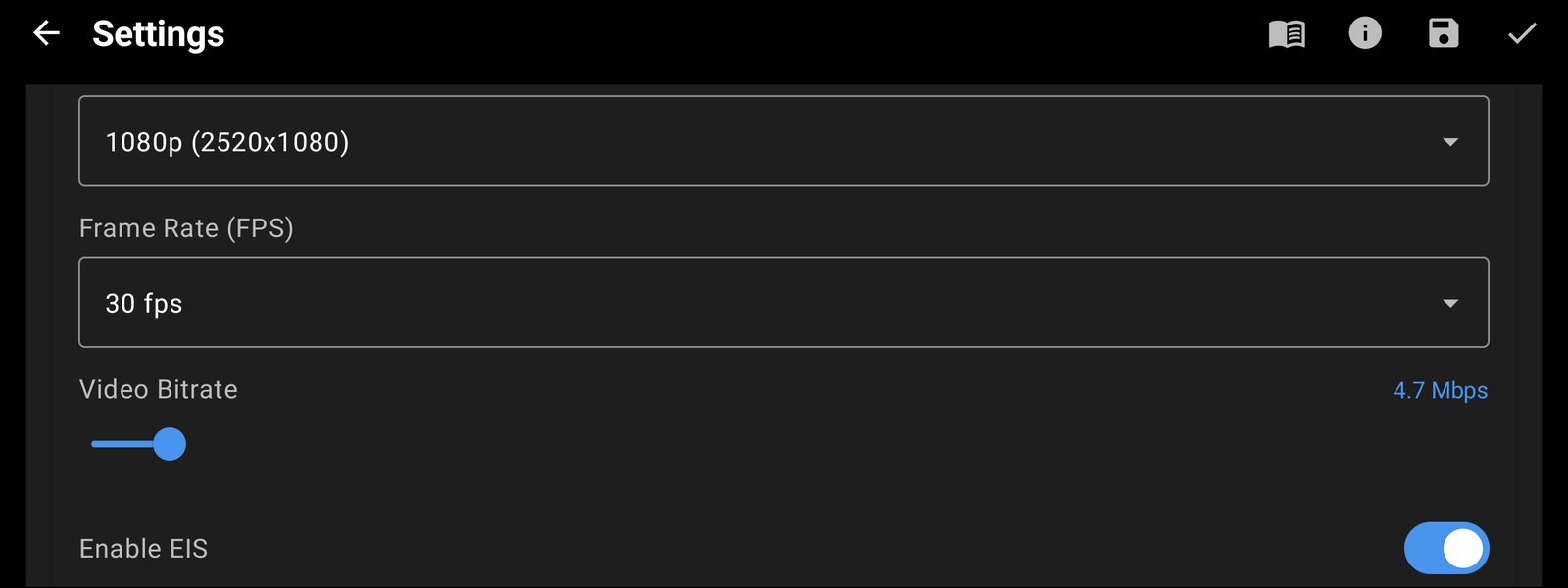
For surveillance, 1080p at 15 FPS is enough and easy on the Frigate server. H.265 saves bandwidth, but Frigate has to transcode it for the browser (see step 2.2).
1.3 Audio
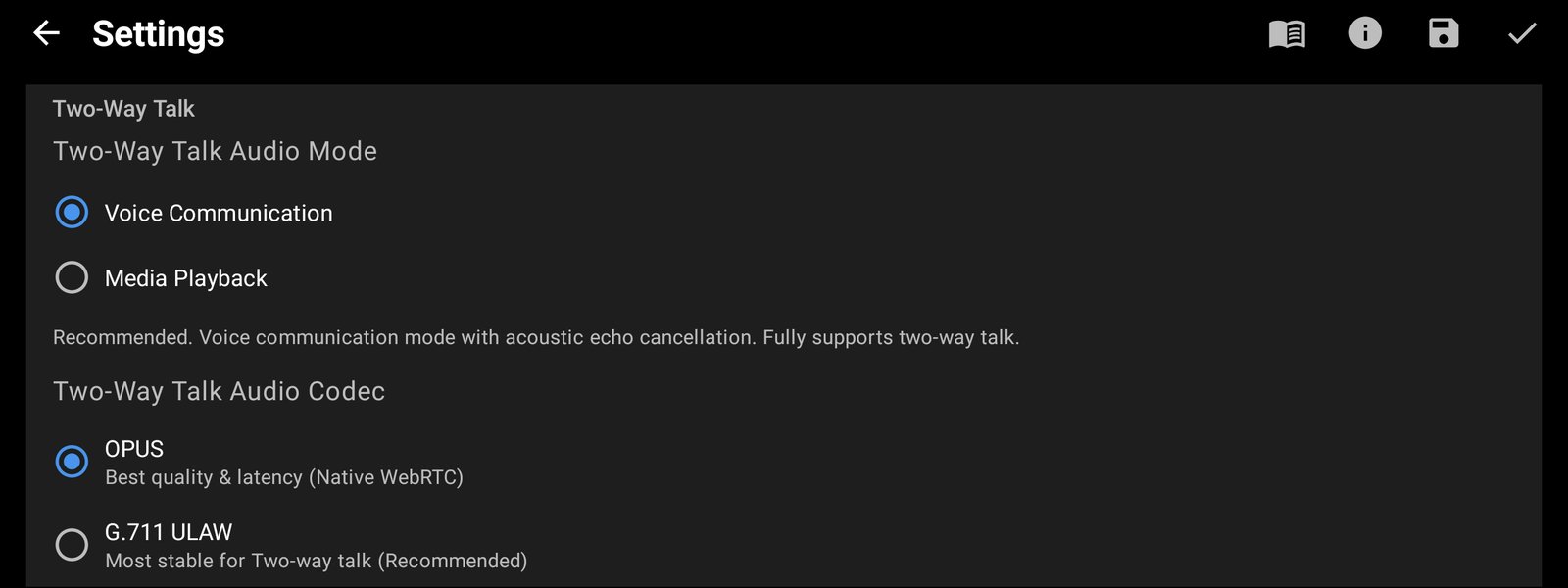
Under Audio Settings, turn on Enable Audio. The stream's audio codec is chosen under Two-Way Talk → Two-Way Talk Audio Codec. This one setting applies to both the outgoing sound and two-way talk:
- G.711 ULAW: recommended for Frigate, plays directly in both MSE and WebRTC (see step 2.2).
- OPUS: the default from Android 10, clearer sound, but only plays over WebRTC.
- G.711 ALAW: only if the listening device requires A-law.
- AAC: playback only; two-way talk needs transcoding.
Leave Two-Way Talk Audio Mode at Voice Communication: it has echo cancellation, so two-way talk does not howl.
1.4 Overlays, recording and 24/7 operation
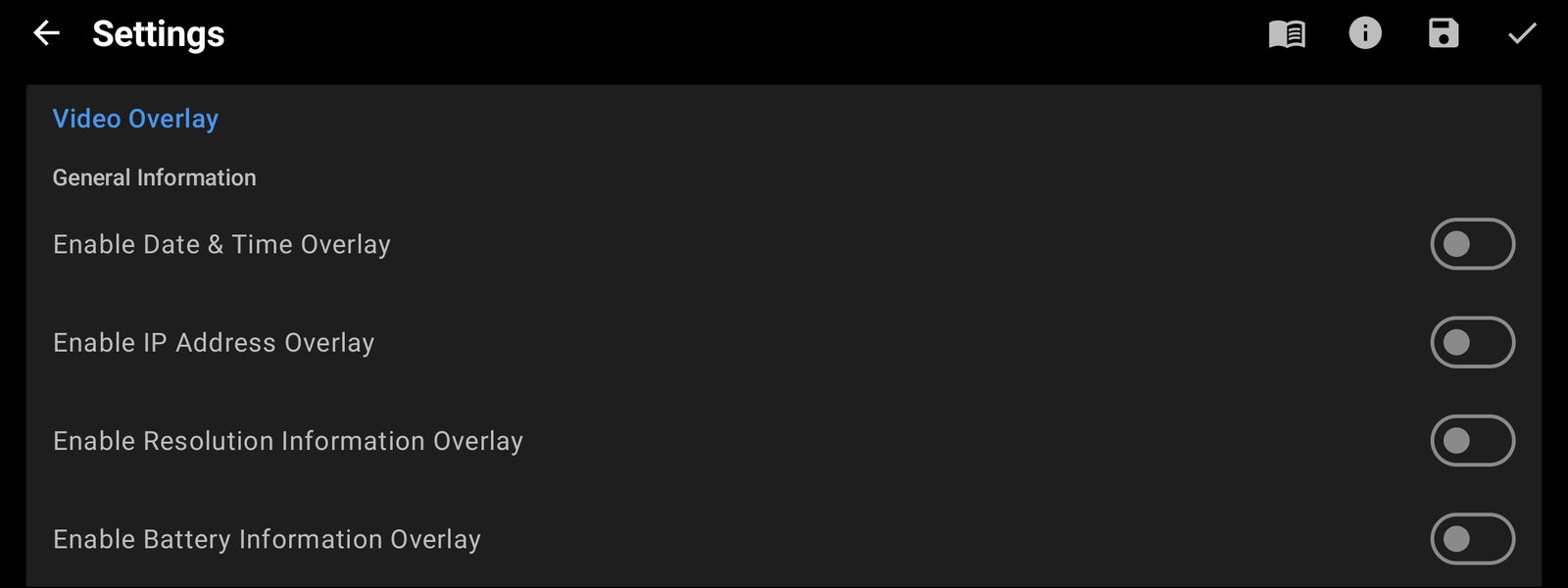
- Video Overlay: show the date and time, a camera name (Camera Name; leave it empty to use the device name), the IP address, battery and temperature, GPS coordinates or a speedometer. Overlays are drawn into the video itself, so they also appear in Frigate's recordings. All of them are off by default.
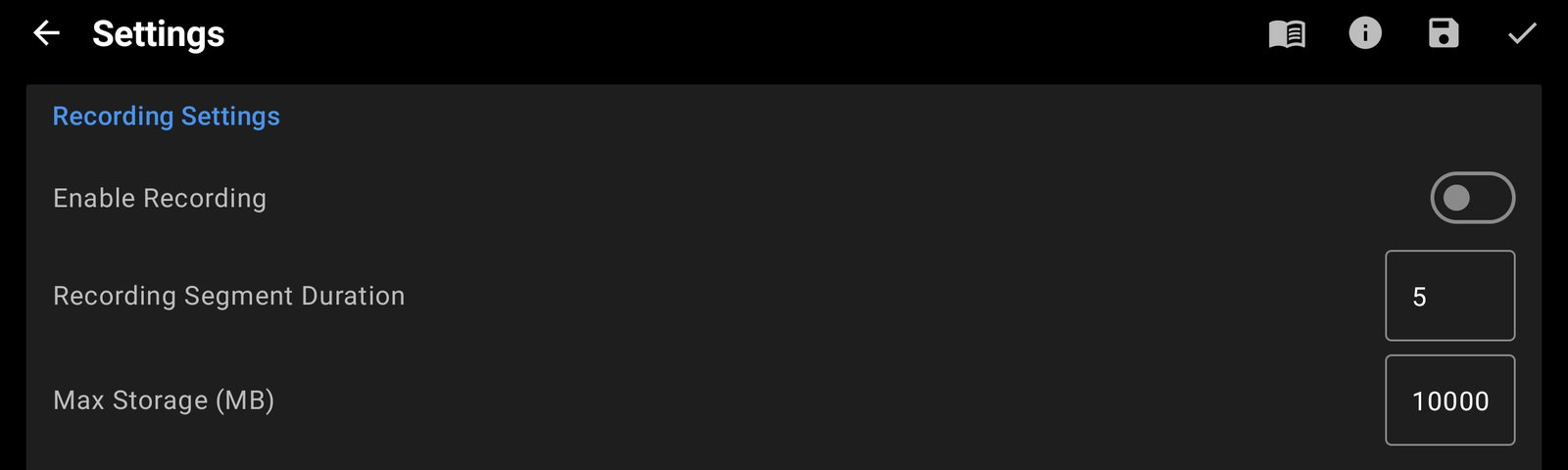
- Recording Settings: turn on Enable Recording for a backup copy on the phone. MP4 files go to
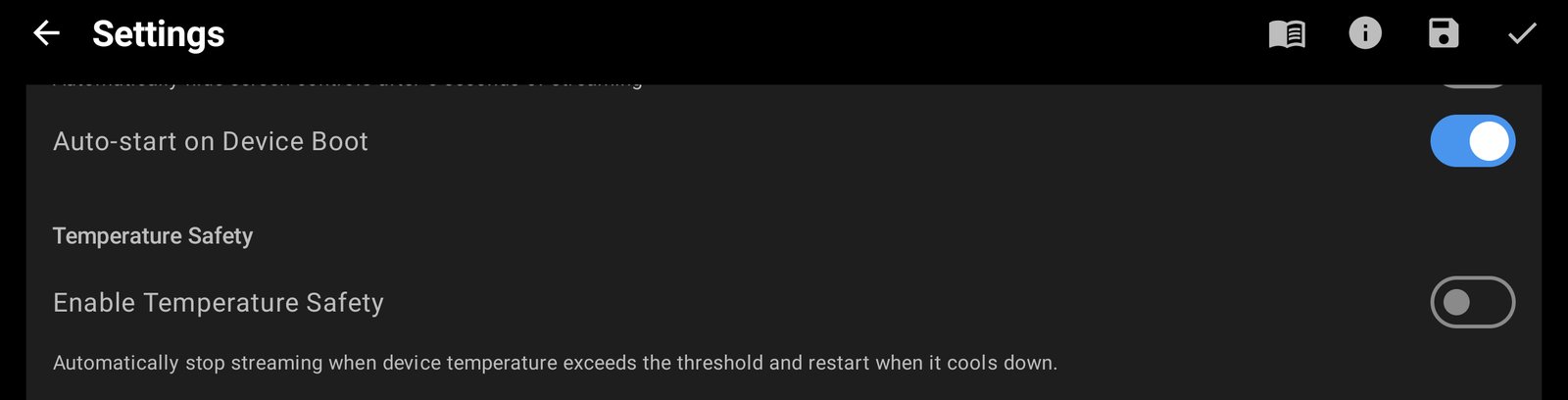
Movies/CamRelay, split by Recording Segment Duration (minutes). When Max Storage (MB) is reached, the oldest files are deleted. - Safety & Automation: turn on Auto-start on Device Boot so CamRelay starts streaming again after the phone restarts. On Android 10 and later, the app also needs permission to display over other apps. Temperature Safety and Battery Safety pause the stream when the phone gets too hot or the battery runs low, and resume it when things are back to normal.
- Battery Optimization: make sure battery optimization is off for CamRelay, so Android does not stop it in the background.
1.5 Start streaming and get the URL
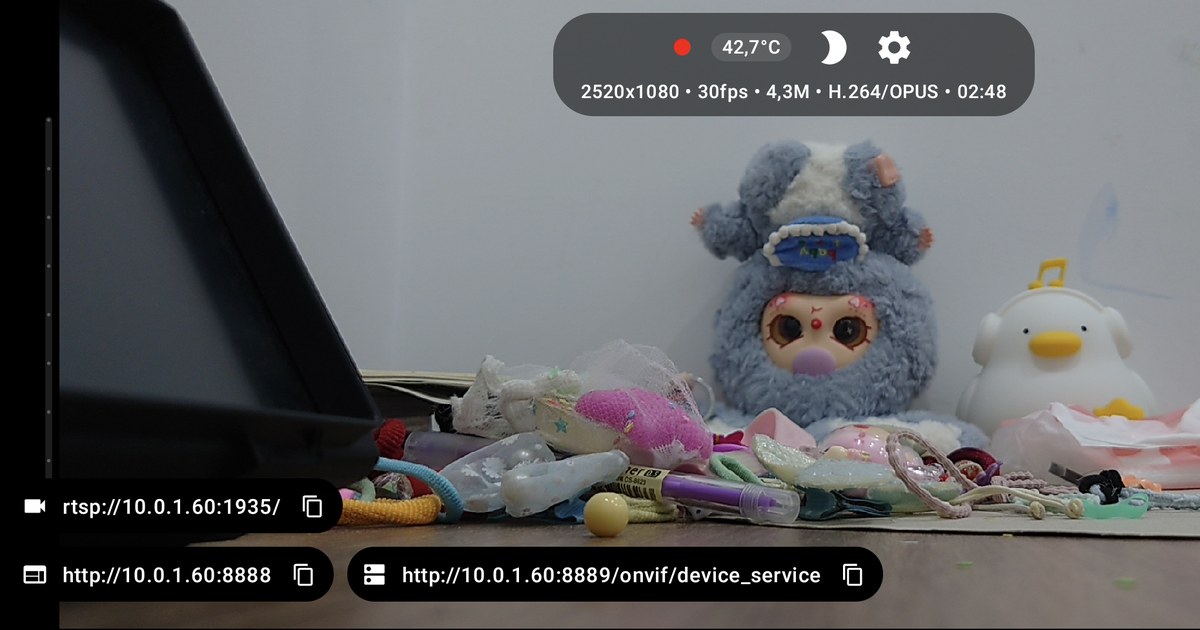
Go back to the main screen and tap the play button. The bar at the top shows the resolution, FPS, bitrate and codecs in use. The bottom corner shows three addresses, each with a copy button:
rtsp://<phone-ip>:1935/: the RTSP URL for Frigate.http://<phone-ip>:8888: CamRelay's web interface.http://<phone-ip>:8889/onvif/device_service: the ONVIF service.
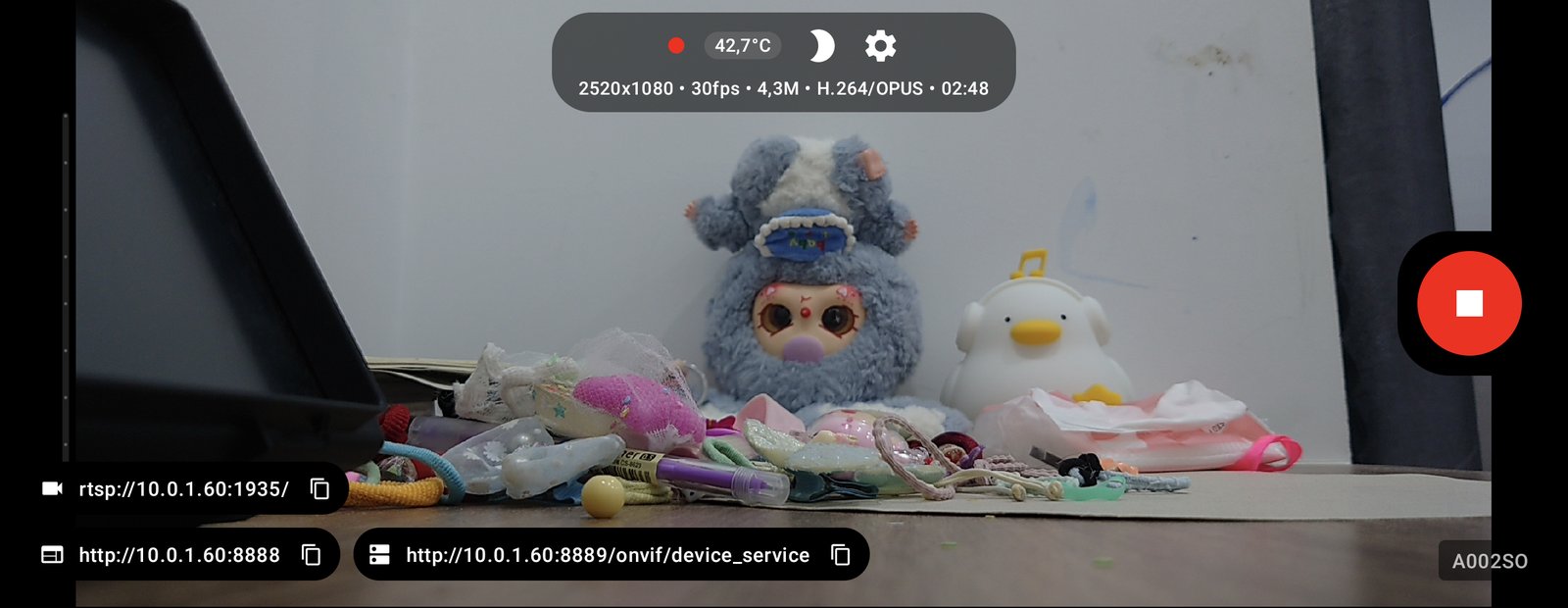
For a camera that stays in one place, tap the moon icon (Dim Screen) to black out the screen. This saves power and prevents burn-in on OLED screens. Double-tap to wake it.
The examples below use rtsp://192.168.1.50:1935/; replace it with the URL CamRelay shows. The current version of CamRelay does not ask for a login on RTSP yet, so use it only on a network you trust.
Coming soon: the next CamRelay update lets you set a username and password to protect the RTSP stream. You then only need to add them to the URL in go2rtc, for example
rtsp://user:[email protected]:1935/.
You can check the stream from the Frigate server with ffprobe:
ffprobe -rtsp_transport tcp rtsp://192.168.1.50:1935/
The output should list an h264 video stream and an audio stream (pcm_mulaw with G.711 ULAW, opus with OPUS).
Step 2: Configure go2rtc in Frigate
go2rtc inside Frigate is the only thing that connects to the phone. It pulls CamRelay's RTSP stream once and shares it with recording, detection, live view (MSE, WebRTC) and two-way talk. Frigate itself reads from rtsp://127.0.0.1:8554/camrelay, so the phone never has to serve several connections at once. That keeps it cooler and saves battery.
2.1 Add the stream
Add a go2rtc block to ~/frigate/config/config.yml:
go2rtc:
  streams:
    camrelay:                              # same name as the Frigate camera
      - rtsp://192.168.1.50:1935/          # the URL CamRelay shows
  webrtc:
    candidates:
      - 192.168.1.100:8555   # Frigate server IP
      - stun:8555
- One RTSP line is enough. With G.711 or Opus audio, go2rtc passes video and sound straight to the browser, with no
ffmpeg:transcoding. The same RTSP line also carries the two-way talk channel. webrtc.candidatesis required when running plain Docker; without it, WebRTC and the microphone do not work on the local network. Ports 8555 TCP/UDP were opened in "Before you start".- When the stream has the same name as the camera, Frigate uses it for live view automatically. Otherwise, set
live.streamsfor the camera.
2.2 Codecs and audio
Set CamRelay to H.264 video. G.711 is the simplest audio choice. According to the Frigate documentation, MSE (the default live view) plays AAC or PCMA/PCMU, and WebRTC (used for two-way talk) plays Opus or PCMA/PCMU. Only G.711 works directly in both.
| CamRelay audio | MSE | WebRTC | Extra go2rtc line |
|---|---|---|---|
| G.711 ULAW / ALAW (PCMU/PCMA) | Yes | Yes | None |
| OPUS | No | Yes | ffmpeg:camrelay#audio=aac to hear it in MSE |
| AAC | Yes | No | ffmpeg:camrelay#audio=opus for WebRTC |
Opus sounds clearer than G.711 (8 kHz telephone quality) if you mostly watch over WebRTC. If you must use H.265, add a video transcoding line and keep the RTSP line:
go2rtc:
  streams:
    camrelay:
      - rtsp://192.168.1.50:1935/
      - "ffmpeg:camrelay#video=h264#hardware"   # H.264 copy for browsers
2.3 Two-way talk
While streaming, CamRelay is always ready to receive audio over the RTSP backchannel; there is no switch to turn on. go2rtc opens this channel from the RTSP line in 2.1, with no extra configuration.
To talk, open Frigate over HTTPS on port 8971, go to the camera's live view and press the microphone; Frigate switches to WebRTC by itself. Your voice plays from the phone's speaker, at the volume set by Playback Volume in CamRelay.
If another app also needs to talk to the phone directly, add #backchannel=0 to the end of the RTSP URL so go2rtc does not hold the channel.
2.4 Add the camera to Frigate
Add a cameras block below the go2rtc block. The camera reads the stream back from go2rtc instead of connecting to the phone:
cameras:
  camrelay:
    ffmpeg:
      inputs:
        - path: rtsp://127.0.0.1:8554/camrelay   # the go2rtc stream from 2.1
          input_args: preset-rtsp-restream
          roles:
            - record
            - detect   # required by Frigate, nothing else to configure
    record:
      enabled: true
CamRelay sends a single stream (there is no sub-stream), so the camera uses it for both recording and detection.
Restart and check:
docker compose restart frigate
docker logs -f frigate
To check go2rtc on its own, temporarily add port 1984:1984 to docker-compose and open http://<server-ip>:1984. The camrelay stream should have an RTSP source with H264 video and PCMU/PCMA or OPUS audio. When CamRelay appears on Frigate's home page, you are done.
Step 3: Complete config.yml
The file below contains only what CamRelay needs: the go2rtc stream, WebRTC, login (for HTTPS, needed by two-way talk) and recording with sound.
go2rtc:
  streams:
    camrelay:
      - rtsp://192.168.1.50:1935/   # the URL CamRelay shows, H.264 + G.711 ULAW
  webrtc:
    candidates:
      - 192.168.1.100:8555   # Frigate server IP
      - stun:8555

auth:
  enabled: true

cameras:
  camrelay:
    ffmpeg:
      inputs:
        - path: rtsp://127.0.0.1:8554/camrelay
          input_args: preset-rtsp-restream
          roles: [record, detect]   # detect: required by Frigate
    record:
      enabled: true
    live:
      streams:
        CamRelay: camrelay

version: 0.16-0
Troubleshooting
Most problems when adding CamRelay to Frigate come down to the stream URL, the codecs or the network.
| Symptom | Common cause | Fix |
|---|---|---|
| Camera shows "No frames received" | Wrong URL or port, CamRelay not streaming, or Android stopped it in the background | Copy the URL again from CamRelay's main screen; check it with ffprobe; open http://<ip>:1984 (if exposed) to see whether go2rtc receives the stream |
| Cannot connect, even on the same Wi-Fi | Android 17 phone without local network access; router "client isolation"; guest network; VPN | Allow CamRelay Nearby devices; turn off client/AP isolation; put the server and the phone on the same main network |
| Stuttering or torn picture | Lost UDP packets | Add #transport=tcp to the URL in go2rtc |
| Live view does not play in the browser | H.265 stream or missing WebRTC candidates | Choose H.264 in CamRelay, or transcode with ffmpeg:...#video=h264; set webrtc.candidates |
| Connection drops from time to time | Unstable Wi-Fi, Android battery optimization, phone overheating | Use a fixed IP, keep the phone charging, turn off battery optimization for CamRelay, turn on Auto-start on Device Boot, use the dim screen button; watch the temperature at the top of CamRelay's screen; check Frigate's logs under Settings → System → Logs |
| No sound in live view | Enable Audio is off, or watching in MSE while CamRelay sends OPUS | Turn on audio in CamRelay; choose G.711 ULAW to hear sound in both MSE and WebRTC |
| Microphone does not work | Frigate opened over HTTP instead of HTTPS, or port 8555 missing | Open Frigate at https://<ip>:8971; expose port 8555 TCP/UDP and set webrtc.candidates |
When asking for help in Frigate's GitHub Discussions, include your config file, the startup log and the ffprobe output for the CamRelay stream. For CamRelay questions, tap Feedback in the app's About screen.
Find more news, guides and apps from Banana Studio at xnano.net.
Sources: Frigate Live View documentation for go2rtc; the CamRelay user guide and the Google Play listing for CamRelay.
Related app
CamRelay - RTSP Live IP Camera
Turn your Android phone into a powerful RTSP network camera.
Related posts
How to Turn an Old Android Phone Into a Security Camera
Give an old Android phone a second life as a security camera: place it well, keep it powered, let CamRelay start by itself after a reboot, and watch or record the camera from any browser on your Wi-Fi.
How to Turn an Android Phone Into a Live Camera
Turn any Android phone into a live camera in a few minutes with CamRelay: allow the permissions, tap the play button and watch the stream in any web browser on your Wi-Fi. No account, no cloud, nothing to install on the viewing device.