How to Turn an Android Phone Into a Live Camera
On this page
Have an Android phone you no longer use? You can turn it into a live camera with CamRelay.
You don't need a dedicated IP camera, complicated configuration, or another app to get started.
This guide will take you from installing CamRelay to viewing your first live camera in a web browser.
What You Need
You only need:
- An Android phone with CamRelay installed
- Camera permission
- A Wi-Fi network
- Another device with a web browser, such as a phone, tablet, or computer
For the simplest setup, connect both devices to the same Wi-Fi network.
1. Install CamRelay
Install CamRelay on the Android phone you want to use as a camera.
Open CamRelay for the first time.
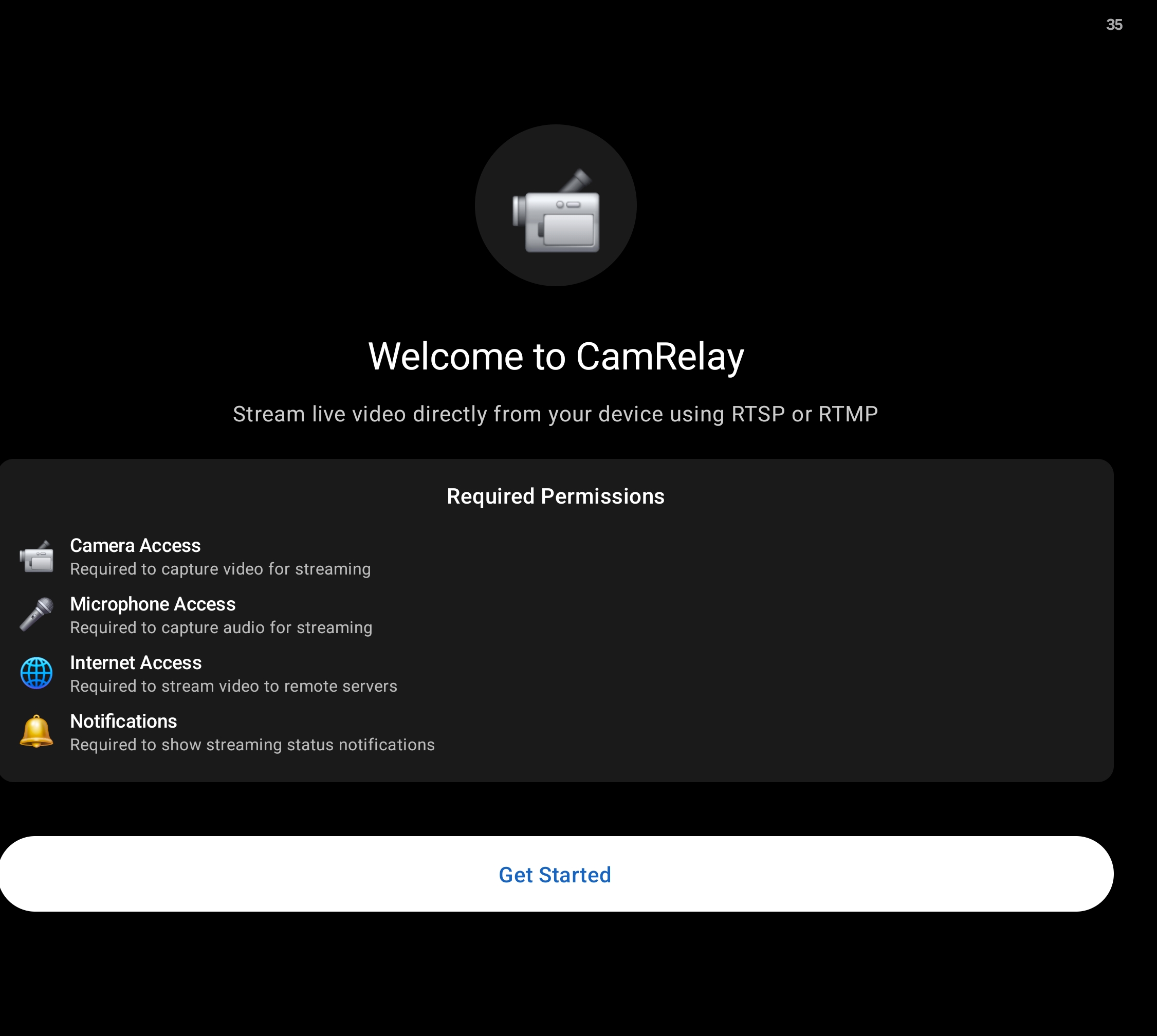
Android will ask for permission to use the camera. Allow the permission.
<!-- SCREENSHOT: Android camera permission dialog for CamRelay. Show the permission request clearly, with the "Allow" action visible. -->
That's all you need to do at this stage.
You don't need to configure the camera.
CamRelay starts with default settings that let you start streaming right away.
2. Start Your First Live Camera
After granting camera permission, CamRelay opens the camera screen.
<!-- SCREENSHOT: CamRelay camera screen immediately after opening the app and granting camera permission, before starting the stream. Show the Start button clearly. -->
Tap Start to begin streaming.
Once streaming starts, you'll see the live camera preview.
<!-- SCREENSHOT: CamRelay camera screen while streaming. Show the live camera preview and the streaming state clearly. -->
That's it — your Android phone is now streaming as a live camera.
You don't need to choose a resolution, configure a network address, or change any advanced settings for your first camera.
About the Live Preview
The live preview is shown while the camera is streaming.
Later, if you want to reduce battery usage, you can disable the preview while keeping the camera stream running.
<!-- SCREENSHOT: CamRelay camera settings showing the option related to enabling/disabling the live preview. Highlight the relevant setting if appropriate. -->
For now, leave the default settings unchanged and continue with the live preview enabled.
3. Watch Your Camera in a Web Browser
Your camera is now streaming.
CamRelay includes a built-in web viewer, so you don't need VLC, Frigate, OBS, or another application just to watch the camera.
On the camera screen in CamRelay, you'll see a web address similar to:
http://192.168.1.123:8888
The exact address will be different for your phone.
<!-- SCREENSHOT: CamRelay camera screen while streaming, with the displayed web address visible. Make sure the address is readable in the screenshot. -->
Open the Live View
- On another device connected to the same Wi-Fi network, open a web browser.
- Enter the web address shown on the CamRelay camera screen.
- Press Enter or Go.
<!-- SCREENSHOT: A web browser on another device with the CamRelay address entered in the address bar, immediately before opening the page. -->
The CamRelay web interface will open, and you can view your live camera.
<!-- SCREENSHOT: CamRelay bundled web viewer displaying the live camera stream in a browser. This should clearly show that no additional application is required. -->
You can use a computer, tablet, or another phone as the viewing device.
You don't need to install anything on the device you're using to watch the camera.
What Does the Address Mean?
You don't need to understand networking to use CamRelay.
The address shown by CamRelay tells your web browser where to find the camera on your local network.
For example:
http://192.168.1.123:8888
The 192.168.1.123 part identifies the Android phone on your local network, while 8888 is the port used by CamRelay.
Use the exact address shown by CamRelay. Do not copy the example address above unless it is the address shown on your own phone.
If the Web Page Doesn't Open
For the simplest setup, check that:
- CamRelay is still running and the camera is streaming.
- Camera permission has been granted.
- The viewing device and the Android phone are connected to the same Wi-Fi network.
- You entered the address exactly as it appears in CamRelay.
If you still can't access the camera, see the [CamRelay troubleshooting guide].
4. That's Your First Live Camera
You have now turned an Android phone into a live network camera.
The basic workflow is simply:
Install CamRelay → Allow camera access → Tap Start → Open the web viewer
<!-- SCREENSHOT: A final "successful setup" view showing the Android phone running CamRelay and the live camera visible in the browser on another device. A side-by-side or composite screenshot works well here. -->
There is no complicated setup required for the first camera.
What Is CamRelay Doing?
Behind the scenes, CamRelay is streaming the camera video over your network.
You don't need to understand the technical details to use the basic live viewer.
However, CamRelay also provides an RTSP stream. RTSP is a common protocol used by IP cameras and video software.
This means the same Android camera can be used with other applications and systems that support RTSP.
For example:
- Frigate
- Home Assistant
- VLC
- OBS
- NVR and other surveillance software
You can learn about these integrations in the [CamRelay integration guides].
What Can You Do Next?
Now that your first camera is working, there are several ways to use it.
Turn an Old Phone Into a Security Camera
Have an old Android phone sitting in a drawer?
You can use it as a dedicated camera for a room, workshop, entrance, or other location.
[Turn an old Android phone into a security camera →]
Use CamRelay With Frigate
Frigate can use CamRelay's RTSP stream as a camera source for recording and object detection.
[Use an Android phone as a Frigate camera →]
Connect CamRelay to Other Applications
CamRelay's RTSP stream can also be used by other compatible applications and systems.
[Explore CamRelay integrations →]
Keep Your Camera Running Continuously
If you want to use your phone as a camera 24/7, there are a few Android settings and practical considerations worth knowing.
[Run an Android camera continuously →]
Your First Camera Is Ready
That's all you need to get started with CamRelay.
You don't need to understand RTSP, networking, or camera configuration to create your first live camera.
Install CamRelay, allow camera access, tap Start, and open the web viewer.
Once your first camera is working, you can explore more advanced features and integrations when you need them.
Related app
CamRelay - RTSP Live IP Camera
Turn your Android phone into a powerful RTSP network camera.