Repurpose an Old Android Phone as a 4K Security Camera or Dashcam
Turn a phone from the drawer into a 4K security camera or dashcam with CamRelay: RTSP and ONVIF for your NVR, two-way talk, local recording that survives power loss, and a GPS speed overlay. No cloud account needed.
On this page
Repurpose an Old Android Phone as a 4K Security Camera or Dashcam
Most of us have an Android phone in a drawer that still has a good camera, a fast processor and Wi-Fi. That is everything a security camera or dashcam needs. With CamRelay it becomes one: no new hardware, one less device in the landfill.
CamRelay is an app by Banana Studio that turns the phone into an IP camera on your local network. It streams over RTSP, works with ONVIF NVRs, records to the phone and talks back through the phone's speaker. Everything stays on your network: there is no cloud account and no subscription.
This guide covers what CamRelay does, how to set it up as a 4K security camera for your NVR, and how to use the same phone as a dashcam. New to CamRelay? Start with How to Turn an Old Android Phone Into a Security Camera.
What CamRelay does
Video
- Up to 4K, or higher if the hardware allows it. CamRelay offers every resolution the selected camera reports. Most phones from the last several years can record 4K (3840 × 2160).
- H.264 or H.265 (HEVC), hardware encoded. H.264 works with every viewer. H.265 needs roughly half the bandwidth and storage for the same quality. AV1 is also available, but it is encoded in software and heats the phone.
- Bitrate and frame rate you control. Choose 15 to 60 FPS and set the bitrate yourself. When you pick a resolution, CamRelay sets a sensible starting bitrate (8 Mbps for 4K).
- Every lens on the phone. Pick the main, wide or telephoto lens, and use optical or electronic stabilization (OIS/EIS) and HDR where the camera supports them.
Audio and two-way talk
The camera's audio track and the talk-back channel use the same codec, chosen in the app:
| Codec | Best for |
|---|---|
| G.711 µ-law | The most reliable two-way talk. Recommended. |
| G.711 A-law | Viewers that require A-law. |
| Opus | Best sound quality and latency, native to WebRTC. |
| AAC | Listening only; two-way talk needs transcoding. |
Two-way talk uses the standard RTSP backchannel. You can listen to the room and speak through the phone's speaker from viewers that support it, such as Frigate, go2rtc or a WebRTC viewer. Echo cancellation keeps the conversation clean.
Viewing and integration
- RTSP:
rtsp://<phone-ip>:1935/works in VLC, Home Assistant, Frigate, Blue Iris, Synology Surveillance Station, QNAP, ZoneMinder and most other NVRs. - ONVIF: the phone shows up as an ONVIF camera, so NVRs can find it on the network automatically.
- Web interface: open
http://<phone-ip>:8888in any browser to watch the live picture, change settings without stopping the stream and manage recordings. - Windows 11 network camera: add the phone in Windows settings and use it as a webcam in Teams, Zoom or the Camera app.
Recording
- Local recording to the phone's storage (
Movies/CamRelay), in segments of the length you choose. - Continuous loop recording. Set Max Storage (MB), and CamRelay deletes the oldest files when the limit is reached.
- MKV survives power loss. If the phone loses power mid-recording, an MKV file keeps everything up to about one second before the cut. MP4 is more widely compatible, but an interrupted MP4 is lost.
- Recordings in the browser. Play, download or delete recordings in the web interface's File Manager.
Reliability for 24/7 use
- Foreground service and wake lock: the stream keeps running with the screen off and while Android's Doze mode is active.
- Watchdog: if video frames stop flowing, CamRelay restarts the stream on its own.
- Auto-start on device boot: after a power cut or a system update, streaming resumes without anyone touching the phone.
- Temperature and battery safety: streaming pauses when the phone gets too hot or the battery too low, and resumes when it recovers.
- Dim screen and immersive mode: a black screen saves power and protects OLED panels from burn-in.
Overlays
The date and time, a camera name, the IP address, the resolution, the battery level and temperature, GPS coordinates and speed can be burned into the video. They appear in the live stream and in every recording.
Set up a security camera
1. Install and grant permissions
- Install CamRelay from Google Play and open it.
- Tap Get Started and allow Camera, Microphone, Notifications and Storage.
- Tap the Battery Optimization card, or Disable Optimization when the main screen asks. Without it, Android may cut the network when the phone is idle.
- If you want the camera to restart after a power cut, also grant Display over other apps. Android 10 and later need it for Auto-start on Device Boot.
- On Android 17, allow CamRelay local network access (listed as Nearby devices). Without it, other devices cannot connect to the phone.
On Xiaomi, Huawei, Oppo, Vivo and Samsung phones, also enable Autostart and turn off the battery saver for CamRelay in the phone's own settings.
2. Choose resolution and codec
In Settings → Camera:
- Select the lens you want to use, then the Resolution: 3840 × 2160 for 4K.
- Choose the Video Codec: H.265 if your NVR and viewers support it, otherwise H.264. Use H.264 for the smoothest live view in the web interface and for the Windows network camera.
- Keep Frame Rate at 15–30 FPS. That is enough for surveillance and keeps the phone cooler.
- Leave EIS off for a fixed camera; it crops the image.
If the picture stutters on your Wi-Fi or the phone runs hot, lower the frame rate first, then the resolution.
3. Turn on two-way talk and recording
- In Settings → Audio, enable audio, set Audio Mode to Voice Communication and the two-way talk codec to G.711 ULAW.
- In Settings → Recording Settings, turn on Enable Recording, choose MKV, set the segment length and set Max Storage (MB) so recordings never fill the phone.
- In Settings → Safety & Automation, turn on Auto-start on Device Boot and check the temperature and battery thresholds.
4. Mount and power the phone
- Use a sturdy phone holder or a 3D-printed bracket, pointed at the area you want to watch.
- Keep the phone plugged in with a good charger. For a phone that runs for months, a charger or smart plug that keeps the battery between roughly 40% and 80% reduces battery wear.
- Outdoors, use a weatherproof case with a clear window in front of the lens, and keep the phone out of direct sun.
- Give the phone a fixed IP address (a DHCP reservation on your router) so the URLs never change.
5. Start and test the stream
Tap Start Stream and note the URLs on the main screen. Open the RTSP URL in VLC (Media → Open Network Stream) or open the web interface in a browser. Check the picture, the sound and the delay before you fix the mount in place.
Then add the camera to your NVR, using the RTSP URL or ONVIF discovery. For a full Frigate setup with sound and two-way talk, see Using Every CamRelay Feature in Frigate NVR.
CamRelay is built for your local network. Do not forward its ports to the internet. To watch from outside, use a VPN to your home network or an NVR that handles remote access.
Use the phone as a dashcam
A dashcam only needs the phone's own recording, so it works without Wi-Fi in the car.
Mount and power
- Use a windshield or dashboard mount that does not block your view. Point the camera so the horizon sits around the middle of the frame.
- Power the phone from a car USB charger. If the phone turns off when the car is parked, Auto-start on Device Boot starts recording again when it powers back on.
- If the phone is mounted sideways or upside down, use Camera Orientation instead of moving it.
Record continuously
- Turn on Enable Recording, choose MKV so a sudden power cut costs at most about a second, and use short segments, such as 3 minutes.
- Set Max Storage (MB) to the space you can spare. CamRelay deletes the oldest files as it goes, like a loop-recording dashcam.
- As a guide, 4K at 8 Mbps uses about 3.6 GB per hour, so 32 GB holds around 9 hours. At 1080p and 4 Mbps it is about 1.8 GB per hour.
- EIS is worth turning on in a car: it smooths out road vibration.
Add GPS and speed
In the overlay settings, turn on the Speedometer Overlay and, if you want, the GPS Coordinates Overlay and Date and Time. Choose the Speed Unit and the Location Provider. These overlays need the location permission; CamRelay processes the location only on the phone.
The speed and position are burned into the picture, so they are in every recording and visible in any player.
Heat
A phone behind the windshield gets hot. Keep it out of direct sun where you can, and lower the resolution or frame rate on hot days. Temperature Safety pauses recording before the phone overheats and resumes when it cools down.
Why CamRelay suits this job
- Standard protocols: RTSP and ONVIF work with the NVR you already have, with no proprietary app or cloud.
- Two-way talk through the RTSP backchannel: speak to a visitor, a pet or a delivery driver.
- H.265 keeps 4K streams and recordings small.
- Built to run unattended: auto-start on boot, a watchdog, and heat and battery protection.
- Private by design: video stays on your network, with no account, subscription or tracking.
Final thoughts
The old phone in your drawer already has the camera, the encoder and the network connection. CamRelay turns them into a 4K security camera that plugs into your NVR, or a dashcam with a GPS speed overlay, in a few minutes. For every setting, see the CamRelay user guide.
Related app
CamRelay - RTSP Live IP Camera
Turn your Android phone into a powerful RTSP network camera.
Related posts
How to Turn an Old Android Phone Into a Security Camera
Give an old Android phone a second life as a security camera: place it well, keep it powered, let CamRelay start by itself after a reboot, and watch or record the camera from any browser on your Wi-Fi.
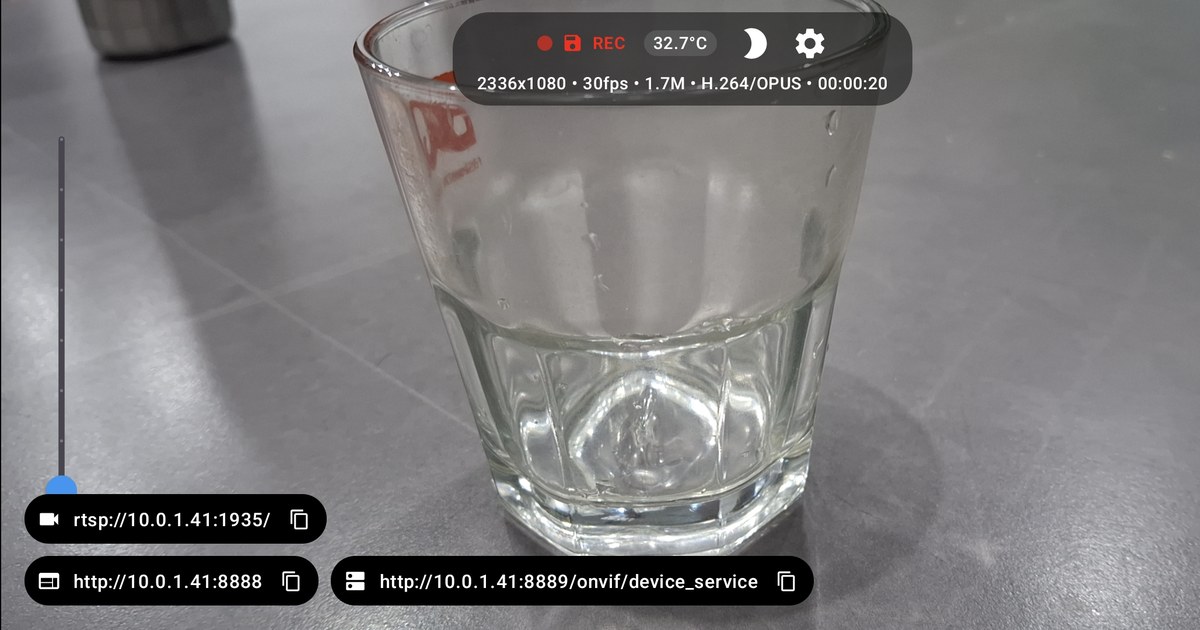
How to Turn an Android Phone Into a Live Camera
Turn any Android phone into a live camera in a few minutes with CamRelay: allow the permissions, tap the play button and watch the stream in any web browser on your Wi-Fi. No account, no cloud, nothing to install on the viewing device.
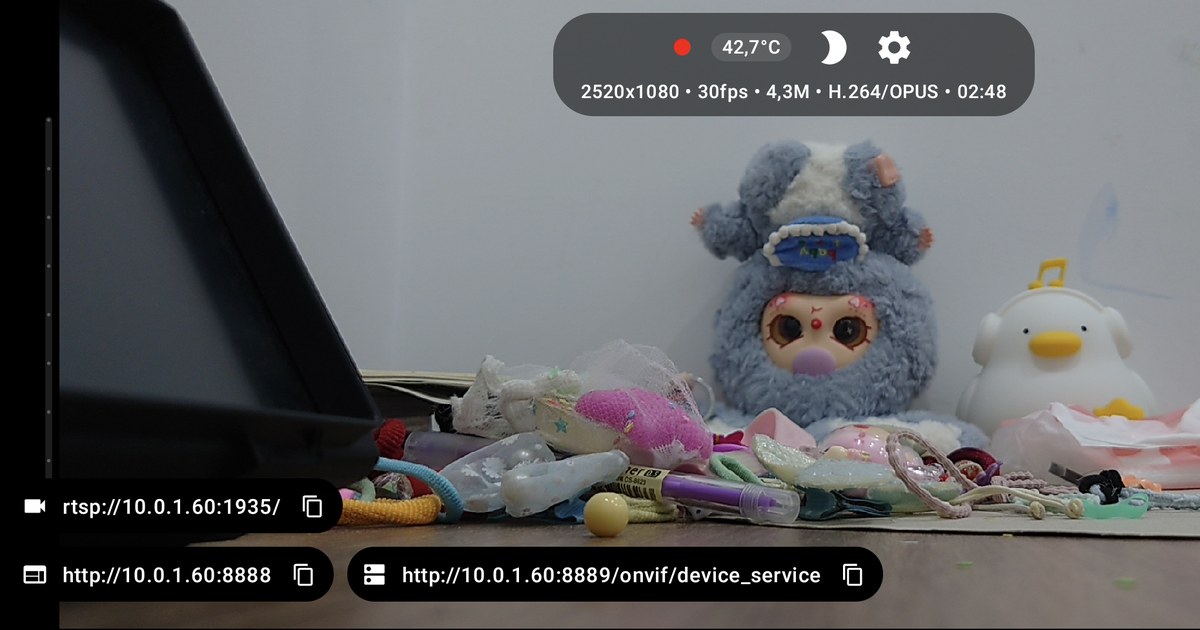
Using Every CamRelay Feature in Frigate NVR
Turn a spare Android phone into a Frigate NVR camera: CamRelay streams RTSP with audio, and Frigate's built-in go2rtc picks it up for recording, live view with sound and two-way talk. Step by step, with a complete config.yml.