Internet Speed vs Local Network Speed: What's the Difference?
Why a fast internet plan doesn't guarantee fast transfers at home, and how to measure your Wi-Fi and Ethernet speed separately with iPerf.
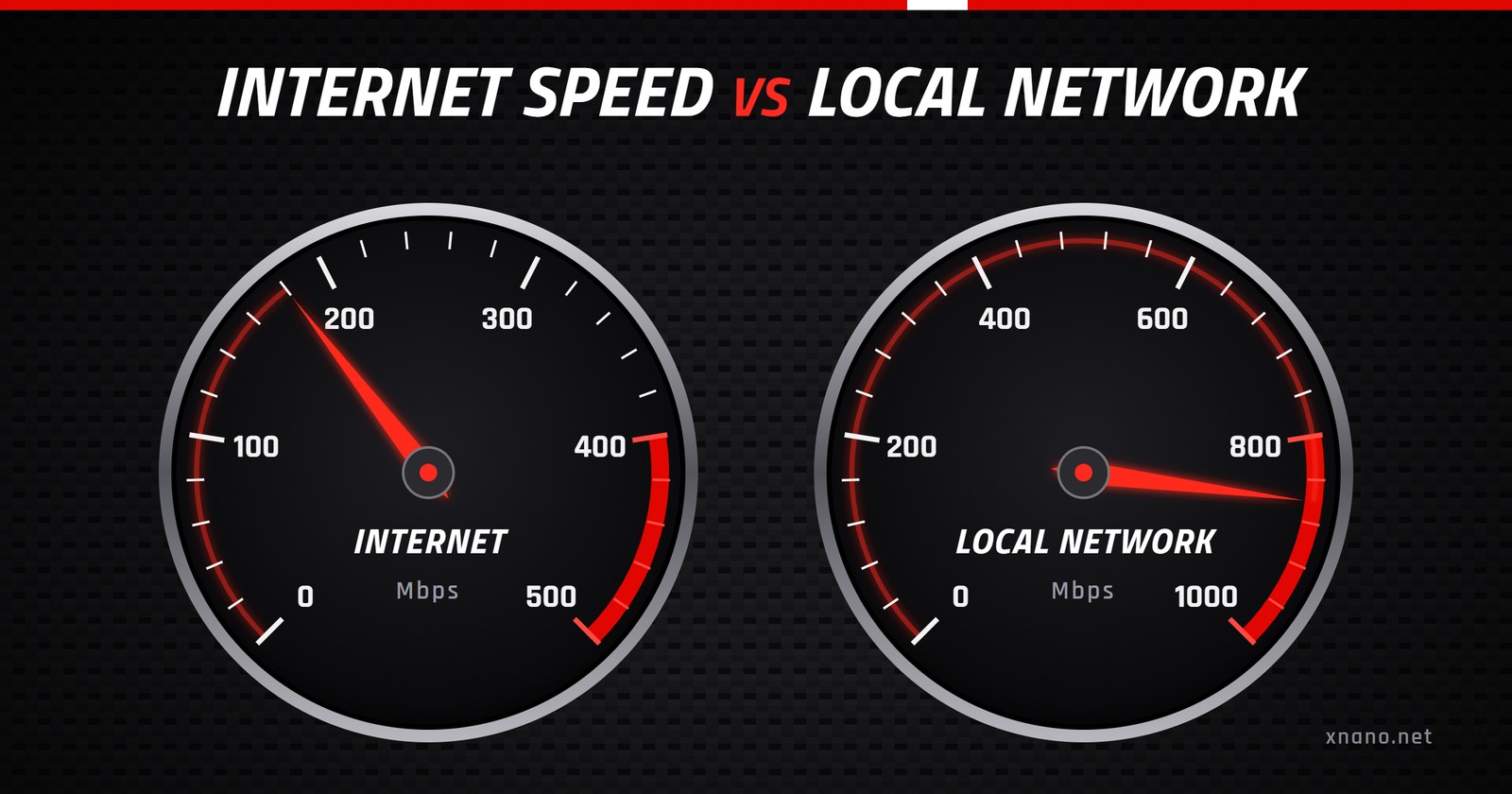
On this page
You pay for a fast internet plan, but copying a video from your phone to your TV still crawls. Or a speed test shows great numbers, yet streaming from your home media server keeps buffering. These problems usually come from mixing up two different things: internet speed and local network speed.
This guide explains the difference, shows where your router, Wi-Fi, and Ethernet fit in, and walks you through running and reading a local speed test with iPerf on Android and Android TV.
Two different paths for your data
Every device in your home sits on a local area network (LAN). Your router is in the middle of it. Data can take one of two very different paths:
- Internet path: your phone → Wi-Fi → router → modem → your internet provider → a server somewhere in the world.
- Local path: your phone → Wi-Fi → router → another device in your home, such as a TV, laptop, NAS, or Android box.
The local path never leaves your home. Your internet provider isn't involved at all.
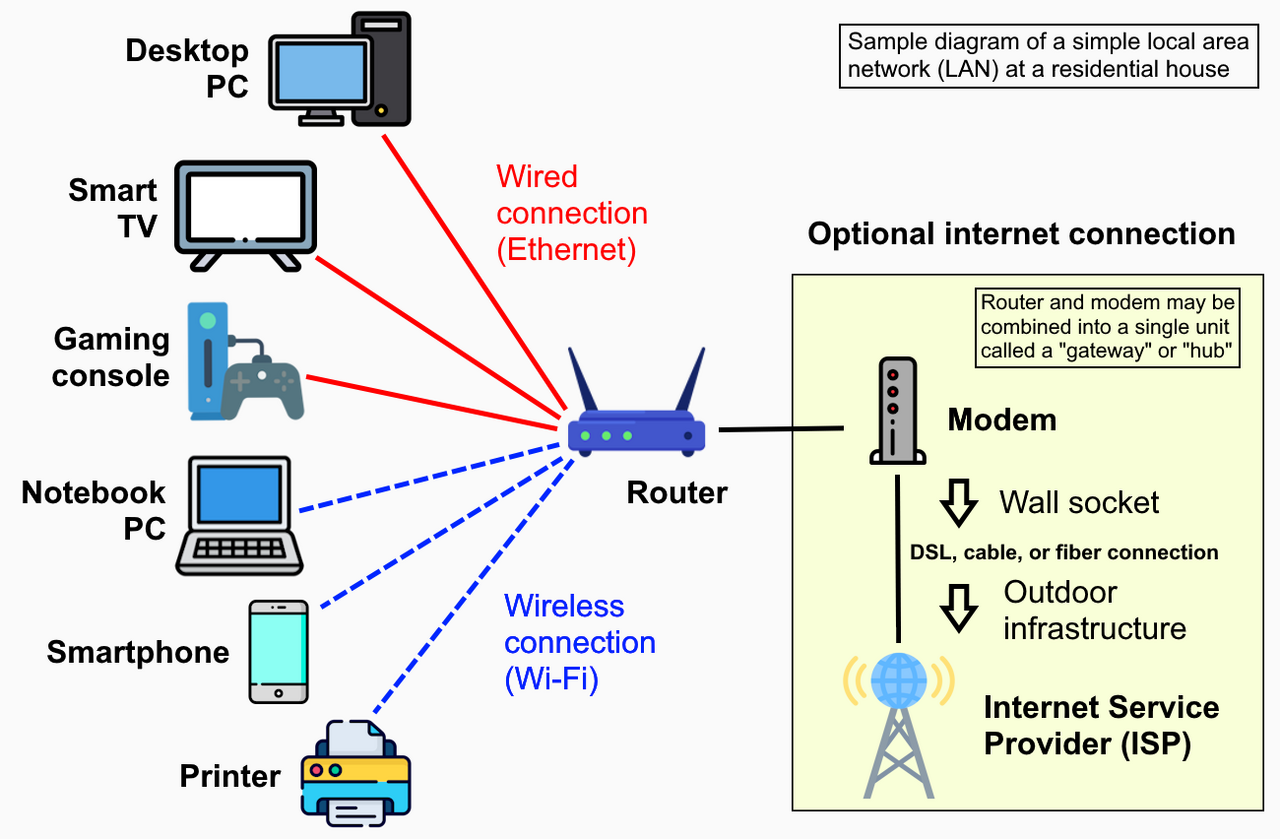 Local traffic only travels between your devices and the router. Internet traffic continues through the modem to your provider. Image: Wikimedia Commons, CC0.

That's why the two speeds can be wildly different. Each path has its own bottleneck.
What "internet speed" actually measures
When you run a typical online speed test, you measure internet throughput: how much data can travel between your device and a test server on the internet per second.
That number is limited by the slowest link along the whole path, which might be:
- Your internet plan (the speed your provider sells you)
- Congestion at your provider at busy times
- The distance and route to the test server
- Your router's ability to handle traffic
- Your Wi-Fi connection between the device and the router
Internet speed matters for things like browsing, streaming from online services, video calls, cloud backups, and downloading apps.
What "local network speed" measures
LAN throughput is how fast data moves between two devices inside your home. It's limited only by your own equipment:
- The Wi-Fi standard and signal quality of each device
- The Ethernet ports and cables in use
- Your router or switch
- The devices themselves (older phones and TV boxes may have slower network chips)
Local speed matters for:
- Streaming from a home media server or NAS to your TV
- Copying files between phone and computer, for example over FTP or SFTP
- Casting or mirroring your screen
- Local camera feeds and backups
- Game streaming from a PC to another device in the house
In many homes, local network speed is higher than internet speed, especially over Ethernet. But a weak Wi-Fi link can make it lower, and then even a fast internet plan won't help with local transfers.
Where the router, Wi-Fi, and Ethernet fit in
The router
Your router does two jobs at once. It connects your home to the internet, and it connects your home devices to each other. When you test internet speed, the router is one link in a long chain. When you test local speed, it's often the main link.
A router can become a bottleneck if it's old, overheated, overloaded with many devices, or if its Ethernet ports are slower than your devices.
Wi-Fi
Wi-Fi is usually the weakest link in a home network. Its real-world speed depends on:
- Distance and walls: signal drops quickly through concrete, metal, and floors.
- Band: 2.4 GHz reaches farther but is slower and more crowded; 5 GHz (and 6 GHz on newer equipment) is faster but has shorter range.
- Interference: neighbors' networks, microwaves, and Bluetooth devices share the air.
- Device capabilities: a router may support a fast Wi-Fi standard, but an older phone or TV may not.
The "link speed" your phone shows in its Wi-Fi settings is a theoretical connection rate, not what you'll actually get. Real throughput is typically well below that number.
Ethernet
A wired Ethernet connection is more stable and usually faster than Wi-Fi. It isn't affected by walls or neighbors. Many TVs and Android TV boxes have an Ethernet port, and using it can often fix streaming problems right away.
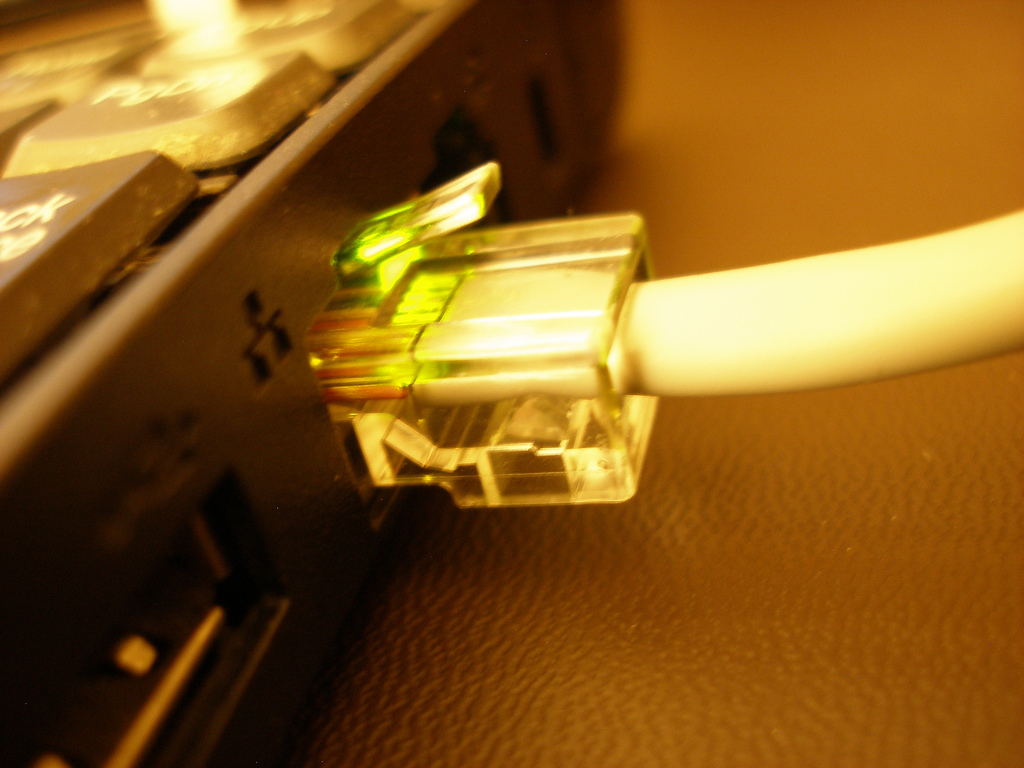 A wired Ethernet connection takes Wi-Fi out of the equation. Image: Khairil Yusof, CC BY 2.0, via Wikimedia Commons.

Keep in mind that Ethernet also has limits. Some TVs and boxes have ports that are slower than modern routers (100 Mbit/s instead of 1 Gbit/s, for example), and old or damaged cables can reduce speed.
Why you should test them separately
If you only run an internet speed test, you can't tell where a problem is. Say your test shows a low number. Is it your provider? Your router? The Wi-Fi in the bedroom?
Testing the local network on its own removes the internet from the equation. If local speed is good but internet speed is poor, the issue is likely your plan or provider. If local speed is poor too, the problem is inside your home.
This is exactly what iPerf is designed for.
Measuring local network speed with iPerf
iPerf is a widely used tool for measuring throughput between two devices. One device runs as a server and waits for a connection. The other runs as a client and sends data to it. iPerf then reports how much data got through per second.
Because both devices are on your own network, the result reflects your LAN, not your internet connection.
Banana Studio's iPerf app comes in two versions, both linked from that page:
- iPerf for Android for phones and tablets
- iPerf for Android TV for Android TV and Google TV devices
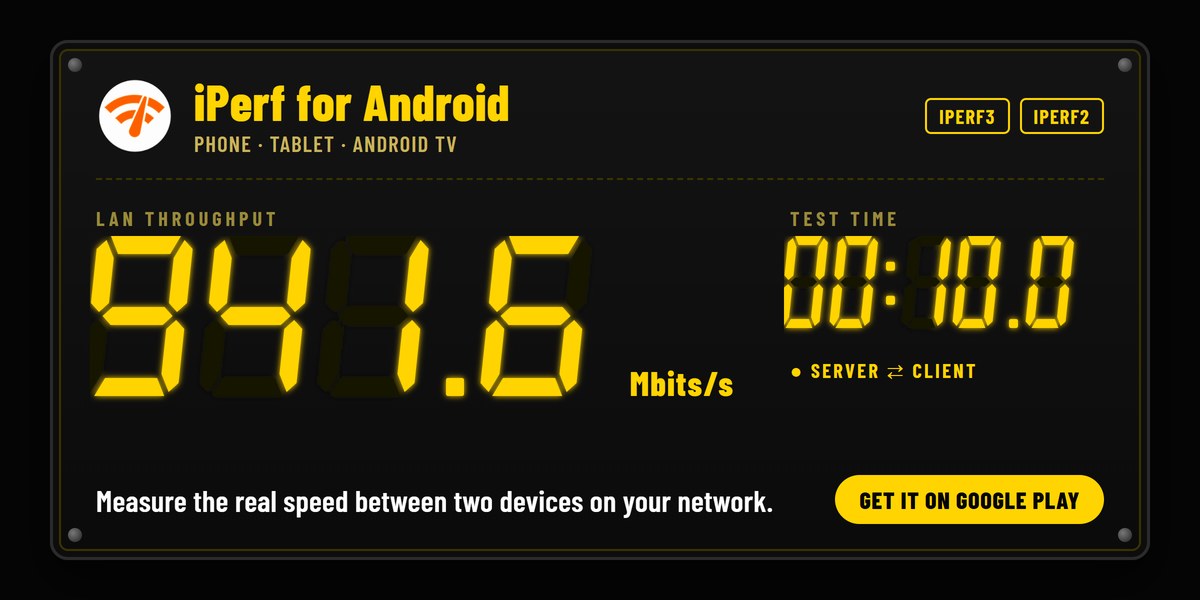
Both include iPerf3 and iPerf2. The steps below use iPerf3.
A simple test between your phone and your TV
- Make sure both devices are connected to the same home network, and find the TV's IP address in its network settings.
- On the TV, open iPerf for Android TV. Under Create an iPerf3, choose Server session. The arguments start with
-s. Tap Run to start the server. - On your phone, open iPerf and choose Client session under Create an iPerf3.
- The arguments start with
-c. Add the TV's IP address after it, for example-c 192.168.1.30, and tap Run. - Wait for the test to finish (10 seconds by default) and look at the reported throughput.
If the app asks for the Nearby devices (local network) permission, allow it. On Android 17 and later, tests against devices on your local network fail without it.
You can also run the server on a computer. iPerf3 is available for Windows, macOS, and Linux, so you can test your phone against a desktop on Ethernet, which gives you a good baseline for your Wi-Fi. Run iperf3 -s on the computer and connect to it from the phone the same way.
Tips for a fair test
- Close apps that might be downloading or streaming in the background.
- Run each test a few times and look at the typical result, not a single outlier.
- Test from the spots where you actually use the device, such as the couch or the bedroom.
- Change one thing at a time (location, band, cable) so you know what made the difference.
How to read your results
Units: megabits vs. megabytes
Network speeds are usually shown in Mbit/s (megabits per second). File sizes and download progress are usually shown in MB/s (megabytes per second). One byte is eight bits, so divide Mbit/s by 8 to estimate MB/s.
For example, a result of 400 Mbit/s means roughly 50 MB/s for file copies, before protocol overhead.
Bandwidth
This is the main number: how much data moved per second during the test. iPerf shows a value for each interval plus a summary at the end. The summary is the one to compare.
Fluctuation between intervals
If the per-second numbers jump up and down a lot, your connection is unstable. This is common on Wi-Fi with interference or a weak signal, and it's often what causes stuttering video even when the average looks fine.
TCP vs. UDP
iPerf can test with TCP or UDP:
- TCP behaves like most file transfers and web traffic. It retransmits lost data, so it shows the throughput you'll realistically get. This is the default.
- UDP (add
-u, and set a target rate with-b, such as-u -b 50M) sends at that rate and reports jitter (variation in delay) and packet loss. This is useful for judging streaming, voice, and gaming quality. Low jitter and near-zero loss are what you want.
Upload vs. download direction
By default the client sends data to the server. iPerf3 also has a reverse mode (add -R) where the server sends to the client. Wi-Fi is often asymmetric, so it's worth testing both directions.
Comparing local and internet results
Once you have both numbers, you can diagnose most problems:
- Local fast, internet slow: your home network is fine. Check your plan, contact your provider, or test at a different time of day.
- Local slow, internet slow: the bottleneck is likely in your home. Look at Wi-Fi signal, router placement, or the device itself.
- Local slow on Wi-Fi, fast on Ethernet: your Wi-Fi is the problem. Move closer, switch to 5 GHz, reposition the router, or use a cable.
- Local slow even on Ethernet: check the cable, the port, and the device's Ethernet speed. Try a different port on the router.
- Both fast, but one app is slow: the issue is probably the app, the service, or the server on the other end.
Quick ways to improve local speed
- Place your router centrally and up high, away from thick walls and metal.
- Connect stationary devices like TVs, consoles, and desktops with Ethernet when possible.
- Use the 5 GHz band for devices close to the router.
- Restart the router occasionally and keep its firmware updated.
- Consider a mesh system or wired access point for large or multi-floor homes.
- Replace very old cables and check that ports show the expected link speed.
After each change, run iPerf again so you can see whether it actually helped.
Summary
Internet speed and local network speed measure different paths. Internet speed depends on your provider and everything between you and a remote server. Local speed depends only on your router, Wi-Fi, Ethernet, and devices.
Testing them separately tells you where a slowdown really comes from. With iPerf on your phone and iPerf for Android TV on your television, you can measure your home network directly, read the results with confidence, and fix the right problem. If terms like LAN, TCP, or UDP are new to you, our glossary of Android networking terms explains them in plain English.
Related app
iperf - Bandwidth measurements
Measure network bandwidth with iPerf2 and iPerf3 on Android