Audio Relay Complete Guide: Set Up Spare Phones as Multi-Room Speakers
A step-by-step guide to Audio Relay, with a video — start a master, pair your speakers, play radio, music or any app's sound, set up rooms and stereo pairs, timers, settings and quick fixes.
On this page
Audio Relay turns the Android phones and tablets you already own into speakers that play the same sound, at the same moment, all over your home. This guide sets up one phone as the master, connects three speakers, and then goes through every feature.
Prefer to watch? The full video guide shows every step on four real phones, and each section below links to its place in the video.

1. What you need
- Two or more Android devices, Android 8.0 or later, phones or tablets.
- One Wi-Fi network that all of them are on.
- Audio Relay from Google Play on every device. It is free.
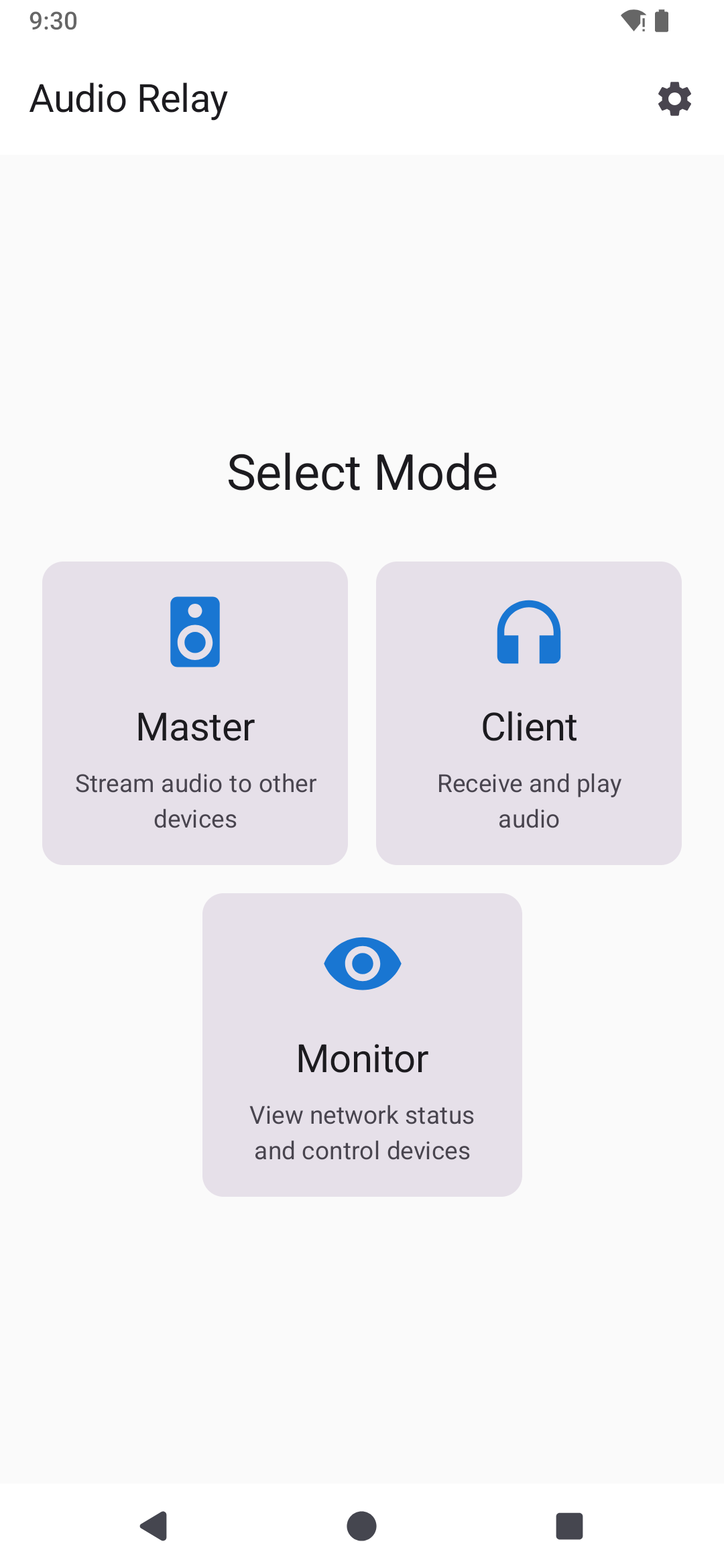
Every device opens on the same screen with two choices. On the device with the music, choose Master. On every speaker, choose Client.
2. Start the master
On the phone that will play the music, tap Master. On Android 13 and later, allow notifications when you are asked, so the music keeps playing when the screen is off.
The master screen, from top to bottom:
- The source — what you are playing.
- The volume for everyone, the stream quality, and a switch for whether this phone plays the sound too.
- Your speakers — every connected speaker is listed here. At first there are none.
3. Connect the speakers
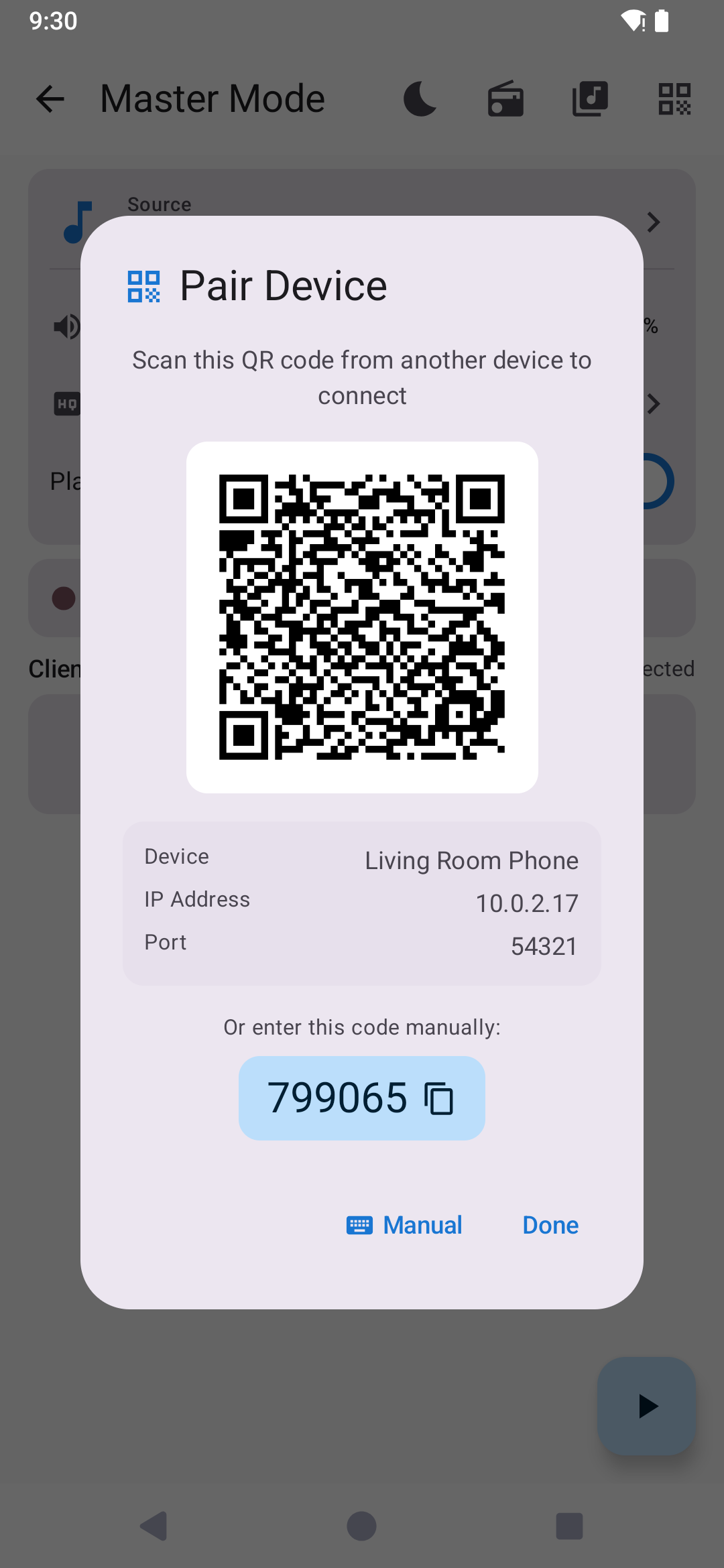
- On the master, tap the pairing icon in the top corner. It shows a QR code and a six-digit code.
- On a speaker, tap Client, then Scan QR, and point the camera at the code on the master.
- No camera, or the scan does not work? Tap Enter code manually and type the address and the six-digit code shown on the master.
- The speaker connects and appears in the list on the master.
You pair each speaker only once. The next time, it finds the master by itself: tap the master in the list, or let the speaker reconnect automatically. Connect the other speakers the same way — in the video, two speakers sit by the sofa and one is in the kitchen.
4. Choose what to play
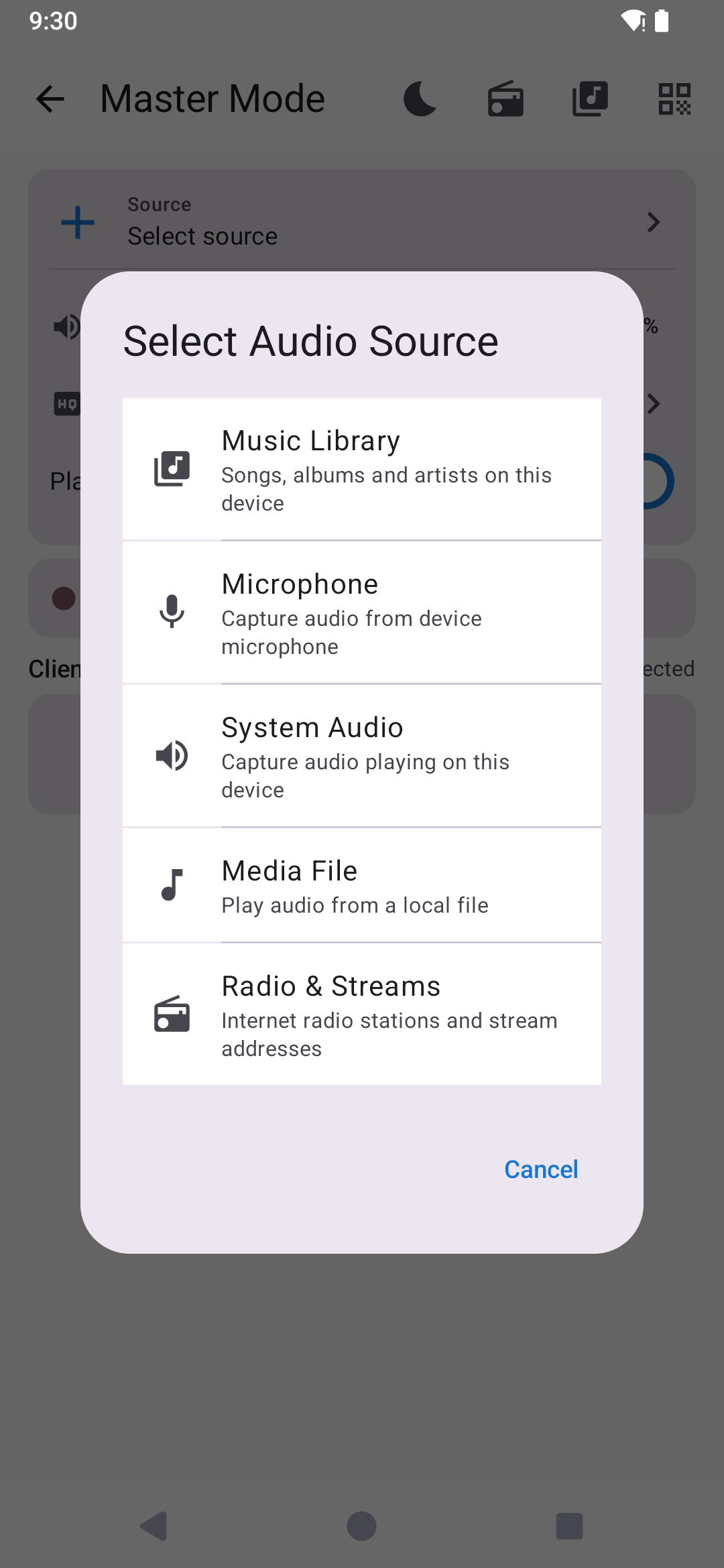
Tap the source on the master to see everything you can play.
Radio and streams
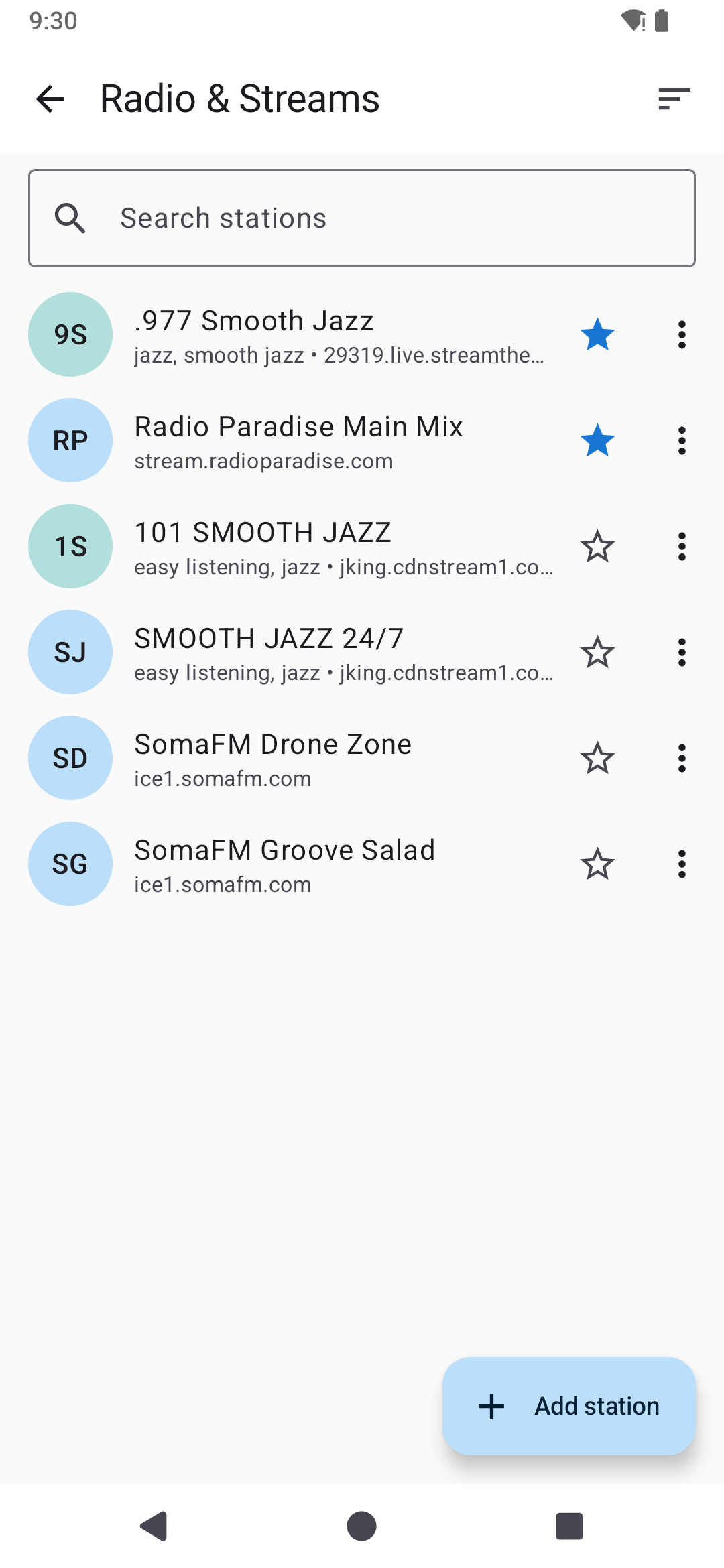
Radio and streams keeps your stations. Tap one and it plays on every speaker at once.
- Find new stations: tap Add station. Search SHOUTcast by name or genre, or browse Radio Browser by country and language. Tap + to keep a station.
- Your own stream: add a stream address under Address. MP3, AAC, Ogg, HLS and playlist links (.m3u, .pls) all work.
- Favorites: star the stations you love and sort the list to keep them at the top. The previous and next buttons step through your stations.
Your music
Music library shows the songs stored on the master, by song, album or artist. The first time, allow access to your music. Pick a song and the rest of the album plays after it. While your music plays you can shuffle, repeat, skip, and jump to any point in the song.
Files and links from other apps
Share a song or a stream link to Audio Relay from another app, and it starts playing on all your speakers. To pick a single file yourself, choose Media file in the source list.
Any app's sound (Android 10 or later)
System Audio sends the sound of the other apps on the master. Android asks first: tap Start. Then open any app, and its sound plays everywhere. Some apps do not allow their sound to be captured.
The microphone
Microphone sends your voice, or whatever the master hears, to every speaker, live.
5. Volume and rooms
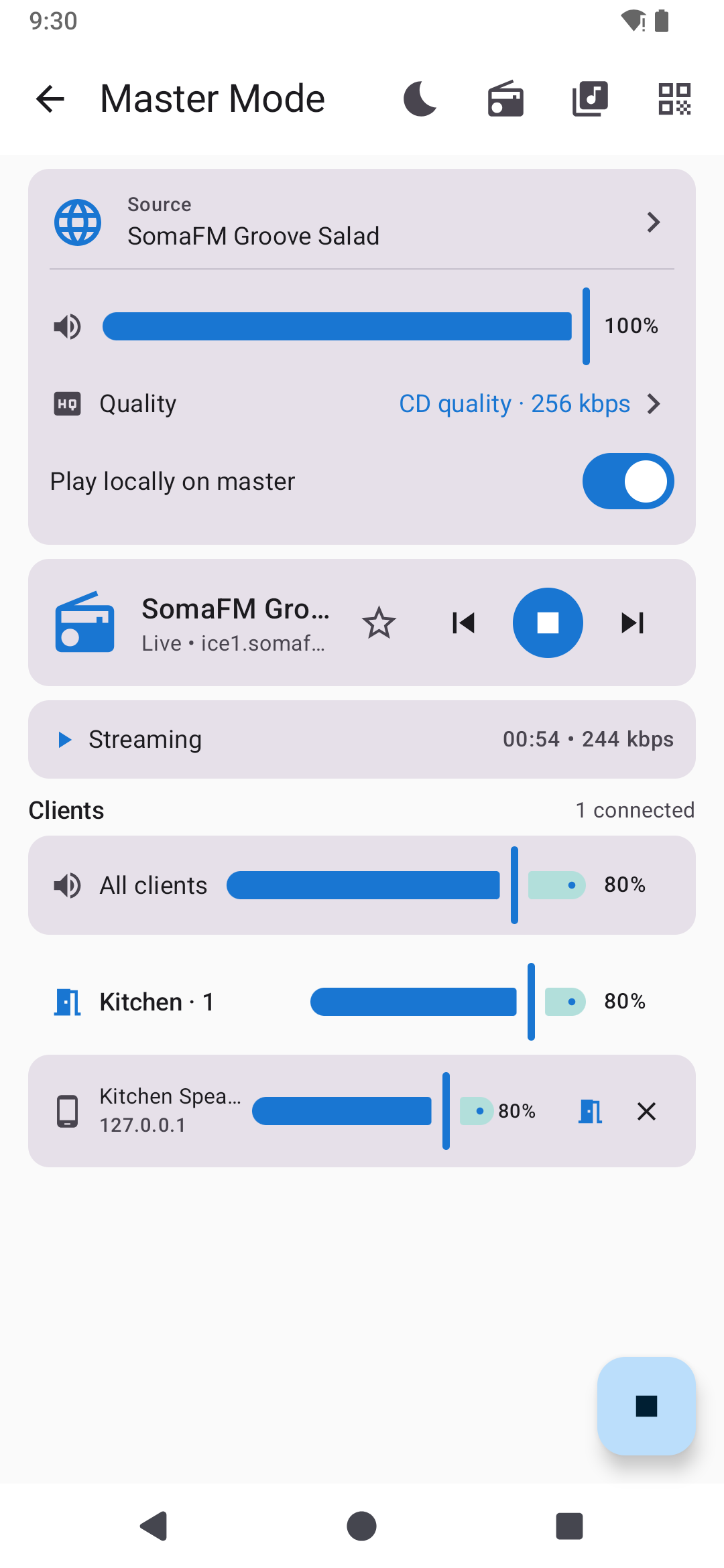
- The top slider sets the volume for everything. Each speaker also has its own slider on the master.
- Rooms: tap the room icon on a speaker and give the room a name, such as Living room. Speakers in the same room are listed together, and one slider sets the whole room.
- Choose where it plays: want the music only in the kitchen for a while? Switch a speaker, or a whole room, off. It stays connected and plays again the moment you switch it back on.
- On the speaker itself: each speaker can change its own volume, or mute itself, right on its screen.
6. Tune each speaker
These settings are on the speaker, under This speaker.
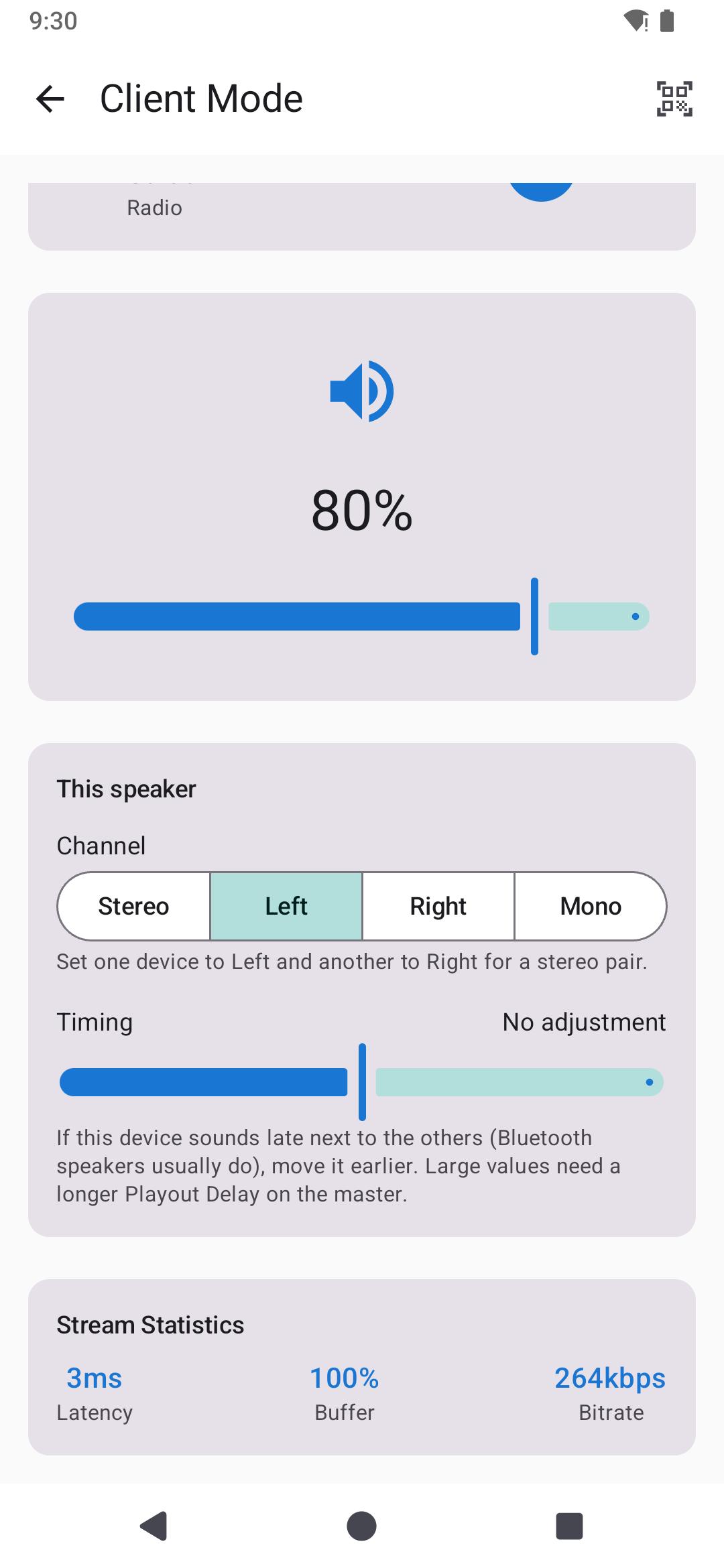
- Stereo pair: two phones in one room can be a stereo pair. Under Channel, set one to Left and the other to Right.
- Timing: if one speaker sounds a little late next to the others — Bluetooth speakers usually do — move Timing to make it play earlier, until they line up.
- Bass and treble change the sound of each speaker on its own.
7. Sound quality
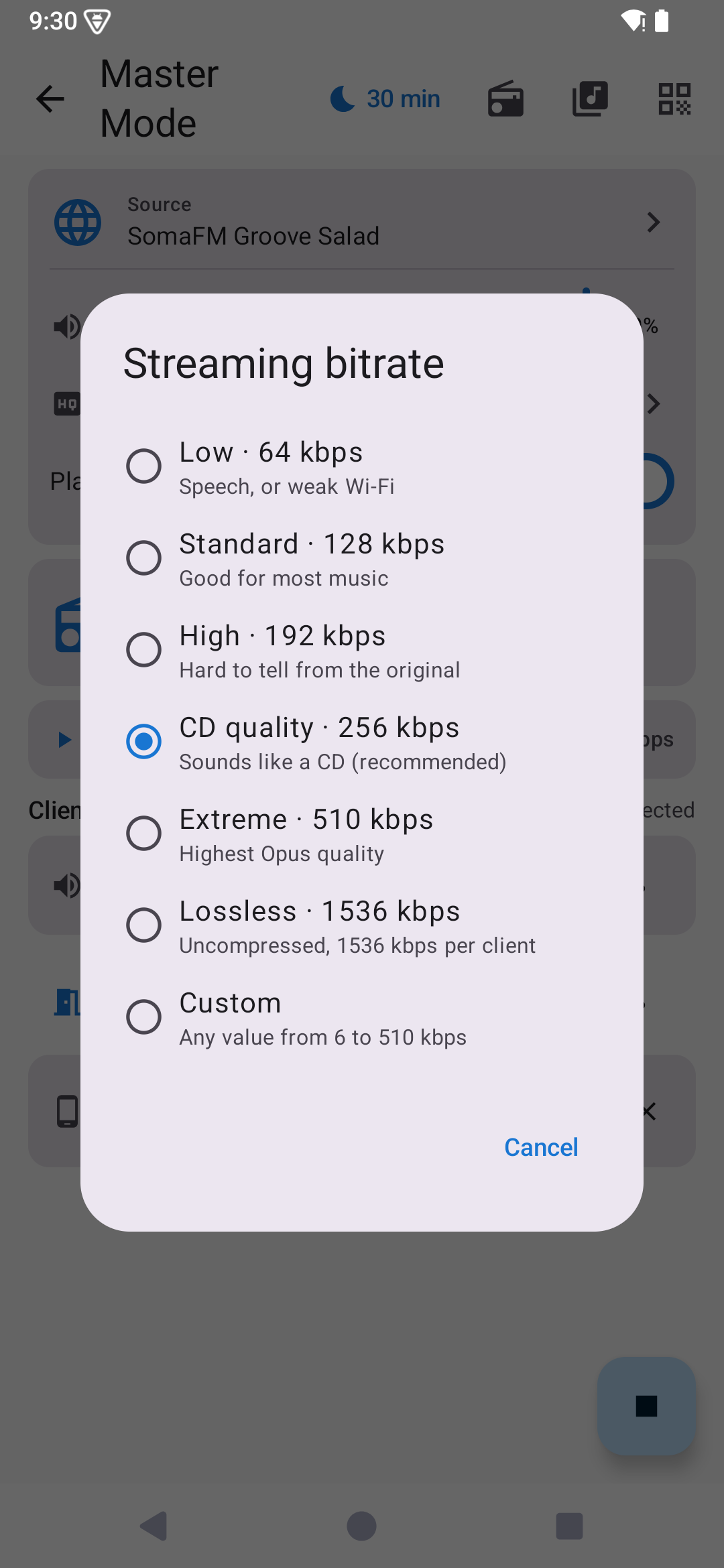
Tap Quality on the master to choose how much data the stream uses: from 64 kbps for weak Wi-Fi, through CD quality, all the way up to lossless.
If the sound breaks up on a busy network, open Settings and raise the playout delay from Balanced to Robust. For less delay, choose Low latency.
8. Control it from anywhere
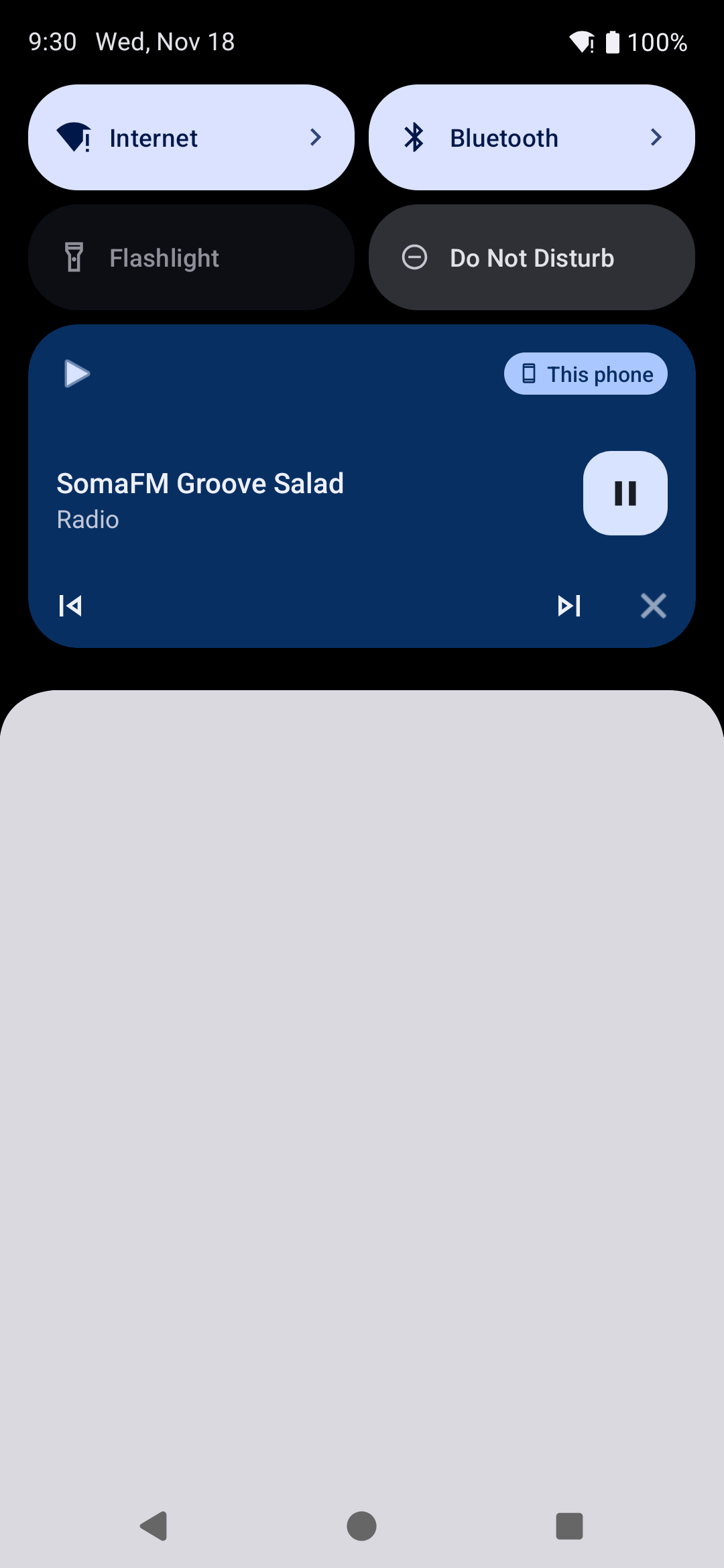
- From any speaker: every speaker shows what is playing, with play, pause and skip buttons that control the master.
- Notification and lock screen: the same controls are there, on the master and on every speaker. Headset and car buttons work too.
- Keep control on the master: would you rather keep the music to yourself? In the master's settings, turn off Clients can control playback.
9. Timers
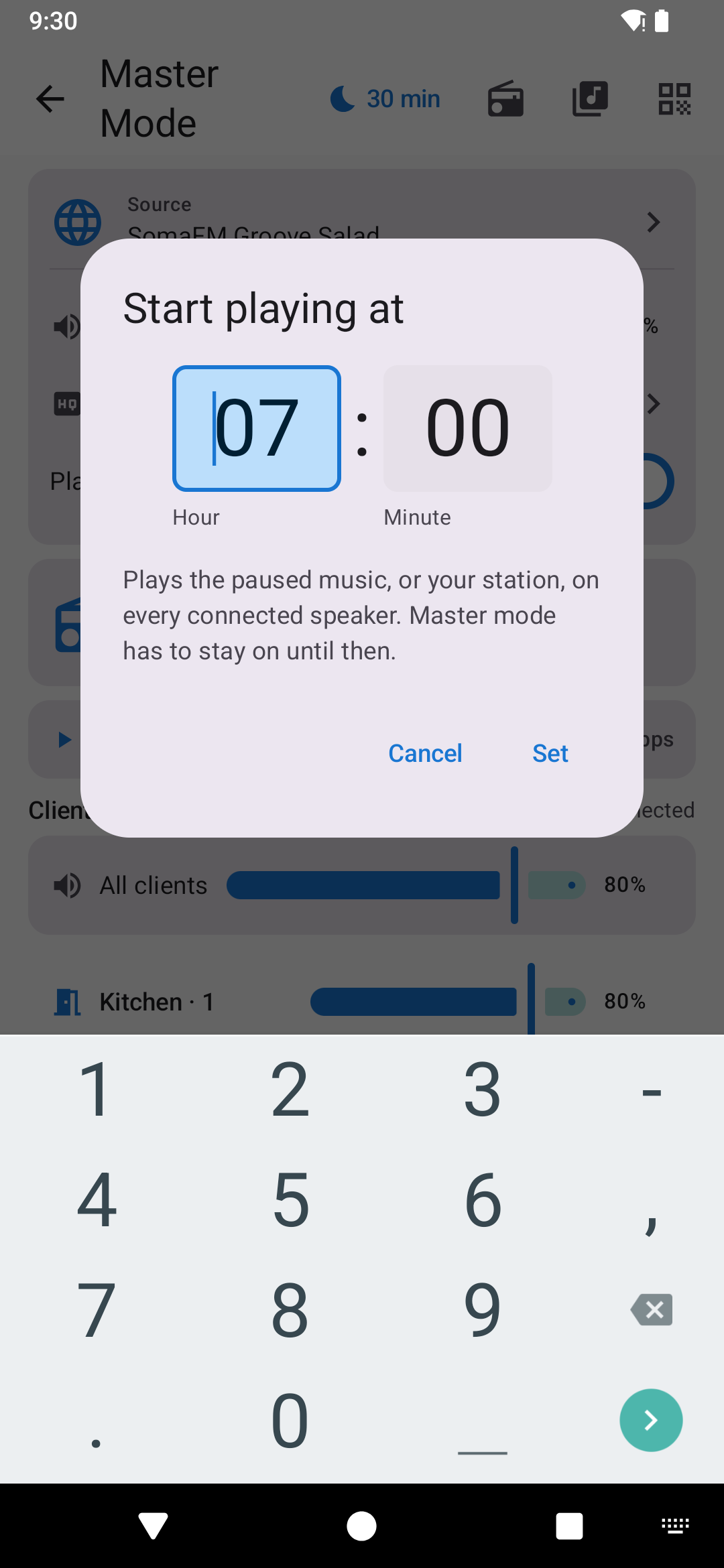
- Sleep timer: tap the moon icon on the master and pick how long. The music stops by itself when the time is up.
- Wake-up timer: in the same menu, Start playing at sets a wake-up time. In the morning, your station starts on every speaker.
10. Settings worth knowing
- Device name: give every device a clear name, so you always know which speaker is which.
- Start on boot: for a phone that is always a speaker, turn this on. After a restart it reconnects to the master on its own.
- Allow unpaired clients: having a party? On the master, this lets anyone on your Wi-Fi listen without a code.
- Remove ads: every feature is free, with one small ad. Remove ads is a one-time purchase, and Restore purchase brings it back on your other devices.
11. If something goes wrong
- The speaker finds no master. Check that both devices are on the same Wi-Fi network, and not on a guest network. Or connect with the code instead (section 3).
- The sound stops when the screen turns off. Open your phone's battery settings and let Audio Relay run in the background without restrictions.
- The sound breaks up. Raise the playout delay to Robust, or choose a lower quality (section 7).
- One speaker sounds late. Move its Timing earlier (section 6).
Get Audio Relay
Audio Relay is free on Google Play, with no account and no subscription. The audio stays on your own network and is encrypted between your devices.
Get Audio Relay on Google Play
Enjoy one sound in every room.
Videos
Related app
Audio Relay: Multi-Room Sound
Turn spare phones into wireless speakers that play together, in sync.