CamRelay 1.0.7: Protect Your Phone Camera with a Username and Password
CamRelay 1.0.7 adds a Security setting: one username and password now protect the RTSP stream, ONVIF and the web interface. It is off by default, so nothing changes until you turn it on. The web interface signs you in once without a storm of login pop-ups, and two small fixes make setup smoother.
On this page
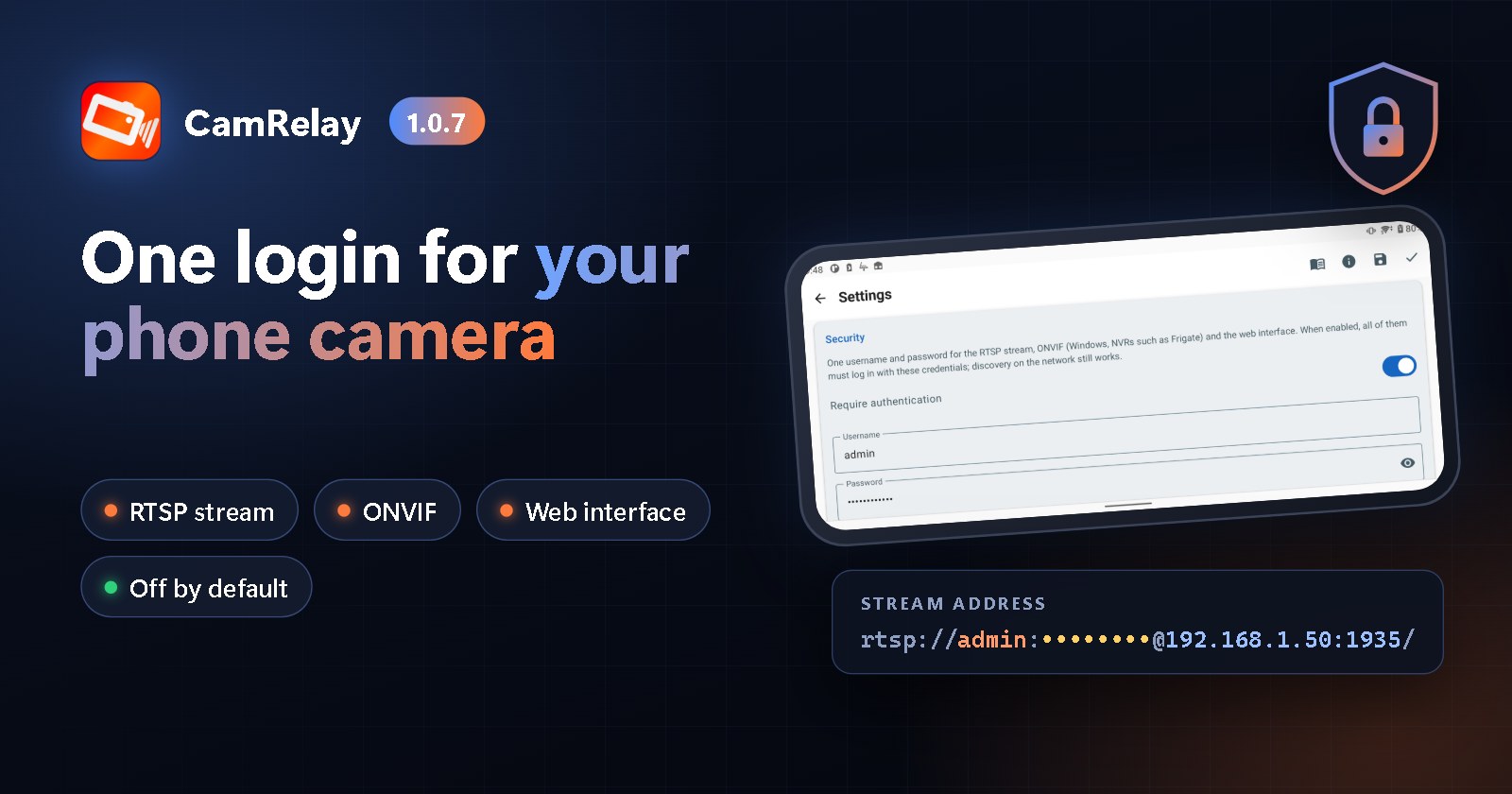
CamRelay 1.0.7 is now available on Google Play. This release is about one thing many of you asked for: a login for your camera. With one username and password, you can now protect everything CamRelay serves on your network: the RTSP stream, ONVIF for your NVR, and the web interface.
The new setting is off by default. Your NVR, Frigate, Home Assistant, VLC and browser bookmarks keep working exactly as before until you decide to turn it on.
Why a login matters
Until now, any device on your network could open CamRelay's stream, its ONVIF service or its web interface. At home, on your own Wi-Fi, that is often fine. But many cameras end up on networks you don't fully control: a shared flat, an office, a holiday rental, or a Wi-Fi that guests and smart-home gadgets also use. Anyone who found the phone's address could watch the camera, change its settings or download its recordings.
With CamRelay 1.0.7, only people and apps that know the username and password get in.
Turn it on in three steps
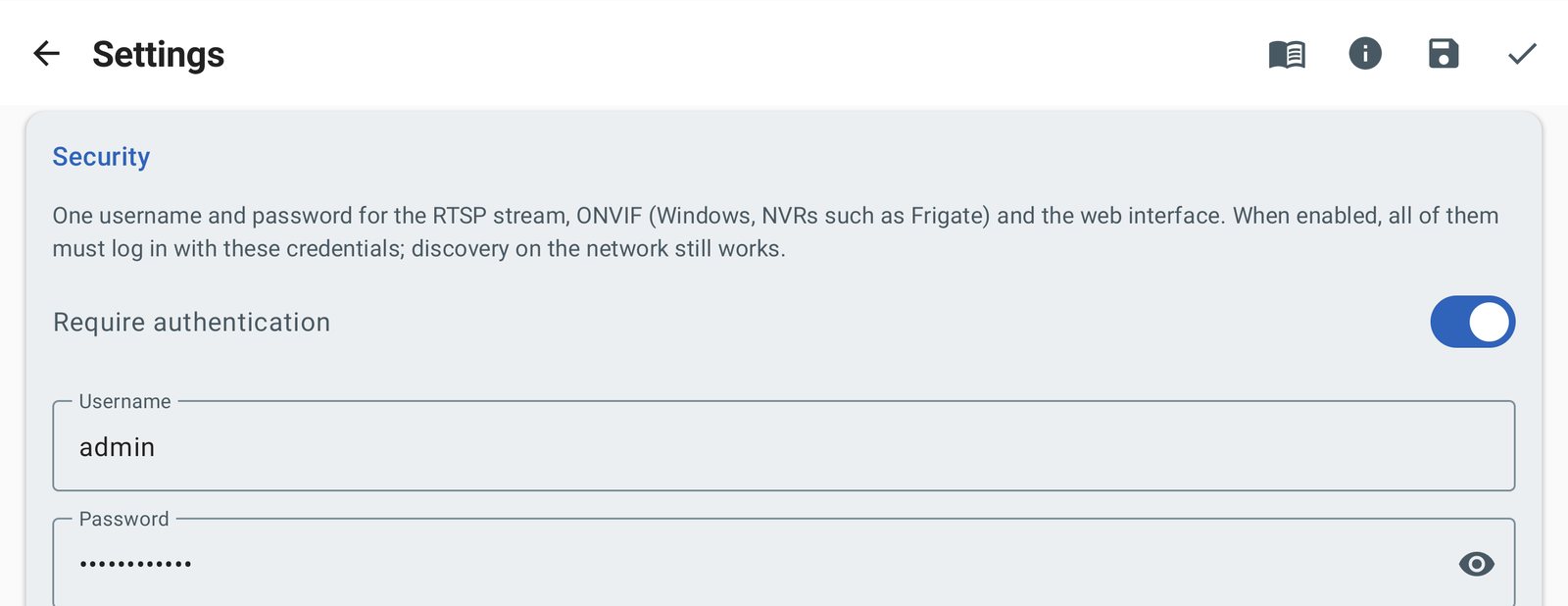
- Open Settings in the app and scroll to the new Security section.
- Enter a Username (it starts as
admin) and a Password, then tap Save credentials. - Turn on Require authentication.
That's it. The switch stays disabled until a username and password are saved, so you can't lock yourself out with an empty password. You can tap the eye icon to check the password at any time, and change it whenever you like. New connections use the new login straight away; you don't have to restart the stream.
One login protects everything
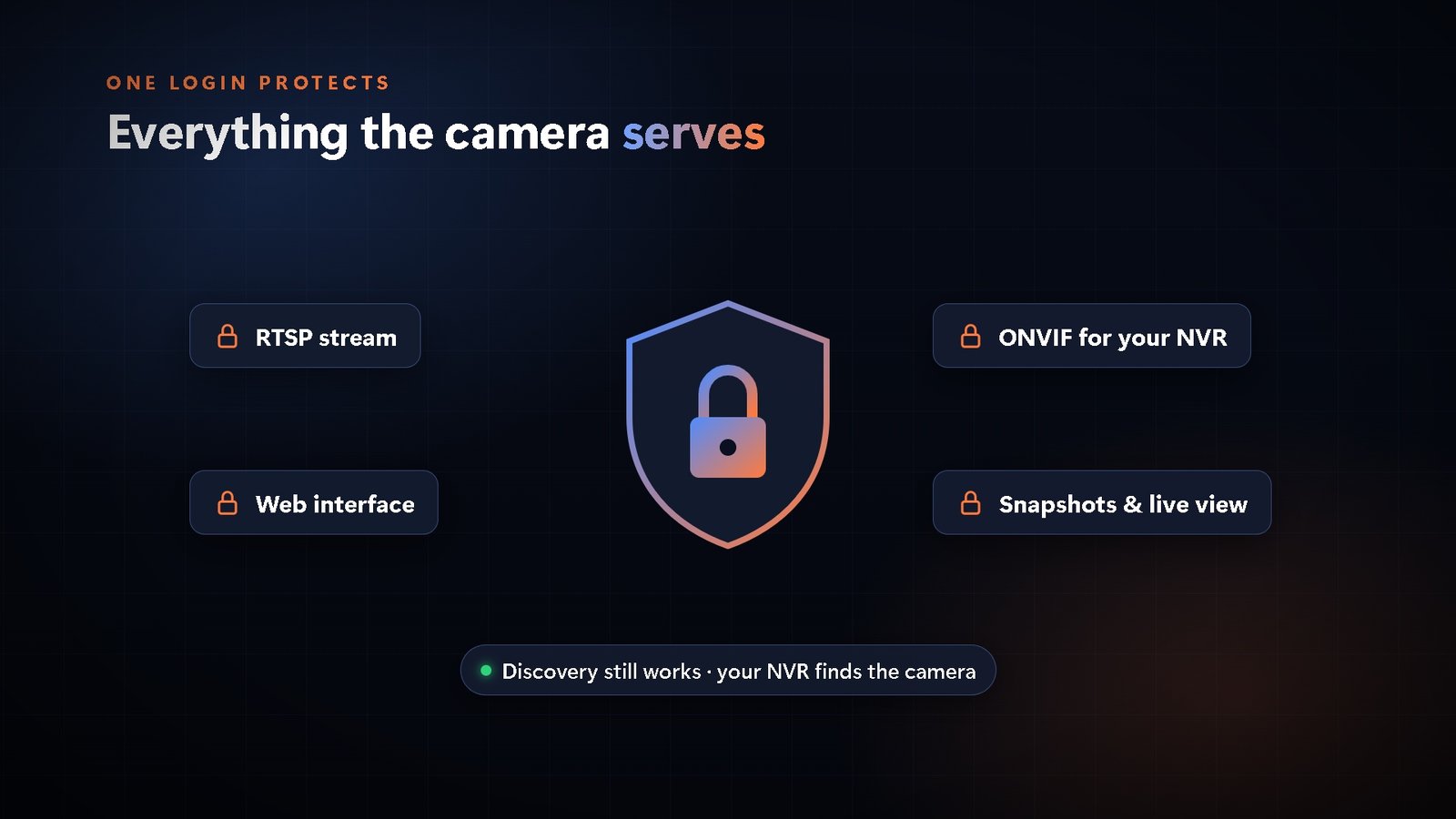
When Require authentication is on, the same username and password are required for:
- The RTSP stream, including the two-way talk channel. Every RTSP request is checked, not just the first one, so an app can't skip the login and start playing anyway.
- ONVIF: your NVR or ONVIF app has to sign in before it can read the stream address, change brightness or zoom, rename the camera or receive events.
- The web interface, with everything in it: settings, the live view, snapshots, the MJPEG stream and the File Manager with your recordings.
Some things deliberately stay open, so your devices can still find and connect to the camera:
- Discovery: NVRs and Windows still find CamRelay on the network.
- The few ONVIF requests a client needs before it can sign in, such as the device's clock and its list of services.
Connecting your apps
VLC, FFmpeg and other RTSP players
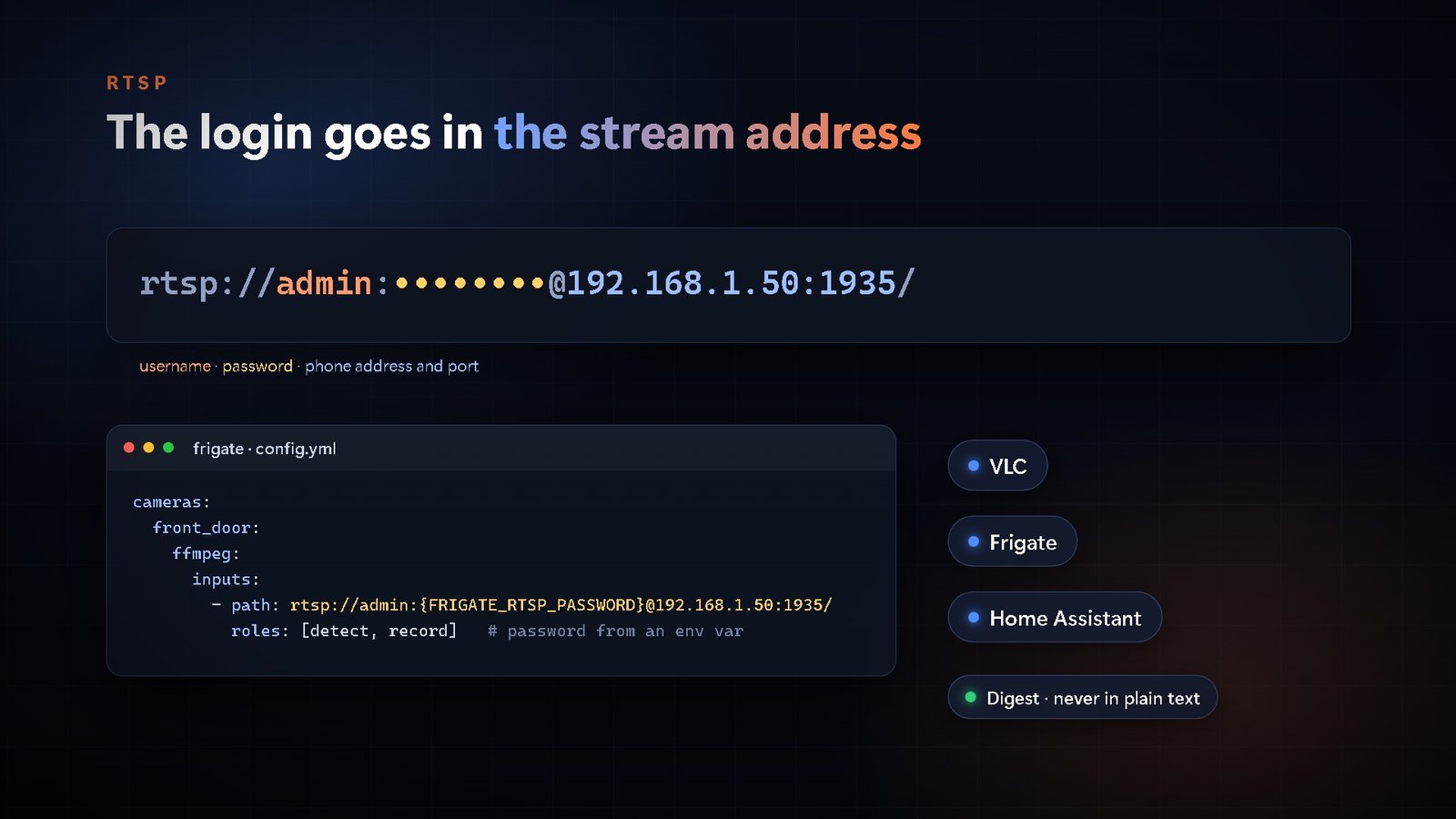
Add the username and password to the stream address:
rtsp://admin:[email protected]:1935/
Replace 192.168.1.50:1935 with the address CamRelay shows on its main screen. VLC can also ask you for the username and password when you open the address without them.
Tip: if your password contains characters such as
@,:,/or#, write them encoded in the address (@becomes%40,:becomes%3A,/becomes%2F,#becomes%23), or pick a password made of letters and digits.
Frigate
Add the login to the RTSP line in go2rtc. Frigate can fill in the password from an environment variable, so it doesn't sit in plain text in your config file:
go2rtc:
  streams:
    camrelay:
      - rtsp://admin:{FRIGATE_RTSP_PASSWORD}@192.168.1.50:1935/
Then set FRIGATE_RTSP_PASSWORD in the environment section of your Docker Compose file. Live view, recording and two-way talk keep working through the same line. Our Frigate guide walks through the complete setup.
Home Assistant
- With the ONVIF integration, enter the same username and password when you add the camera.
- With the Generic Camera integration, put the login in the stream address as shown above.
NVRs and ONVIF apps
When you add the camera, enter the username and password in the NVR's or app's camera settings. CamRelay accepts both ways ONVIF clients sign in: WS-UsernameToken inside the request and HTTP Digest.
Secure by design: Digest authentication
The RTSP stream and the web interface use Digest authentication, and ONVIF clients can use it too. With Digest, the password itself is never sent over the network, only a one-time proof that you know it, and a captured request can't be replayed. Basic authentication, which sends the password almost in plain text, is not accepted.
The web interface: sign in once, no pop-up storms
When you open the web interface, your browser asks for the username and password once and remembers them while it's open.
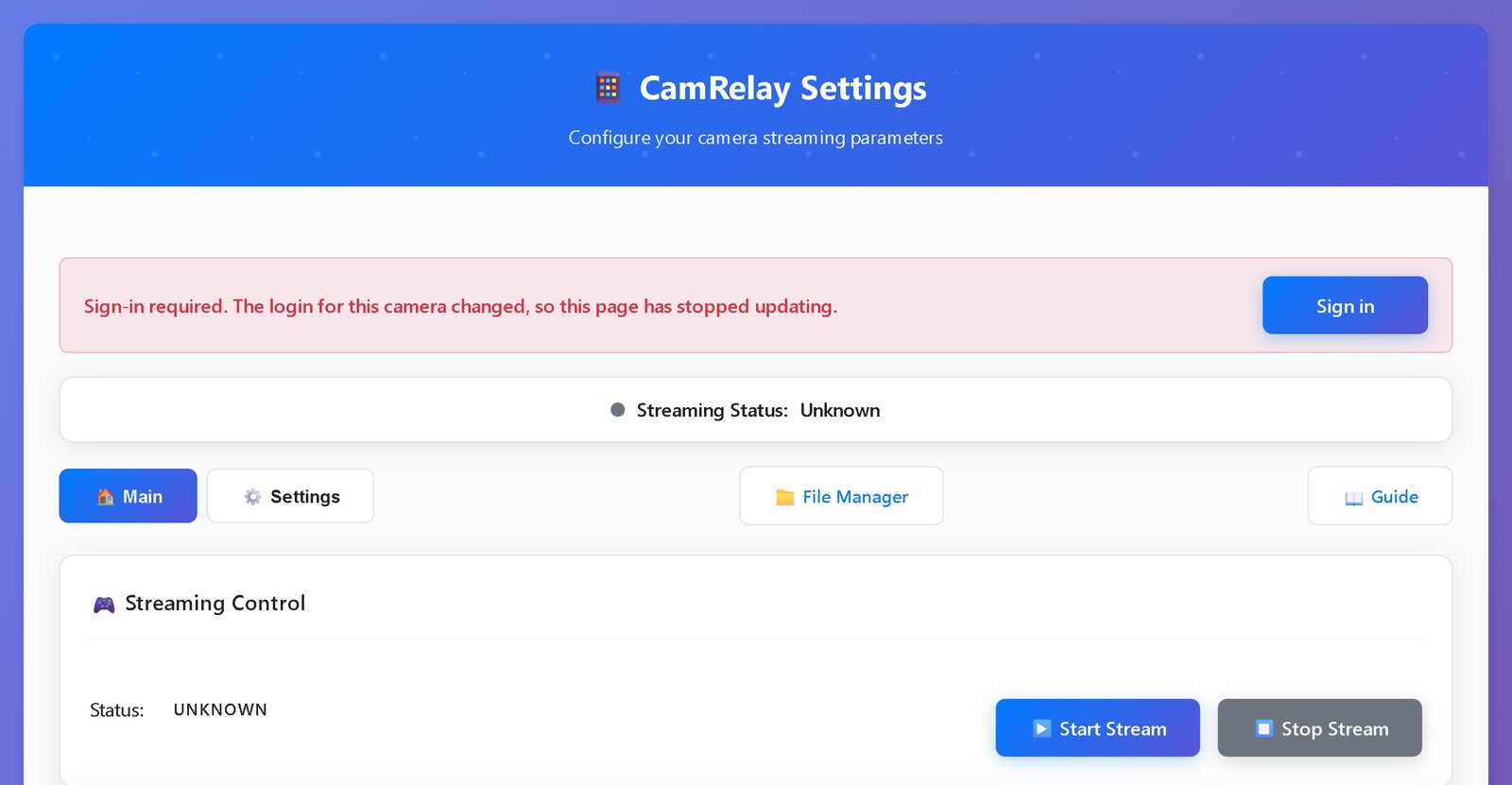
A web page talks to the camera all the time in the background: it checks the stream status every two seconds and loads the live view, snapshots and settings. If the login changed while a page was open, for example because you turned authentication on or changed the password on the phone, each of those background requests could make the browser show its login window again and again.
CamRelay 1.0.7 handles this properly:
- As soon as the login stops working, the page stops all its background requests.
- It shows a clear Sign-in required message with a Sign in button.
- One tap reloads the page, and the browser asks you to sign in once.
We also made the login more dependable when a page sends several requests at the same time. They can reach the phone in any order, and CamRelay now accepts them all instead of turning some away.
Your password stays on the phone
- The username and password are stored only on the phone, in CamRelay's private storage.
- They are left out of cloud backups and device-to-device transfers.
- You can only view or change them in the app. The web interface's settings page can't read them, so someone who opens it once can't learn the password.
One honest note: the login controls who can connect, but CamRelay's video and web interface are not encrypted. On your local network that is normal for IP cameras. To watch from outside your home, use a VPN to reach your network rather than opening ports on your router.
Off by default, on your terms
We know many of you run CamRelay around the clock with an NVR that was set up once and never touched again. That's why Require authentication is off after the update. Nothing changes until you turn it on, and your NVR, Frigate, Home Assistant and bookmarks keep working.
When you're ready, turn it on, then add the login to each app that watches the camera.
Also fixed in 1.0.7
"Auto-start on Device Boot" kept asking for permission
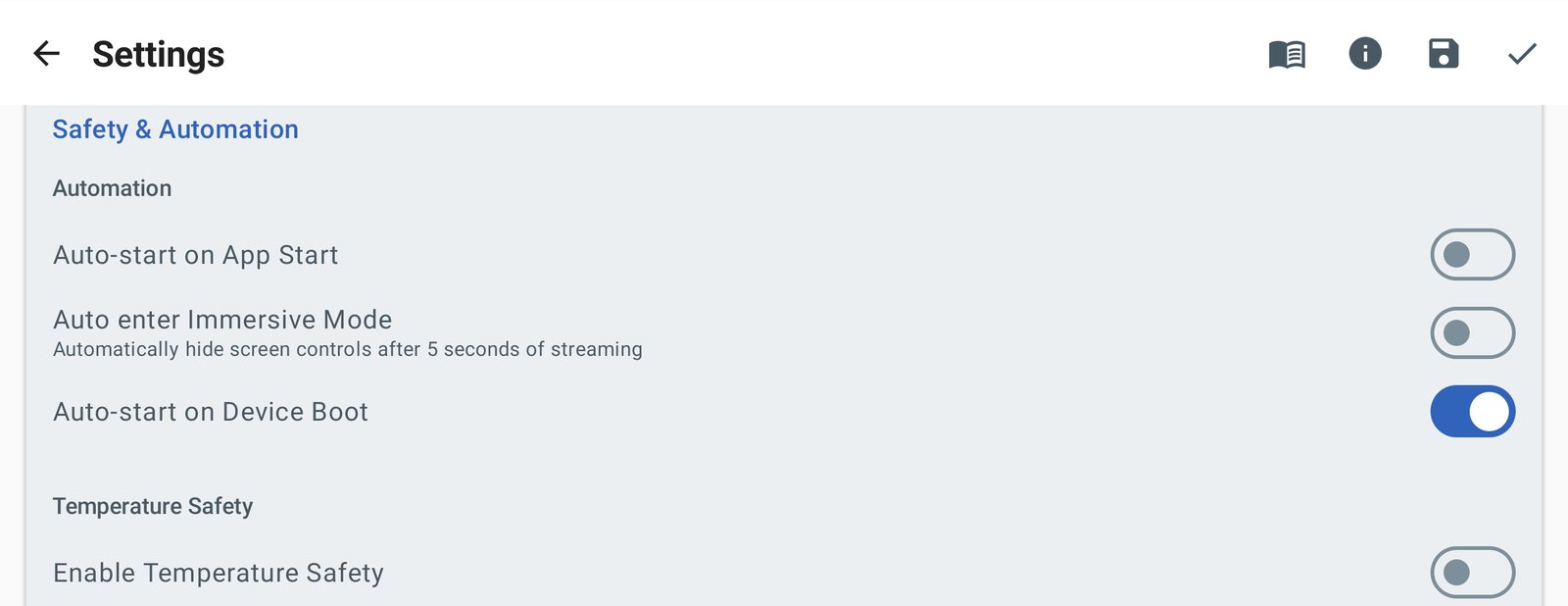
To start streaming after the phone restarts, CamRelay needs Android's overlay permission ("Display over other apps"). When you tapped Auto-start on Device Boot, CamRelay opened the permission screen as it should. But after you allowed it and came back, the app didn't notice, so the next tap opened the permission screen again.
Now CamRelay checks the permission every time you come back to Settings. If you allowed it, Auto-start on Device Boot switches on by itself; you don't have to tap it again. If you went back without allowing it, the switch stays off and the hint below it explains why.
A new install showed the front camera in Settings
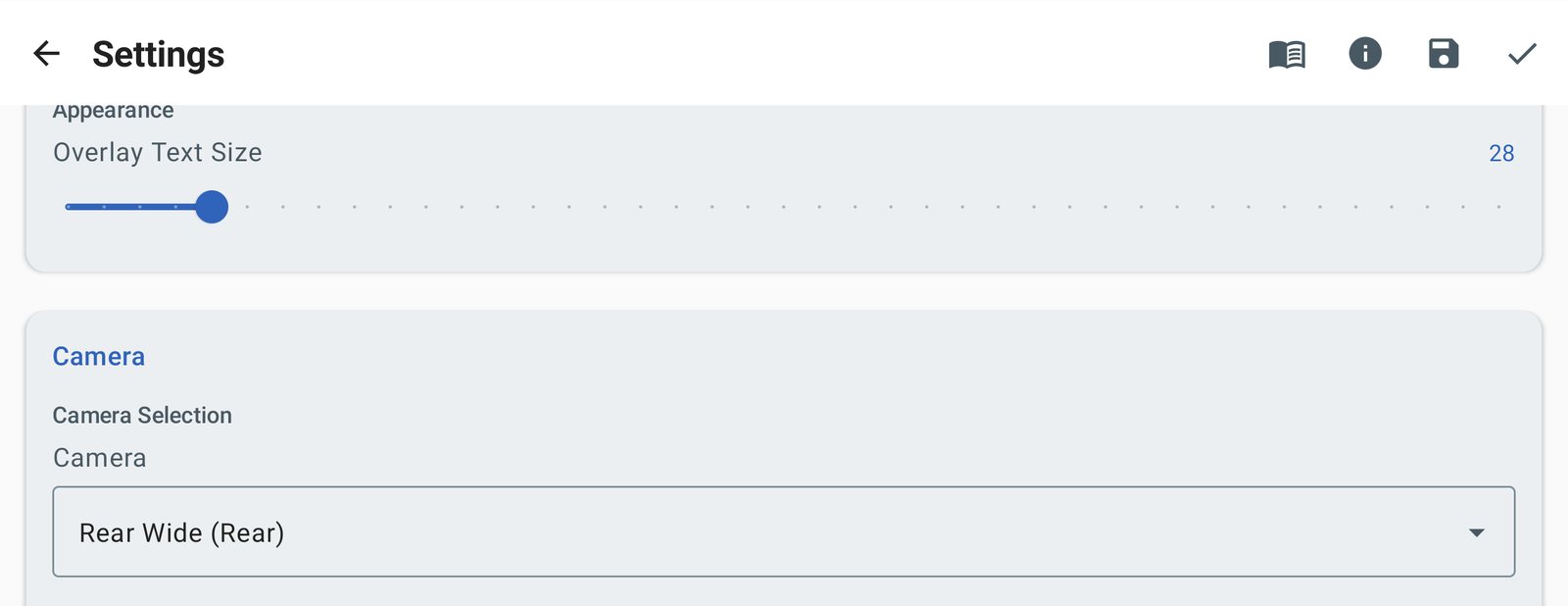
On a fresh install, CamRelay streams from the rear camera. But until you picked a camera yourself, the Camera setting in the app, and the camera list in the web interface, showed the first camera on the phone's list, which on many phones is the front camera. Now both show the camera that is actually in use.
Get the update
CamRelay 1.0.7 is rolling out on Google Play now. If you don't see it yet, it should arrive within a few days. After updating, nothing changes until you open Settings → Security and turn on Require authentication.
Have feedback or ideas? Tap Feedback in the app's About screen. We read every message.
Videos
Related app
CamRelay - RTSP Live IP Camera
Turn your Android phone into a powerful RTSP network camera.
Related posts
CamRelay 1.0.6: Deeper ONVIF Support for Your NVR, and a Smoother Web Live View
CamRelay 1.0.6 lets your NVR and ONVIF apps do much more with your phone camera: receive recording and flashlight events, adjust brightness and zoom, and rename the camera. Windows and NVRs now pick up a new camera name right away. The web live view can keep playing in a background tab, and several web interface fixes make everyday use smoother.
CamRelay 1.0.5: Ready for Android 17, and Now in Vietnamese
Android 17 adds a new permission that apps need before they can talk to devices on your Wi-Fi. CamRelay 1.0.5 asks for it, explains why, and makes it easy to turn on later, so your NVR, VLC and browser can keep reaching your camera. The app is also now available in Vietnamese, more of it is translated in every language, and the web File Manager works again in French and Italian.
CamRelay 1.0.4: Hear Your Camera in the Browser, and Recordings That Survive Anything
CamRelay 1.0.4 adds sound to the live view in your browser, keeps your recordings safe when the phone crashes or loses power, finally lets you clean up recordings left over from an older install, and makes the main screen easier on your battery.