Image2SVG 2.1: Color SVG, Live Preview and Much More
Image2SVG 2.1 is our biggest update yet: color SVGs with up to 8 colors, tracing presets with a live preview, colors and size for your SVG, PDF/EPS/DXF output, PNG export, a compare-and-zoom viewer, cropping, sharing from other apps, ZIP export and 14 new languages. It is also ready for Android 17.
On this page
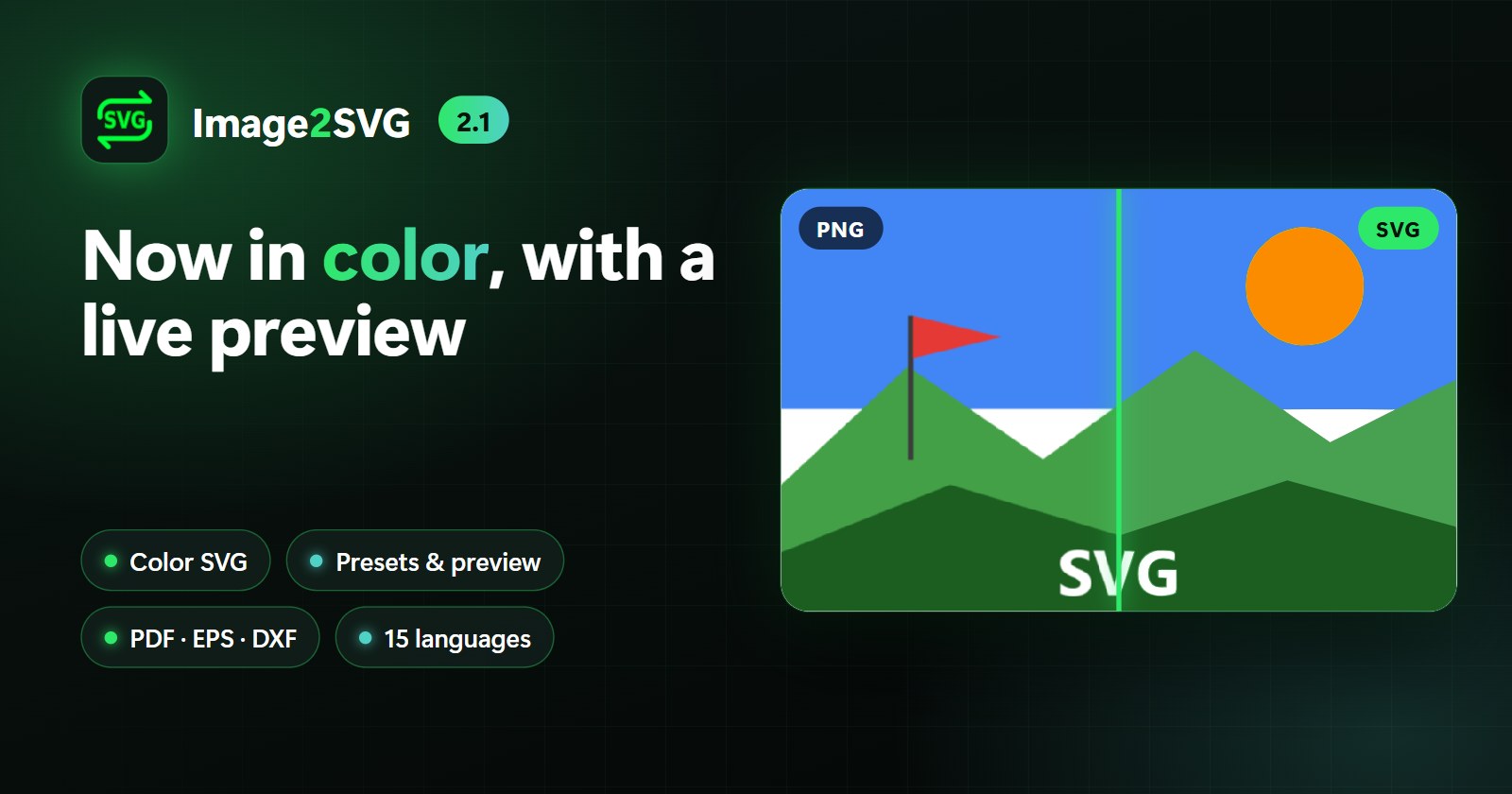
Image2SVG 2.1 is now available on Google Play, and it is our biggest update so far. Until now, Image2SVG turned your images into black-and-white SVGs with one fixed set of options. Version 2.1 gives you color SVGs, tracing settings with a live preview, more file formats, a viewer that compares and zooms, and much more, in 15 languages.
Our PNG compressor, PNG Optimizer 1.9, gets several of these improvements too.
What Image2SVG does
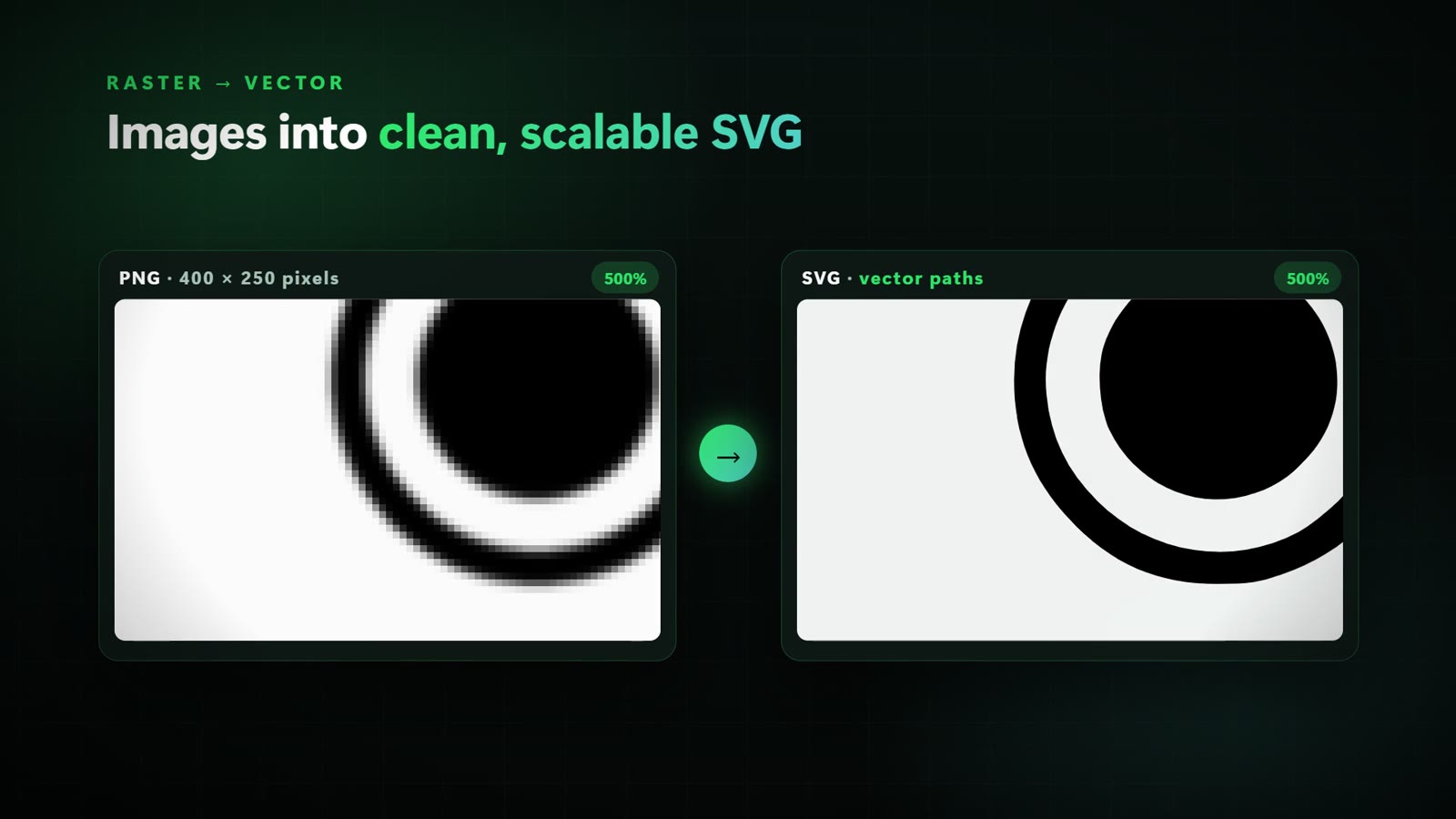
Image2SVG turns raster images, such as JPG and PNG files, into SVG vector graphics. A raster image is a grid of pixels: zoom in and you see blurry edges and little squares. An SVG describes the same picture with smooth outlines, so it stays sharp at any size, from a favicon to a poster.
Everything happens on your phone. Image2SVG traces your images with potrace, the well-known open-source tracing engine, running on the device. Your images are not uploaded anywhere, and converting works without an internet connection.
New: color SVG
The most requested feature is here. Open Settings on the main screen, choose Result: Color and pick the number of colors, from 2 to 8.
Image2SVG then reduces your image to that many colors, traces each color as its own layer, and stacks the layers into one SVG. The layers fit together without gaps, and the colors come from the flat areas of your image, so a soft edge between two colors does not turn into an extra outline. A white paper background is left out, so a logo on white gets a transparent background.
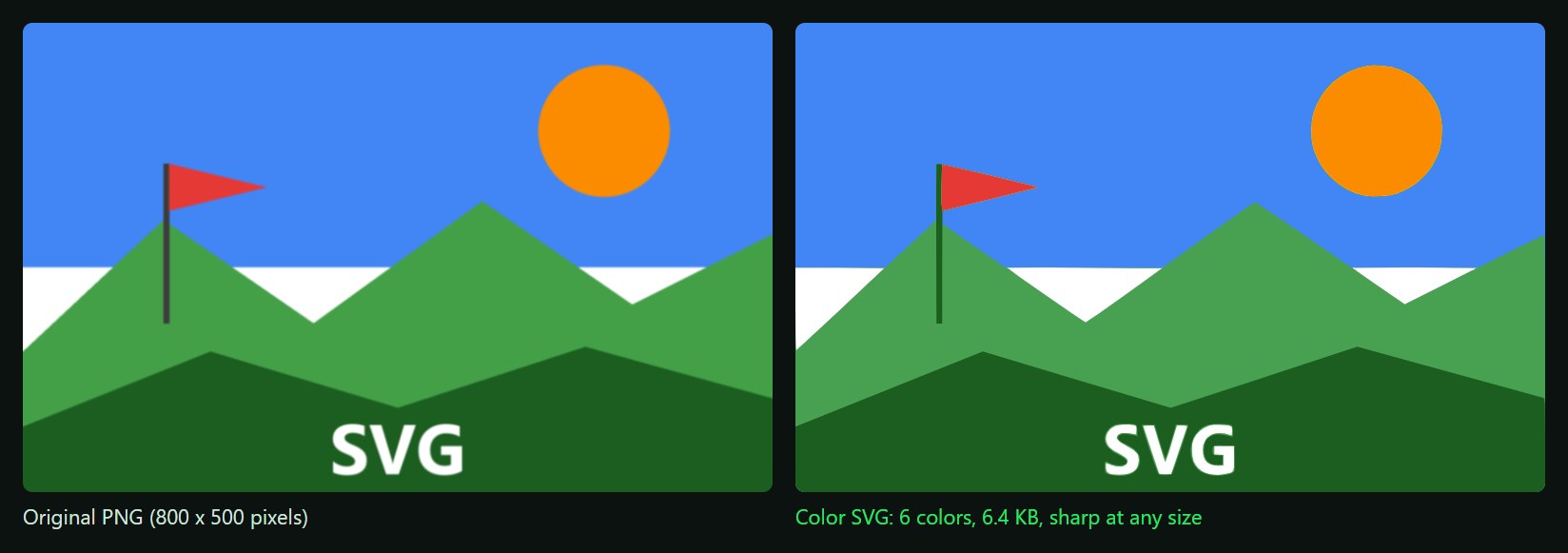
Color works best for logos, illustrations, icons and flat artwork. Photos turn into a poster-like picture with flat color areas, which can look great as a style. Color is made for SVG; PDF, EPS and DXF stay black and white.
New: tracing settings with a live preview
The new Tracing settings screen shows a live preview of the result at the top. Every change is traced again in a fraction of a second, and you can touch and hold the preview to see the original. Tap Change image to preview with any picture.
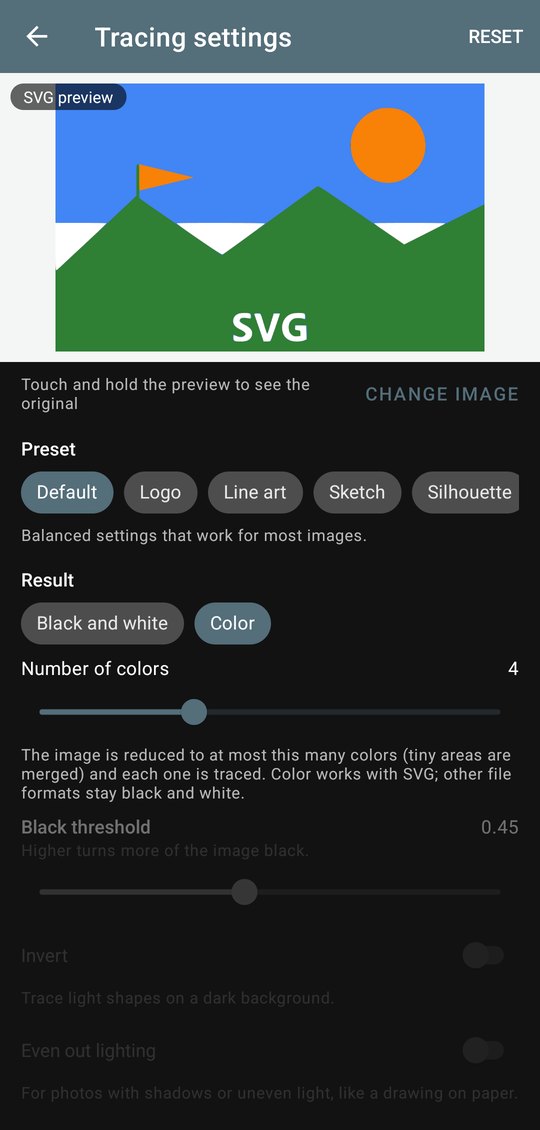
Start with a preset:
- Default: balanced settings for most images, and exactly what earlier versions did.
- Logo: crisp corners and clean edges for logos, icons and text.
- Line art: keeps thin lines and small details of drawings and comics.
- Sketch: for photos of pencil or ink drawings on paper. It evens out the lighting and drops the paper texture.
- Silhouette: bold, simple shapes from photos.
Or fine-tune each option yourself:
- Black threshold: how dark a pixel must be to become black.
- Invert: trace light shapes on a dark background.
- Even out lighting: for photos with shadows or uneven light.
- Remove specks: drop little spots of noise.
- Corners: from sharp corners to round curves.
- Simplify curves: fewer points and smaller files.
Your settings are saved and used for every image you convert, until you change them or tap Reset.
New: colors, size and file format
The same screen sets how your file looks:
- Shapes: black, white, gray, red, orange, green, blue, purple, or any color you type as
#RRGGBB. - Background: transparent, white, black, light gray, or a custom color.
- Output size: give a width in px, mm, cm or inches; the height follows the image. Handy for printing and cutting machines.
- File format: SVG for websites, design apps and Cricut; PDF for printing and sharing; EPS for print shops and older design software; DXF for laser cutters, CNC machines and CAD.
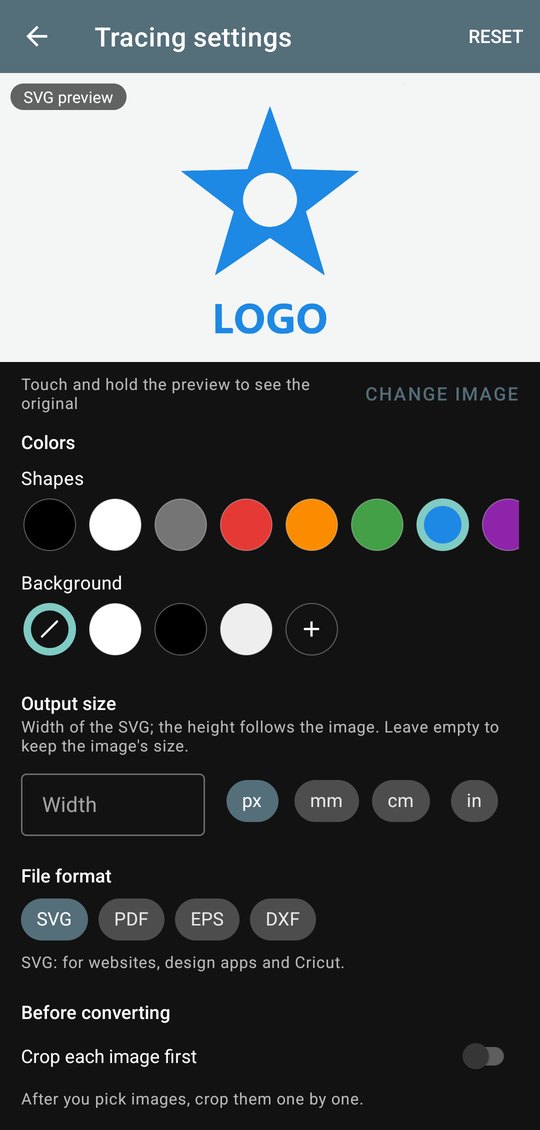
You can also save any SVG as a PNG at 512, 1024, 2048 or 4096 pixels wide: open it in the viewer and choose Save as PNG in the menu.
New: compare and zoom
Tap a converted file to open the new viewer. It shows the original on the left and the result on the right: drag the line to compare. Pinch or double-tap to zoom: the original shows its pixels, while the SVG stays perfectly sharp. Below, you see the file size and the number of shapes.
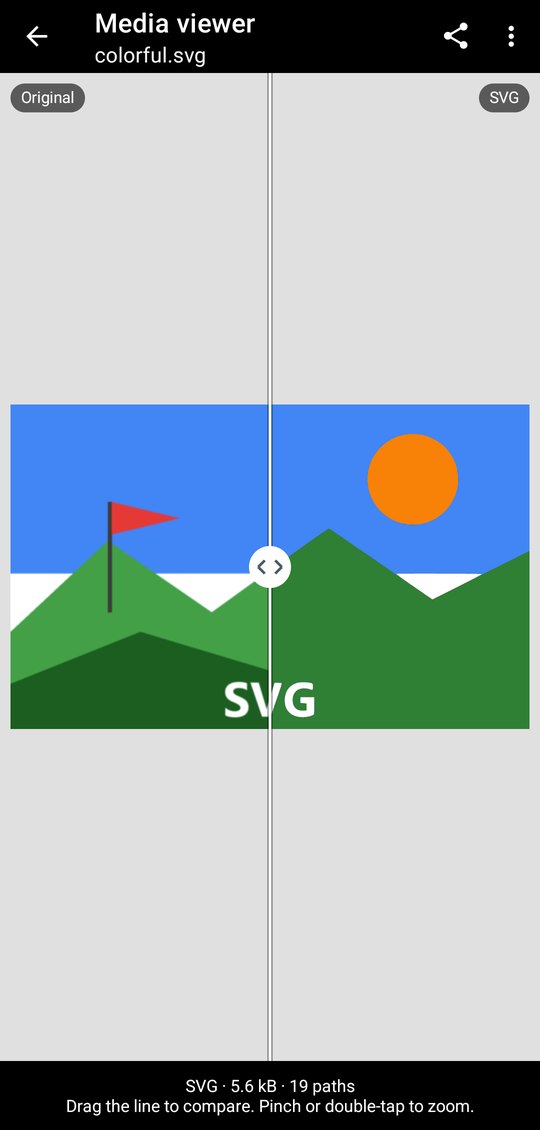
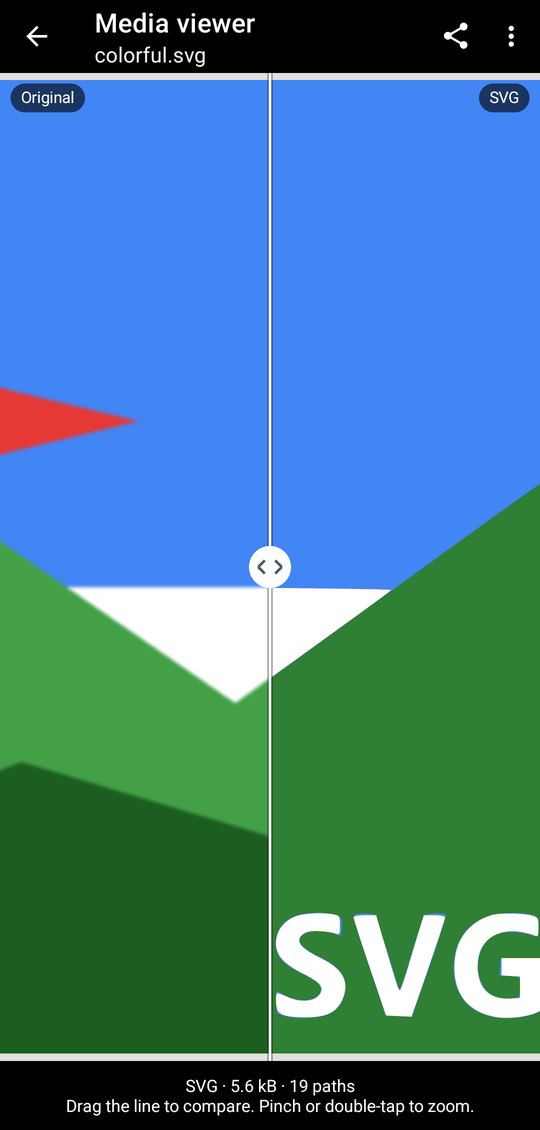
PDF, EPS and DXF files open in another app with the new Open with button.
New: crop, share and ZIP
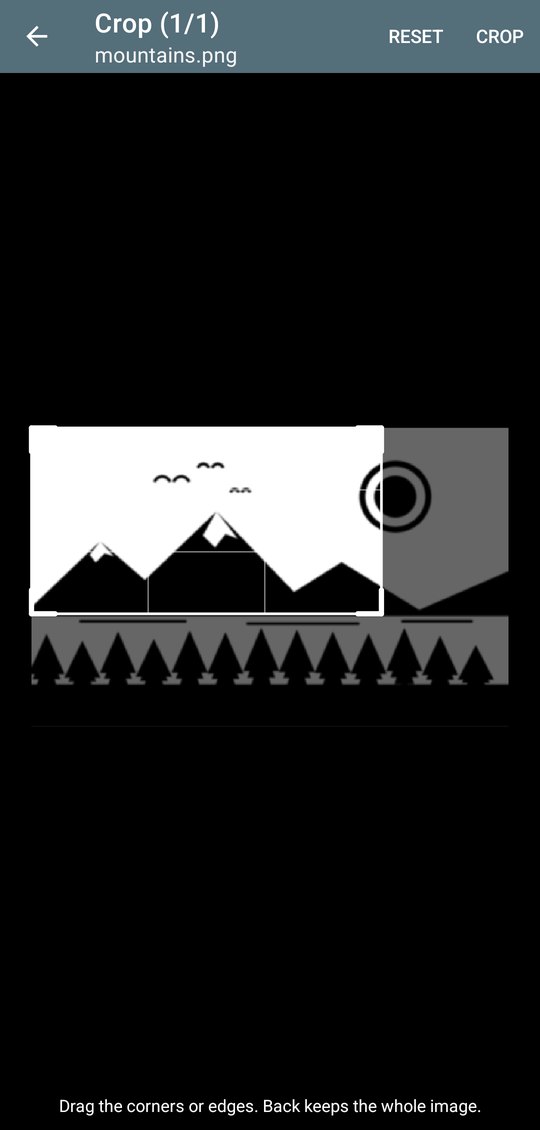
- Crop before converting: turn on Crop each image first, and every image you pick opens in a crop screen. Drag the corners or edges, then tap Crop, or go back to keep the whole image.
- Share to Image2SVG: in your gallery, file manager or browser, tap Share and choose Image2SVG. You can share several images at once.
- Export as ZIP: in History, tap the archive button to pack all your converted files into one ZIP and share it.
Fixed: transparent PNGs
A logo with a transparent background used to come out as a black box, because the transparent pixels were read as black. Transparent areas are now treated as white paper, so the logo is traced as it looks.
14 new languages
Image2SVG now speaks Arabic, Chinese (Taiwan), Dutch, French, German, Italian, Japanese, Korean, Portuguese (Brazil and Portugal), Russian, Spanish, Swedish and Vietnamese, besides English. On Android 13 and later you can also pick the app's language in the system settings, separately from the phone's language.
Ready for Android 17 and the newest phones
Image2SVG 2.1 targets Android 17 (API level 37) and was rebuilt for phones with 16 KB memory pages, which many new phones running Android 15 and later use. The converter, the mkbitmap and potrace programs compiled for your phone's processor, was rebuilt for all four processor types. The libraries the app is built on were updated for better stability and security.
Image2SVG 2.1 needs Android 6.0 or later. If your phone still runs Android 5, Google Play keeps offering you the previous version.
PNG Optimizer 1.9
PNG Optimizer shares Image2SVG's code, so PNG Optimizer 1.9 gets several of the new features:
- Share PNG images from other apps straight to PNG Optimizer.
- Compare the original and the optimized image side by side, with zoom.
- Export all optimized files as one ZIP from History.
- 14 new languages, ready for Android 17 and 16 KB memory pages.
Get PNG Optimizer on Google Play
Tips for the best SVG
- Logos and icons: use the Logo preset; for colored logos, choose Color with as many colors as the logo has.
- Drawings on paper: the Sketch preset evens out the lighting and ignores the paper texture.
- Larger source images give more precise outlines. A logo at 1000 pixels wide traces better than the same logo at 100 pixels.
- Fewer colors, cleaner result: start with 3 or 4 colors and add more only if a color is missing.
- Crop away what you don't need before converting; the result is cleaner and smaller.
Get the update
Image2SVG 2.1 is rolling out on Google Play now. If you don't see it yet, it should arrive within a few days.
Have feedback or ideas? Tap Feedback in the app's menu. We read every message.
Videos
Related app
Image2SVG - SVG Converter
Convert JPEG, PNG, BMP images to SVG vector files