What Is Battery Wear Level and How Is It Estimated?
What battery wear means, how design capacity differs from estimated capacity, and why Android battery readings are sometimes unreliable.
On this page
Every lithium-ion battery slowly loses its ability to hold a charge. After a year or two, a phone that once lasted all day may need a top-up by mid-afternoon. Battery wear level puts a number on that decline.
This guide explains what wear level means, how apps estimate it on Android, and why the number you see should be treated as an estimate rather than a lab measurement.
Battery capacity and battery wear
What capacity means
A battery's capacity is the amount of electric charge it can store, usually given in milliampere-hours (mAh). A 5,000 mAh battery can, in theory, deliver 5,000 milliamps for one hour, or 500 milliamps for ten hours, before it is empty.
The percentage in your status bar is not capacity. It is the state of charge: how full the battery is relative to its current maximum. A worn battery at 100% holds less energy than a new one at 100%, even though both show the same number.
What wear means
Battery wear is the gradual, permanent loss of capacity caused by chemical changes inside the cell. It is a normal part of a lithium-ion battery's life, not a defect. The main factors are:
- Charge cycles. Each full cycle (or several partial cycles adding up to 100%) causes a small amount of wear.
- Heat. High temperatures speed up the chemical reactions that degrade the cell. Gaming while charging or leaving a phone in a hot car is especially hard on a battery.
- Time at high charge. Sitting at 100% for long periods, especially when warm, stresses the cell.
- Deep discharges. Regularly running the battery down to 0% adds stress.
- Age. Batteries degrade slowly even when they are barely used.
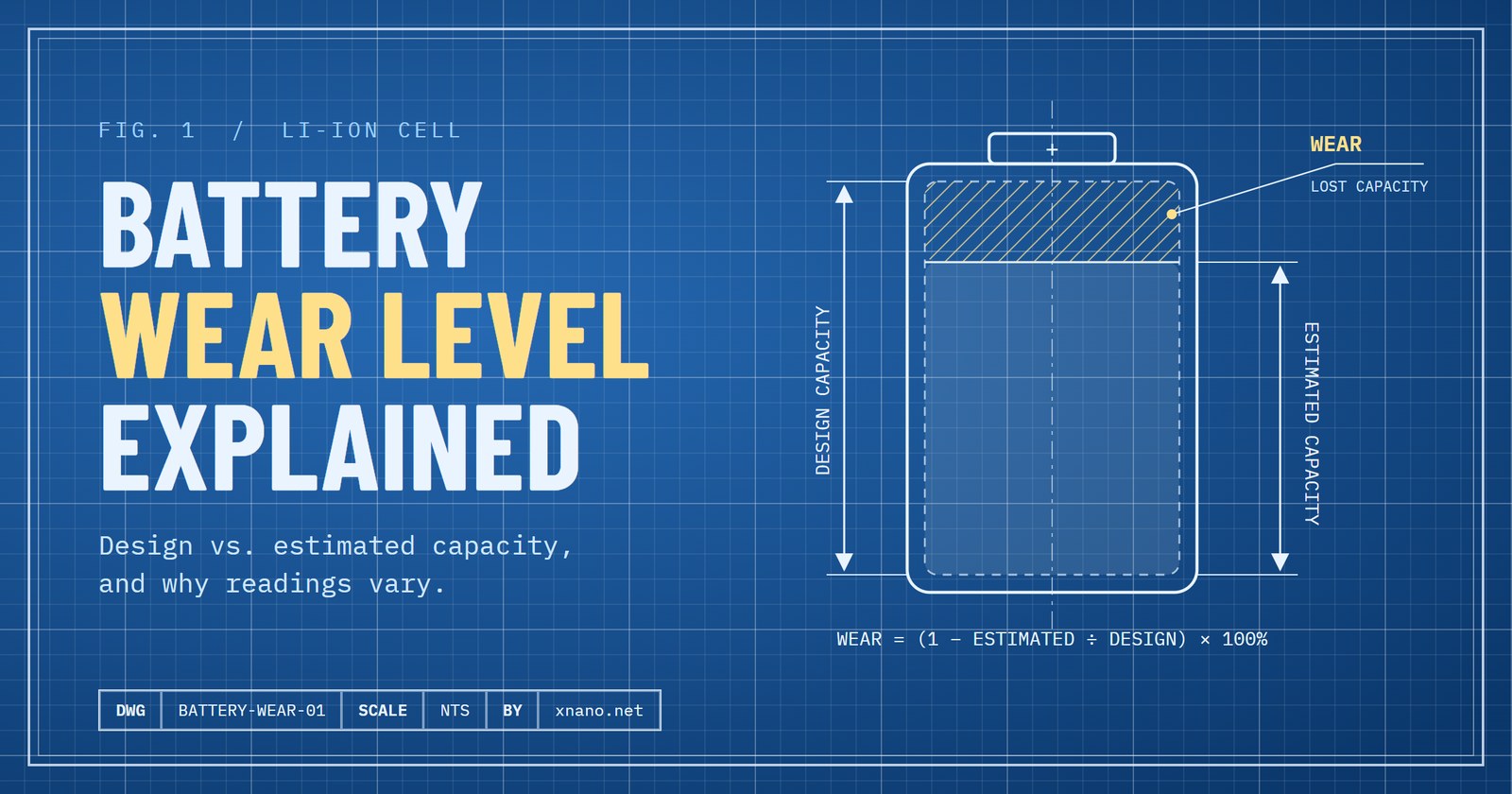
Wear level is usually expressed as the percentage of capacity lost:
Wear level = (1 − estimated capacity ÷ design capacity) × 100%
A battery with a design capacity of 4,000 mAh that now holds about 3,400 mAh has a wear level of roughly 15%. Some apps show the inverse, called battery health (85% in the same example). Both describe the same thing.
Design capacity vs. estimated capacity
To calculate wear, you need two numbers, and they come from very different places.
Design capacity
Design capacity is the rated capacity of the battery when it was new, as specified by the manufacturer. It is a fixed value and does not change as the battery ages. On phones with a removable battery, it is printed on the label.
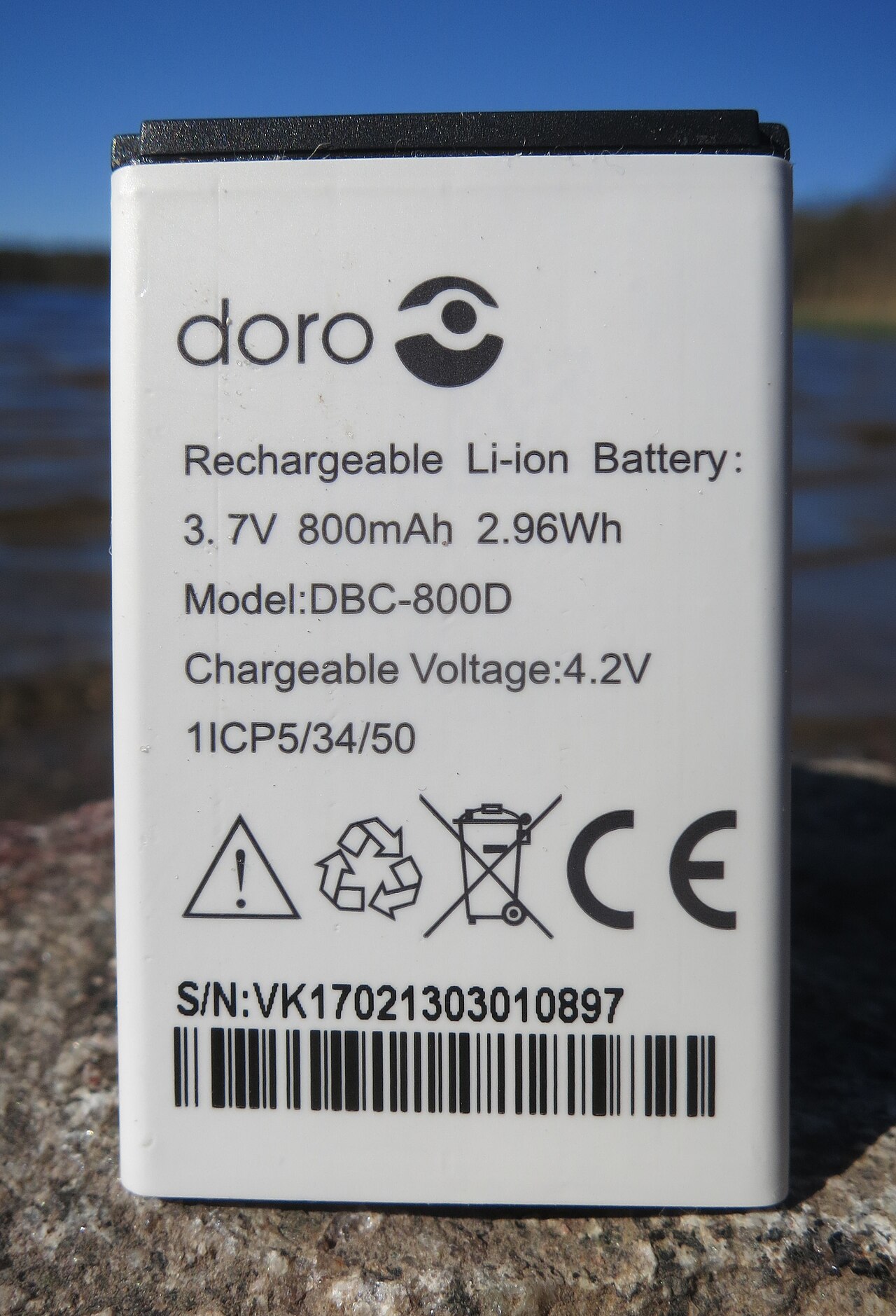 The rated (design) capacity printed on a phone battery label. Image: R. Henrik Nilsson, CC BY 4.0, via Wikimedia Commons.

Android has no single public API that reports design capacity on every device. Apps typically find it in one of these ways:
- The device's power profile. Android devices ship with a power profile that lists power-related values, including a battery capacity figure. Apps can often read this value.
- System files. Some devices expose design capacity through kernel files, but access to these is restricted on modern Android versions and varies by manufacturer.
- Manual entry. If the automatic value is missing or wrong, some apps let you enter the capacity from the battery label or the phone's official specifications.
Estimated capacity
Estimated capacity is how much charge the battery can hold today. No phone measures this directly with a single sensor reading. Instead, apps derive it from data reported by the battery's fuel gauge, a small chip or piece of firmware that tracks charge going in and out.
Two common approaches are:
- Charge counter extrapolation. Many devices report a charge counter: the remaining charge in microampere-hours, exposed through Android's BatteryManager. If the counter reads 2,000 mAh while the battery is at 50%, the full capacity is roughly 4,000 mAh. This is quick, but it depends entirely on how accurate the counter is.
- Measuring a charging session. An app can record the current flowing into the battery while it charges, for example from 20% to 90%, add it up, and scale the result to 100%. This takes longer but relies less on a single snapshot.
Because both methods depend on what the hardware reports, results improve when you collect readings over several charges and look at the average rather than any single value.
Why battery data can be inaccurate on some devices
If you have ever seen a wear level of 0%, a negative wear level, or a battery "health" above 100%, you have run into the limits of the data. Here are the most common reasons.
The fuel gauge is itself an estimate
The fuel gauge models the battery using voltage, current, and temperature, and it learns over time. After a battery replacement, a factory reset, or months of only partial charges, the model can drift, and its idea of "full" may be off by a noticeable margin.
Manufacturers report values differently
Android defines the shape of battery data, but manufacturers implement it. In practice:
- Current may be reported in microamps on one device and milliamps on another.
- The sign of the current (positive or negative while charging) is not consistent across devices.
- Some devices report the charge counter as zero, a fixed value, or a number that never changes.
- Some values update only every few seconds or minutes, so short measurements can catch stale data.
A well-built app tries to detect and correct these quirks, but it cannot fix data that simply is not there.
The design capacity on file may be wrong
The capacity in a device's power profile is entered by the manufacturer and is not always accurate. It may be a generic placeholder, a rounded figure, or a value from a different model variant. If the design capacity is wrong, the wear level will be wrong too, even if the estimated capacity is accurate.
Replacement and third-party batteries
If the battery has been replaced, the original design capacity no longer applies. A replacement with a different rating, or one whose fuel gauge has not yet learned the new cell, can produce confusing readings for several charge cycles.
Multi-cell batteries and fast charging
Some phones use two cells to support faster charging. Depending on how the hardware reports data, an app may see values for one cell, both cells, or a combination. Fast charging can also make current readings jump around, which affects session-based measurements.
Temperature and usage during measurement
Capacity readings shift with temperature: a cold battery appears to have less capacity than a warm one. Heavy use while charging also muddies the picture, because some of the incoming current goes straight to the screen and processor instead of into the battery.
The limits of battery tools on Android
It helps to know what any third-party battery app can and cannot do.
What apps can usually access
Regular Android apps can generally read:
- Charge level (percentage)
- Charging status and power source
- Voltage and temperature
- A basic health status (such as "good" or "overheat")
- On many devices, the charge counter and instantaneous current
What apps usually cannot access
- Detailed health data. Android 14 added a public charge cycle count, though not every device fills it in. Richer fields such as state of health and manufacturing date are restricted to system apps, and some manufacturers show health information only in their own settings or diagnostics apps.
- Raw fuel gauge internals. Low-level battery files are typically off-limits to apps without root access.
- Direct measurement. An app reads what the system reports. It cannot attach a meter to the battery.
The "health" status is coarse
The basic health field Android provides is designed to flag serious problems, such as overheating or a failed cell. A battery with significant wear will often still report "good". That is why apps calculate wear from capacity data instead of relying on this field.
How to get more reliable readings
You cannot make the hardware more accurate, but you can reduce the noise:
- Check the design capacity. Compare the value your app shows with your phone's official specifications. Correct it if your app allows manual entry.
- Measure across several charges. One reading is a snapshot. A trend over a week or two is far more meaningful.
- Charge over a wide range. Session-based estimates are more accurate when the battery charges across a large span, such as from about 20% to 100%.
- Keep usage light while measuring. Avoid gaming, video calls, or navigation during a measurement session.
- Measure at room temperature. Avoid measuring when the phone is cold or hot.
- Give a new battery time. After a replacement, wait a few full charge cycles before trusting the numbers.
- Use a regular charger. If your readings look erratic with fast charging, try a standard charger for measurement sessions.
Using Battery Wear Level
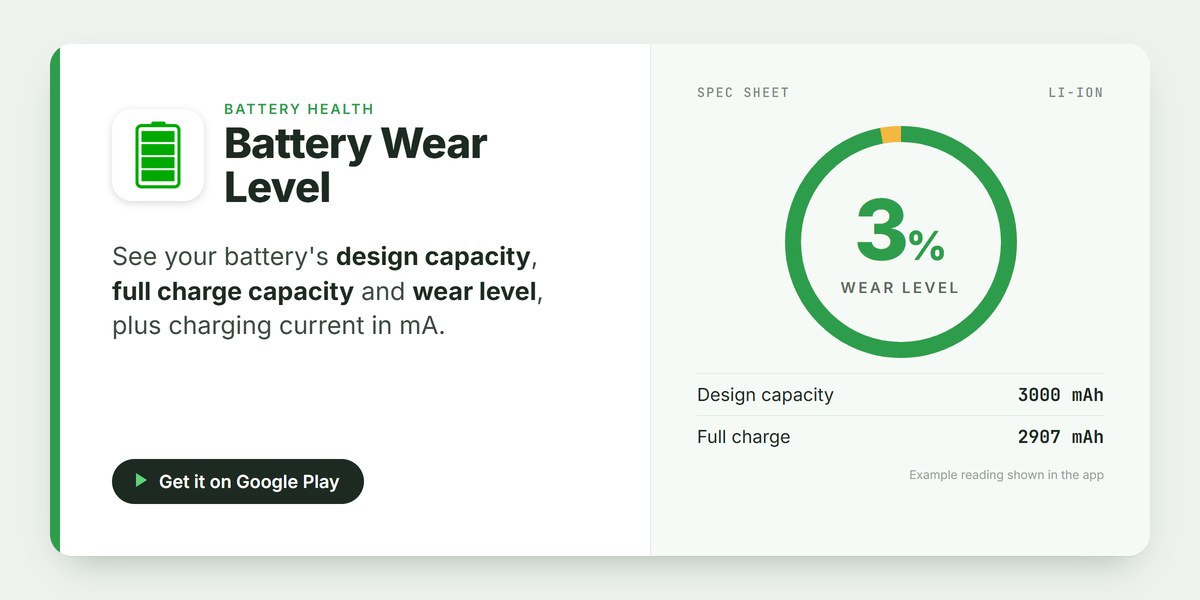
Battery Wear Level is Banana Studio's app for keeping an eye on your battery. It shows the design capacity, full charge capacity, wear level, and charging or discharging current in mA, alongside general hardware information. It works with the data your device reports, so everything in this guide applies to it: results depend on your hardware and are most useful as a trend. The app page lists devices that have been tested, including some on which battery information is not accessible at all.
To get started:
- Install Battery Wear Level from the app page or Google Play.
- Compare the design capacity it shows with your phone's official specifications.
- Check it again after several charges, under the conditions described above, before drawing conclusions.
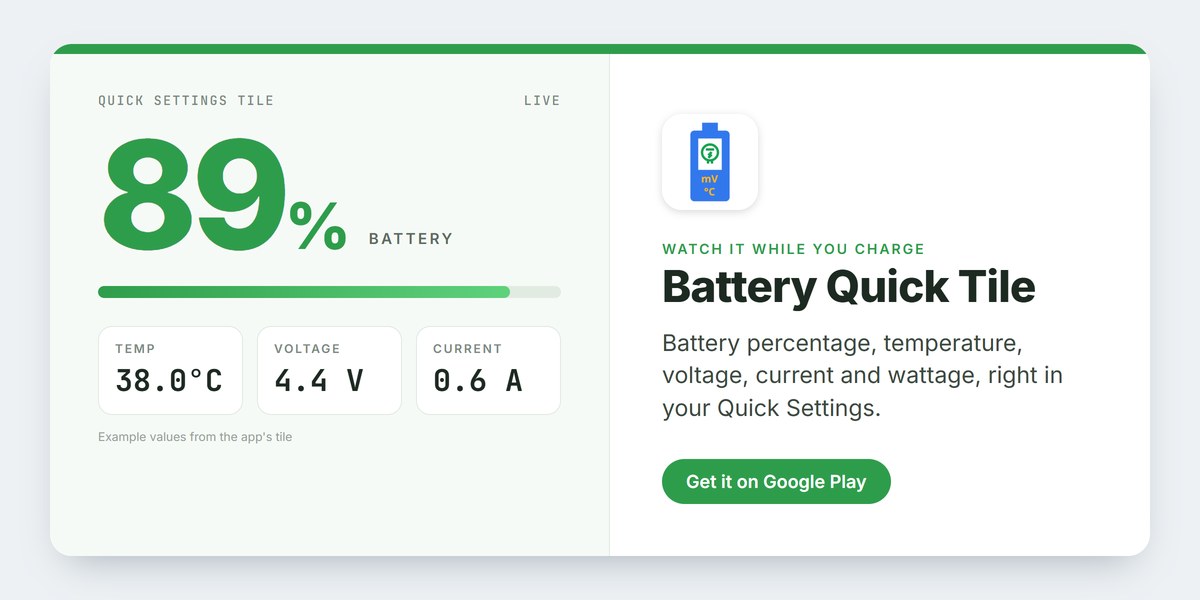
If you want to watch temperature and charging current while you measure, Battery Quick Tile shows battery percentage, temperature, voltage, current, and wattage in a Quick Settings tile.
Interpreting the result
There is no single number at which a battery must be replaced. What matters most is whether your phone still gets you through your day. If your wear level climbs steadily and battery life no longer meets your needs, it may be time to consider a battery replacement. If the number looks implausible, such as negative wear, check the design capacity first, then collect more readings.
Treat wear level as a helpful indicator, not a verdict. Used that way, it can tell you a lot about how your battery is aging and how your charging habits affect it. For the everyday causes of shorter battery life, see Why does your phone battery drain faster over time?
Related app
Battery Quick Tile
Show battery stats in a quick settings tile