Photo EXIF Editor 2.5.7: Shift the Date and Time of Your Photos
Photo EXIF Editor 2.5.7 lets you shift the captured date and time of one photo or a whole batch by years, months, days, hours, minutes or seconds. Fix a camera clock that was wrong, forgot daylight saving time or stayed on your home time zone, and keep every photo in the right order. The app also works with "Select photos" access on Android 14 and later.
On this page
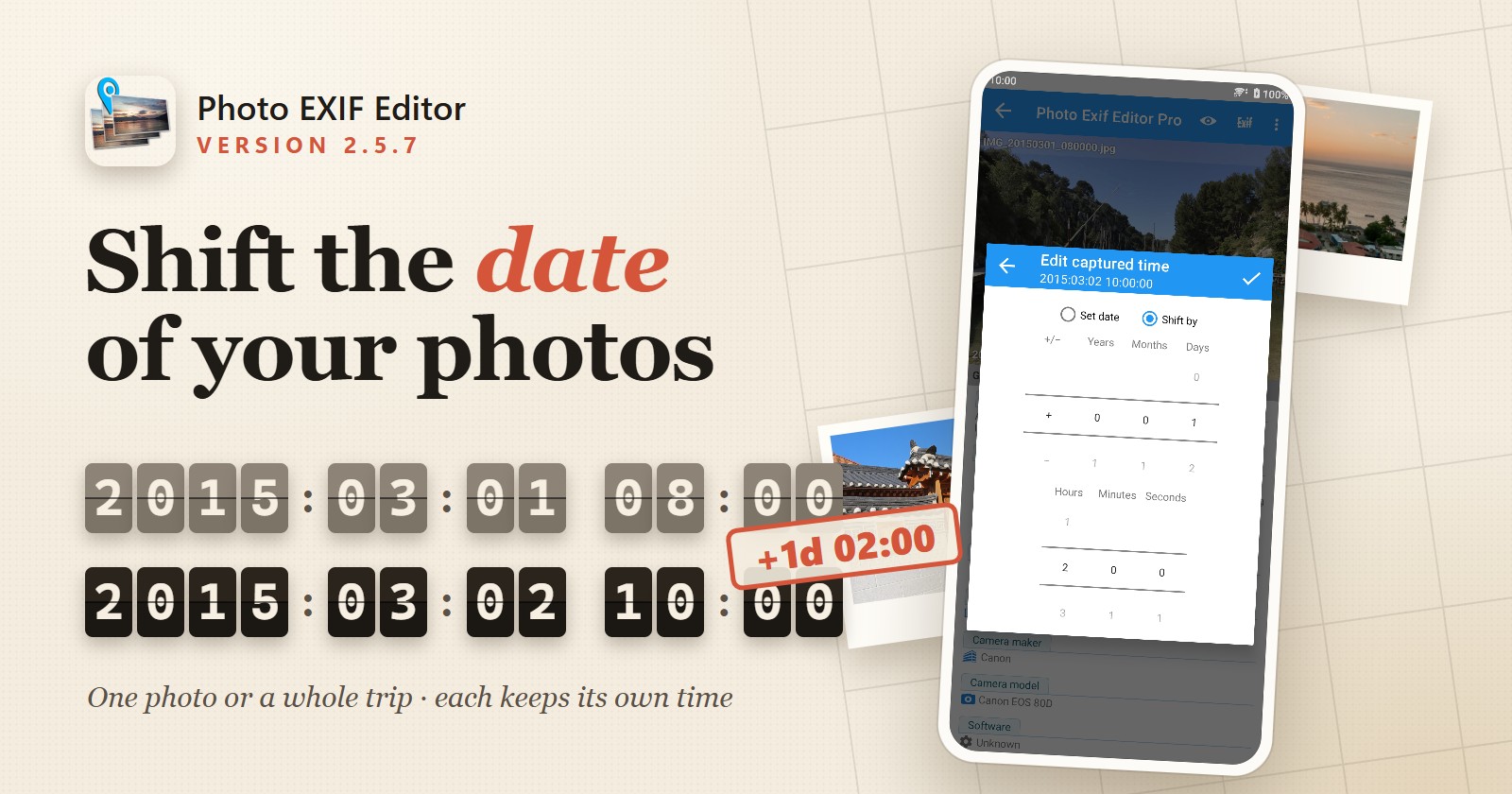
Photo EXIF Editor 2.5.7 is now available on Google Play. It brings a feature many of you asked for: date shift. Instead of typing a new date for every photo, you can now move the captured date and time of one photo, or hundreds, by the same amount. This release also makes the app work with "Select photos" access on Android 14 and later.
When the camera clock was wrong
It happens to everyone sooner or later:
- the camera forgot daylight saving time, so every photo is an hour off;
- you travelled and the camera stayed on your home time zone;
- the battery ran flat and the clock reset to 2000;
- or you shot with two cameras whose clocks didn't agree, and now the photos are out of order.
The pictures themselves are fine. Only their dates are wrong, and that's enough to put them in the wrong place in your gallery, mix up the order of an event, or file a whole trip under the wrong day.
Shift one photo
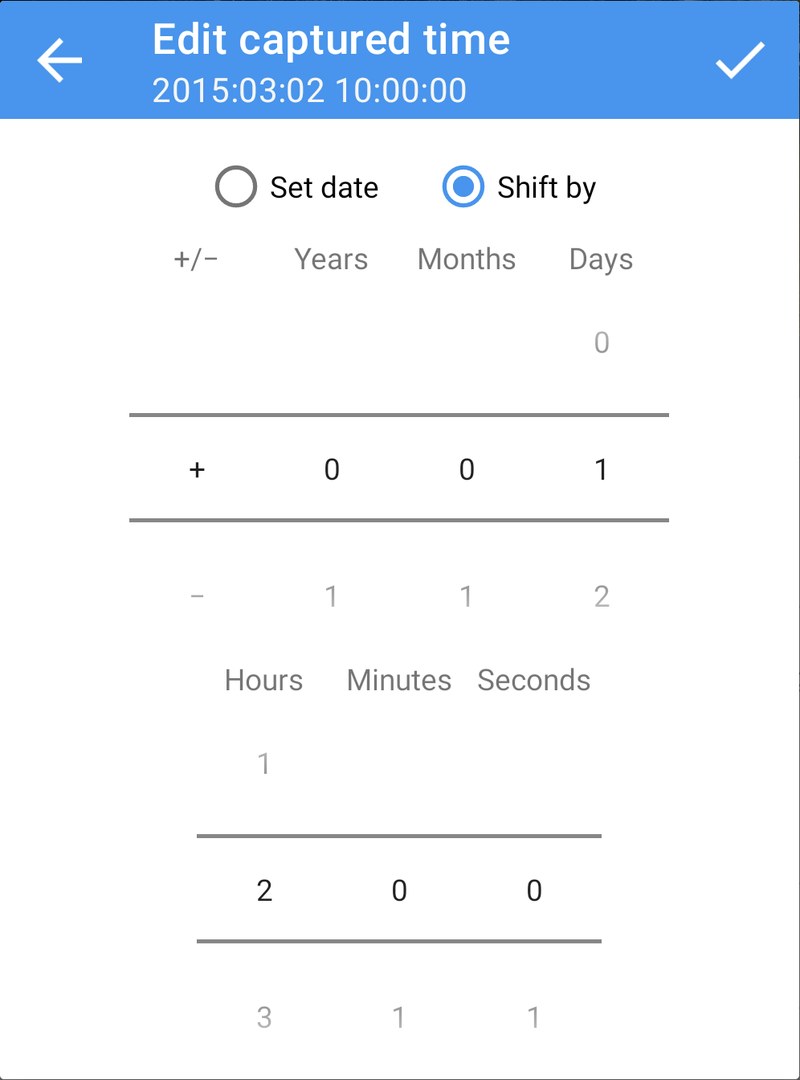
Open a photo, tap Captured time, and choose Shift by. Pick a direction (+ to move forward, − to move back), then the amount: years, months, days, hours, minutes and seconds.
The title of the dialog shows the new date as you scroll, so you can see the result before you save. Tap ✓, then Save.
Months and years follow the calendar, so "+1 month" moves 15 March to 15 April. Hours and minutes are exact: +1 hour is always one hour, even across a daylight saving change.
Shift a whole batch
This is where date shift really saves time. Select all the photos from that trip, tap Captured time, choose Shift by and enter the difference, for example −6 hours.
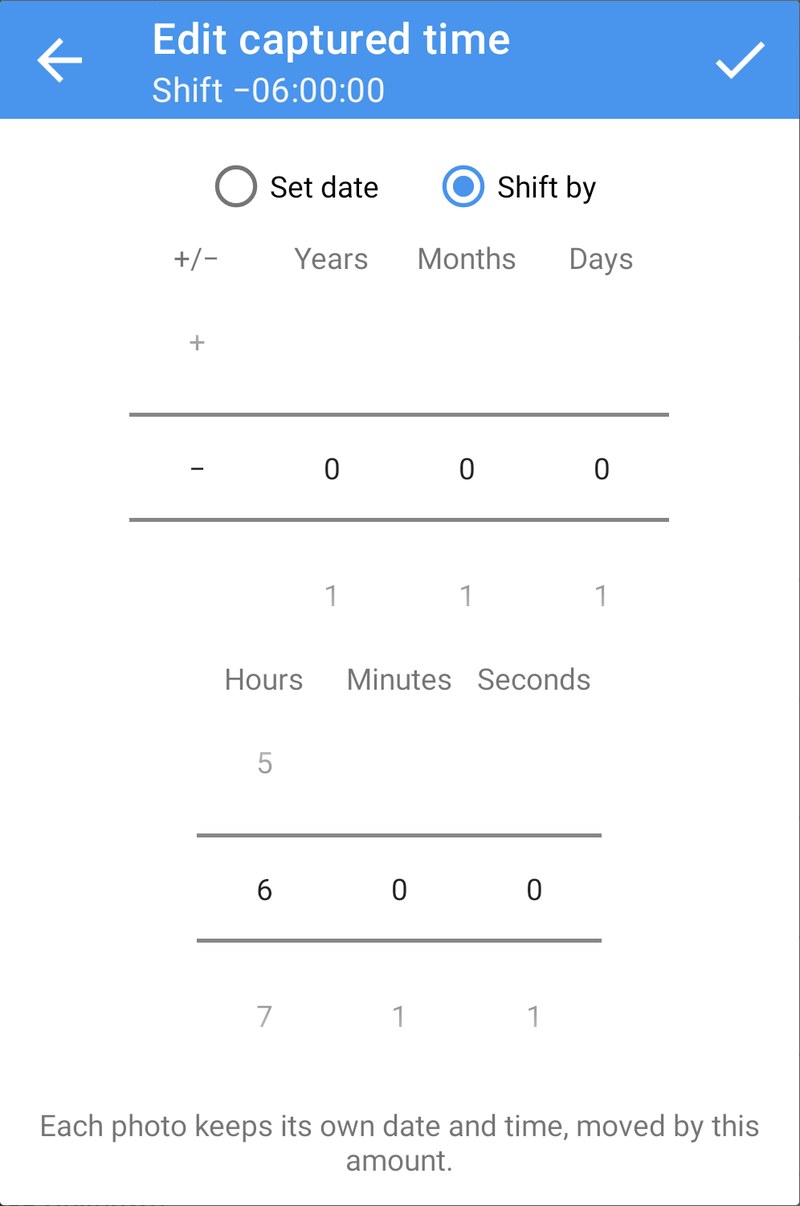
Each photo keeps its own date and time and is moved by the same amount, so a photo taken at 09:12 becomes 03:12, and one taken at 18:40 becomes 12:40. The order of your photos and the gaps between them stay exactly as they were. Shifts that cross midnight, the end of a month or the end of a year are handled for you.
In the editor, the captured time shows the shift you chose (for example Shift −06:00:00) until you save.
Photos without a captured date are left unchanged, because there is no date to shift.
Works with the options you already use
Date shift works together with the other captured-time options:
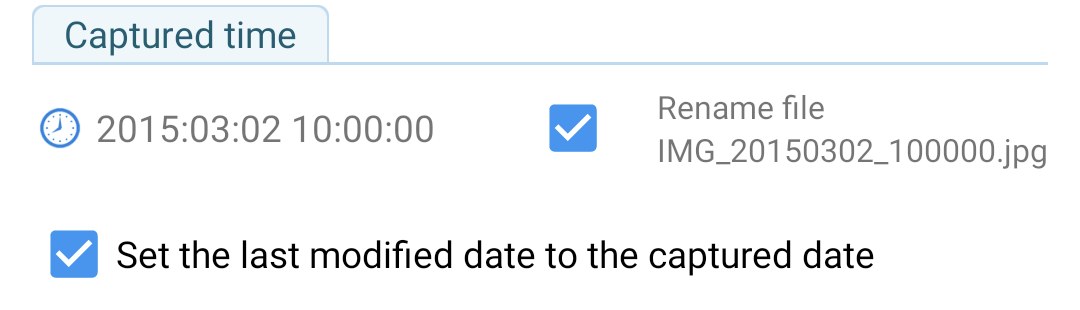
- Rename file: rename the photo after its new date, for example
IMG_20150302_100000.jpg. - Set the last modified date to the captured date: the file's date in file managers follows the new captured date too.
As with every date edit since 2.5.5, Photo EXIF Editor also saves the time zone offset with the new date, so gallery apps on your phone show the photo on the right day.
Works with "Select photos" access
On Android 14 and later, you can let an app see only the photos you choose instead of your whole library. Photo EXIF Editor now works with this limited access: choose Select photos when Android asks, and edit the photos you picked. You can change your choice or allow full access later in Android's settings.
Get the update
Photo EXIF Editor 2.5.7 is rolling out on Google Play now. If you don't see it yet, it should arrive within a few days.
Have feedback or ideas? Tell us from the app. We read every message.
Videos
Related app
Photo EXIF Editor
View, edit and remove photo EXIF data and GPS location
Related posts
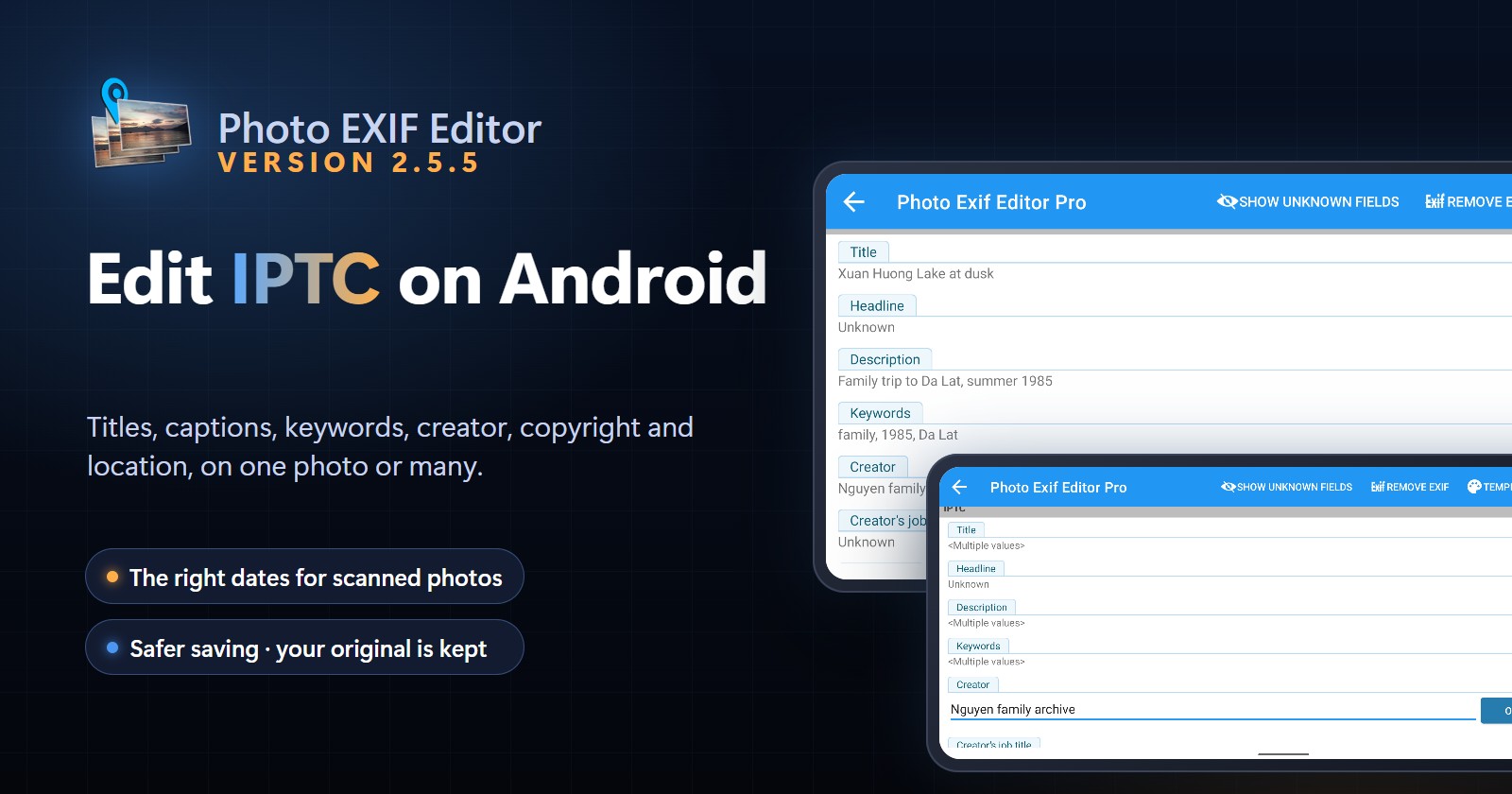
Photo EXIF Editor 2.5.5: Edit IPTC Captions, Keywords and Credits on Android
Photo EXIF Editor 2.5.5 adds IPTC editing for JPEG photos: titles, descriptions, keywords, creator, copyright and location, on one photo or a whole batch. Dates you set on scanned and old photos now show up correctly in your gallery, saving never leaves a broken photo behind, and the HEIC converter works again on Android 16.