How to Turn an Old Android Phone Into a Security Camera
Give an old Android phone a second life as a security camera: place it well, keep it powered, let CamRelay start by itself after a reboot, and watch or record the camera from any browser on your Wi-Fi.
On this page
Have an old Android phone sitting in a drawer? With CamRelay it can watch a room, the entrance, the garage, a workshop, a pet area or a 3D printer, without buying a dedicated IP camera.
This guide covers what makes the difference between a quick test and a camera you can rely on day and night.
What you need
- An old Android phone with a working camera
- CamRelay
- A Wi-Fi network
- A charger and cable that can stay plugged in
- Another device with a web browser to watch the camera
1. Set up CamRelay
If you haven't used CamRelay before, follow the beginner guide first: How to turn an Android phone into a live camera.
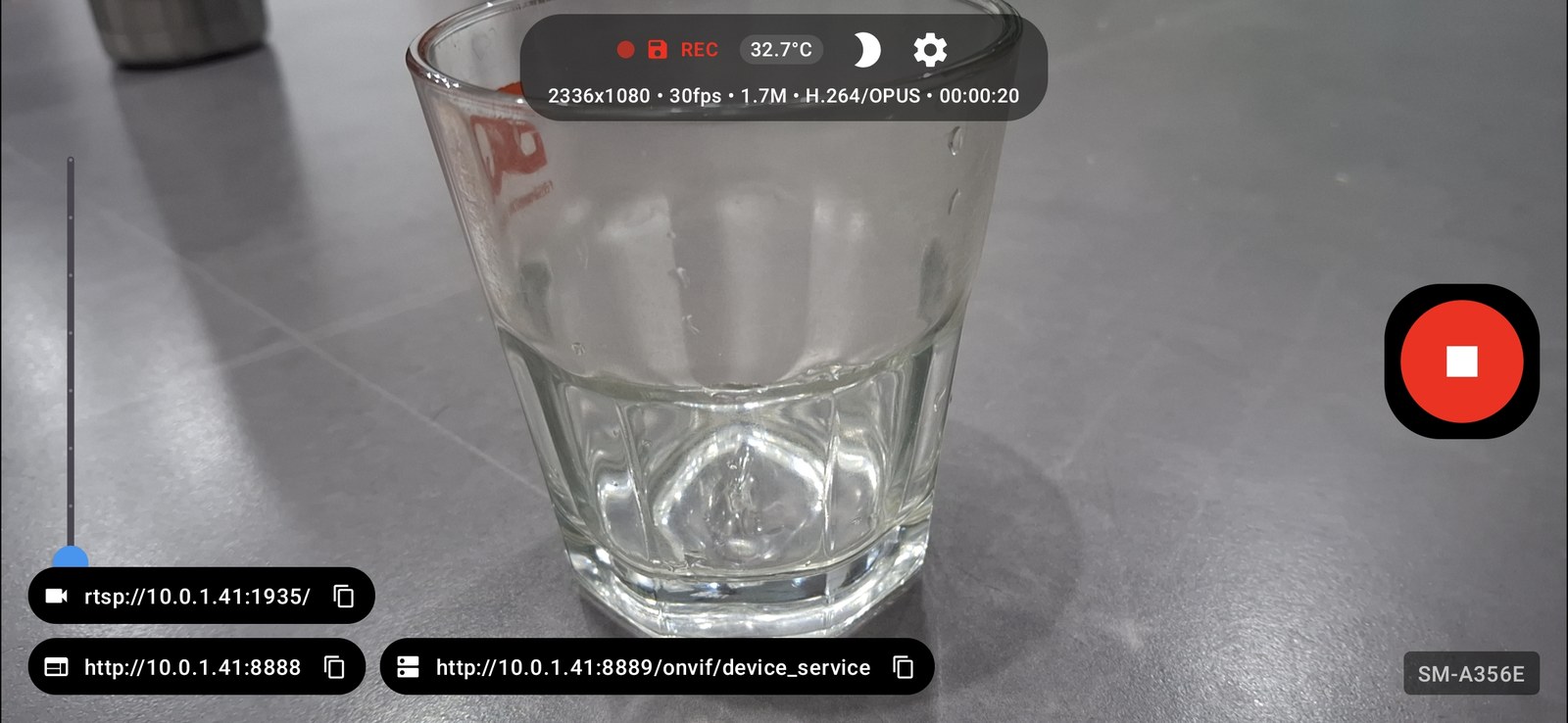
In short: open CamRelay → allow the permissions → tap play → open the web address on another device. Once you can see the camera in a browser, you're ready to make the setup permanent.
2. Choose a good location
Where you put the phone matters more than any setting.
- Give the camera a clear view of the area you care about, such as a doorway, a hallway or the space in front of a garage door.
- Don't point it straight at a bright window or lamp. The bright area makes everything else too dark.
- Fix the phone so it can't fall or be knocked out of position. A simple phone stand or tripod mount works well.
- Keep it within good reach of your Wi-Fi.
3. Keep the phone powered and cool
Streaming all day uses far more power than normal phone use, so a dedicated camera needs to stay plugged in.
- Use a good charger and cable, and make sure the connection can't come loose.
- Leave room around the phone for air. Don't cover it or put it in a closed box.
- If your phone has a charge limit or battery protection option, turn it on. Many phones can stop charging at 80% to protect a battery that is always plugged in.
CamRelay can also protect the phone by itself. In Settings → Safety & Automation:
- Temperature Safety stops streaming when the phone gets too hot and starts again when it has cooled down.
- Battery Safety stops streaming when the battery runs low, for example after a power cut, and starts again once it has charged enough.
4. Make sure CamRelay keeps running
A camera phone has a very different job from a phone in your pocket. Android tries to save battery by stopping apps in the background, and some manufacturers are especially strict about it.
- Turn off battery optimization for CamRelay. In Settings → Battery Optimization, tap the card until it says that battery optimization is disabled for CamRelay.
- Turn on Auto-start on Device Boot. CamRelay then starts streaming by itself after the phone restarts, for example after a power cut or a system update. On Android 10 and later, it also needs permission to display over other apps; CamRelay asks for it when you turn the option on.
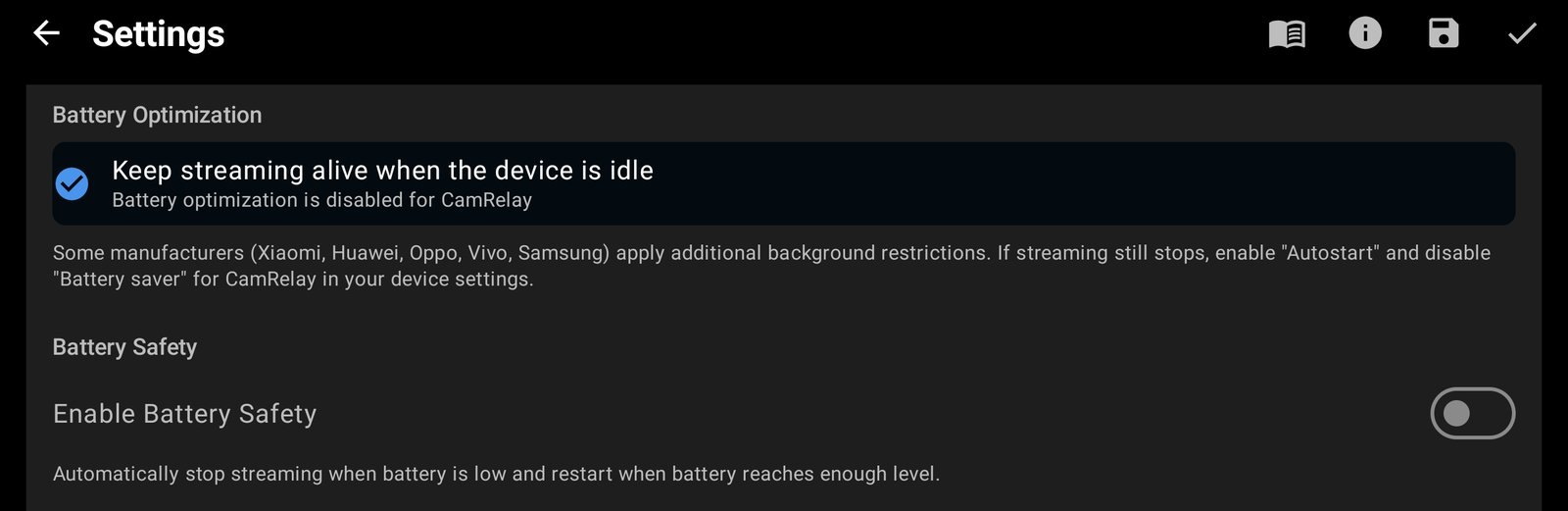
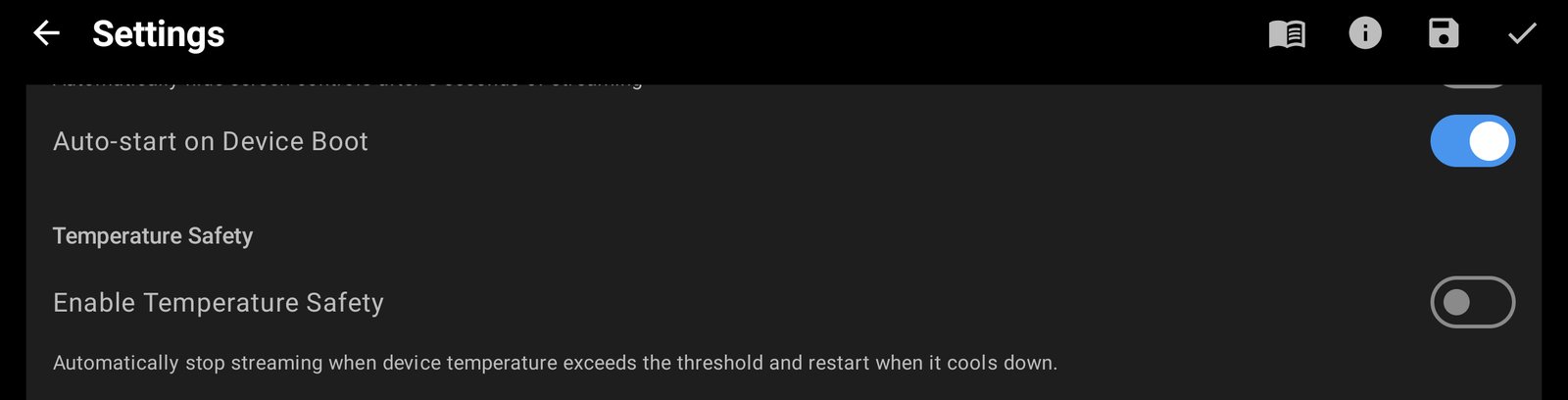
On phones from Xiaomi, Huawei, Oppo, Vivo or Samsung, you may also need to allow Autostart and turn off Battery saver for CamRelay in the phone's own settings.
Before you rely on the camera, let it run for a few hours and check that it is still streaming.
5. Save power with the dim screen and no preview
Once the phone is in place, you don't need to see the picture on the phone itself.
- Tap the moon icon on CamRelay's main screen to black out the screen while the camera keeps streaming. Double-tap to wake it. On OLED screens this saves power and prevents burn-in.
- Turn off Enable Camera Preview in Settings → Camera Controls if you won't look at the phone at all. The stream continues without drawing the picture on the phone, which also reduces heat.


6. Check the camera from another device
Open the web interface address shown at the bottom of CamRelay's main screen, for example http://192.168.1.123:8888, in a browser on any device on the same Wi-Fi. The camera appears under Live Preview. Tap Unmute to hear the room.

You don't need to install anything on the viewing device, and nothing goes through the cloud.
7. Record what the camera sees
CamRelay can record on the phone itself. Recording is off by default.
- Open Settings → Recording Settings and turn on Enable Recording.
- Choose the Recording Segment Duration: recordings are split into files of this many minutes.
- Set Max Storage (MB): when recordings reach this size, the oldest files are deleted automatically, so the phone never fills up.
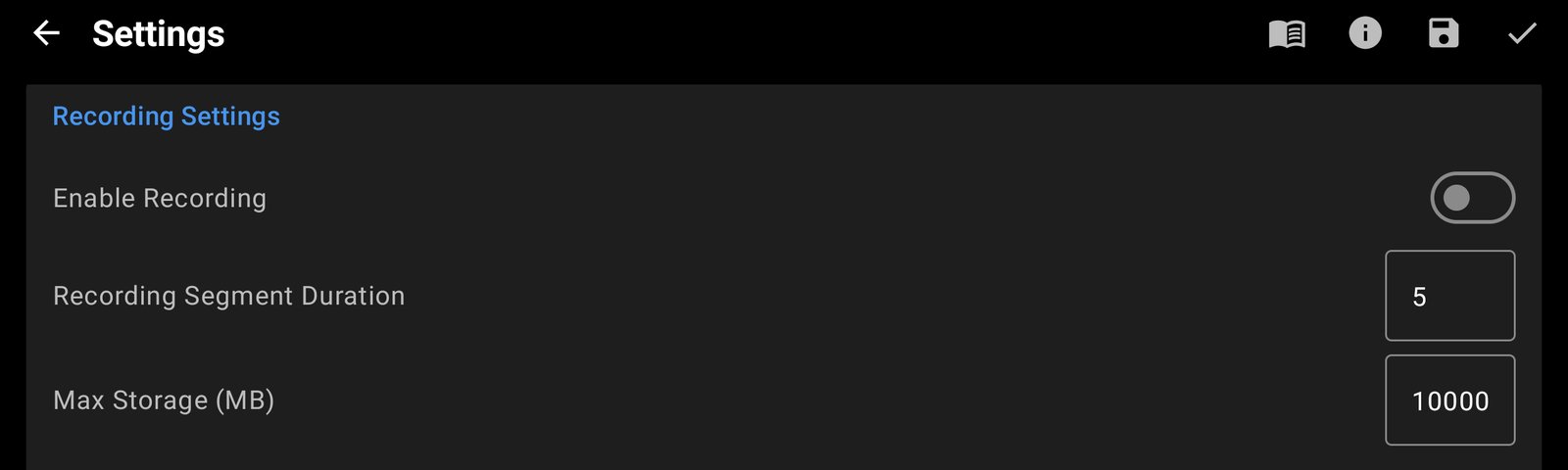
Recordings are saved in the phone's Movies/CamRelay folder. You can play and download them from the File Manager in the web interface, without touching the phone.
8. Want motion or object detection?
CamRelay gives you live viewing and recording on its own. If you want motion or object detection, alerts, long-term recording or several cameras in one place, connect CamRelay's RTSP stream to an NVR such as Frigate or to Home Assistant.
A typical setup looks like this:
- Simple: old phone → CamRelay → Wi-Fi → live view in the browser + recording on the phone
- Advanced: old phone → CamRelay → Wi-Fi → Frigate → recording + object detection
You can start simple and add Frigate later; the phone side stays the same.
Checklist for a reliable camera
- Power: plugged in permanently, with a reliable cable.
- Heat: room for air, and Temperature Safety turned on.
- Wi-Fi: a stable signal where the phone sits. If the phone often loses Wi-Fi, the camera goes offline too.
- Android restrictions: battery optimization off, Auto-start on Device Boot on.
Your old phone is now a camera
With an old Android phone, CamRelay, Wi-Fi and a charger, you have a working security camera without buying new hardware. More tips are in the CamRelay user guide.
Related app
CamRelay - RTSP Live IP Camera
Turn your Android phone into a powerful RTSP network camera.
Related posts
Repurpose an Old Android Phone as a 4K Security Camera or Dashcam
Turn a phone from the drawer into a 4K security camera or dashcam with CamRelay: RTSP and ONVIF for your NVR, two-way talk, local recording that survives power loss, and a GPS speed overlay. No cloud account needed.
How to Turn an Android Phone Into a Live Camera
Turn any Android phone into a live camera in a few minutes with CamRelay: allow the permissions, tap the play button and watch the stream in any web browser on your Wi-Fi. No account, no cloud, nothing to install on the viewing device.
Using Every CamRelay Feature in Frigate NVR
Turn a spare Android phone into a Frigate NVR camera: CamRelay streams RTSP with audio, and Frigate's built-in go2rtc picks it up for recording, live view with sound and two-way talk. Step by step, with a complete config.yml.